Signing in
GreekManage supports several ways to sign in. The right method depends on how your organization configured authentication and what you’ve set up on your account.
Sign in with email and password
- Go to your organization’s GreekManage URL.
- Enter your email address and password.
- Click Sign in.
If you’ve never set a password — or you can’t remember it — click Forgot password? below the form. You’ll get a reset link by email.
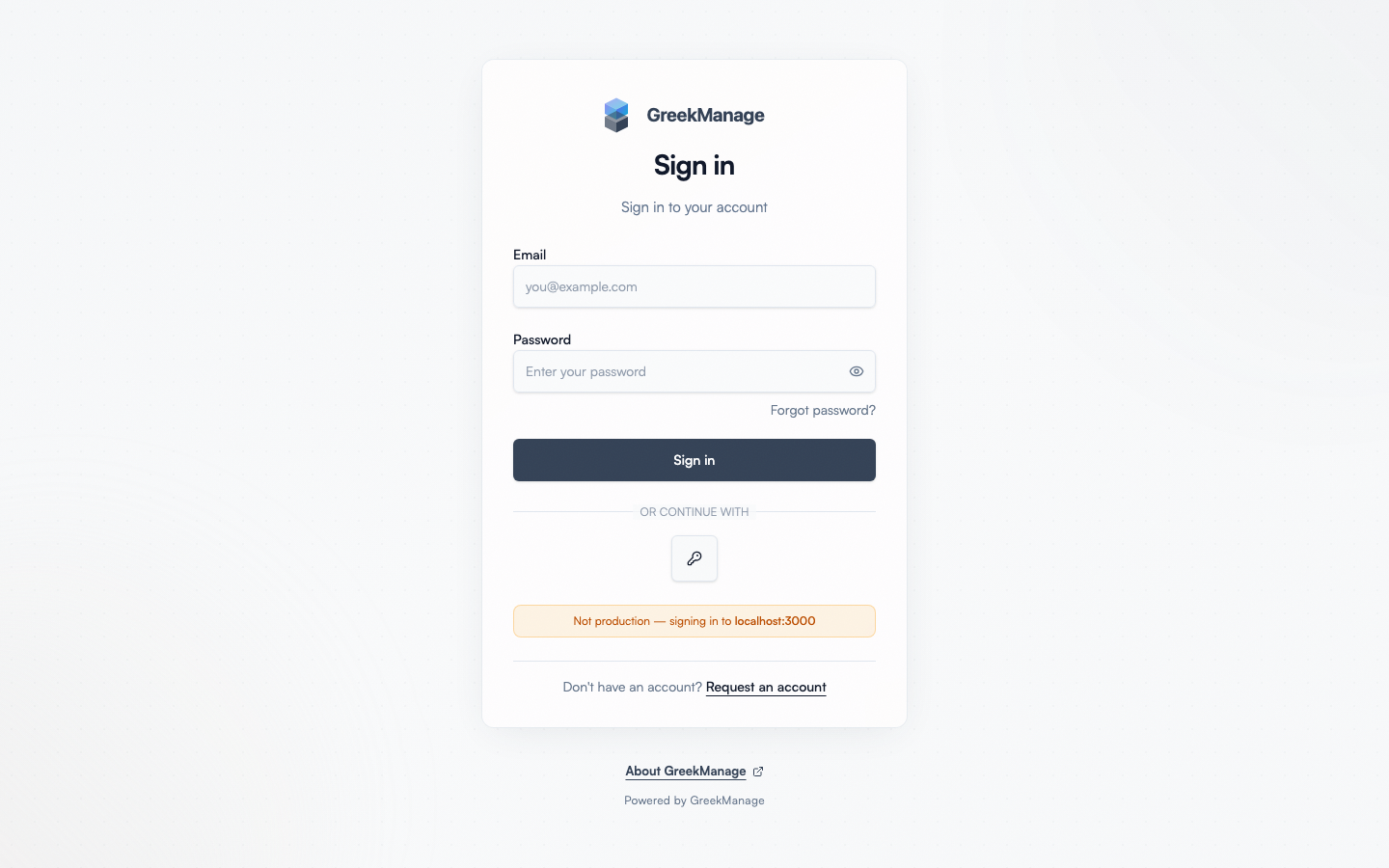 The GreekManage login screen with SSO detection.
Sign in with single sign-on (SSO)
If your org uses Microsoft 365, Google Workspace, Okta, or another SAML/OAuth provider, you don’t need a separate password.
- Enter your work email address.
- GreekManage detects your domain and shows Continue with [your provider].
- Click it. You’ll be redirected to your provider’s login.
- After signing in there, you’ll come back to GreekManage automatically.
Sign in with Google
Separate from your organization’s SSO above: if the platform has Google sign-in enabled, a Google button appears under Or continue with on the login screen for everyone. Any Google account works, including a personal Gmail address — it doesn’t have to be a Google Workspace account, and it isn’t domain-matched.
- Click the Google button.
- Pick which Google account to use. Google always asks, even if you’re signed in to only one.
- Approve the permission request — GreekManage asks only for your email address and basic profile, never for Gmail, Drive, or contacts.
- You’re returned to GreekManage, signed in.
On the iOS and Android apps this opens in an in-app browser and returns you to the app automatically.
If the button isn’t on the login screen at all, the platform hasn’t enabled Google sign-in — there’s no setting on your side to turn it on.
Sign in with Apple
Also separate from your organization’s SSO: if the platform has Sign in with Apple enabled, an Apple button appears under Or continue with, alongside Google and any passkey option. These are icon buttons — tap the Apple logo. In the iOS app it opens Apple’s own sign-in sheet directly; on the web and on Android it opens Apple’s sign-in page in a browser. Either way the steps are the same.
- Click the Apple button.
- Approve with Face ID, Touch ID, or your Apple ID password.
- You’re returned to GreekManage, signed in.
If the button isn’t on the login screen at all, the platform hasn’t enabled Sign in with Apple.
When no account matches
Google and Apple both sign you in — neither creates an account. When the provider confirms who you are but no GreekManage account is tied to that identity, you land on a screen that says “You’re not a member yet”, showing the address the provider verified.
Nothing has gone wrong at this point; you simply have no membership yet. From there:
- Click Request an account. Your name and email arrive already filled in.
- Pick your organization, and your chapter if you know it.
- Say why you’re requesting access — your initiation date, chapter, or a sponsor’s name all help your admin recognise you.
- Submit. An org admin reviews it and you’ll hear back by email.
Once they approve you, that Google or Apple account signs you straight in from then on — you won’t see this screen again.
Sign in with a passkey
Passkeys let you sign in without a password using your device’s screen lock (Face ID, Touch ID, Windows Hello, fingerprint, or PIN). They’re phishing-resistant and never leave your device.
- On the sign-in screen, click the passkey button under Or continue with (only shown if your browser/device supports passkeys).
- Your device prompts you to choose a saved passkey and confirm with biometrics or your device PIN.
- You’re signed in — no email or password needed.
GreekManage uses discoverable passkeys, so you don’t need to type your email first. Once you’ve registered a passkey on a device (see below), it’ll appear in your device’s passkey picker on the next sign-in.
Set up a passkey
After you sign in for the first time, you may see a one-time prompt: “Sign in faster with a passkey.” Click Set up passkey, give it a name (e.g. “MacBook Pro”), and confirm with your device’s biometric. You can also enroll later from Account settings → Security → Passkeys.
If you dismiss the prompt, GreekManage waits 30 days before asking again.
Manage your passkeys
Account settings → Security → Passkeys lists every passkey on your account. You can rename or delete each one. Deleting a passkey signs it out of every device that was using it.
Sign in with biometrics (mobile only)
On the iOS and Android apps, you can enable Face ID, Touch ID, or fingerprint unlock after your first sign-in.
- Sign in once with email/password or SSO.
- Open Account settings → Security.
- Toggle Enable biometric unlock.
- Confirm with your device’s biometric.
Next time you open the app, just glance at it (Face ID) or touch the sensor.
Forgotten password
- Click Forgot password? on the login screen.
- Enter your email.
- Check your inbox for a reset link (valid for 60 minutes).
- Click the link, set a new password, and sign in.
If you don’t receive the email, check spam. If it’s still missing, contact your chapter or org admin — they can trigger an admin-initiated reset.
Common sign-in issues
| Problem | What to try |
|---|---|
| “Account pending assignment” | A platform/org admin needs to assign you to a chapter. Contact them. |
| “Invalid credentials” | Use Forgot password? to reset. |
| SSO redirect loops | Clear your browser’s third-party cookies for the SSO provider, then retry. |
| Biometric won’t work | Disable and re-enable biometrics in Account settings. |
| “You’re not a member yet” after using Google or Apple | That identity isn’t tied to any GreekManage account. If you already have an account, sign in another way and link it yourself under Account settings → Apple ID (Apple only) or add the address under Account security → Email Addresses (Google) — neither needs an admin. If you have no account at all, click Request an account on that screen; see When no account matches. |
| “Google sign-in was cancelled” | You closed Google’s window or declined. Click the Google button again. |
| “Apple sign-in was cancelled” | You closed Apple’s dialog or declined. Click the Apple button again. |
| Passkey button doesn’t appear | Your browser or device doesn’t support WebAuthn (very old browser, locked-down corporate device). Sign in with email/password and consider enrolling a passkey on a personal device. |
| “No passkeys found” when clicking the passkey button | You haven’t registered a passkey on this device yet. Sign in once with email/password, then enroll from Account settings → Security. |
Related
- Your role explained — what you can do once you’re in
- First-time setup — what to do right after your first login
- Mobile app — installing iOS / Android apps
Last verified against v0.65.23 (2026-07-05). Self-registration retired, account-request-only signup, v0.65.19 — added a pointer to the account-request flow for new users.