Account security
Account Settings is where everything that controls how you sign in and what we do with your data lives — separate from the profile, which controls how other members see you. All the cards are stacked in a single scrollable view; there isn’t a separate “Security” sub-screen.
Open Account Settings from the avatar menu in the top-right corner. On mobile, tap your avatar then Account Settings.
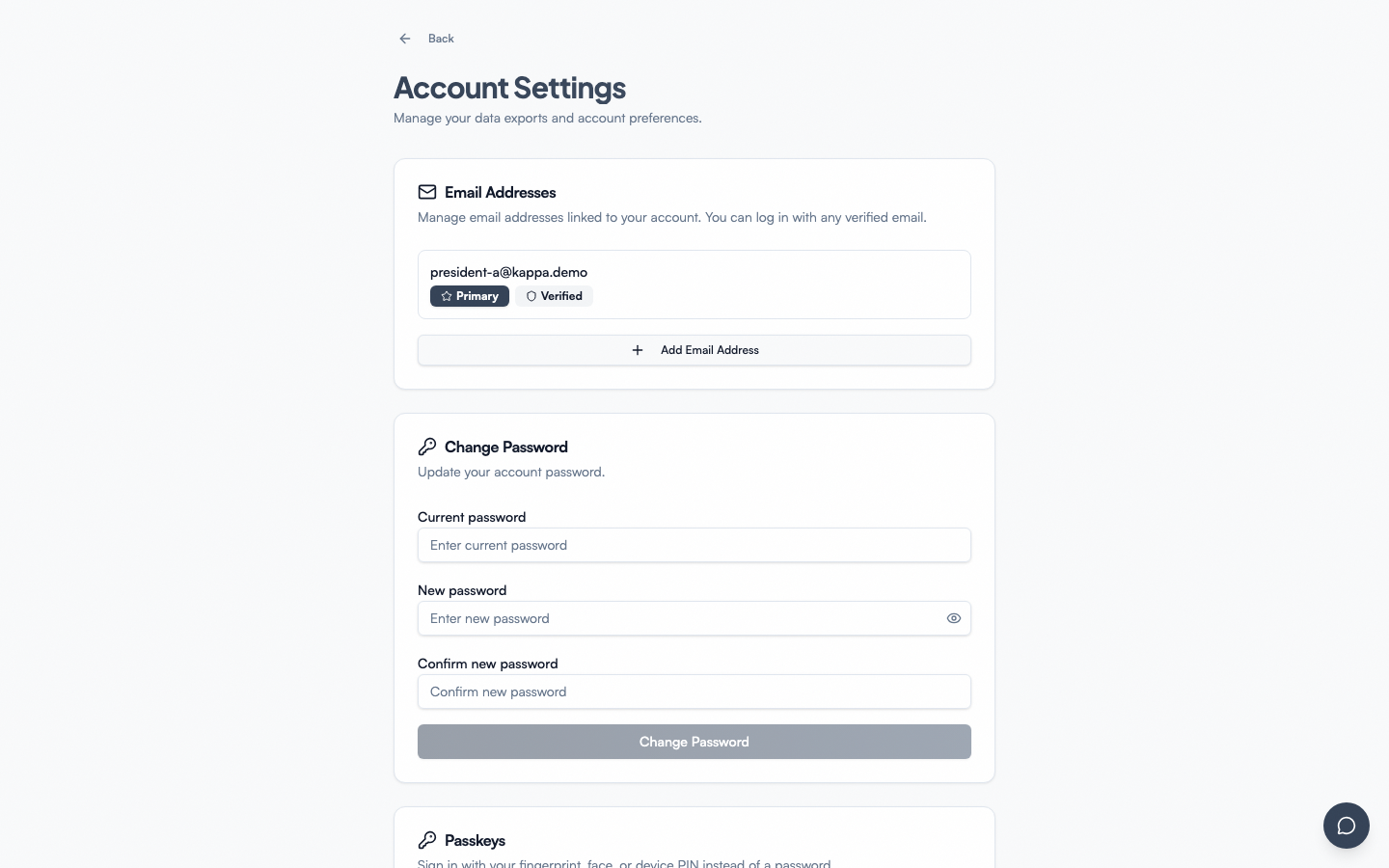 full account-settings page, top half showing Email Addresses + Password cards
The cards always render in this order:
- Email Addresses
- Password
- Passkeys
- Apple ID (only when the platform has Sign in with Apple configured)
- Biometric unlock (mobile only)
- Notification Digest
- Download My Data
- Disable Account
- Delete Account
Each card is independent — you can use one without touching the others.
Email Addresses
You can attach more than one email to a single account — useful when you have a personal address and a .edu or work address.
What you see
A list of every email tied to your account, each row showing:
- The address.
- A Primary badge if it’s your login default and the destination for notifications.
- A Verified badge (green) or Unverified badge (amber) depending on whether you’ve clicked the verification link.
To the right of each row:
- Verify button — if unverified. Resends the verification email and opens a dialog where you can paste the code if you have it.
- Set as primary button — if the email is verified but not currently primary. Triggers a password prompt before making the change.
- Trash icon — if the email isn’t primary. Removes the email after a “Remove email address?” confirmation.
Below the list, an Add Email Address button opens a dialog where you type a new address. We send a verification link to that address; the new row appears immediately with an “Unverified” badge until you click the link (or paste the code).
Step-by-step: add and verify a new email
- Click Add Email Address.
- Type the new address. Click Add.
- Check your inbox at that address for “Verify your GreekManage email” — the link is good for 24 hours.
- Click the link, or copy the 6-digit code from the email and paste it into the Verify dialog.
- The row’s badge flips from Unverified to Verified. You can now sign in with either email.
Step-by-step: change primary email
- The new email must be Verified first.
- Click Set as primary on that row.
- Enter your account password to confirm. (SSO-only accounts who have never set a password will be prompted to set one in the Password card first.)
- The badges swap. Future password resets and notifications go to the new primary.
Errors and edge cases
| Situation | What you see |
|---|---|
| Address already linked to another account | “That email is already in use.” Use a different address or unlink it from the other account first. |
| Verification link expired | “Verification link has expired.” Click Verify again to resend. |
| You try to remove your primary email | “Primary email cannot be removed.” Promote another email to primary first. |
| SSO sign-in returns a new email not on your list | If domain-based SSO matches, that email is auto-added as a secondary unverified address. Click Verify to mark it verified. |
| Sign in with Google or Sign in with Apple says no account was found | Both match your verified emails here, then your primary — an unverified address won’t match. Verify the address you’re signing in with, then try again. For Apple specifically: a Hide My Email relay address can never match, since it isn’t one of your verified emails here — sign in with your usual method and use the Apple ID card to link it instead. |
Password
The Password card behaves differently depending on whether you already have one:
- Change Password — if you have a password set. Three fields: current, new, confirm.
- Set Password — if your account is SSO-only and has never had a password. Two fields: new, confirm. Setting one enables email/password sign-in alongside SSO.
Password requirements
- 12 or more characters
- Mixed case (upper + lower)
- At least one number
- At least one symbol
- Cannot be too similar to your email or name (server-side validators)
The visibility eye icon next to the New password field reveals all three fields at once when you click it.
Step-by-step: change password
- Type your current password.
- Type the new password twice.
- Click Change Password.
- On success, a toast confirms and all three fields clear. Your other devices keep working until their access token expires (up to 30 minutes); after that, those sessions try to refresh and the refresh fails because your password changed — so within ~30 minutes everyone is signed out and has to log in again with the new password. If you need an immediate hard sign-out of every device, ask an admin for an admin-initiated password reset (see Sessions and sign-out below) — that one blacklists refresh tokens right away.
Forgot the current one?
Don’t try to brute-force the form. Sign out and use Forgotten password instead. That flow doesn’t require knowing the current password.
Errors
| Error | Cause |
|---|---|
| “Current password is incorrect” | The current-password field doesn’t match — try again or use forgotten password |
| “Passwords don’t match” | New and confirm fields differ |
| “Password is too common” / “Password is too similar to your email” | Pick a stronger, less guessable password |
| “Failed to update password” | Network or server error — try again |
Passkeys
Passkeys are the most secure (and fastest) way to sign in. They use your device’s screen lock — Face ID, Touch ID, Windows Hello, fingerprint, or PIN — and are tied cryptographically to GreekManage so they can’t be phished.
The card hides automatically on browsers that don’t support WebAuthn — Chrome, Safari, Edge, and Firefox on a device with biometric authentication all support it. On unsupported browsers you see “Your current browser does not support passkeys.”
What you see
A list of every passkey credential on your account, each row showing:
- Device name (whatever you typed when you enrolled — e.g. “MacBook Pro” or “iPhone 16”).
- Added date.
- Last used date (helpful for spotting unused ones).
- Pencil icon to rename, trash icon to delete.
Below the list, an Add passkey button.
Step-by-step: enroll a passkey
- Click Add passkey.
- Type a device name (max 128 characters) — for you, so you can tell devices apart later.
- Click Continue.
- Your browser/OS prompts you with the device’s biometric or PIN. Approve it.
- The new passkey appears in the list and is usable on the next sign-in.
A discoverable passkey created on the web is also valid in the GreekManage iOS and Android apps via Associated Domains / Digital Asset Links — no separate enrollment needed.
Step-by-step: rename a passkey
- Click the pencil icon next to the passkey.
- Type a new name. Press Enter to save, Escape to cancel.
Step-by-step: delete a passkey
- Click the trash icon.
- Confirm “Remove this passkey?” — the alert reminds you that you can still sign in with password or SSO.
- Click Remove. The credential is invalidated immediately; any device still holding it will fail authentication.
Enrollment prompt
After your first sign-in (or after you sign in on a new device with no passkey yet), GreekManage shows a one-time card on the dashboard: “Sign in faster with a passkey.” Click Set up passkey to enroll inline, or Not now to dismiss. Dismissed prompts wait 30 days before reappearing.
Signing in with a passkey
The first time on a given browser or device, click the key icon under or continue with on the sign-in screen and pick your passkey.
After that, GreekManage remembers on that device that you use a passkey, and offers it as soon as the sign-in screen loads — no button to find. Confirm with Face ID, Touch ID, or your fingerprint and you’re in. The passkey also moves up into a labelled Sign in with a passkey button, so it’s still one click away if you dismiss the prompt.
That memory is per browser and per device — it isn’t tied to your account — so a new browser starts from the key icon again. Signing in by password or SSO on a device clears it, and the prompt stops appearing there until you next use your passkey.
The prompt is deliberately skipped in two cases: on the mobile apps when biometric unlock is already set up (unlocking the existing session is quicker — see below), and on a build pointed at a non-production server.
Errors and edge cases
| Situation | What you see |
|---|---|
| You cancel the OS biometric prompt | “Registration was cancelled.” Click Continue again to retry. |
| You dismiss the sign-in prompt that appeared on its own | Nothing — dismissing is a normal choice, not an error. Use the Sign in with a passkey button when you want it back. It won’t ask again on its own until your next visit. |
| Browser doesn’t support WebAuthn | “Your current browser does not support passkeys.” Use Chrome/Safari/Edge/Firefox with biometric auth. |
| Network drops mid-enrollment | “Failed to register passkey.” Try again. |
| You delete your only passkey and have no password | If you signed in via SSO and never set a password, you may need an admin-initiated reset to get back in — set a password first, or keep a second passkey. |
Apple ID
Connects your Apple ID to this account so Sign in with Apple works. The card only appears when the platform has Sign in with Apple configured — otherwise there would be nothing behind the button.
This is the fix for Hide My Email. Apple only sends your email address on your first approval, and if you chose Hide My Email it sent a randomly generated relay address instead of your real one. A relay address can never match one of your verified emails, so signing in with Apple answers “no account found” no matter how many times you try. Linking from here skips the email entirely: afterwards GreekManage recognises your Apple ID directly, and the address stops mattering.
You do not need to revoke anything under iOS Settings first.
What you see
- Not linked — a Link Apple ID button.
- Linked — a “Linked” badge and an Unlink button.
Step-by-step: link your Apple ID
- Sign in with a method that already works (password, passkey, or Google).
- Open Account Settings and find the Apple ID card.
- Click Link Apple ID.
- In the iOS app, Apple’s own sign-in sheet appears — approve it.
- On the web and on Android, you’re sent to Apple, then returned here.
- The card switches to Linked. Sign in with Apple works from the next sign-in on.
Step-by-step: unlink
- Click Unlink.
- The card returns to Not linked.
Unlinking removes only the connection — your GreekManage account, emails, and every other sign-in method are untouched. You can link the same Apple ID again later.
Errors and edge cases
| Situation | What you see |
|---|---|
| The Apple ID is already linked to this account | “That Apple ID was already linked to this account.” Nothing changed — this is a success, not a failure. |
| The Apple ID is linked to a different GreekManage account | “That Apple ID is already linked to a different GreekManage account. Sign in to that account and unlink it first.” One Apple ID can only ever point at one account. |
| You back out of Apple’s sheet | Nothing happens — cancelling is a choice, not an error. |
| Anything else | “Couldn’t link your Apple ID. Please try again.” |
Biometric unlock (mobile only)
The iOS and Android apps can require Face ID, Touch ID, or fingerprint to unlock the app each time you open it — separate from passkey sign-in. This card only appears on the native apps, never on the web.
- Biometric unlock gates app access after you’re already signed in (think: phone lock screen).
- A passkey signs you in the first time and after any explicit sign-out.
You can use both together.
What you see
A “Security” card with a single toggle labeled based on what your device supports:
| Device biometry | Label |
|---|---|
| iPhone with Face ID | “Face ID” |
| iPhone with Touch ID | “Touch ID” |
| Android fingerprint | “Fingerprint” |
| Android face unlock | “Face Unlock” |
| Other / unknown | “Biometric” |
A subtitle reads: “Use [Face ID] to unlock the app on launch.”
Step-by-step: enable biometric unlock
- Open the GreekManage app on your phone.
- Navigate to Account Settings.
- Toggle the biometric switch on.
- On first toggle-on, the OS may ask for permission to use Face ID / Touch ID for this app — approve it.
- Next time you bring the app to the foreground, you’ll see a biometric prompt before the app contents appear.
To turn it off, toggle the switch back. No password or biometric confirmation is needed to disable — only your already-authenticated session.
→ See Mobile app: enable biometric unlock for setup walkthroughs.
Notification Digest
Controls a summary email of all your unread notifications.
What you see
A single dropdown with three options:
| Option | Behavior |
|---|---|
| Daily | Receive a digest every morning |
| Weekly | Receive a digest every Monday |
| Off | No digest emails |
Your choice saves the moment you pick it; there’s no separate Save button. The setting is independent from per-event email notifications — see Notifications for those — except that while a digest is on, new forum posts come in the digest rather than as one email per post.
If a digest period contains nothing new, the email is skipped — empty digests don’t get sent.
Download My Data
Request a full export of your personal data, in accordance with GDPR/CCPA right-to-portability.
What you see
The card shows one of five states:
| State | What’s displayed |
|---|---|
| No export yet | Request Export button |
| Pending / Processing | Spinner with “Your data export is being prepared… This may take a few minutes. This page will update automatically.” |
| Ready | Green panel: “Your data export is ready”, an expiration timestamp, and a Download Export button |
| Expired | Amber panel: “Your export has expired” with a Request New Export button |
| Failed | Red panel: “Export failed — Something went wrong. Please try again.” with a Retry Export button |
Step-by-step: request an export
- Click Request Export.
- Enter your password to confirm. (Password is required even for SSO-only accounts; set one first if you don’t have one.)
- The card flips to “Pending” and a background job assembles the ZIP.
- When ready, you’ll receive an email; the card also updates automatically (it polls).
- Click Download Export to fetch the ZIP. The download link expires after a set window (typically 7 days), after which you’ll see the “Expired” state and need to request a new one.
What’s inside the export
A ZIP containing JSON for:
- Your account (name, emails, phone, bio, settings)
- All memberships (chapter, org, status, dates)
- Your profile (work history, certifications, affiliations, skills, education, location)
- Your forum posts, comments, attachments
- Your event RSVPs
- Your election votes (audit metadata — the cast timestamp and IP hash, not the candidate selection, which is anonymized in aggregate)
- Your consent log (which Privacy/Terms versions you accepted, when)
- Your donations (if you’ve used Foundation)
- Your learning enrollments, quiz attempts, certificates
It does not include cached AI conversation history older than 30 days, deleted forum posts, or other members’ data.
Disable Account
A soft account-disable: you lose login access, but membership records, profile, and history are preserved. Distinct from full account deletion, which is a separate flow that platform admins handle.
What you see
An amber-tinted card with a Disable My Account button. Click it and a confirmation dialog appears:
- Confirmation checkbox — “I understand I will lose login access and need to contact an administrator to re-enable my account.”
- Continue is disabled until the box is checked.
- Continue opens a password prompt.
- Enter your password and click Disable My Account.
After the request succeeds, a toast says “Account disabled — Your account has been disabled. Contact an administrator to re-enable it.” and you’re immediately signed out. You’re sent to the login page; sign-in attempts with your credentials now fail with “Account disabled.”
To re-enable, contact your org admin or a platform admin. Re-enabling restores all sign-in methods (password, passkey, SSO) intact.
Errors
| Situation | What you see |
|---|---|
| Wrong password | “Incorrect password.” Retry. |
| You’re the only org admin | Platform admins must remove the org-admin role before you can disable. The disable returns “You cannot disable an admin who is the sole administrator.” |
Delete Account
A self-service hard-delete with a 30-day grace period. Distinct from Disable Account above — disable preserves everything and is reversible; delete schedules permanent removal of your data.
What you see
A red-tinted card at the bottom of the page (in the “danger zone”) with a Delete My Account button. Click it and a confirmation dialog walks you through two checkpoints:
- Read the consequences and confirm. A clear list of what gets deleted (forum posts, photos you uploaded, profile fields, etc.) and what’s retained for legal/audit reasons (financial records, audit-log entries that name you), with a checkbox acknowledging the 30-day window.
- Password prompt. You enter your password to authorize.
After confirmation, your account enters a 30-day grace period. You’re immediately signed out and can’t sign back in, and we email you a one-time cancellation link. If you change your mind, open that link — it reactivates your account and cancels the pending deletion, no sign-in required (your session was already ended by the deletion request). The link only works once and expires with the grace period. A national admin or platform admin can also cancel a pending deletion on your behalf if you can’t access that email. After day 30, a scheduled cleanup runs and your records cascade-clean per the privacy policy.
What’s deleted vs. retained
| Category | At delete |
|---|---|
| Account login, password, passkeys | Removed immediately (you can’t sign in) |
| Forum posts, comments, attachments | Deleted at day 30 |
| Photos you uploaded | Deleted at day 30 |
| Profile fields (work history, skills, certifications) | Deleted at day 30 |
| Memberships | Marked inactive immediately; row retained for org records |
| Financial records (dues, donations) | Retained per legal hold |
| Audit-log entries naming you | Retained per compliance retention rules |
| Election votes | Anonymized (your name dissociated; vote tallies preserved) |
Errors and edge cases
| Situation | What you see |
|---|---|
| You’re the sole national admin of an org | “Cannot delete — you are the only active admin.” Transfer the role first. |
| You have an active pledge balance | “Cannot delete with an open dues balance.” Pay it down or contact your treasurer. |
| You started a delete, then signed in via SSO during the grace period | SSO sign-in is rejected with “Account pending deletion.” Use the emailed cancellation link (or ask an admin) first. |
Sessions and sign-out
There isn’t a “sign out other devices” card in v0.62.1. If you suspect your session is compromised:
- Change your password (this does invalidate the refresh token, so all sessions need to re-authenticate within ~24 hours).
- Delete any passkey you don’t recognize.
- Ask an admin to trigger an admin-initiated password reset, which signs you out of every session immediately and emails you a one-time temporary password.
Mobile differences
- The card order and behavior is identical, with the addition of the Biometric unlock card.
- Native sign-out flows clear refresh tokens and route you back to the login screen with no in-memory user data left.
- The data export download opens in the in-app browser, which prompts you to save the ZIP to Files (iOS) or Downloads (Android).
What officers and admins see that you don’t
There is no “your security” view for officers — admins never see your password, passkey list, or export contents. What admins can do affects you indirectly:
- Org admins can trigger an admin-initiated password reset on you. You receive an email with a temporary password, your existing sessions are signed out, and you’re forced to change the password at next sign-in.
- Org admins can manage your secondary email addresses on your behalf via your member-detail page (useful if you’ve lost access to all your emails).
- Org admins can start a read-only “view as member” session on your account (v0.72.0) to reproduce a problem you’ve reported. They see the pages you see — but they cannot change anything, and your password, passkeys and direct messages stay out of reach. Sessions last at most 30 minutes and are always recorded in your organization’s audit log. Unless your org has turned the notice off, you’re emailed as soon as one starts, naming the admin and quoting the reason they gave. If you get one you weren’t expecting, ask your admin about it.
- Platform admins can disable an entire org’s user base; this manifests as a disabled-account message for everyone in that org.
What if I lose access?
| Situation | Path back |
|---|---|
| Forgot password, have email access | Forgotten password |
| Lost the only device with a passkey | Sign in with email/password; enroll a new passkey on your next device |
| Lost device, SSO-only account | Sign in via SSO from another device, then update Account Settings |
| Lost access to your primary email | Ask an admin to add a secondary email or to do an admin-initiated reset |
| All sign-in methods failed | Ask your org admin for an admin-initiated password reset |
| Account is disabled | Contact your org admin or platform admin to re-enable |
Related
- Signing in — sign-in method details
- Mobile app — biometric unlock + passkeys on iOS/Android
- Privacy & data — what GreekManage stores about you
- Notifications — per-event email/in-app settings (separate from digest)
Last verified against v0.63.39 (2026-06-26). DeleteAccountCard wired into the danger zone in v0.63.15. Admin “view as member” sessions added in v0.72.0.