Using the AI chatbot
GreekManage includes an AI assistant grounded in your organization's content — your member roster, forum activity, compliance records, and governing documents (subject to what your org admin has scoped in). You can ask questions in natural language instead of navigating the UI to find an answer.
What you see
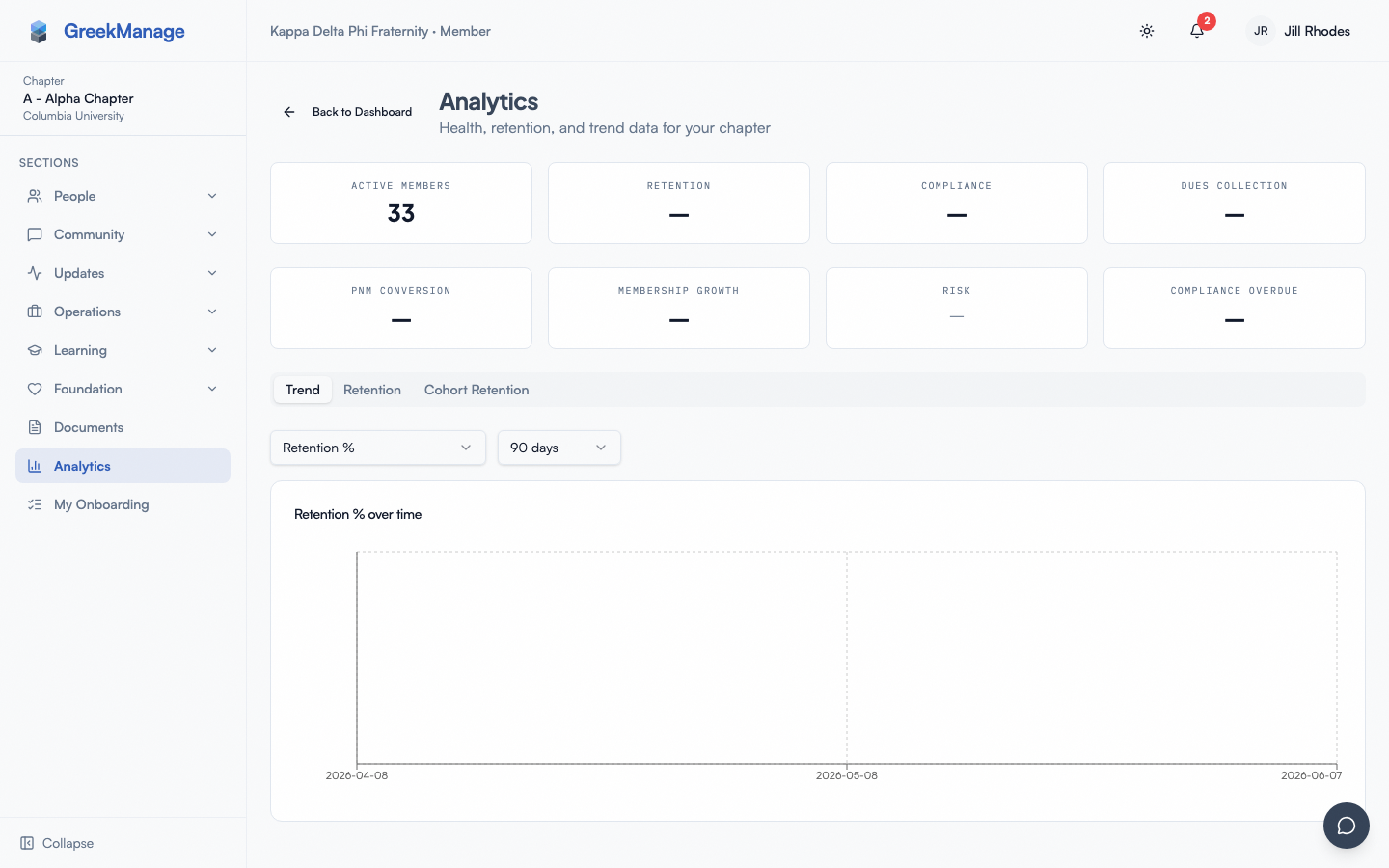
Look for the floating icon in the bottom-right corner of any page — this is the same entry point GreekManage uses for direct messages. Click it to open the unified panel.
The panel opens to a Conversations list that mixes your human conversations with GreekManageAI (the sparkle icon). GreekManageAI is one ongoing conversation, not a history to pick from — once you've sent it a message, it shows up as a normal row in the list; click it to keep talking. Before your first-ever message, a sparkle Chat with GreekManageAI button in the panel header starts that first conversation.
On desktop the panel is a floating widget anchored to the bottom-right. On mobile it stays docked to that same corner rather than taking over the screen — it just grows to use the available width and height, with margin around it so the app stays visible behind it and every button has room to tap.
Inside a GreekManageAI thread, the header shows a back arrow, a sparkle icon, and the GreekManageAI label — there's no separate tab for anything else in this header. As you chat, your messages appear right-aligned in the primary color; the assistant's replies stream into left-aligned bubbles.
 AI assistant panel open over the dashboard.
Step-by-step: ask a question
- Click the floating icon in the bottom-right.
- In the Conversations list, click GreekManageAI's row to keep an existing conversation going — or, if you've never messaged it before, click the sparkle Chat with GreekManageAI button to start.
- Wait for the input placeholder to switch from "Connecting..." to "Ask a question..." (a few hundred milliseconds on a normal connection).
- Type your question in the input at the bottom. Enter sends, Shift+Enter inserts a line break.
- The assistant shows an animated thinking indicator, then streams its answer token by token.
You can ask follow-up questions in the same thread — the assistant remembers the most recent exchanges within the current session.
What it can answer
The assistant can ground its answer in any content type your org admin has enabled in AI Content Sources. In v0.62.1, the four member-visible scopes are:
- Members — questions about who holds a role, who's in your chapter, basic profile information
- Forum posts — questions about discussions, threads, and topics in forums you have access to
- Compliance — questions about requirements, deadlines, and your status (officers and admins see more here)
- Documents — questions about the governing documents and policies that have been published in your org
Common natural-language asks that work today:
- "Who is the treasurer of my chapter?"
- "When is the spring election open?"
- "What does the formal policy document say about dress code?"
- "What forum threads talk about recruitment?"
What it can't answer
- Anything outside your access. Member-level RBAC applies — you can't ask about another chapter's roster or a forum you aren't a member of.
- Anything outside an enabled scope. If your org admin has turned off the Compliance scope, the chatbot won't answer compliance questions.
- Real-time external data. Weather, news, sports scores, the broader internet — not in scope.
- Action commands. The chatbot answers questions; it doesn't create events, send invoices, or change settings on your behalf.
How responses are generated
The assistant uses a retrieval-augmented pattern: it routes your question to relevant content sources, pulls the strongest-matching snippets, and asks the language model to synthesize an answer. Responses stream back as the model generates them.
Sources panel
Every assistant turn now exposes a collapsible Sources (N) panel beneath the streamed answer. Sources are surfaced by the routing layer when a query maps to grounded content — they show up to 6 lightweight refs of type member, forum, forum_post, document, compliance, event, or course. Each row shows the source title and a snippet; clicking jumps to the detail page in your scope (org / chapter / platform), so you can verify the answer against the underlying record without leaving the chat panel.
If the assistant's answer doesn't draw from grounded content (e.g., a general "how does X work" question that's purely model-generated), the Sources panel is omitted.
Thumbs feedback
Below each assistant turn — once streaming is done — you'll see a 👍 / 👎 pair. Click either to record feedback on that specific message. Thumbs-down opens a popover for an optional reason ("hallucinated", "outdated info", "wrong scope", etc.). Your reaction can be revised in place (each user has one stored reaction per message).
Platform admins see aggregated thumbs feedback (filterable by sentiment + day range) in Platform Settings → Chat Feedback and use it to tune the routing layer. Your org admin does not see individual reactions.
Conversation history
GreekManageAI is one ongoing conversation per organization, not a history of separate chats. It persists across sessions and devices, alongside your human conversations, in the unified panel's Conversations list.
- Keep talking. Once you've messaged GreekManageAI at least once, it appears as a normal row in the list — click it and the panel replays the last 20 turns and reconnects the WebSocket to continue where you left off.
- There's no "new chat" once a conversation exists. The one-time Chat with GreekManageAI button only appears before your first-ever message to it; after that, the row is the only way in, so you never end up with several disconnected AI conversations to hunt through.
If you're a member of more than one organization, each org gets its own GreekManageAI conversation — nothing from one org's thread is visible from another's.
As of v0.65.23, there's no in-panel rename or archive control for a thread — the earlier collapsible history sidebar and its per-thread rename/archive/Clear affordances were retired along with the old floating chat-only widget.
The assistant still uses the last twenty turns of the conversation as context for follow-ups.
Your conversation is private to you — no other member, officer, or admin can see it. Platform admins have access to aggregated thumbs feedback (above) but not to conversation content.
What officers and admins see that you don't
- Officers can ask compliance questions about their own chapter's records and see results other members wouldn't.
- National admins see results across the org and can ask about any chapter.
- Platform admins have a separate console for AI configuration and a tenant-wide re-indexing tool — these are not exposed through the chat panel itself.
Mobile differences
- The panel stays a docked corner widget on phones too — never a full-screen takeover — just larger, with a back button and a close (X) button sized for a thumb instead of a precise click.
- The floating icon hides while the panel is open on mobile (the panel itself owns the close action).
- Pull-to-dismiss is not enabled; tap the X in the header to close.
Privacy
- The chatbot enforces your role. A member never gets data they couldn't access through the UI on their own.
- Conversations are not shared across users. Your session is private to you.
- National admins set what content types the chatbot can use in Org Settings → AI Services. Disabling a scope removes that content from the chatbot's grounding immediately on save.
Bring-your-own-model awareness
The platform supports multiple AI providers — Anthropic, OpenAI, or Google Gemini — selected by your org admin. The tone, length, and style of answers can vary between providers, so if your chapter's chatbot suddenly feels different after an org-level change, it's likely a provider switch rather than a regression. The functional scope (what it can know about) is the same across providers; only the embedding-backed semantic search varies (Anthropic falls back to keyword and trigram search because it doesn't ship embeddings).
Feedback
To send platform feedback, use Send Feedback from your avatar menu — see Feedback inbox for what happens after you submit. The form lets you report a bug, request a feature, or send a general comment, and attach a screenshot up to 5 MB. Submissions go to the platform admin team, not to your org admin.
This is separate from the per-message thumbs feedback above. Use the thumbs to tell us the assistant was wrong on a specific answer; use Send Feedback for general bugs, feature requests, and broader observations.
Errors and edge cases
- Input stuck on "Connecting..." and never becomes usable. The WebSocket couldn't connect. Refresh the page; if your org admin disabled the AI Services module while the page was open, you'll need to refresh to clear the panel's stale state.
- "AI provider error" — the org's chosen provider rejected the request. Common causes: rate limit, invalid API key, or model deprecated. An org admin needs to check Org Settings → AI Services.
- The assistant answers vaguely or says it doesn't know. Most often this means the content type isn't indexed (the scope is off), there are no embeddings yet, or your question phrasing didn't trigger the right route. Try rephrasing or narrowing your question to one chapter, time range, or topic.
Tips
- Be specific. "What time is the meeting on Tuesday?" beats "When's the meeting?"
- Ask follow-ups. The assistant keeps context within the current conversation.
- Verify financial answers. Don't pay anything based solely on a chatbot response — open the actual invoice first.
Related
Last verified against v0.69.2 (2026-08-03). Sources panel + thumbs feedback v0.63.25; conversation history persistence v0.63.26. The old dedicated AI-only floating panel was replaced by the unified messaging+AI panel, feedback moved to avatar dropdown, per-thread rename/archive/Clear controls retired, v0.65.23. GreekManageAI became a single ongoing conversation per org instead of a history of separate threads with a "New chat" button, v0.69.1. Back button and touch targets fixed — desktop back button no longer disappears inside a human conversation, and every panel control meets a usable tap-target size, v0.69.2.