Alumni — getting started
You just graduated (or your chapter just updated your status), and an invitation email landed in your inbox. This is what to do in the first hour after signing in.
Why this exists
The Alumni surfaces — directory, mentor profile, career board, alumni-only forums — only appear once your membership status is one of the alumni values. Day one is mostly about deciding what active members and fellow alumni can see about you, and (optionally) opting in as a mentor.
The first 30 minutes
1. Sign in and confirm your status
Sign in the same way you did as an active member. Look at your sidebar — under People, you should now see Career Board and Mentors, and an Alumni button on the Directory page. If you don't see these, your status hasn't been switched over yet; see the troubleshooting note above and stop here.
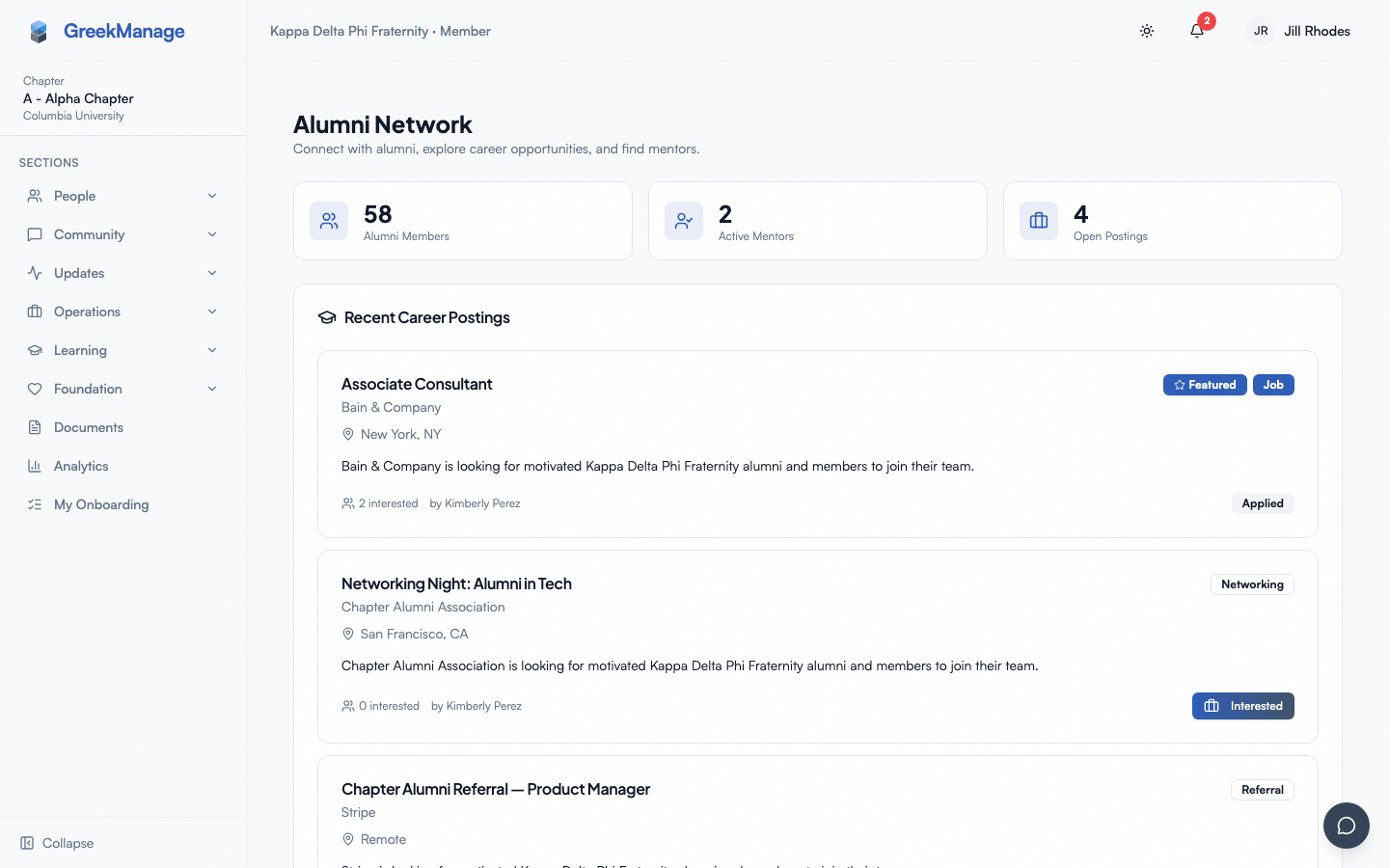 chapter sidebar with the People group expanded, showing Career Board and Mentors
2. Set your privacy first, before anything else
Open your Privacy Settings page. By default the directory shows your name and chapter, but email and phone are visible only to other alumni, and work history and location are visible to everyone. Each field has four visibility levels:
- Everyone — any signed-in member in your org can see it
- Alumni only — only people with alumni status
- Officers only — only chapter officers and admins
- Hidden — nobody but you
Walk down the form and pick a level for each field. You can change these any time. Save.
3. Update your profile
Open the user menu → Profile and fill in the things you couldn't fill in as an undergrad:
- Work history — current employer, role, location. This is the single most useful field for other alumni and current members looking for connections.
- Industries and career fields — short tags.
- Location — city or metro.
- Profile photo — if you don't have one, add one.
These are the fields the directory and mentor matching draw from. The more complete your profile is, the more useful the alumni network becomes for everyone.
4. Browse the directory
Open the Directory page and click the Alumni button (People → Directory in your sidebar). Search by name, filter by chapter or graduation year range, and open a few profiles to see what the experience looks like from the other side. Every field you see is what that alumna/alumnus chose to expose through their own privacy settings.
5. Decide whether to be a mentor
If you have capacity to take 1–3 mentees this term, open your Mentor profile page and create one. You'll set:
- Bio — a paragraph about what you do and what you're interested in talking about.
- Industries and career fields — what topics you can help with.
- Availability — Open, Limited, or Closed.
- Max mentees — how many you're willing to take on (default 3).
You can flip availability to Closed at any time if your schedule fills up. Mentor profiles only appear to other members when availability is Open or Limited.
If you'd rather not commit to ongoing mentorship, skip this — the career board is still useful even without a mentor profile.
6. Browse the career board
Open Career Board (People → Career Board in your sidebar). You can:
- Browse current postings (jobs, internships, referrals, networking).
- Express interest in a posting (the poster sees who's interested).
- Post your own opening — click New posting, pick a type, and fill out the form. Postings auto-expire on the date you set.
This is the surface most alumni use most. Even if you're not hiring, a Networking post saying "happy to chat with anyone in [your industry]" goes a long way.
7. Check the alumni-only forums
Open Engage. If your org has any alumni-only forums, they'll appear in your list now that your status has flipped. Browse the catalog and join the ones that look relevant.
What you can ignore on day one
- Mentor matching — if you didn't create a mentor profile, ignore this entirely. If you did, current members will start surfacing as suggested matches over time; you don't have to do anything proactive.
- Notifications preferences — the defaults are fine. Tune them later if you find yourself getting too many alumni-forum digests or career board pings.
- Linking LinkedIn — optional. It can pre-fill work history, but a manually filled profile is just as useful.
A note on what alumni can't do
Becoming an alumna/alumnus doesn't grant any moderation or admin powers. You can:
- Post in alumni-eligible forums and the career board
- Be a mentor
You can't approve members, run elections, manage dues, or moderate forums (unless you've also been granted a chapter officer or admin role separately). That's by design — the Alumni features are a parallel surface, not an escalation.
What's next
- Mentorship & alumni — deeper reference for directory, career board, mentor matching, and forums
- Updating your profile — full profile editor walkthrough
- Privacy & data — your data, export, and account deletion rights
- Module: Alumni — what the module offers at the org level
Last verified against v0.65.25 (2026-07-05). Corrected stale "Alumni" top-level sidebar-group references (v0.65.23 redesign): Career Board and Mentors now live under People; Alumni Directory moved from a sidebar item to an Alumni button on the Directory page. Mentor profile and Privacy Settings have no dedicated sidebar entry point in either the old or new nav.