Alumni — getting started
You just graduated (or your chapter just updated your status), and an invitation email landed in your inbox. This is what to do in the first hour after signing in.
Why this exists
The Alumni surfaces — directory, mentor profile, career board, alumni-only forums — only appear once your membership status is one of the alumni values. Day one is mostly about deciding what active members and fellow alumni can see about you, and (optionally) opting in as a mentor.
The first 30 minutes
1. Sign in and confirm your status
Sign in the same way you did as an active member. Look at your sidebar — under People, you should now see Career Board and Mentors, and an Alumni button on the Directory page. If you don’t see these, your status hasn’t been switched over yet; see the troubleshooting note above and stop here.
 chapter sidebar with the People group expanded, showing Career Board and Mentors
2. Set your privacy first, before anything else
Open the avatar menu in the top right, choose Account Settings, and find the Directory Privacy card. It’s the same card every member has, undergrad or alumnus. The directory always shows your name, chapter, status, role, employer, job title, LinkedIn, personal website, graduation term and work history. You decide who sees your Email, Phone, Profile photo and Location, each at one of three levels:
- Everyone in the organization — any signed-in member in your org
- My chapter — members of your chapter
- Officers & admins only — officers of your own chapter, and regional and national admins
Officers of your own chapter and admins see every field whatever you choose. Until you save, email and photo are visible to everyone in the organization and phone and location to officers and admins only. If you saved alumni privacy settings before, they were carried over (Alumni only became My chapter; Officers only and Hidden became Officers & admins only).
Walk down the form and pick a level for each field. You can change these any time. Click Save Privacy Settings.
There is one extra control under Location, called Location detail. The visibility levels above decide who can see your location; this decides how much of it there is to see:
- City, state and country — the default, and what the directory has always shown
- State and region only — your state and your organization’s region, with your city and country left out entirely
“State and region only” applies to everyone who can see your location, admins included, because it is a choice about what the directory publishes rather than about who is trusted. (Your full address stays on your member record, where officers and admins who need it can still find it.)
The card also has a Share my birthday in announcements switch. It’s the only thing that decides whether your birthday is announced.
3. Update your profile
Open the user menu → Profile and fill in the things you couldn’t fill in as an undergrad:
- Work history — current employer, role, location. This is the single most useful field for other alumni and current members looking for connections.
- Industries and career fields — short tags.
- Location — city or metro.
- Profile photo — if you don’t have one, add one.
These are the fields the directory and mentor matching draw from. The more complete your profile is, the more useful the alumni network becomes for everyone.
4. Browse the directory
Open the Directory page and click the Alumni button (People → Directory in your sidebar). Search by name, filter by chapter or graduation year range, and open a few profiles to see what the experience looks like from the other side. Email, phone, photo and location appear only where that alumna/alumnus’s directory privacy settings let you see them.
5. Decide whether to be a mentor
If you have capacity to take 1–3 mentees this term, open your Mentor profile page and create one. You’ll set:
- Bio — a paragraph about what you do and what you’re interested in talking about.
- Industries and career fields — what topics you can help with.
- Availability — Open, Limited, or Closed.
- Max mentees — how many you’re willing to take on (default 3).
You can flip availability to Closed at any time if your schedule fills up. Mentor profiles only appear to other members when availability is Open or Limited.
If you’d rather not commit to ongoing mentorship, skip this — the career board is still useful even without a mentor profile.
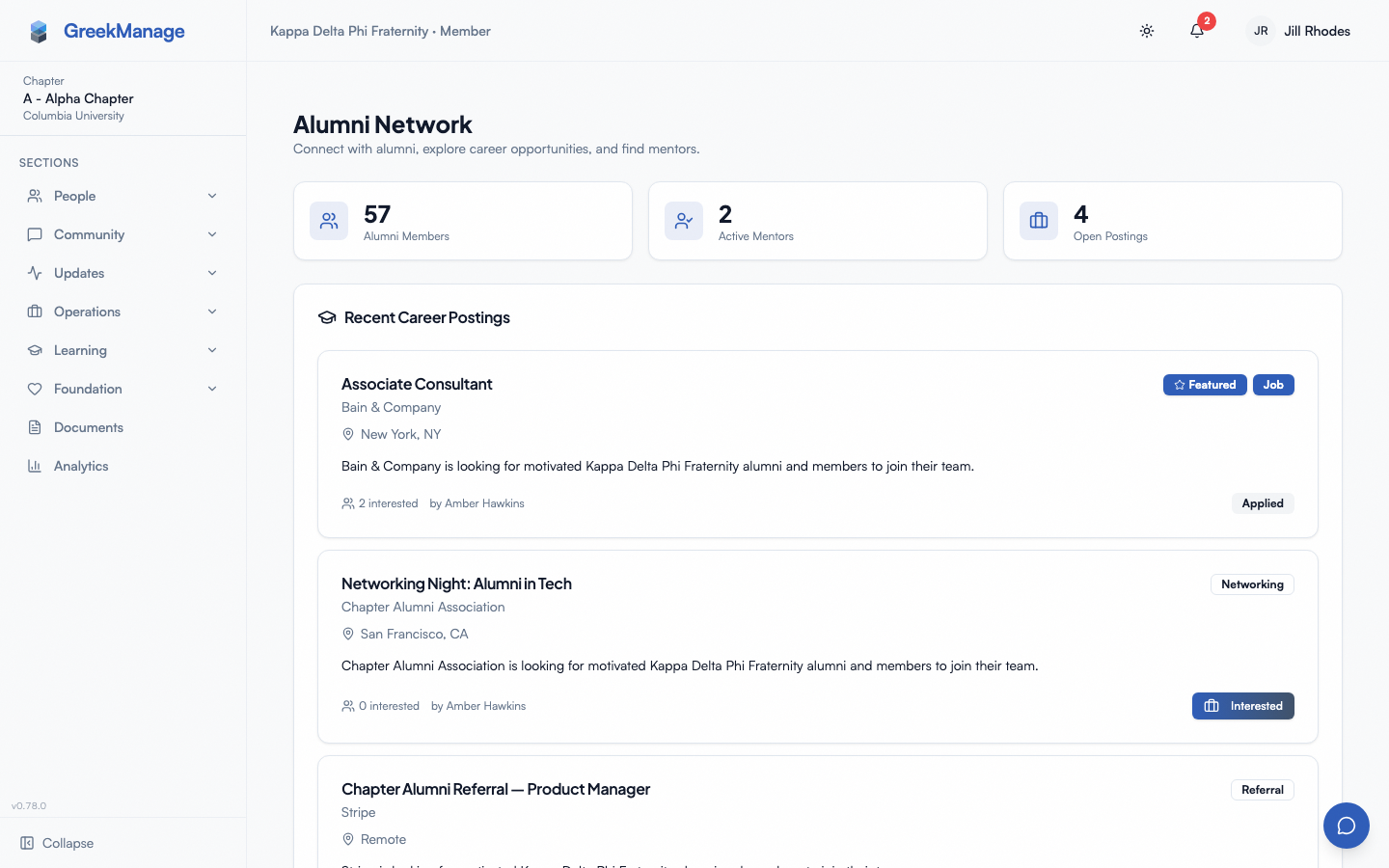
6. Browse the career board
Open Career Board (People → Career Board in your sidebar). You can:
- Browse current postings (jobs, internships, referrals, networking).
- Express interest in a posting (the poster sees who’s interested).
- Post your own opening — click New posting, pick a type, and fill out the form. Postings auto-expire on the date you set.
This is the surface most alumni use most. Even if you’re not hiring, a Networking post saying “happy to chat with anyone in [your industry]” goes a long way.
7. Check the alumni-only forums
Open Engage. If your org has any alumni-only forums, they’ll appear in your list now that your status has flipped. Browse the catalog and join the ones that look relevant.
What you can ignore on day one
- Mentor matching — if you didn’t create a mentor profile, ignore this entirely. If you did, current members will start surfacing as suggested matches over time; you don’t have to do anything proactive.
- Notifications preferences — the defaults are fine. Tune them later if you find yourself getting too many alumni-forum digests or career board pings.
- Linking LinkedIn — optional. It can pre-fill work history, but a manually filled profile is just as useful.
A note on what alumni can’t do
Becoming an alumna/alumnus doesn’t grant any moderation or admin powers. You can:
- Post in alumni-eligible forums and the career board
- Be a mentor
You can’t approve members, run elections, manage dues, or moderate forums (unless you’ve also been granted a chapter officer or admin role separately). That’s by design — the Alumni features are a parallel surface, not an escalation.
What’s next
- Mentorship & alumni — deeper reference for directory, career board, mentor matching, and forums
- Updating your profile — full profile editor walkthrough
- Privacy & data — your data, export, and account deletion rights
- Module: Alumni — what the module offers at the org level
Last verified against v0.65.25 (2026-07-05). Corrected stale “Alumni” top-level sidebar-group references (v0.65.23 redesign): Career Board and Mentors now live under People; Alumni Directory moved from a sidebar item to an Alumni button on the Directory page. Mentor profile has no dedicated sidebar entry point. Alumni directory privacy now lives on Account Settings. Updated for #2495 (2026-10-24): the Alumni Directory Privacy card became the Directory Privacy card for every member.