Submitting approval requests
Three kinds of changes you can request as a regular member, each of which goes into an approval workflow before it takes effect:
- Status change — your own membership status (e.g., Undergrad → Alumni, Alumni → Active Alumni, etc.).
- Member add — ask your chapter to add a new member who isn't already in the system.
- Big-Little proposal — propose your Big.
Each one has its own approval pipeline. While a request is pending you can see its state; once a reviewer acts, you're notified and the system either applies the change or records a rejection.
1. Status change request
You'd submit this if your status has changed in real life and the system needs to catch up: graduating, going Alumni, going Active Alumni, becoming Inactive, etc.
How to submit
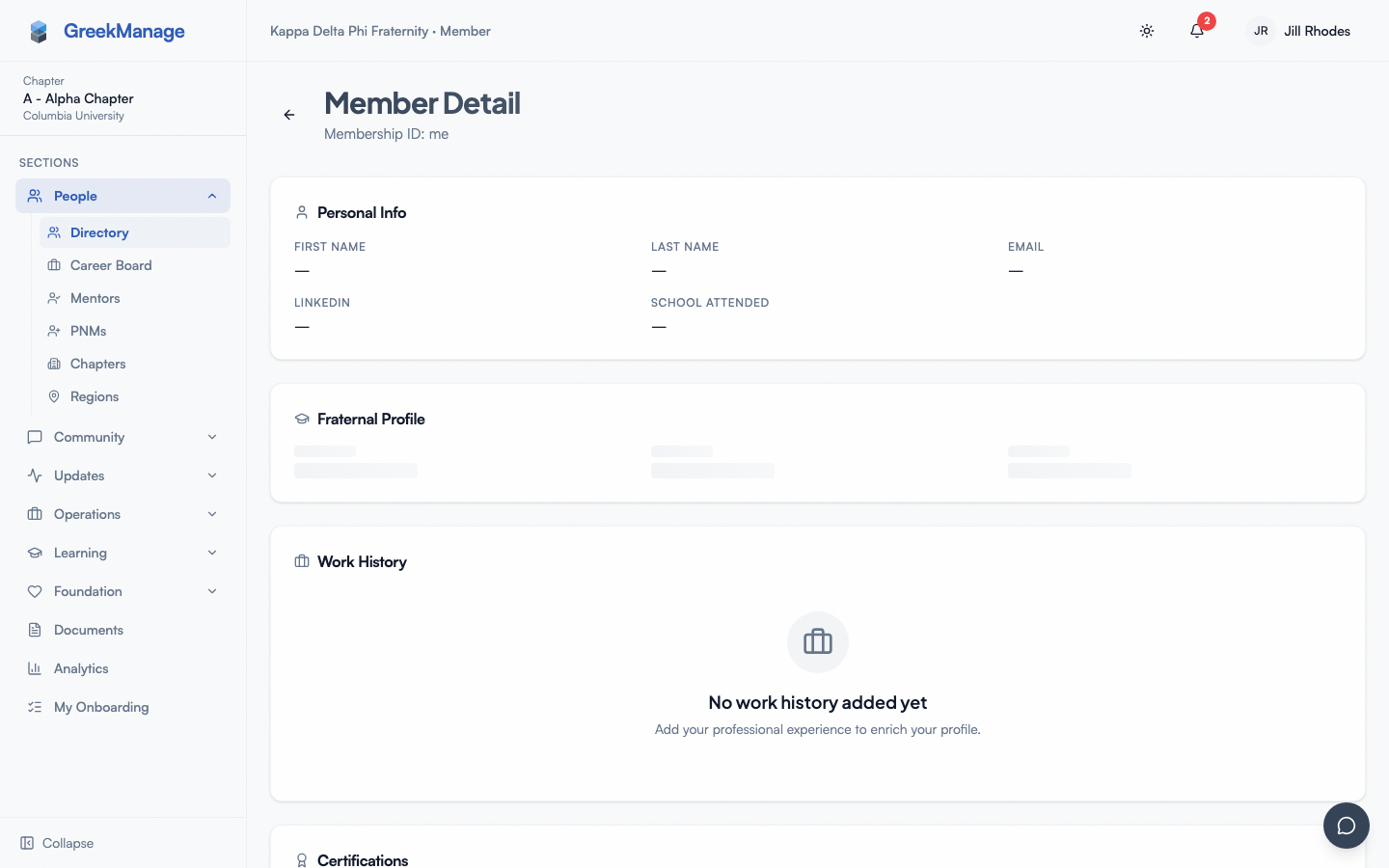
- Open your profile (avatar menu → Profile or your row in Members).
- Click Request Status Change.
- Pick the New Status from the dropdown. Your current status is shown for reference.
- Write a Justification (required) explaining why.
- Optionally upload a Supporting Document — PDF, DOCX, JPEG, or PNG, up to 25 MB.
- Submit.
 status change request dialog
What you see while pending
The request sits in the Pending state until reviewed. You can see your own pending and historical requests on the dedicated "My Status Change Requests" view (exposed via the API; surfaced in approvals UI for org admins).
What happens on review
- Approve — your membership status is updated immediately, and you get a notification.
- Reject — the request is closed with the reviewer's notes. You can submit a new request.
Approvers are org admins (national tier) by default. Regional admins can review for chapters in their region.
2. Member-add request
You'd submit this if you want to add a brother / sister / friend who isn't in the system yet, but isn't a PNM going through formal intake (those use the PNM flow).
How to submit
- Open Members in your chapter sidebar.
- Click the Request to Add Member button (visible to chapter officers — regular members typically ask an officer to submit on their behalf).
- Fill in the form:
- Email, first name, last name (required).
- Role (member, officer, president — defaults to member).
- Optionally: joined date, graduation year, pledge class, crossing semester.
- Write a Justification.
- Submit.
Multi-tier pipeline
Member-add requests have a two-step approval pipeline:
Pending Regional Review → Pending Org Review → Approved
                                              ↘ Rejected
- Submission lands at Pending Regional Review.
- A regional admin approves; the request moves to Pending Org Review.
- A national admin approves; the new member account is provisioned and added to the chapter.
If a regional admin rejects, the request is closed at that tier. The status badge tells you exactly which tier the request is currently sitting in.
What you see at each tier
- Pending Regional Review — region's leadership hasn't acted yet.
- Pending Org Review — region approved, waiting on national.
- Approved — the member exists; they'll receive a welcome email and an invite to set their password.
- Rejected — closed. The notes field tells you why.
3. Big-Little proposal
This is the lineage assignment workflow — you propose who your Big is.
How to submit
You'd typically open your own profile and search for the member you want to set as your Big in the lineage section. The proposal is submitted from there.
Multi-tier pipeline based on requester
The entry point depends on who submitted the proposal:
| Requester | Enters at |
|---|---|
| Regular member (proposing for themselves) | Pending Chapter Review |
| Chapter officer / president | Pending Regional Review |
| Regional admin | Pending Org Review |
| National admin | Approved immediately |
The pipeline then climbs upward at each approval until it reaches Approved. So a regular member's proposal goes through chapter → (optionally regional → org if higher tiers chose to escalate).
Constraints
- You cannot propose yourself as your own Big.
- You can have only one pending Big-Little proposal at a time — the system enforces this with a uniqueness constraint.
- The proposed Big cannot be a descendant of yours in the existing tree (cycle prevention).
What you see at each tier
The status badge moves through:
- Pending Chapter Review → Pending Regional Review → Pending Org Review → Approved
…or stops at Rejected at whichever tier said no.
Approval applies the relationship to the family tree visualization. The chapter's tree updates on next load.
What you can do with a pending request
| Action | Status change | Member add | Big-Little |
|---|---|---|---|
| View its current state | Yes | Yes | Yes |
| Edit while pending | No | No | No |
| Withdraw / cancel | Yes (self-service) | Yes (self-service) | Yes (self-service) |
| Submit again after rejection | Yes | Yes | Yes (after rejection clears) |
Withdraw a pending request
A My Pending Requests card renders on your own profile listing every request you've submitted that's still in flight. Each row has a Withdraw button (scoped to your own requests only — you can't withdraw someone else's).
Clicking Withdraw transitions the request to status cancelled. The reviewer is not notified; the request just stops being actionable for them, and your My Pending Requests card drops it. You can re-submit anytime.
Withdrawing is distinct from a reviewer rejecting — both clear the request from the queue, but a withdrawn request shows status cancelled in your history and an admin-rejected one shows rejected with the reviewer's notes.
Notifications
You'll get a notification when:
- A reviewer approves your request.
- A reviewer rejects your request (with notes attached when supplied).
Notification delivery follows your preferences in Notifications → Preferences — in-app, email, and push (on mobile) where you've opted in.
Errors and edge cases
- A pending Big-Little already exists. Wait for it to be reviewed, or ask an admin to reject it so you can submit a different proposal.
- Status change request rejected — same status requested again. Talk to your reviewer before resubmitting; explain what changed.
- Member-add request bounced at regional. A regional rejection closes the request entirely. You'd submit a new one if circumstances changed.
- File too large on a status change attachment. 25 MB cap. Split or compress.
Mobile differences
All three dialogs work in the iOS and Android apps with the same flow. File pickers use the native chooser. The status badge updates via pull-to-refresh.
What officers and admins see that you don't
- The Approvals page (under Approvals in the sidebar) lists every pending request you submitted plus all the others waiting on the reviewer's tier.
- Reviewers see the Approve / Reject buttons, a notes field for justification, and tier-specific timestamps (chapter, regional, org).
- Admins can dig into the full submission and decision history; you only see your own.
→ Officer side: approvals queue → Org admin side: approvals queue
Related
- Your profile — where status change starts.
- Family tree — where Big-Little proposals start.
- Notifications — pings on approval / rejection.
Last verified against v0.63.39 (2026-06-26). Self-service withdraw shipped v0.63.27.