Submitting compliance evidence
Your chapter has to satisfy a set of compliance requirements every term — service hours, philanthropy events, roster snapshots, financial certifications, and so on. Any chapter member can open a requirement and submit evidence; chapter officers (and higher tiers, if your org configured them) review what you send and either approve it or send it back.
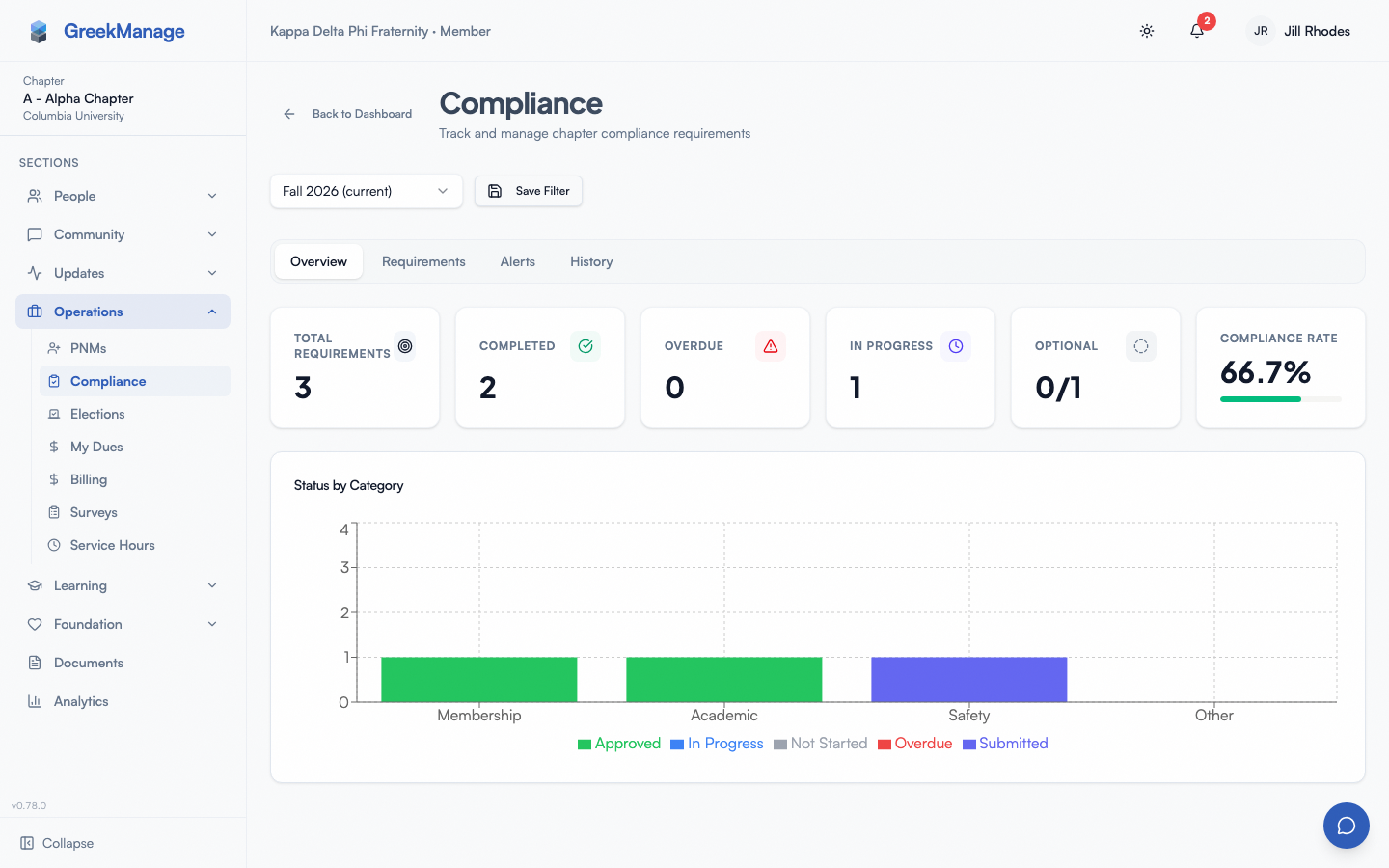 chapter compliance overview with KPI cards and tabs
Where to find it
In the chapter sidebar: Compliance. The landing page has four tabs:
- Overview — KPI cards (total / completed / overdue / in progress) plus a per-status bar chart.
- Requirements — every requirement that applies to your chapter for the selected term.
- Alerts — open warnings or critical alerts the system raised against your chapter.
- History — a timeline of past submissions and reviews.
The semester selector at the top scopes everything to a given academic year and term.
Step-by-step
- Open Compliance in the sidebar.
- On the Requirements tab, click the requirement you want to submit against. You land on a detail page split into a status / approval panel on the left and a Submit Evidence form on the right.
- Read the Instructions card at the top of the left panel. This is the description your org admin wrote for the requirement — the window you have to submit in, which form to use, any step you have to do elsewhere first. It only appears when the admin filled one in, and it is shown exactly as typed, line breaks and all.
- Pick a Submission Type:
- Event — name the event, describe it, list attendees.
- Document — upload a file (and optionally name it / paste a link).
- Link — external URL only.
- Text — free-form notes.
- Attestation — a declaration that the requirement is met (no file required).
- Form — only shows up if your org built a structured form for this requirement. You fill out the fields the org defined.
- Optionally attach files in the dropzone (multiple files allowed, up to 25 MB each). Accepted types include PDF, Word, Excel, PowerPoint, JPEG, PNG, GIF, WebP, CSV, plain text, and ZIP.
- Click Submit Evidence. Your files upload one at a time, and the submission is only recorded once all of them have landed.
The status panel re-renders with the new state, and your submission appears under the Submissions section below.
What you see after submitting
The requirement moves into the Pending Chapter Review state. The status badge updates, and the Approval Pipeline card shows where your submission is in the queue. The Submissions list now contains your entry, including any attachments.
You can still submit additional evidence on top of an existing pending submission — every completed submission appends to the list rather than overwriting.
An attempt that never finished uploading is not one of them: it is not in the list, it does not count toward the requirement, and no reviewer sees it. If you abandon one, it is discarded automatically after 48 hours.
What happens during review
Reviewers approve or reject the latest submission from this same page.
- Approve at a tier advances the requirement. If your org has only chapter-level review, approval flips the status to Approved. If higher tiers are configured, it moves to Pending Regional Review and then Pending Org Review.
- Reject sends the requirement back. The status drops out of the pending pipeline and you can submit fresh evidence (or correct what you sent).
You’ll see the reviewer’s name, the timestamp, and any review notes they wrote on the status detail page.
Status reference
| Status | Meaning |
|---|---|
| Not Started | Nothing has been submitted yet. |
| In Progress | Partial progress on a tracked requirement (count or numeric). |
| Submitted | Evidence is in but has not yet entered the review pipeline. |
| Pending Chapter Review | Waiting on a chapter officer / president. |
| Pending Regional Review | Approved at chapter, waiting on regional admin. |
| Pending Org Review | Approved at regional, waiting on org admin. |
| Approved | Done. |
| Rejected | A reviewer sent it back. Submit again. |
| Overdue | Past due date with no completed submission. |
| Exempt | Org admin waived this requirement for your chapter. |
Tracked requirements (counts and numbers)
Some requirements aren’t a single-submission deal — they track a count (e.g., 20 service hours) or a numeric value against a target. On the requirement detail you’ll see a progress bar showing where you stand and either:
- a count of your chapter’s completed submissions (“Item 3 of 5”), which goes up as soon as a submission finishes uploading, before anyone reviews it, or
- a numeric input where officers update the current value.
The count shows progress; it does not decide anything. Reaching the target does not mark the requirement done on its own. Each submission still goes through review, and the requirement is Approved when its reviewers approve it. An attempt that never finished uploading is not counted.
Errors and edge cases
- File too large. The 25 MB cap is per file, enforced both client-side and server-side. Split the file or compress it.
- Unsupported file type. Magic-byte validation runs on the server, so renaming a file extension won’t help. Stick to the supported MIME types listed above.
- Past the deadline. A requirement marked Overdue still accepts submissions — getting evidence in late is better than not at all, but the overdue flag stays on the chapter’s record until a reviewer approves.
- Wrong semester. The semester selector scopes the list. If you can’t find the requirement, check that you’re on the right academic year and term.
Mobile differences
The same flow works in the iOS and Android apps. File uploads use the device’s native picker. Camera-roll photos and PDFs from Files / Drive both work. Pull down on the requirements list to refresh.
What officers and admins see that you don’t
- Review controls — the Approve / Reject buttons appear on the same page only for users whose role matches the current pending tier.
- Alerts tab with one-click acknowledge.
- Chapter Compliance dashboard with chapter-wide totals, drill-down, and CSV/XLSX export.
- Requirement overrides — admins can give a chapter a custom target or mark a requirement Exempt.
→ Officer side: managing compliance submissions
Related
- Your dashboard — compliance alerts surface here when active.
- Notifications — get a ping when a reviewer approves or rejects your submission.
Last verified against v0.62.1 (2026-05-11).