Your dashboard
When you sign in as a member, the chapter dashboard is your landing page. It’s a single screen that condenses what’s happening in your chapter and across your whole organization — member counts, national totals, current invoice, membership health, announcements, and the latest social activity — into one bento-style grid.
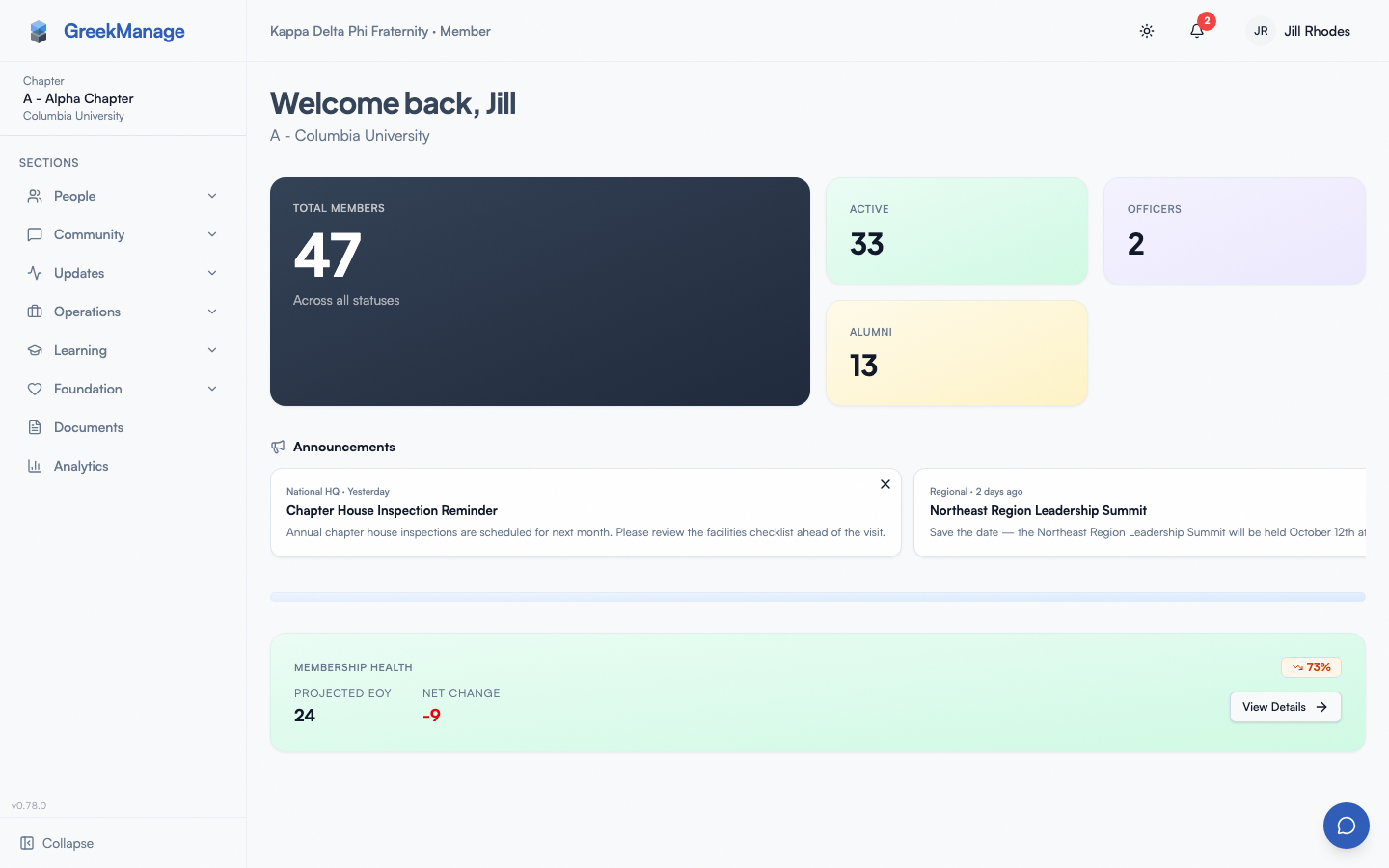 The chapter member dashboard.
chapter dashboard, top-of-fold view showing greeting, the org panel and chapter tiles, and the bulletin banner
The header strip
At the top you’ll see a personalized greeting (“Welcome back, [First Name]”) and a subtitle showing your chapter’s Greek-letter designation and the university it’s chartered at — for example, “Alpha Beta - State University”. If your profile is brand new and we don’t know your first name yet, the greeting falls back to a plain “Welcome back”.
The greeting and the four-card KPI row that follows are animated — they fade up in sequence on first render. If your operating system or browser has “reduce motion” turned on, the animation is suppressed and everything appears at once.
The stat block
Below the greeting, two groups of counts sit side by side, each under a small label naming what it covers: your organization on the left, your own chapter on the right.
Your organization, nationally
The dark gradient panel on the left carries your organization’s headline numbers — the same ones your national administrators see on their own dashboard:
- Total Membership. Everyone counted as a member across every chapter, alumni included. Prospective new members (PNMs), disaffiliated members and the old record a chapter transfer leaves behind are not counted, so this matches the Total Members figure in Analytics. The number animates from 0 to its final value in about 600 ms when you first land on the page.
- Active chapters, shown as a fraction of the total number of chartered chapters (for example, “12 / 67”).
- Active members — the undergrad and associate population across the whole organization.
These are aggregate counts only. They are the same figures you could add up yourself from the member directory, which already lists every member of your organization.
Your chapter
Above the cards on the right, beside your chapter’s designation, a My Chapter button opens your own chapter’s page directly — the roster, advisors and activity you would otherwise reach by opening the chapter list and finding yourself in it.
Four tinted cards on the right hold the same chapter counts they always have:
- Total Members. Everyone counted as a member of your chapter: undergrad, associate, alumni and inactive. PNMs, disaffiliated members and transferred records are not counted.
- Active. Emerald-tinted card. Counts members whose status is “Undergrad”.
- Officers. Violet-tinted card. Counts members currently in officer or president roles.
- Alumni. Amber-tinted card. Counts every alumni-flavored status combined — Alumni, Active Alumni, and Lifetime Alumni.
On a wide screen the org panel and the chapter cards sit in two columns. On tablet and phone they stack, org panel first.
If the data is still loading you’ll see -- placeholders in every counter.
Announcements (bulletin banner)
If your org or region has published bulletins, an Announcements section appears next. The most recently published pinned bulletin is shown as a featured card with the full title, a 3-line preview, and a “PINNED” badge in the top-right corner. Up to three additional unpinned bulletins follow as a horizontally scrolling row of compact cards, each labeled “National HQ” or “Regional” depending on who posted it, and timestamped (“Today”, “Yesterday”, “3 days ago”, “2 weeks ago”, or the full date).
If there are no bulletins, the entire announcements section is hidden — you won’t see an empty heading.
Dues Balance card
This card only appears if your org has the Operations module enabled and there is at least one chapter invoice on file. It shows the current billing period, the outstanding balance in dollars, the due date, and a colored status badge:
| Status | Color | Meaning |
|---|---|---|
| Unpaid | Amber | Invoice generated, no payment yet |
| Partial | Orange | Some payment received, balance remaining |
| Paid | Emerald | Fully settled |
| Overdue | Red | Past the due date with balance remaining |
There is a View Invoice button on the right that links to the invoice detail page. As a regular member, opening that link returns an “access denied” message — only chapter officers and admins can see invoice contents and trigger payments. See Dues & invoices for the member-side view.
The card auto-refreshes every 60 seconds so a payment made by your treasurer reflects on your dashboard within a minute.
Membership Health card
This card only appears if your org has the Operations module enabled and a retention snapshot has been computed for your chapter. It shows:
- Projected EOY — the predicted active member count at end-of-year, based on current trends.
- Net Change — the projected difference vs. today’s active count, colored green for positive and red for negative.
- A small Health Score badge in the top-right summarizing the overall direction.
A View Details button on the right takes you to the Analytics page’s Retention tab for the full retention dashboard (officers and admins only — regular members see a 403).
Social feed
If your org admin has connected an Instagram or X/Twitter account, you’ll see a Social card listing the most recent posts from those accounts. Each row shows the platform icon (pink “IG” tile for Instagram, dark “X” tile for Twitter/X), the handle, the post text (truncated to two lines), like and comment/repost counts, and a relative timestamp (“now”, “2h”, “3d”, “1w”). Click any row to open the post in a new tab on the original platform.
There are filter chips at the top of the card — All, IG, X — to narrow by platform. If no social accounts are connected, this card is hidden entirely.
What you won’t see
The dashboard adapts to the modules your org has licensed and your role. If a module is disabled at the org level, the corresponding tile vanishes — there is no “feature locked” placeholder for members. Specifically:
- No Operations module → no Dues Balance card.
- No Operations module → no Membership Health card.
- No connected social accounts → no Social card.
- No bulletins published → no Announcements section.
If everything is disabled, the dashboard is just the greeting and the four KPI tiles.
What officers and admins see that you don’t
Chapter officers, regional admins, and national admins all use the same dashboard route on a chapter, but with more permissions to act on what’s displayed:
- Officers can open the Dues Balance card’s invoice detail, see line items, and trigger payment.
- Officers can open the Analytics → Retention detail page when Operations is licensed.
- Officers can see compliance alerts and chapter approval queues (these appear elsewhere in the app, not on the chapter dashboard itself).
- Org admins see additional KPI rollups on the org-level dashboard at
/org/dashboard, including chapter counts, profile completeness across chapters, and an export menu. - Regional admins see a region-level dashboard at
/region/dashboardaggregated across the chapters in their region.
As a member you only ever see your chapter’s dashboard.
Mobile dashboard
On the iOS and Android apps the same widgets render in the same order, but stack into a single scrollable column. Two mobile-specific behaviors:
- Pull-to-refresh. Drag down from the top of the screen and release once you cross the refresh threshold (about 80 px of pull). All dashboard queries — stats, bulletins, invoice, retention, social — invalidate and refetch. A spinner indicator shows while the data reloads.
- No pull-to-refresh on web. On
https://app.greekmanage.comin a browser, dragging down does not trigger a refresh. Chrome’s built-in pull-to-refresh may still fire, but GreekManage’s own gesture is mobile-only. Use the browser refresh button if you need fresh data on the web.
The four KPI tiles reflow to a single column on phone-width screens — Total Members on top, then Active, Officers, Alumni stacked below.
Errors and edge cases
| Situation | What you see |
|---|---|
| Backend unreachable | KPI counters show -- and stop animating; cards that depend on API data are blank or missing |
| Your chapter ID is missing from your session | Stats card shows -- permanently; sign out and back in to re-resolve your membership |
| You’re a member of multiple chapters | Only your current membership’s chapter dashboard renders; ask an admin to confirm the correct active chapter |
| Bulletin has malformed HTML | The 3-line preview strips all HTML before display, so the worst case is a shorter preview |
| Social card 401/403 | Org admin needs to reconnect the Instagram OAuth token — until then no posts render |
Troubleshooting
- My counts look wrong. The counts come from the membership database. Ask an officer to check that statuses are set correctly on each member’s profile. There is no manual recount button.
- No “Dues Balance” card. Either your org doesn’t have Operations enabled, or no invoice has been generated for your chapter yet. If both should be true, ask your national admin.
- Bulletin says “Yesterday” but I read it last week. The relative timestamp is based on the bulletin’s published_at, not when you last read it. There is no per-user read state for bulletins.
- Animations are jarring. Set “Reduce motion” in your OS accessibility settings. The dashboard respects
prefers-reduced-motionand skips the entrance animation entirely.
Tips
- Set notification preferences to control which dashboard events also ping you by email or push. → Notifications
- Use the AI chatbot (floating widget, bottom right, if your org has AI Services enabled) to ask “What’s due this week?” — it can pull from your chapter’s data. → AI chatbot
- Bookmark the dashboard as your home — it’s the default landing route after sign-in.
Related
Last verified against v0.65.25 (2026-07-05). Corrected stale “Retain module” references — Retain merged into the Analytics module’s Retention tab, gated by the Operations module, v0.65.0.