Documents library
The documents library is where your organization publishes constitutions, bylaws, standing rules, policies, and other official records. As a member you can browse, search, and read anything that's been shared with your role.
What you see
In your sidebar: Documents.
The page opens to a table of every document you have permission to read, with a search box at the top. There's no folder hierarchy — documents are organized by an org-configurable category (Constitution, Bylaws, Standing Rules, Policy, Manual, Other, or a custom category your org has added) instead of nested directories.
Each row shows:
- Title
- Category — a badge for the document's category, or a "—" badge if it has none
- Visibility — a badge showing Public, Chapter, or Officers Only
- Updated — the date the document was last modified
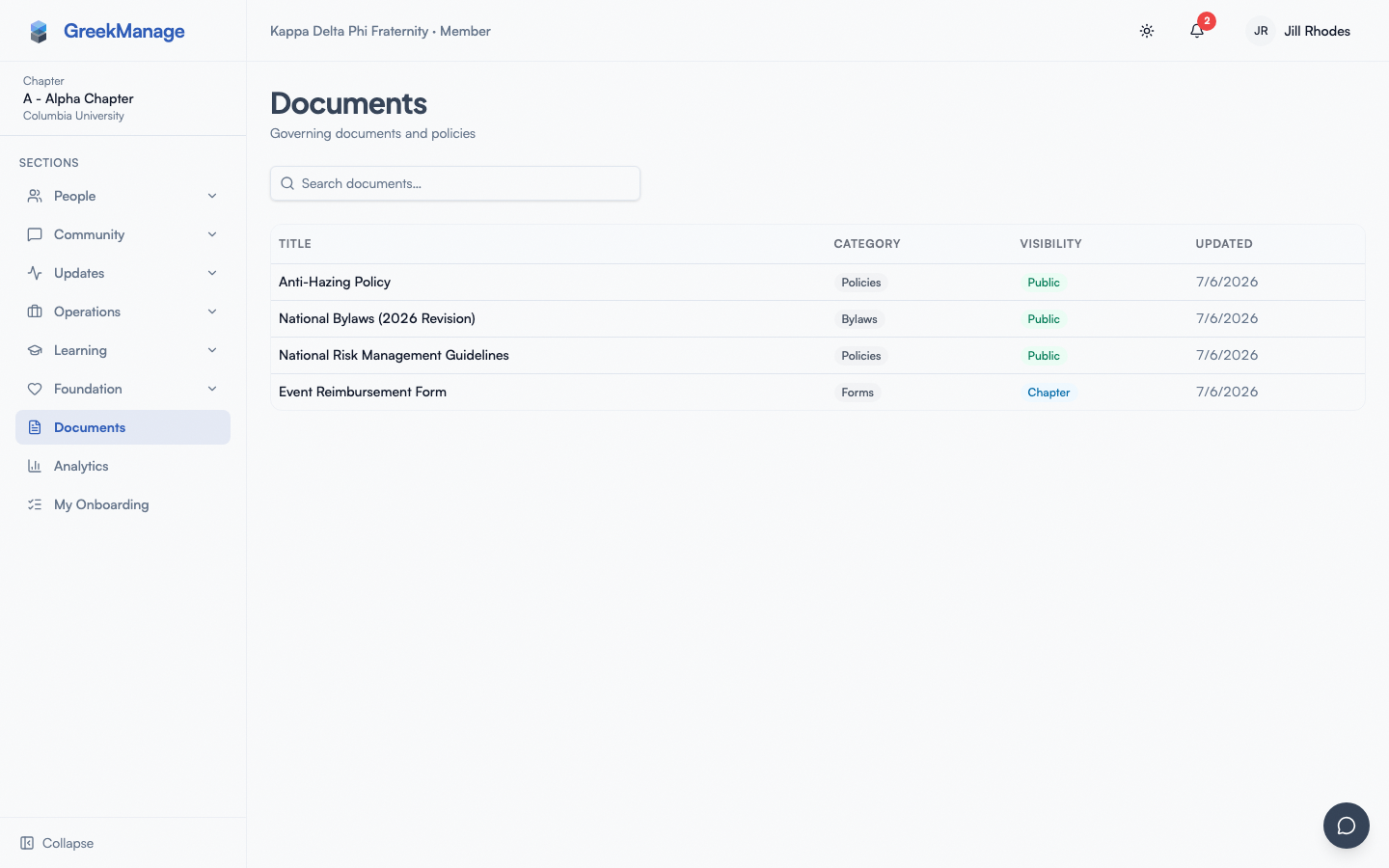 Documents library
Clicking a row opens a read-only dialog with the full content, the category and visibility badges, and (if the document has history) buttons to view prior versions and see what changed.
Step-by-step: search for a document
- Open Documents in your sidebar.
- Type a keyword into the search box at the top — no need to press Enter, it searches automatically after a short pause.
- Click the × that appears once you've typed something to clear the search and return to the full list.
This is real full-text search (ranked by relevance, not just a substring match) across each document's title and typed content. It does not look inside attached PDF, DOCX, or other files — a document that's only an uploaded file with no typed content is findable by title alone. If you need a specific phrase inside a long attached PDF, open the document and use your browser's find-in-page (Cmd+F / Ctrl+F).
There's no separate category or visibility filter on this page — the table is already restricted to documents you have permission to see, and you can scan the Category column to browse by topic.
Step-by-step: read a document
- Click the row to open the read dialog.
- The full document content appears in a scrollable panel, with category and visibility badges at the top.
- Tap the close icon (or click outside the dialog) to dismiss.
If the document has a file attachment (a PDF or Office file uploaded alongside the text), a Download button lets you get it — downloads are proxied through the platform so the underlying storage URL isn't exposed. If instead the document links out to an external location (Google Drive, SharePoint, or another URL), you'll see an Open External Link-style button (labeled "Open in Drive" or "Open in SharePoint" when the platform recognizes the destination) that opens the link in a new tab.
Version history
If a document has been edited since it was first published, you'll see a Versions button in the read dialog with the version count.
- Click Versions (N) to expand.
- You'll see each version listed newest-first with version number, the date it was created, who made the change (if recorded), and an optional change summary written by the editor.
- A View Changes button, if present, opens a color-coded diff of the most recent edit against what came before. Restoring that prior version is an officer/admin action — as a regular member you can view the diff but you won't see a restore button.
There's no separate "current" vs. "archived" status on documents anymore — every document you see is simply its latest version, and older content only exists inside the version history and diff views described above.
What's visible to you depends on visibility
Every document has a Visibility setting picked by the officer or admin who uploaded it. There are three tiers:
- Public — anyone in your org with the Documents module enabled can read it. Useful for the national constitution, code of conduct, etc.
- Chapter — restricted to active members of the owning chapter. Useful for chapter-specific bylaws or local standing rules.
- Officers & admins only — restricted to officers, regional admins, and national admins. Useful for sensitive policies (financial procedures, judicial process, etc.).
If you don't see a document you've been told about, the most likely reason is visibility — ask an officer or admin to confirm whether your role is in scope.
What officers and admins see that you don't
- Officers and national admins see Create, Edit, and Delete actions on documents in their scope. They can change a document's category or visibility, upload a new version with a change summary, or (for officers/presidents on a document's own chapter) restore its most recent version from the diff view.
- Regional admins see and manage documents for the chapters in their region, plus org-wide public documents.
- National admins see everything in the organization regardless of visibility, plus category management and an approval queue for orgs that require sign-off before edits go live.
Authoring, the approval workflow, and audit history are out of scope for this page — see the officer documentation.
Mobile differences
- The search box and the table both adapt to mobile widths.
- Reading long documents on mobile uses the same scrollable dialog as desktop, with safe-area padding.
- Downloading an attached PDF or Office file routes through your device's native handler (Quick Look on iOS, Downloads on Android).
Errors and edge cases
- "No documents available." Either your org admin has not published any documents yet, none are visible to your role, or your search doesn't match anything — try clearing the search box.
- A document you've seen before is gone. It may have been deleted, or its visibility tightened. Officers and admins can confirm.
What the library does not support
A few features that exist in similar products are not built into the Documents library — flagged honestly so you don't go looking for them:
- No folder hierarchy. Documents are organized by category and visibility, not by nested directories or folders.
- No search inside attached files. The search box covers each document's title and typed content only — it can't look inside an uploaded PDF or DOCX body. If a document you rely on is only ever an attached file, ask the uploader to also paste the key text into the content field.
- No collaborative editing. The library is for published records, not live document collaboration. Use your org's preferred external tool for drafting; upload the final version here.
- No comments or annotations on document contents.
Tips
- Bookmark the document URL if you need to refer to a policy often — the read dialog has a stable URL.
- Check the Updated column. Constitutions and bylaws change at conventions or after policy reviews. If a document was updated recently, scan the version history to see what changed.
- Use the search box before assuming a document doesn't exist — it matches word stems across title and content, so a partial or differently-worded query often still finds it.
- Officers: write a change summary. When uploading a new version, the change summary you type shows up to every member in the version log — it's the easiest way to give context without a separate announcement.
Related
- Module: Documents
- Engage forums — discussion alongside the formal record
- Profile
Last verified against v0.65.25 (2026-07-05). Corrected stale "not supported" claims — the Documents module shipped full-text search (title + typed content) and external-link documents in v0.63.40/41; replaced references to the removed "document type" field and the removed Current/Archived (is_current) status with the current category + version-history model.