Events & RSVPs
Events live in Community → Events in your sidebar. Officers and admins post them; you RSVP. This page covers everything members can do, plus a short walkthrough of what officers see that you don’t.
What you see
The Events page is a grid of cards — one per event in your scope (your chapter if you’re a member, your region if you’re a regional admin, or the full org if you’re an org admin).
Each card shows:
- Title and event-type badge (color-coded — see Event types below)
- Start time and end time, formatted in your local timezone
- Location (if set)
- A small going / maybe count strip at the bottom, plus a waitlisted count if anyone is on the waitlist
- A Required tag if the event is mandatory
- A Max N label if the event has an attendee cap
Cancelled events are dimmed and tagged Cancelled. They stay visible on the list — the platform doesn’t delete them, so the historical record is intact.
You can filter the grid by event type, and by audience, using the dropdowns at the top of the page. The filters apply live — there’s no “Apply” button.
Who can see an event
Every event has an audience set by whoever created it:
- All organization members — anyone in the org, from any chapter. Most events.
- This chapter only — members of that chapter.
- Officers & educators only — the chapter’s officers and anyone named as a new member educator.
Events narrower than the whole org carry a small marker on their card (Chapter only or Officers & educators). If an event is also marked In-app only with a lock, it won’t appear in your subscribed calendar or in exports — you can only see it here. You never see events outside your audience at all, and neither does the AI assistant when you ask it about events.
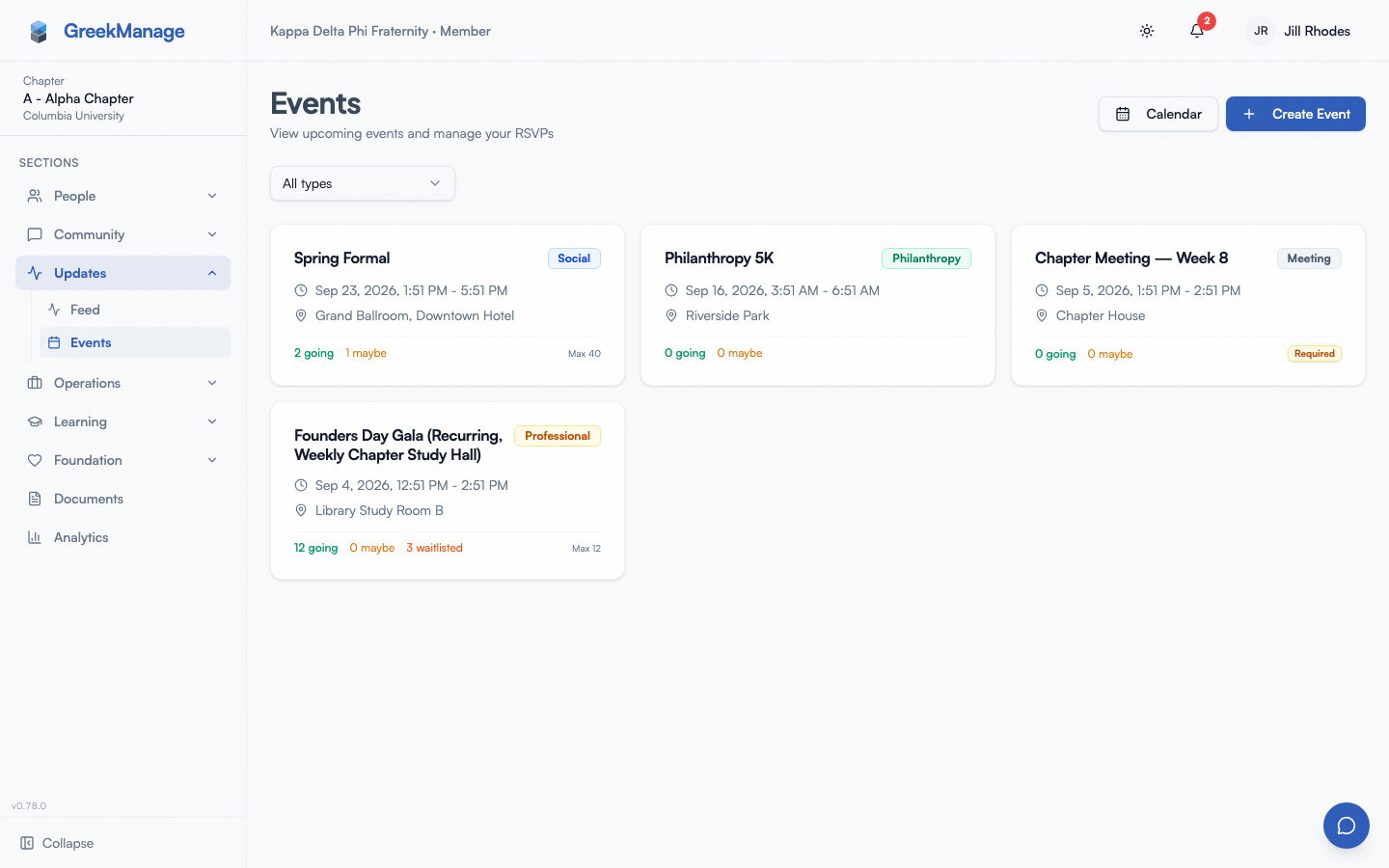 Events grid with date filter and RSVP status badges.
Event types
The platform ships with a fixed taxonomy of eight types, each color-coded on the card:
| Type | Typical use |
|---|---|
| Social | Mixers, formals, brotherhood / sisterhood nights |
| Philanthropy | Charity events, sponsored fundraisers for causes |
| Meeting | Chapter business, exec board, committees |
| Recruitment | Recruitment events, info nights, bid days |
| Professional Development | Workshops, resume reviews, alumni panels |
| Community Service | Volunteering and service projects |
| Fundraiser | Chapter fundraisers (revenue back to the chapter) |
| Other | Anything that doesn’t fit cleanly above |
The type is set when the event is created and can’t be changed by members. Officers can edit the type later if they picked the wrong one.
RSVP
Click an event card to open the detail dialog. From there:
- Read the description, time, and location.
- Under Your RSVP, pick one of three buttons:
- Attending
- Maybe
- Can’t Go (stored as “not attending”)
- The button you tap gets the colored fill — green for Attending, amber for Maybe, slate for Can’t Go.
Your response saves immediately. There is no Save button — tapping a button writes the RSVP. You can change your RSVP any number of times before the event.
The four counters at the bottom of the detail dialog (Attending / Maybe / Not Attending / Waitlisted) update for everyone in real time as RSVPs come in.
Full events and the waitlist
If an event has a Max N attendee cap and it’s already full, the Attending button relabels to Join Waitlist. Tapping it never blocks you — it puts you on the waitlist instead, and the detail dialog shows “You’re #N on the waitlist. You’ll be moved to attending automatically if a spot opens up.”
Automatic promotion happens whenever an Attending member gives up their seat — by switching to Can’t Go or Maybe, or by tapping Withdraw RSVP. The next person on the waitlist (lowest position number) is promoted to Attending, gets an in-app notification and email (“You’re off the waitlist!”), and their waitlist position clears.
While anyone is waiting, a seat that opens up goes to the waitlist first: someone who RSVPs Attending after you joins the waitlist behind you, even if the seat is momentarily free. If you’re already waitlisted and tap Attending again, you keep your place in line.
Change or cancel an RSVP
Open the event again and tap a different button. There is no “Cancel RSVP” button — switching to Can’t Go is the cancellation (and, if you’re Attending on a capped event, it’s also what frees your spot for the waitlist — see above). If you want to clear your RSVP entirely (as if you never responded), tap Withdraw RSVP underneath the three status buttons in the dialog.
What if the event is cancelled?
If an officer cancels the event, the Cancelled badge appears next to the title, the card is dimmed in the list, and the RSVP buttons disappear from the detail dialog. A cancellation reason (if the officer added one) shows in a red callout inside the dialog.
You don’t get a refund for anything paid through dues — cancellation is informational.
Recurring events
Some events repeat on a schedule (a weekly chapter meeting, for example). There’s no special “(recurring)” badge or indicator on the card or in the detail dialog — each occurrence is just its own event with its own title, RSVPs, and check-ins, so a weekly meeting shows up as a separate card every week rather than one card you expand. If you want to spot a series at a glance, look for identical titles repeating at the same day/time.
Check-in
Check-in is separate from RSVP. RSVP records intent (“I plan to come”); check-in records actual attendance.
In v0.62.1:
- Officers check you in. When you arrive at the event, a chapter officer (or admin) opens the event detail, scrolls to the attendance table, and taps Check In next to your name.
- No self-service check-in. There is no “I’m here” button for members. There is also no QR-code flow for self-check-in.
- You must be RSVP’d as Attending for the Check In action to appear next to your name. Officers see a Check In button only for members whose RSVP is Attending.
- Once checked in, the table shows a green checkmark under Checked In, and the check-in timestamp is stored.
If you forgot to RSVP but showed up, ask an officer — they’ll RSVP you as Attending first, then check you in.
Get reminders
GreekManage can send reminders for events you’ve RSVP’d to. Customize this in Notifications. Mandatory events typically trigger reminders for everyone in the chapter regardless of RSVP status.
Switch between calendars
The month calendar has a row of tabs: All I can see, My Chapter, National, and any calendars your organization or chapter has set up (for example Recruitment or NME). Pick a tab to see just that calendar. You’re only offered calendars whose events you can see, so if your chapter’s officers have a calendar you’re not part of, it doesn’t appear for you.
Cancelled events show on the month calendar struck through. If they make a month look busier than it is, tick Hide cancelled next to the tabs: cancelled events drop off the grid on every tab, and the calendar remembers your choice in this browser. Untick it to bring them back. The events list is unaffected.
Subscribe to your calendar (ICS)
You don’t have to check the Events page to know what’s coming up — you can subscribe your phone or desktop calendar app to a feed of every event across every chapter you belong to:
- From the calendar. Click Subscribe at the top of the month calendar. You get one private link per calendar — everything you can see, your chapter, national, and each of your organization’s calendars. A calendar marked Unavailable is in-app only; view it in GreekManage. Reset my links stops every old link working.
- From Account Settings. Open the avatar menu → Account Settings and scroll to the Subscribe to Calendar card. It shows your personal feed URL with a copy button, plus a Reset URL button if you ever need to invalidate an old link (e.g. you shared it accidentally).
- From any event. Open an event’s detail dialog and click Subscribe to Calendar — it copies the same URL straight to your clipboard with a confirmation toast, without leaving the page.
Paste the URL into Apple Calendar, Google Calendar, or any app that supports calendar subscriptions (“Add by URL” / “Subscribe”). The feed covers roughly the next 6 months and excludes cancelled events and events marked In-app only; it carries exactly the events you can see in the app, with their location and description; it updates automatically as new events (including newly materialized occurrences of a recurring series) are added, so you don’t need to re-subscribe.
Mobile differences
The iOS and Android apps render the same Events page as web — same card grid, same detail dialog, same three RSVP buttons. Differences worth noting:
- Touch targets are larger on mobile; the three RSVP buttons sit in a single row at a comfortable tap size.
- The grid collapses to a single column on narrow screens.
- No keyboard shortcuts (there aren’t any on web either — events doesn’t use the lightbox-style arrow-key nav that photos use).
- Push notifications for reminders, cancellations, and check-ins arrive through the device’s native notification system if you’ve enabled push.
What officers see that you don’t
If you become a chapter officer or president, the events page picks up several extra capabilities:
- A Create Event button in the top-right opens a dialog with the full event form: title, description, type, location, start and end times, max attendees, budget, a mandatory toggle, the event’s audience, and whether it’s included in calendar feeds and exports.
- The event detail dialog gains an Attendance table listing every RSVP’d member with their status, check-in state, and a per-row Check In action.
- Officers can edit and cancel events (cancellation requires a reason, which appears to members in the detail dialog).
- The Budget field tracks projected event cost — useful for chapter financial planning. It’s visible to officers and admins only.
National admins see the same controls scoped to every chapter in the org. Regional admins see them scoped to chapters in their region. On top of that, national and regional admins get a few things chapter officers don’t: a Repeats control for setting up recurring events, a schedule-conflict warning when a new/edited event overlaps another on the same chapter, and an Export CSV button for attendance reports. Officers can still see waitlist counts, “Waitlisted #N” badges, and the Calendar Feed tab on their own chapter’s detail page — see Creating events for the officer-side view.
Errors and edge cases
- “You are not a member of this chapter.” You can’t RSVP to events in a chapter where you don’t have an active membership. If you think you should — check your membership status on your profile.
- Past events. You can still see past events but RSVP doesn’t change the historical record. RSVP buttons stay clickable for the convenience of late RSVPs, but check-in is what officers actually use after the fact.
- Duplicate RSVPs. The platform prevents duplicates per (event, member) — each tap simply updates your existing record.
- Already checked in. Officers tapping Check In a second time on the same member get a “Member is already checked in.” error. There’s no un-check-in in v0.62.1.
- Calendar view. Click Calendar in the sidebar — it’s a top-level row, not inside a group, and it replaced the old Events row. It opens the month calendar; the List / Calendar switch at the top takes you to the events list and back.
Troubleshooting
- An event is in the app but not in my calendar app. It’s marked In-app only — its organizer kept it out of subscribed calendars.
- I tapped RSVP but the counter didn’t update. The platform updates the counter immediately on your screen — if it doesn’t, your network call failed. Pull to refresh or reopen the dialog.
- An event I expected isn’t showing up. It may be This chapter only or Officers & educators only for a chapter you’re not in (or a role you don’t hold) — that’s by design. Otherwise confirm: are you looking at the right scope (chapter vs org)? Is the type filter excluding it? Has it been cancelled and the dimmed card is below the fold?
- I can’t find the cancellation reason. Open the event detail dialog — the reason shows in a red callout inside the dialog, not on the card.
- Push notifications for an event never arrived. Check Notifications → Preferences to confirm event reminders are on, and check your device’s notification permissions for GreekManage.
Related
- Notifications — control event reminders and push behavior
- Photo albums — many events get an album after
- Dashboard — upcoming events also surface on your dashboard
Audiences, In-app only events and the Calendar sidebar row verified 2026-09-27. Last verified against v0.65.23 (2026-07-05). RSVP waitlist with auto-promote, recurring events, and ICS calendar subscriptions shipped v0.65.17. Stale “no full-screen calendar UI for members” claim corrected — the Calendar link on the Events page opens events/calendar (EventCalendarPage) at the chapter/member tier.