Family tree
The family tree visualizes your chapter's big-little lineage. You can browse the tree, jump to your own family line, propose your Big, and follow each proposal through a multi-tier approval workflow before it shows up on the tree.
Where to find it
In your sidebar: Family Tree.
The page opens with two controls in the top-right and a large React Flow canvas filling the rest of the screen.
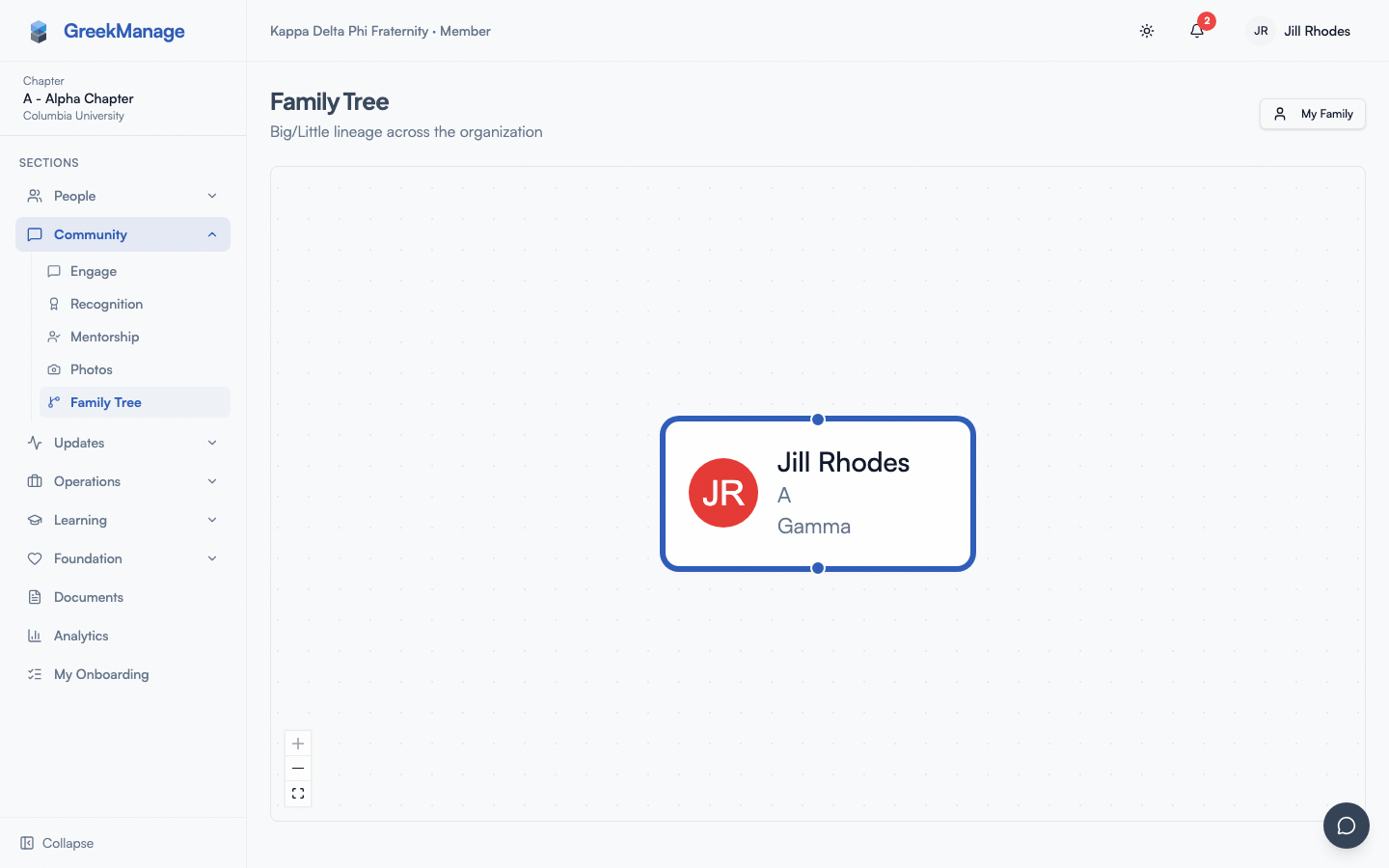 Family tree visualization with the member highlighted.
What you see
When the tree loads, you get a vertical genealogy diagram:
- Root node at the top — the head of the family line you're currently viewing.
- Children fan out below their parent, connected by smooth curve edges.
- Each node is 180×80 px and shows the member's avatar (or initials), name, chapter designation, and pledge class.
- Your own node is visually highlighted when present so you can find yourself quickly.
- The canvas auto-fits the tree on load and re-fits when you switch family lines.
- A dotted background grid sits behind the tree at low opacity to give a sense of pan / zoom.
If the page renders an empty state ("No family tree found"), it means the org has no big-little relationships recorded yet, or you're looking at a chapter that hasn't been seeded with lineage data.
Top-right controls
Two controls sit above the canvas:
- My Family button — recenters the tree on your own lineage. Walks up your big-brother chain to find the root, then renders the descendant tree below it.
- Select a family line dropdown — lists every root member in the org (members with no big who have at least one little). Each row shows the root's name and total descendant count, e.g. "Alex Park (12 members)".
If your org's tree has many family lines, the dropdown is the fastest way to jump between them.
Navigate the canvas
The canvas uses React Flow with these built-in interactions:
- Drag the empty canvas to pan.
- Scroll to zoom in / out. Pinch-zoom works on trackpads and mobile.
- Click a node to open that member's profile.
- Controls panel in the bottom-left has zoom-in, zoom-out, and fit-view buttons (the "lock" interaction toggle is hidden in v0.62.1).
The min-zoom is 10% (good for huge family lines), max is 200%. There's no minimap in v0.62.1.
Propose your Big
Members can propose their own Big in v0.62.1 — the previous version's "officers / admins only" claim was incorrect. Here's how:
- Open your profile (avatar menu → Profile, or your row in Members).
- Click Edit Fraternal Info in the lineage section.
- Search for the member you want to set as your Big in the Big field. Search by name; the dropdown shows matches across the org.
- Click Save.
When you save:
- The non-lineage fields (your name, NME) save first via the standard profile PATCH.
- A separate Big-Little request is then created and routed through the approval workflow.
You'll see a toast that says either:
- "Big/Little relationship saved" — auto-approved (only happens if you're a national admin).
- "Big/Little request submitted" — pending review at the next tier up.
Approval workflow
GreekManage uses multi-tier approval. The tier where your request enters depends on your role; the request escalates exactly one tier above you so you can't approve your own:
| Your role | Request enters at | Reviewed by |
|---|---|---|
| Chapter member | Pending Chapter | Chapter officer / president (or anyone above) |
| Chapter officer / president | Pending Regional | Regional admin or national admin |
| Regional admin | Pending Org | National admin |
| National admin | Approved (auto) | — |
If an officer or admin proposes a Big-Little relationship on behalf of someone else, it's auto-approved at the point of entry. This is by design — officers and admins act with authority for their scope.
You can only have one pending request at a time per member. Submit a second proposal while one is still pending and the platform returns "A pending big/little request already exists for this member."
Self-approval is blocked: even if you'd otherwise have permission to review at the entry tier, you can't approve a request you submitted.
What happens when approved
- The relationship writes to your member profile (
big_id). - You and your new Big each get a notification.
- The relationship appears on the tree on the next canvas refresh.
What happens when rejected
- The reviewer must include rejection notes (required when status = rejected).
- You get a notification with the reason.
- The relationship doesn't write to your profile.
Cycle detection
Cycles are blocked automatically. If you propose someone who is already in your descendant tree (e.g. your great-grandlittle), the platform returns: "This would create a cycle in the family tree."
The check runs both at proposal time and again at approval time — so even if the tree changes between proposal and review, the cycle is caught before the relationship saves.
The detection walks the big_id graph recursively from your proposed Big downward. Max depth is 50 levels — sufficient for any realistic chapter lineage.
What officers, regional admins, and national admins see additionally
The tree page itself is the same for everyone — same canvas, same controls. The differences kick in elsewhere:
- Approvals page — officers, regional admins, and national admins see pending Big-Little requests in the Approvals queue. The tier they can review at depends on their role (see table above).
- Edit any member's Big-Little — officers and admins can open any member's profile and propose / assign their Big. When they do so on someone else's behalf, the relationship auto-approves immediately.
- Reject with reason — required field when rejecting. The rejection note shows up in the member's notification.
- Re-cycle check at approval — if the descendant graph changed between submission and approval, the platform re-runs the cycle check before letting the approval go through.
Empty tree?
If the tree shows "No family tree found", it usually means:
- Your chapter is new and no relationships have been entered yet, or
- Data wasn't imported when your chapter migrated to GreekManage.
Officers or admins can seed the tree by editing each member's Big field. Bulk CSV import can also populate it. → Member CSV import
Mobile differences
- The React Flow canvas works with touch — drag to pan, pinch-zoom to scale.
- Long single-line family trees can be wider than the screen; pinch-zoom out to see them all.
- The Controls panel in the bottom-left exposes the same zoom buttons as web.
- Native swipe-back gestures don't conflict with canvas drag because the canvas only intercepts touches inside its bounds.
Errors and edge cases
- "A pending big/little request already exists for this member." Wait for the current request to be approved or rejected before submitting another.
- "A member cannot be their own big." Self-reference is blocked at the API level.
- "Member is not in this organization." / "Proposed big is not in this organization." Both members must have active memberships in the same org.
- "This would create a cycle in the family tree." The proposed Big is already your descendant. Cycles are not allowed.
- "You cannot approve your own request." Self-approval is blocked even if your role would otherwise qualify.
- "You do not have permission to review this request at its current tier." Each pending tier (chapter / regional / org) has its own set of allowed reviewers. Wait for the right tier or escalate.
Troubleshooting
- My save took two steps. That's expected — the profile fields save first, then the Big-Little request fires after a short delay. This prevents a race where the profile PATCH overwrites the approval workflow's update.
- The tree didn't update right after approval. React Query revalidates on focus and on a short interval; pull-to-refresh on mobile or navigate away and back to force a refresh.
- My node isn't highlighted. Make sure you're in My Family view (the dropdown returns a different root if you switched lines).
- A name in the tree differs from what I expect. The tree renders the member's display name from their account, falling back to email if no name is set. Profile updates flow through automatically.
Related
- Updating your profile — the tree pulls Big-Little from your profile
- Approvals queue (officers) — where proposals land
Last verified against v0.62.1 (2026-05-11).