Member directory
The member directory is the platform's roster view. It's where you find a brother or sister, look up a chapter contact, scan recent additions, or filter on professional and personal attributes that members have added to their profiles.
What you see
In your sidebar: Members.
The page opens to a paginated, sortable table of every member you have permission to see, with a search bar above and a filter popover beside it. Each row shows the member's name, chapter designation, status badge, and a couple of summary columns; clicking a row opens that member's profile.
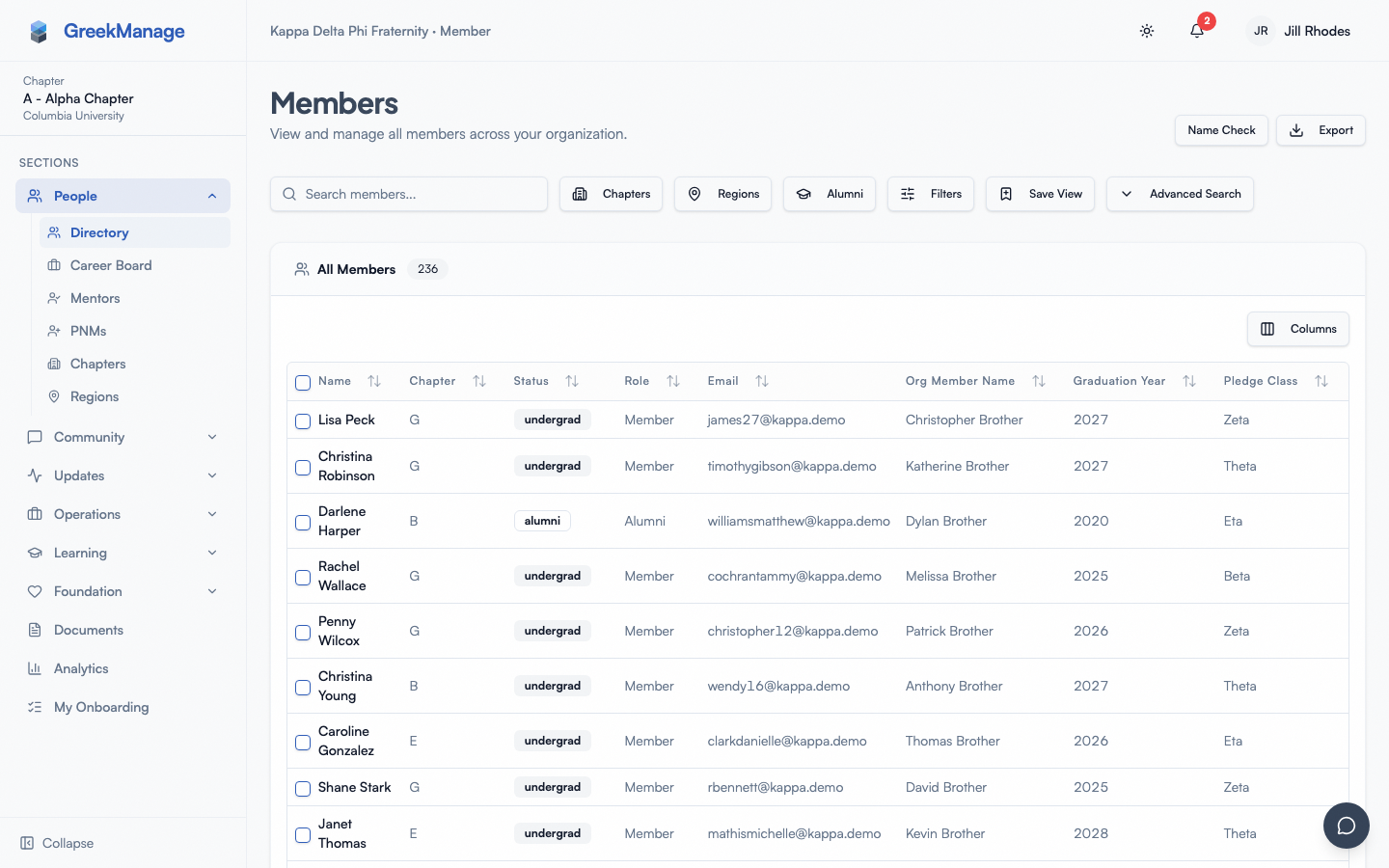 Member directory
At the top right are three controls members and officers can use:
- Name Check — opens a dialog for checking name uniqueness during PNM intake (see below).
- Export — downloads the current filtered view (limits depend on your role).
- Filters — opens a popover with chapter, role, and status pickers, plus an Advanced section.
Step-by-step: find someone by name
- Type a few letters of a first or last name into the search box at the top.
- The list debounces and updates within a fraction of a second.
- Click the row to open that member's profile.
Search matches against first name, last name, email, the member's org-specific fraternal name (if your org uses fraternal names), chapter designation, region name, profession, and company. There's no need to switch search modes — one bar covers everything indexed.
Step-by-step: filter the list
Click Filters to open the filter popover. The basic filters are:
- Chapter — limit to one chapter of your organization.
- Role — Member, Officer, President, Advisor, or Alumni.
- Status — Active, Inactive, Suspended, or Alumni.
The count badge next to the Filters button reflects how many filters are active. Clear All resets the popover to its defaults.
Advanced filters
The Advanced section adds professional and personal attributes drawn from members' enrichment data (work history, certifications, skills, location, LinkedIn link, mentor opt-in). Available filters:
- Company (free-text, matches work history)
- Industry (free-text)
- School (matches members' degree records)
- Skills (comma-separated; matches any of the listed skill names)
- City and State (free-text)
- Willing to mentor (toggle — only members who opted in via Alumni mentor profile)
- LinkedIn linked (toggle — only members who completed LinkedIn OIDC import)
Text filters debounce by about 400 milliseconds so you aren't hammering the server while you type.
Saved views
If you find yourself returning to the same filter combination — say, "active members in the Beta chapter who studied at State University" — you can save it.
- Apply the filters you want.
- Click Bookmark / Save view.
- Give it a short name.
- Save.
Your saved views appear in a list above the table. Click one to apply it instantly. Saved views are personal — they don't show up to other members. National admins can save organization-wide views that show up for everyone in the org.
Name Check
Above the directory there's a Name Check button. This opens a small dialog where you can type a candidate fraternal name and see existing members whose names are similar enough to flag a possible conflict.
Name Check is a multi-signal similarity engine designed for PNM intake — checking whether a new member's proposed name is too close to an existing brother or sister. It runs five comparisons:
- Phonetic — sounds the same (Soundex / Metaphone consensus)
- Edit distance — small typos, transpositions
- Leetspeak — normalized characters (3 → e, 1 → i, etc.)
- Fuzzy match — rapidfuzz string similarity
- Substring — one name contains the other
Hits are returned with the matching member's row plus colored badges showing which signals fired. A clean result (no hits above the configured threshold) means the name is likely available.
What members see vs what officers and admins see
The directory enforces RBAC. The exact same page renders differently for different roles:
- A rank-and-file member sees basic identifying information — name, chapter, status, role — and other fields the member has opted to share on their profile.
- A chapter officer sees the same as members plus additional contact and admin context for members in their chapter (for managing rosters, contacting members, etc.).
- A regional admin sees the directory across all chapters in their region.
- A national admin sees every active membership in the org, including fields hidden from rank-and-file members.
Visibility of optional profile fields (company, profession, LinkedIn link, etc.) is set by each member on their own profile and is generally consistent across roles — but admins may see additional administrative fields that aren't shown to peer members.
Export limits
The Export dropdown lets you download the current filtered view as Excel or PDF.
- Admins and officers can export the full filtered result.
- Rank-and-file members can export, but the data set is limited to fields visible to them. The export respects the same RBAC as the page.
Exports include any custom fields your org admin has defined and marked visible to your role. There's no hard row limit — the export runs as a background job, so the button shows a brief "Exporting…" state while it generates and the file downloads automatically once it's ready. Very large exports (thousands of rows with many columns) simply take a bit longer; they no longer hold up the page while they generate.
Mobile differences
- The filter popover renders almost full-width on mobile so options are easy to tap.
- The table converts to a card-style list on narrow screens.
- Sticky header rows and column resizing are not enabled in the mobile layout.
Errors and edge cases
- "You do not belong to this organization." — your account isn't linked to an active membership, regional admin role, or org admin role for the org whose directory you tried to open. Contact a national admin.
- The table is empty after applying filters. Filters narrow aggressively. Try clearing filters and re-adding one at a time.
- A member you expect to see is missing. They may be in a different status (PNM records are excluded from the directory by default), in a chapter you don't have permission to view, or their enrichment data hasn't synced yet.
- Saved view doesn't apply on first click. If you saved a view while a different chapter filter was active, the chapter dropdown is part of the saved state — re-apply and re-save if you reorganized chapters.
Tips
- Use the directory before pinging on Messages. A 10-second search is faster than asking around.
- Officers: pin a saved view. Frequently-needed views (e.g. "officers in my chapter," "new members this semester") are one click away once saved.
Related
- Profile — what shows up about you in the directory
- Mentorship & alumni — alumni-only directory variant
- Engage forums
Last verified against v0.62.1 (2026-05-11).