Mentorship & alumni
Stay connected with alumni — search the directory, browse the career board, surface AI-suggested mentors, and control how much your record exposes.
New alumnus? Start with the Alumni — getting started walkthrough for setting up your privacy settings, mentor profile, and alumni-only forum access.
Alumni directory
Open the Directory page (People → Directory in your sidebar) and click the Alumni button in the toolbar.
The directory lists alumni across your chapter, region, or org depending on your role. You can:
- Search by name in the top search input.
- Filter by chapter and graduation year range.
- Filter by industry or career field. Type part of a word, in any case. Industry searches the industries in alumni’s work history and mentor profiles; career field searches mentor-profile career fields and work-history job titles and departments. While a filter is set, alumni with nothing matching are left out.
- Open a profile to see the alumna/alumnus’s details, within their directory privacy settings.
Every alumnus is listed. Each card shows the alumnus’ name, chapter, graduation year, work history and other always-public fields. Email, phone, photo and location honor each alumnus’ directory privacy settings — see Directory privacy below.
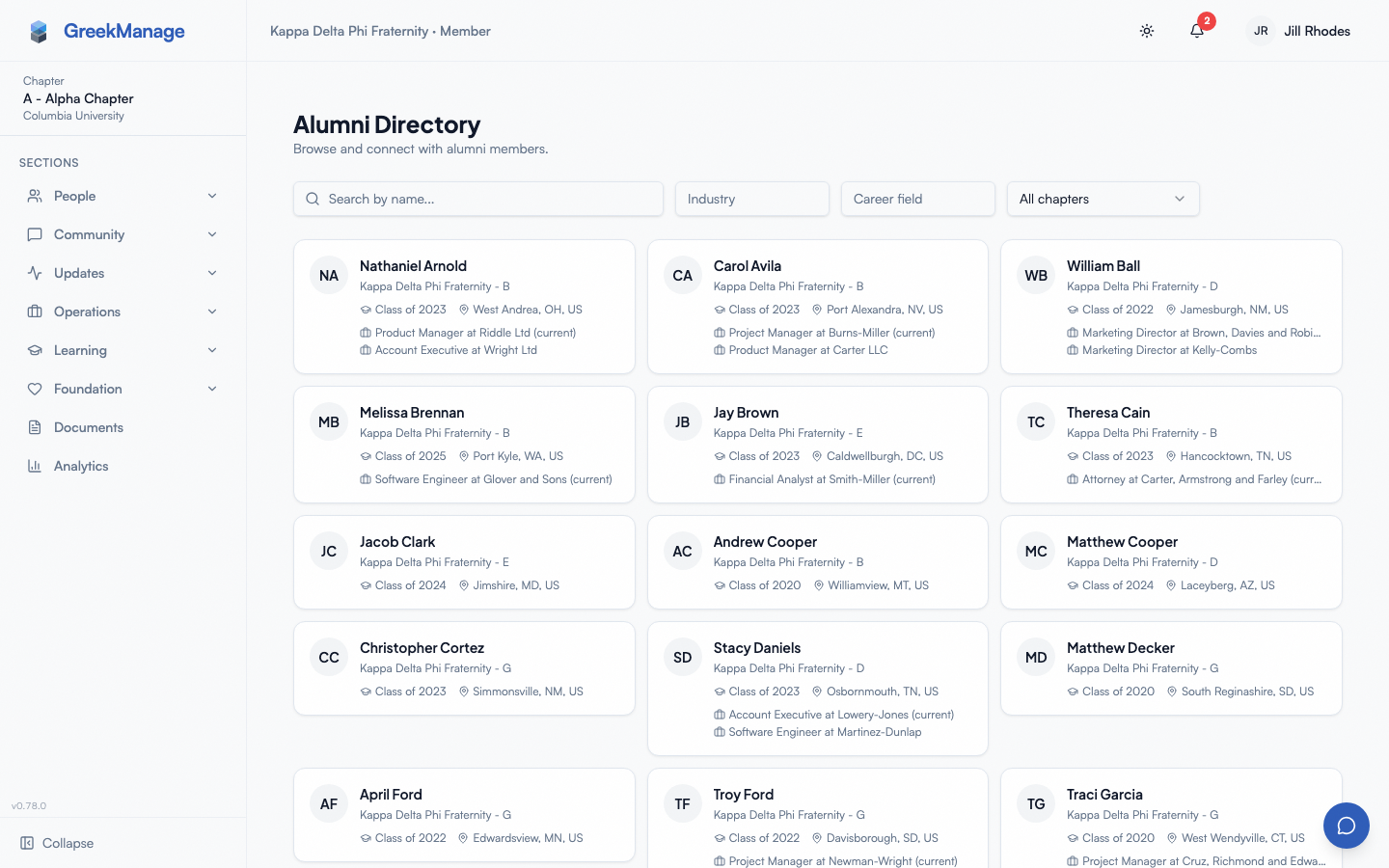 Alumni mentorship browser with mentor cards and topic filters.
Career board
The career board is a posting space for alumni and officers / admins.
- For undergrads: browse postings created by alumni, officers, and admins and express interest in opportunities that interest you.
- For alumni / officers / admins: post jobs, internships, referrals, or networking opportunities for active members.
Each posting includes a type, role, company, optional external URL, location, description, and an expiration date. The card view shows title, company, location, type badge, post date, and total interest count.
Postings expire automatically: a daily job at 00:30 flips expired postings to inactive so they stop appearing on the board.
Posting types
The platform supports exactly four posting types:
| Type | What it is |
|---|---|
| Job | A full-time job opening at the poster’s company |
| Internship | A summer or part-time internship role |
| Referral | The poster will refer qualified members for openings at their company |
| Networking | An informational coffee chat, alumni mixer, or open networking invitation |
There is no separate “Mentorship opportunities” posting type — mentorship lives in the Mentors flow. The previous docs claim listing a fifth type was incorrect.
Express interest
To express interest in a posting:
- Open the posting (click the card from the career board).
- Read the description, location, type, and external URL (if provided).
- Scroll to Express Interest at the bottom of the posting card.
- Write an optional short message in the textarea.
- Click I’m Interested.
You’ll get a confirmation badge (“You have expressed interest in this posting”) in place of the form. The poster sees the count of interested members on their dashboard and can view the list of interested members with each member’s optional message.
You can express interest once per posting — duplicate submissions are blocked by a unique constraint on (posting, user).
Post a job (alumni / officers / admins only)
- Open Career Board.
- Click Post Opportunity in the top-right.
- Fill in: title, company, location, type (Job / Internship / Referral / Networking), description, optional external URL, optional expiration date.
- Click Publish.
Org admins can additionally feature a posting — featured postings sort above the rest and get a star badge.
Mentors
Alumni can opt in as mentors by creating a mentor profile. The platform then runs an AI-driven matching service to surface mentors for active members based on overlap in skills, work-history industries, and certifications.
Create a mentor profile (alumni only)
- Open your Mentor profile page.
- Fill in:
- Bio — a short paragraph about your career and what you can help with.
- Industries — a list of industries you’ve worked in (free-text tags).
- Career fields — career-field tags (e.g. “Software Engineering”, “Investment Banking”).
- Availability — one of Open, Limited, or Closed.
- Max mentees — the cap on simultaneous active mentees (default 3).
- Save.
The profile shows up in the chapter’s Mentors list (People → Mentors) with your bio, industry / career-field chips, availability badge, and mentee cap.
How matches are scored
The matching service computes a 0–1 similarity score between you (mentee) and every active alumni mentor in your org, weighted as:
| Signal | Weight |
|---|---|
| Skill overlap (Jaccard similarity on skill tags) | 0.40 |
| Industry overlap (Jaccard similarity on work-history industries) | 0.30 |
| Certification overlap (Jaccard similarity on cert names) | 0.20 |
| Base score for mentor having any enrichment data at all | 0.10 |
If both you and the mentor have AI embeddings indexed (via the org’s AI Services config), a small cosine-similarity bonus from your member embeddings is added as a final smoothing pass.
The service surfaces a human-readable list of match reasons (e.g. “Shared skills: Python, SQL” / “Shared industries: Healthcare”) so the suggestion is explainable, not just a number.
The matching service is gated by ai_scope_mentorship on your org’s AI configuration. If your org has that scope disabled, the platform falls back to a directory-only experience and you’ll need to reach out to mentors manually.
Match states
Each potential match progresses through the workflow:
- Suggested — the system has proposed the match. Visible to the mentee in the Mentors area.
- Requested — the mentee has reached out asking to connect.
- Accepted — the mentor has agreed.
- Declined — the mentor has declined.
A mentee can only have one pending request per mentor at a time (the (mentor, mentee) pair is unique). Declined matches don’t auto-resurface; mentees can reach out to a different mentor or wait until status changes.
Directory privacy
Every member, alumnus or undergrad, controls what other members can see about them through the Directory Privacy card on Account Settings (avatar menu in the top right → Account Settings). It replaced the alumni-only Alumni Directory Privacy card, and it works even if your org doesn’t have the Alumni module.
Email, Phone, Profile photo and Location each have three visibility levels:
| Setting | Who can see this field |
|---|---|
| Everyone in the organization | Every member of the org (default for email and photo) |
| My chapter | Members of your chapter |
| Officers & admins only | Officers of your own chapter, and regional, national and platform admins (default for phone and location) |
You, officers of your own chapter and admins always see every field, whatever the setting. Officers of other chapters get nothing extra. If you’re an officer, your email can’t be stricter than My chapter.
The card also has Location detail (City, state and country or State and region only, which applies to every viewer including admins) and a Share my birthday in announcements switch.
Name, chapter, status, role, employer, job title, LinkedIn, personal website, graduation term, pledge class, crossing semester and work history are always visible to members of your org. You can’t remove yourself from the directory, and there is no longer a work-history privacy setting.
If you saved alumni privacy settings before, they were carried over: Alumni only became My chapter; Officers only and Hidden became Officers & admins only (which now means officers of your own chapter, not any chapter’s). If you had hidden yourself from the directory, you’re listed again with every field set to Officers & admins only. If you never saved settings, you keep what you were showing before: email and phone to My chapter, location to everyone.
Settings save when you click Save Privacy Settings. They’re enforced server-side — hidden fields are stripped from API responses, not just hidden in the UI, and nobody can find you by searching or filtering for a value they can’t see. They apply to the alumni directory, the member rosters, the family tree, the mentor list and the AI assistant, but not to forum posts, messages or comments.
Forums for alumni
Forums marked with the is_alumni_forum flag are visible only to members with alumni status. They appear in your normal Engage list once your membership status becomes alumni / active alumni / lifetime alumni. Officers can use these forums for alumni-only conversations without spinning up a separate platform.
Mobile differences
- The directory, career board, and mentor list all collapse to a single column on small screens.
- Express Interest uses a native keyboard for the optional message field — autocorrect can be turned off via standard iOS / Android settings.
- External URLs on postings open in the device’s default browser (not in-app webview) so login state is preserved on third-party sites.
- Push notifications for new postings, mentor match suggestions, and interest activity arrive through the OS notification system if push is enabled.
What officers and admins see that you don’t
- Org admins can mark / unmark a posting as Featured from the posting detail page — featured postings sort to the top of the career board.
- Officers and admins can see the full list of interested members for postings in their scope (members can only see the count).
- Officers of the alumnus’s own chapter and admins see every field in the alumni directory, including those set to My chapter or Officers & admins only.
- National admins can see all postings and mentor matches across the org; regional admins see their region.
Errors and edge cases
- “You have expressed interest in this posting.” Duplicate prevention; you can only express interest once per posting. There’s no UI for revoking interest in v0.62.1.
- Expired posting. If a posting is past its expiration, you can still open it (the URL works) but the Express Interest form is hidden and the posting is greyed out.
- No mentors visible. If the org has no alumni with active mentor profiles, the Mentors page shows an empty state. Encourage alumni to opt in via their Mentor profile page.
- Match score of 0.1. A mentor with no shared skills / industries / certifications still scores 0.1 because they have some enrichment data. Use this as a signal to expand your skill / work-history fields on your profile so matches surface meaningful overlap.
- Privacy update didn’t take. Make sure you submitted the form — there’s no “auto-save” on the privacy form; you must click Save Privacy Settings.
Troubleshooting
- A mentor’s bio is blank. Mentors set their bio themselves. If you’d like more context, message the mentor through the platform’s messaging feature.
- My Express Interest message wasn’t sent in time. The platform stores the message on submission. If the posting expired after you typed but before you clicked, the submission is rejected — copy your message and reach out via direct messaging.
- I can’t see a field I expected. The alumna/alumnus has limited that field to My chapter or Officers & admins only. Every alumnus is listed, so a missing record is not a privacy setting — check your chapter and graduation-year filters.
- My match list is empty. Either your org has
ai_scope_mentorshipdisabled, you have no enrichment data on your profile (no skills / work history / certifications), or no active alumni mentor profiles exist yet.
Related
- Updating your profile — better profile data drives better mentor matches
- Privacy & data
- Module: Alumni
Last verified against v0.65.25 (2026-07-05). Corrected stale “Alumni” top-level sidebar-group references (v0.65.23 redesign): Career Board and Mentors now live under People; Alumni Directory moved from a sidebar item to an Alumni button on the Directory page. Mentor profile has no dedicated sidebar entry point. Alumni directory privacy moved into Account Settings (it previously had no entry point at all). Updated for #2495 (2026-10-24): Alumni privacy became Directory privacy for every member.