Onboarding checklist
Some chapters build a step-by-step checklist to help new members get oriented — things to read, people to meet, forms to fill out. If your chapter has published one, you'll see it two places: a Getting Started card on your dashboard, and a full checklist page at Onboarding in your chapter sidebar.
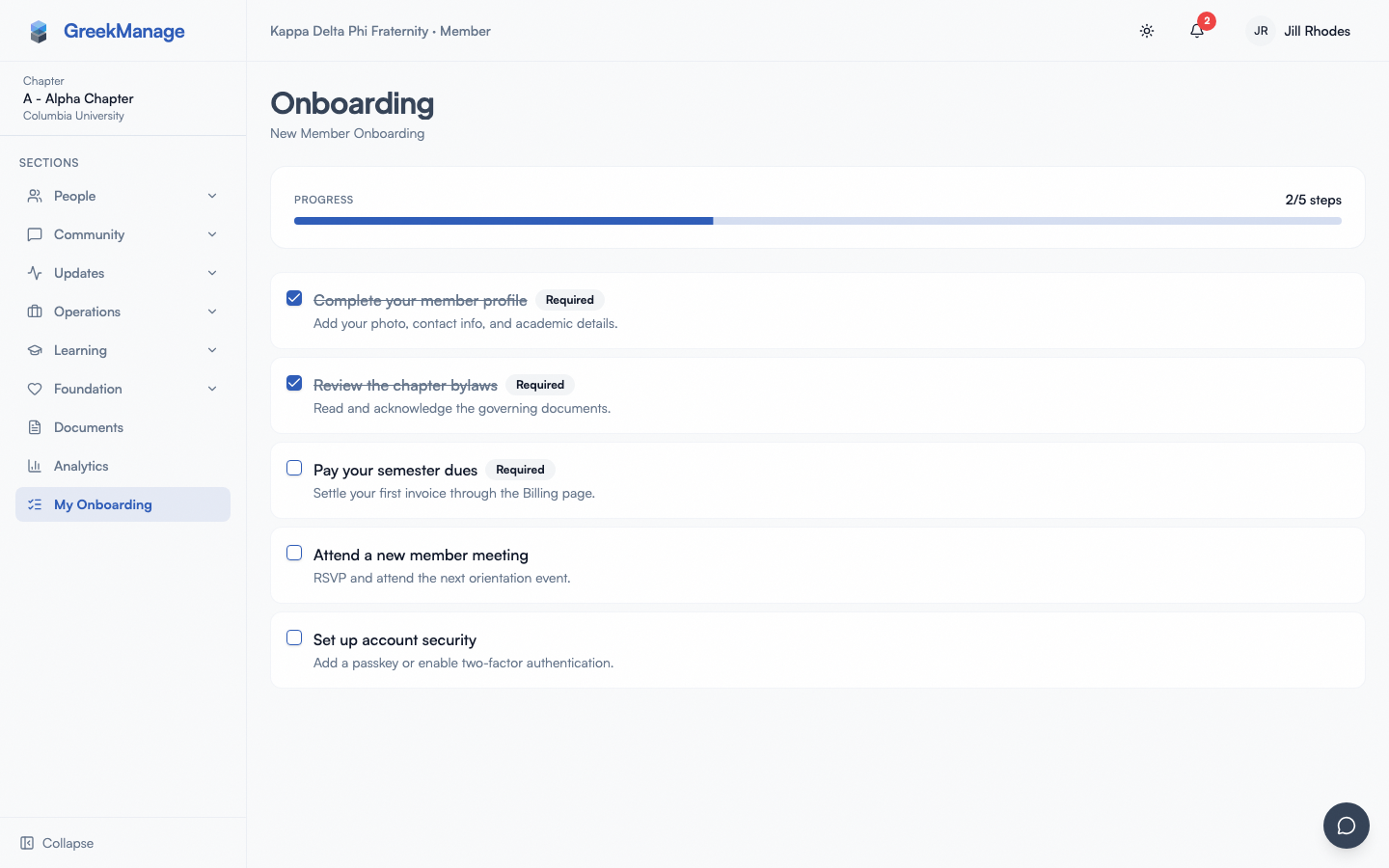 The Onboarding checklist page.
What you see
On your dashboard, a Getting Started card shows:
- The template's title, in bold.
- {completed}/{total} steps and a progress bar.
- A Continue button (with an arrow icon) that takes you to the full checklist at
/chapter/onboarding.
On the full Onboarding page (chapter sidebar → Onboarding):
- A header reading "Onboarding", with the template's title as the subtitle.
- A Progress card showing either a green "Complete" badge (once every step is done) or "{completed}/{total} steps", plus a progress bar.
- The checklist itself: each step as a checkbox row with its title, an optional description, and a "Required" badge on steps your admin marked required.
Checking off a step
Click a step's checkbox to mark it complete — there's no separate save button, it takes effect immediately. Completed steps show their title with a strikethrough in muted text.
You can also un-check a step you've already completed, at any time — there's no lock-in once you've checked something off.
Required vs. optional steps
Steps your chapter's admin marked as required show a "Required" badge, but that badge is informational only. Completing an optional step counts exactly the same as completing a required one toward your overall progress — there's no different consequence for skipping an optional step, and nothing blocks you from finishing without doing every "required" one first.
When there's no checklist yet
If your chapter hasn't published an active onboarding template, the full Onboarding page shows an empty state: title "No onboarding checklist yet", with a fixed description of "Your chapter hasn't set up an onboarding checklist yet." — this text comes from the API and isn't something an admin can customize.
The dashboard's Getting Started card doesn't show an empty state at all in this situation — it simply doesn't render on your dashboard. The same is true if AI Services is off for your org, or if the progress data fails to load.
When you've finished everything
Once you've completed every step, the full Onboarding page shows a green "Complete" badge on the Progress card in place of the step count.
Worth knowing: the dashboard's Getting Started card disappears entirely once you've completed every step — it isn't just marked done, it stops rendering. If you want to revisit the checklist after finishing it, go to Onboarding in your chapter sidebar directly.
Errors and edge cases
- Onboarding disabled for your org. If your org admin has turned off the onboarding feature specifically (separate from AI Services being on or off), the Onboarding page shows an error state instead of your checklist, telling you onboarding is disabled for your organization. Ask your chapter's admin if you believe this is unexpected.
- Something goes wrong loading your checklist. A generic error appears asking you to try again later. Refresh the page or check back shortly.
- An admin deletes a step you're mid-checklist on. If your chapter's admin removes a step from the template, that step — and your completion record for it — simply vanishes from your checklist. This isn't an error; it just means the step (and its progress) no longer exists.
Related
Last verified against v0.65.25 (2026-07-05). AI Onboarding shipped v0.65.8; previously undocumented.