Photo albums
Photo albums hold the visual history of your chapter — recruitment, formals, philanthropy events, big/little reveals, and more. This page covers everything members can do plus the parts officers see that you don't.
Find albums
In your sidebar: Community → Photos.
The albums page shows a responsive grid with each card showing a cover photo, title, year, and photo count. A Year filter sits in the left sidebar and lets you narrow to a single year — the platform keeps the last ten years in the dropdown by default.
Albums are sorted newest-year-first, with the newest album within that year on top.
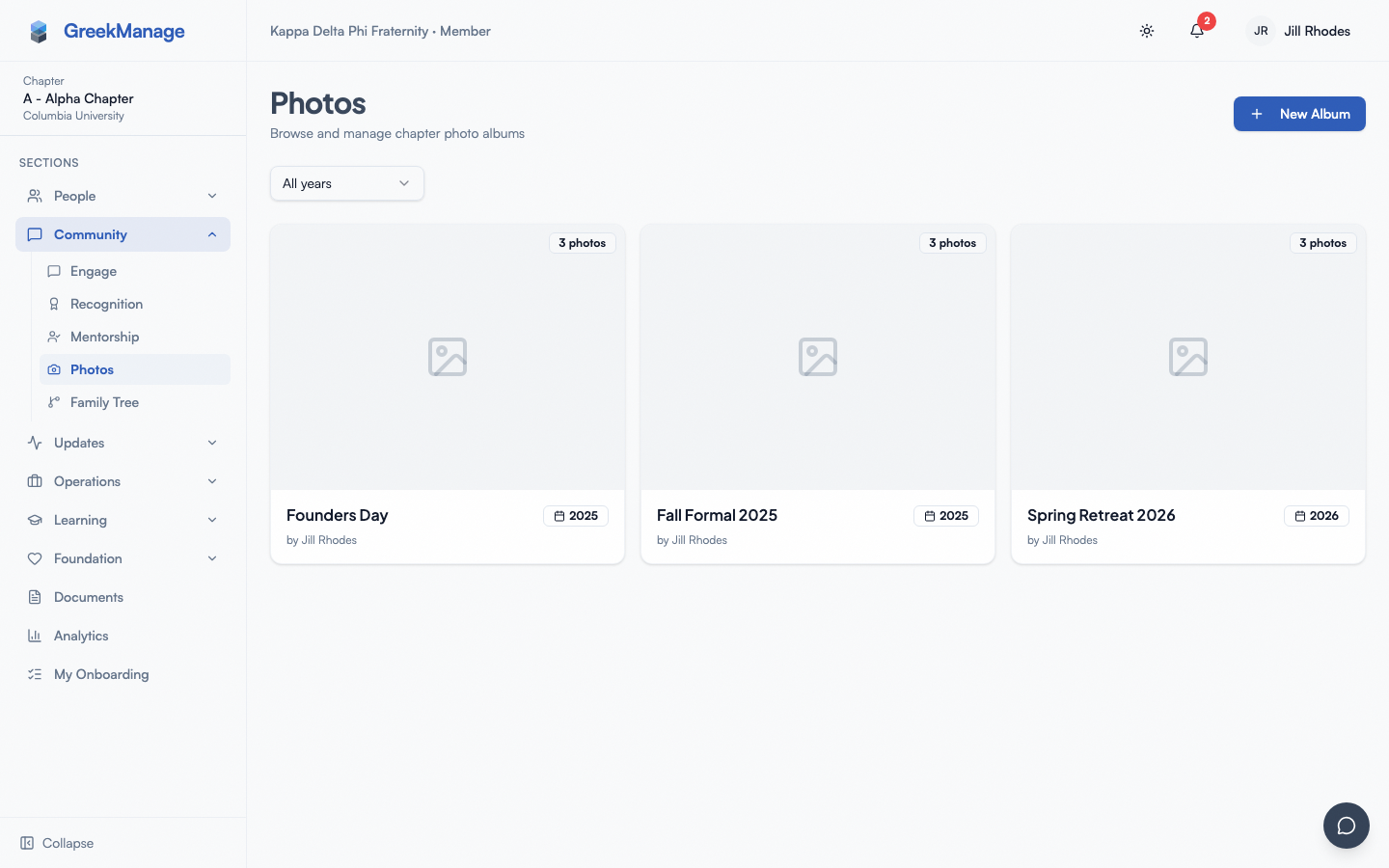 Chapter photo albums grouped by year with cover photos.
Album visibility
Albums have exactly two visibility settings in v0.62.1:
- Chapter only — only active members of the chapter that owns the album can see it.
- Org-wide — every active member of the organization can see it. Useful for nationally-shared events, conventions, or anything that should cross chapter lines.
Visibility is set when the album is created and can be changed later by chapter officers and admins. There's no per-region tier, per-photo visibility, or per-member ACL.
National admins always see every album in their org regardless of visibility. Regional admins see albums in chapters in their region.
Open an album
Click any album cover to open it. You'll see:
- The album title, year, description, and a visibility badge (a globe icon for org-wide, a lock for chapter-only).
- A grid of photo thumbnails (the platform generates 400×400 JPEG thumbnails on upload).
- Upload photos if you're a member of the chapter that owns the album.
- Edit album and Delete album if you're an officer or admin.
- Download ZIP — visible but currently disabled. See the note below.
Download album as ZIP
Click Download ZIP on an album to bundle every photo into a single zip file.
The download is asynchronous:
- Click the button — the UI flips to "Preparing your zip…" and starts polling.
- A Celery task streams each photo into a ZIP, uploads it to S3 / MinIO with a 7-day presigned URL, then writes the URL back to the export record.
- Once ready, the polling UI flips to "Download (X MB)" — click to download. The URL is valid for 7 days; after that, request a fresh zip.
For development environments without object storage, the ZIP falls back to MEDIA_ROOT/photos/exports/ and a local URL.
If the album has hundreds of photos, the preparation step can take a few minutes. You can leave the page and come back — the export persists.
Lightbox navigation
Click any thumbnail to open the lightbox — a full-screen black overlay with the photo centered. From there:
- Left / right arrow keys move to the previous / next photo. Arrow buttons also appear on either side of the image (hidden when you're at the first / last photo).
- Escape closes the lightbox.
- Click outside the photo also closes the lightbox.
- The caption (if any) appears below the photo. Uploader name and date appear below the caption.
- A counter at the bottom shows your position (e.g.
7 / 42).
If you're an officer or admin, the lightbox shows two extra controls: Feature (star the photo so it gets boosted in the grid) and Remove (soft-delete the photo).
Upload photos
If your role allows uploads, the album page shows an Upload action.
- Open the album.
- Click Upload photos.
- Drag-and-drop or tap to pick files.
- Each file shows a progress row with a thumbnail and percent complete.
The platform validates each upload using magic-byte MIME detection (not just the file extension):
- Accepted types: JPEG, PNG, GIF, WebP.
- Maximum file size: 20 MB per photo.
- Multiple uploads stream sequentially; completed rows fade out after two seconds.
Who can upload
- Active members of the chapter that owns the album can upload to its albums.
- Members of other chapters can't upload to your chapter's albums, even if visibility is org-wide.
- Officers, regional admins, and national admins can upload to any album they have view access to.
EXIF and orientation
The platform reads EXIF data on upload to extract the original photo date when generating thumbnails. Thumbnails are generated server-side at 400×400 with Lanczos resampling. EXIF GPS coordinates are read but not exposed in the UI in v0.62.1.
Create an album
If you're a chapter officer or admin:
- From Photos, click New album.
- Add a title, optional description, and year (defaults to the current year).
- Choose visibility (Chapter only / Org-wide).
- Click Create.
- Upload photos via the upload zone.
The first photo uploaded becomes the cover automatically. Officers can change the cover later from the photo's lightbox actions.
Tag people in photos
Open a photo and click Tag. The dialog opens with:
- Existing tags shown as removable chips at the top.
- A live-search input filtered to active members of the chapter that owns the album.
- A list of matching members with a Tag button next to each one.
Tags link to the membership record, so a tag follows the member if their name or chapter assignment changes later. Tagged members get a notification.
Who can remove a tag
Only the tagger (the person who created the tag) or a chapter officer / admin can remove a tag.
In v0.62.1 you can't self-untag — if someone tagged you and you want it removed, ask the tagger directly or an officer. There is no member-driven "remove me from this photo" flow yet.
Delete or report a photo
If you uploaded the photo, the photo's actions menu lets you delete it (soft-delete: the photo is hidden but not erased from storage immediately).
Officers and admins can delete any photo in their chapter's albums.
There is no photo reporting flow in v0.62.1. If a photo violates conduct rules, message a chapter officer directly — they'll remove it manually.
Tips
- Title albums clearly. "Spring Formal 2026" beats "IMG_1234".
- Use captions — they show in the lightbox and help future browsers identify who's in the photo before tags exist.
- Tag generously — tags double as a way for members to find photos of themselves later from their profile.
- Year matters. Albums sort by year first; setting the right year keeps your chapter's archive scannable.
- Compress on iPhone. If you're stuck with HEIC, AirDrop to a Mac or use a free converter app first.
Mobile differences
- Drag-and-drop is not available on iOS or Android — use the Choose Files button to pick from the photo library.
- The lightbox swap controls work with horizontal swipes (native gesture) in addition to the on-screen arrow buttons.
- Uploads happen one at a time on mobile to keep memory pressure low.
- Native long-press on a photo in the lightbox triggers the OS save dialog (since there's no right-click).
What officers see that you don't
- Create / edit / delete album controls in the top-right.
- Edit photo in the lightbox (toggle featured, remove).
- Set cover photo action in the lightbox for officer-only album-level changes.
- Remove any tag, even ones they didn't create.
National admins see all of the above across every album in the org. Regional admins see it across chapters in their region.
Errors and edge cases
- "File type 'image/heic' is not allowed." Convert to JPEG or change your iPhone capture format (see the HEIC note above).
- "File size exceeds the 20MB limit." Compress the photo before uploading. Most modern phones produce JPEG/HEIC under 5 MB, but iPhone 14 Pro+ at Pro RAW or DSLR exports can exceed the limit.
- "You do not have permission to view this album." The album is set to Chapter only and you're not an active member of that chapter. Org-wide albums are visible to all active org members; chapter-only ones aren't.
- "This member is already tagged in this photo." Each member can be tagged at most once per photo. Use the existing tag (or delete and recreate it if you mistakenly tagged the wrong person).
- Deleted album recovery. Deleted albums are soft-deleted (
is_active = False) so an admin can restore them via Django admin if needed. Members can't restore from the UI. - ZIP download link expired. The 7-day presigned URL is single-use after expiry. Click Download ZIP again to regenerate.
Troubleshooting
- Uploads stall at 50%. The progress bar jumps to 50% once the network request begins and to 100% only when the server responds with the new photo. A long upload can sit at 50% — this is expected for big files on slow connections.
- Thumbnails are blurry or missing. If thumbnail generation fails (rare, usually with corrupted images), the album falls back to the original file scaled down by the browser. Re-upload a clean copy if the original was corrupted.
- Tag autocomplete is empty. The search is scoped to the chapter that owns the album, not the whole org. If you're tagging a sister-chapter member, they won't appear.
- The Download ZIP button keeps showing "Preparing…" Large albums take a few minutes. The polling refreshes every few seconds; you can leave the page and come back.
Related
- Recognition — celebrate moments captured in albums
- Notifications — control tag notifications
Last verified against v0.63.39 (2026-06-26). HEIC support + multi-file upload v0.63.8; async ZIP export v0.63.23; org-wide albums page v0.63.32.