Privacy, data export, and account
GreekManage gives you controls for the consents you’ve granted, a download of your personal data, and a way to stop signing in if you need to step away. Different privacy-style controls live in different places depending on what they govern — this page maps each one to where it actually lives in the app.
What you see on the Privacy Settings page
Open the avatar menu in the top right and pick Privacy Settings.
The page is intentionally narrow: it covers consent choices and a record of which legal agreements you’ve accepted. In v0.62.1 you’ll find exactly four items here, no more:
- Marketing communications — a toggle. On means you’ve agreed to receive product updates, tips, and organizational news. Off means you’ve revoked that consent.
- Analytics & usage tracking — a toggle. On means anonymized usage data may be collected to improve the platform.
- Privacy Policy — a read-only record of the policy version you’ve accepted, with a link to view it.
- Terms of Service — a read-only record of the terms version you’ve accepted, with a link to view it.
Below the two toggles, the page shows the date you granted each consent. Revoking and re-granting creates a new dated record; the older one is retained for compliance.
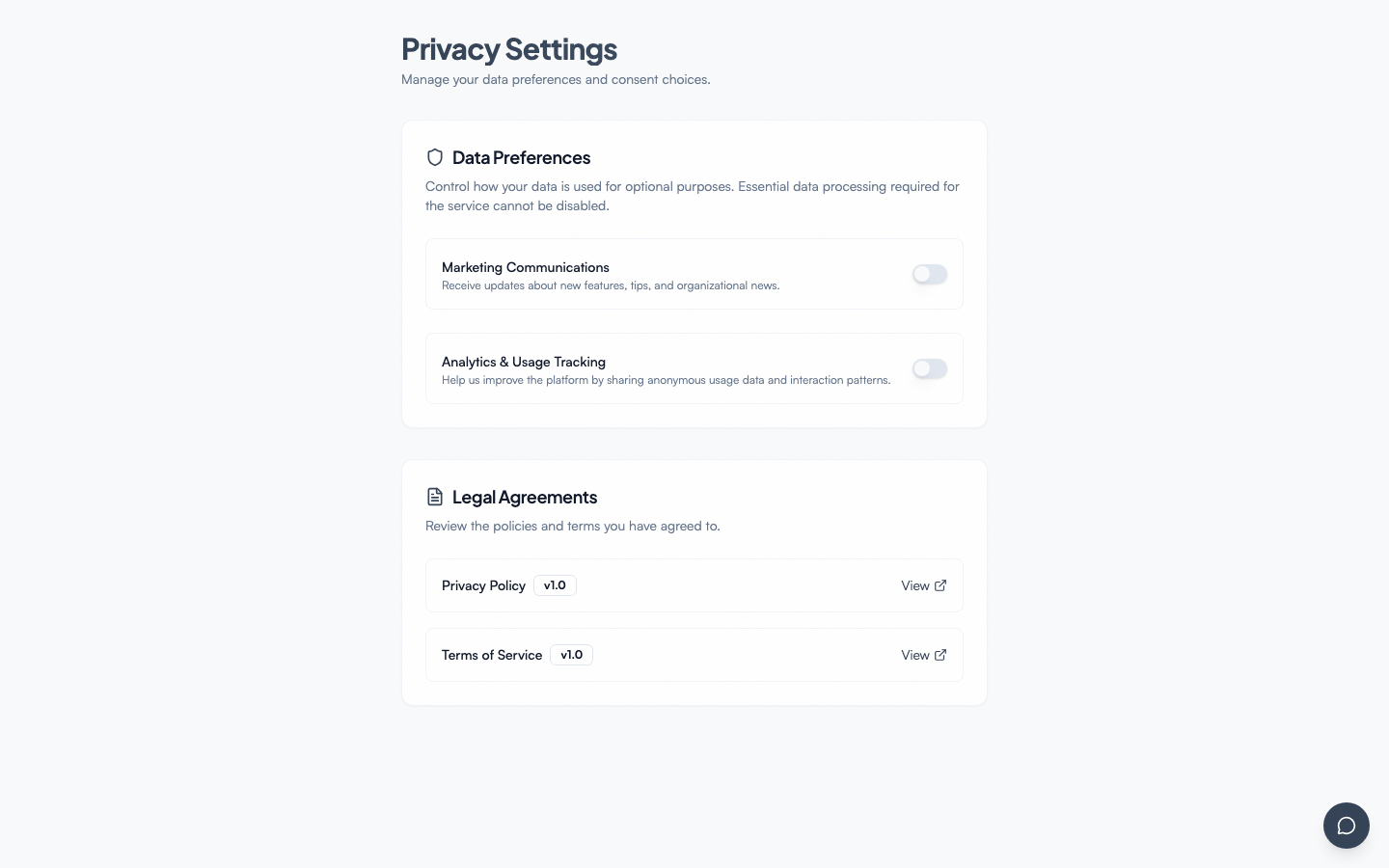 Privacy controls page with consent toggles and data export action.
Step-by-step: choose what other members see
- Open the avatar menu, then Account Settings.
- Find the Directory Privacy card.
- For Email, Phone, Profile photo and Location, pick who can see it:
- Everyone in the organization
- My chapter — members of your chapter
- Officers & admins only
- Under Location detail, pick City, state and country or State and region only. This applies to everyone who can see your location, admins included.
- Turn Share my birthday in announcements on or off.
- Click Save Privacy Settings.
If you have never saved this card, your email and photo are visible to everyone in the organization, your phone and location to officers and admins only, location detail is the full city, state and country, and birthday sharing is on.
Some people always see every field, whatever you choose: you, the officers of your own chapter, regional and national admins, and platform admins. Officers of other chapters do not.
If you hold an officer role or position, you can’t set your email stricter than My chapter — your chapter needs to be able to reach you. The Officers & admins only option is disabled for email, with a note saying why.
These settings apply to the alumni directory, the org and chapter member rosters (a hidden email shows as “Private”, a hidden photo as your initials), roster search and filters (nobody can find you by searching for a value they can’t see), the member picker, the family tree, the Big and New Member Educator shown on a profile, the mentor list, and the AI assistant’s answers about members. They do not cover content you write or take part in, such as forum posts, messages and comments. The card works whether or not your organization has the Alumni module.
Step-by-step: download a copy of your data
GreekManage supports a GDPR / CCPA-style export of your personal data on demand.
- Open the avatar menu, then Account Settings.
- Find the Download My Data card.
- Click Request Export.
- Confirm with your current password.
- The export runs in the background. The card shows a status banner — pending, then running, then ready.
- When status is ready, click Download Export. The download is valid for the validity window shown on the card.
The archive is a ZIP that bundles your profile, memberships, forum activity, account preferences (including your directory privacy settings), and related personal records. Rate limit: one export request per 24 hours per account.
Step-by-step: disable your sign-in
If you want to stop signing in without losing your history:
- Open Account Settings → Disable Account.
- Read the warning, tick the acknowledgement checkbox.
- Confirm with your password.
Your sign-in is blocked immediately and you’re signed out of every device. Your membership records, profile, and organization history remain intact for administrators. To re-enable, contact a national admin of your organization.
What officers see that you don’t
- Officers and national admins can disable, re-enable, and (with platform support) delete accounts for other members of their org. They never see your password and they can’t impersonate you.
- Admins can see audit-log entries showing consent grants, revocations, exports, and disable / re-enable actions for accounting and compliance purposes.
Mobile differences
- The Privacy Settings page renders identically on mobile.
- Confirming the disable-account flow with a password works the same on iOS and Android.
- Downloading the export ZIP on a mobile device sends the file to your device’s Downloads or Files location; on iOS, you can also save it to iCloud Drive via the share sheet.
Errors and edge cases
- “You can only request one data export every 24 hours.” — Wait until the rate-limit window passes, then try again.
- “Incorrect password.” — Both export and disable require your current password. SSO-only users without a local password should set one first via Account Settings → Password.
- Export stuck on “pending” — large accounts can take a few minutes. If it sits in pending for more than an hour, contact a national admin so they can check the background queue.
Retained data
Some records persist after you disable your account (and would persist after a full deletion as well):
- Financial records — kept per your org’s tax-retention policy
- Audit logs — actions you took remain in the audit log; PII is anonymized where the retention policy allows
- Forum content — posts and comments may remain in threads for context; the author label is anonymized when the underlying account is gone
Messages are different. Disabling your account leaves them as they are. A full deletion removes the text of every message you sent; the other people in the conversation see “This message was deleted” in its place. Files you attached to your messages are deleted too. A message someone has reported keeps its text and its files until a moderator resolves the report.
Related
- Account security — password, email, passkeys, biometrics
- Notifications & preferences
- Mentorship & alumni — the alumni directory
- Resources → Privacy & GDPR
Last verified against v0.62.1 (2026-05-11); updated for #2495 (2026-10-24) — directory privacy.