Updating your profile
Your profile is how other members in your chapter and org find you. It controls what appears in the directory, the family tree, mentor matching, the alumni career board, and recognition cards. Account credentials (password, passkeys, secondary emails) live elsewhere in Account Settings; this page is about your visible identity.
Open your profile
- Click your avatar in the top-right corner.
- Click Profile.
Or go to Members in the sidebar and click your own row in the directory.
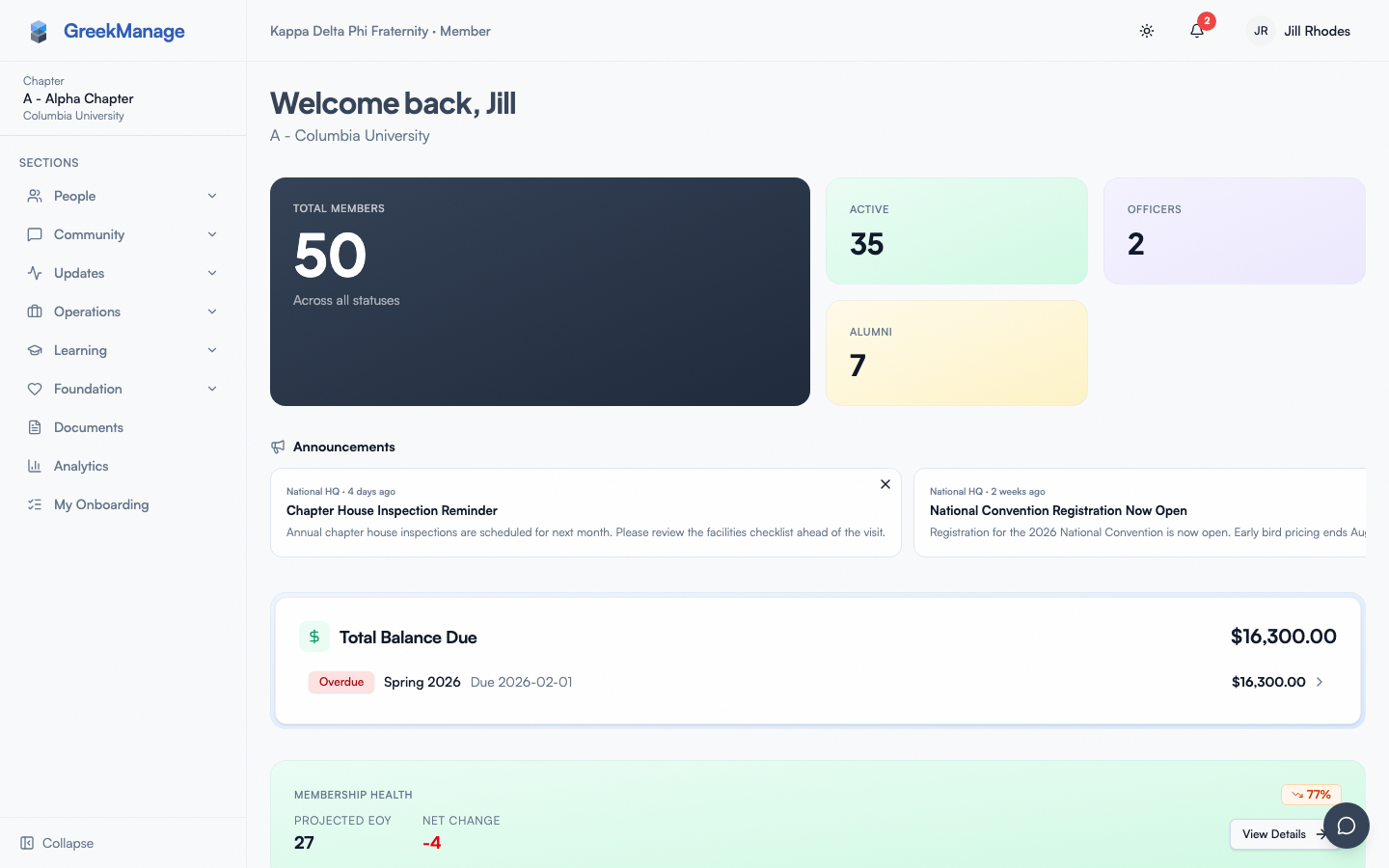 The member profile screen.
full member profile view, scrolled to the top, showing avatar, name, email, and the Personal Info section
The sections you'll see
Your profile is a stack of card-style sections. Every section has either a row of read-only fields or, if you're allowed to change them, an Edit button at the bottom that swaps the card into form mode.
Personal Info
The basics on your user account, plus a few profile-level fields shown together for convenience.
- First Name and Last Name (your legal/given name)
- Email (your primary email, with a link to Manage email addresses if you want to add a
.eduor work address — see Account security) - Phone
- Bio — a short free-text line
- LinkedIn URL
- School Attended — the university tied to your chapter membership
- Major / Minor — what you're studying now. Separate from the Education card below, which records degrees you've already earned; the two don't have to match.
- Date of Birth — optional.
Click Edit Personal Info to change first/last name, phone, bio, LinkedIn URL, and school attended. Email changes go through the Account Settings flow because adding a new address requires verification.
LinkedIn
A separate card that appears only if your platform has LinkedIn OAuth configured. See "LinkedIn import" below for the full flow.
AI Resume Import
A row of buttons — Upload File and Paste Text — appears below the LinkedIn card if your org has the AI Services module enabled. See "AI Resume Import" below.
Email Addresses
A reminder card linking to the Account Settings page where you manage primary and secondary email addresses. Other members can see your primary email in the directory; secondary addresses are private.
Fraternal Profile
The Greek-system-specific fields:
- Org Member Name — the fraternal/sorority name your org uses (often a Greek-letter name like a number, e.g. "237", or a tradition-based nickname).
- Big — set by searching for an existing member in your chapter. (Named "Big Brother" before v0.73.54; renamed because the platform serves sororities too.)
- New Member Educator — the member who guided your pledge process.
Editing Big/Little is a special case: when you change your Big, GreekManage creates an approval request rather than writing the change directly. The request goes to your chapter officers and org admins, and you'll see a toast saying "Big/Little request submitted — pending officer/admin approval." If you have permission to self-approve (officer or admin), the change saves immediately and the toast reads "Big/Little relationship saved."
Work History
Repeatable entries with company, title, start date, end date (or "Current"), and a short description. Click Add Work Entry to add one; click the pencil icon next to an existing row to edit, and the trash icon to remove. Entries imported from LinkedIn or a resume are tagged with their source so a future re-sync knows what is safe to overwrite — manually-added rows are never touched by sync.
Certifications
Repeatable entries with certification name, issuer, date earned, and optional credential URL. Same add/edit/delete controls as Work History.
Affiliations
Repeatable entries for professional organizations, honor societies, and other group memberships. Useful for directory search and mentor matching.
Skills
A tag-style input. Type a skill and press Enter; it becomes a chip. Backspace on an empty input removes the last chip. Skills feed the alumni mentor search and the career board.
Location & Networking
- Current Address — Address Line 1, Address Line 2, City, State, Postal Code, Country.
- Permanent Address — the same six fields again, kept independently. Useful when you live at school during the year and somewhere else over breaks.
Every address field is optional, and leaving them blank does not count against your profile completeness score — only City and State feed that.
- Mentor Available — toggle. When on, your name appears in the alumni mentor directory.
- Open to Connect — toggle. Softer signal for general networking.
- Personal Website — a URL field for your portfolio, resume site, or personal page.
Education
Repeatable degree entries: Degree, Major, School, Graduation Year. Degree and Major are required when adding; School and Year are optional. Each row has pencil (edit) and trash (delete) buttons when you're the owner or an admin.
Chapter Membership
Shows your Status (Undergrad, Associate, Alumni, Active Alumni, Lifetime Alumni, Disaffiliated, Inactive), Joined Date, Pledge Class, Line Number, Crossing Semester, Crossing Date, and Graduation.
Graduation is a single searchable picker listing calendar terms — Spring 2026, Summer 2026, Fall 2026, and so on. Type to filter ("fall 26" narrows to one entry). Pick the term you actually graduate in; there is nothing to convert. Officers and admins can set it; it is read-only for everyone else. To change your status, click Request status change at the bottom of the card; this opens a dialog that submits a request to your chapter officers for approval. You can't change your own status directly.
Custom Fields
Whatever fields your org admin has configured for members — could be anything from "T-shirt size" to "Emergency contact". If your org hasn't set any up, you'll see "No custom fields defined" instead.
Member Donation History
If your org has the Foundation module enabled and you have donor records, foundation admins see this card on your profile. You as the member don't see your own donation history on this screen — check the Foundation module's "My Donations" page instead.
What you can't edit
These are managed by an officer or org admin:
- Status (Undergrad, Alumni, etc.) — you can request a change via the dialog, but the change requires approval.
- Role (Member, Officer, President) — set in Settings → Chapter Officers by an admin.
- Chapter assignment — moving you between chapters requires admin intervention.
- Joined date, pledge class, line number, crossing semester, crossing date — historical record fields that officers set.
If something here is wrong, ask your chapter officer or org admin to update it.
LinkedIn import
If your platform has LinkedIn OAuth configured, you can pull profile data in automatically:
- Open your profile and find the LinkedIn card.
- Click Link LinkedIn. You'll be redirected to LinkedIn's authorization screen.
- Approve the permissions and you're sent back to GreekManage.
- The card now shows "Linked as [your LinkedIn ID]" and a "Last synced" timestamp.
A toggle labeled Auto-sync every 90 days is on by default. When enabled, a background job re-imports your work history, certifications, and skills every 90 days from LinkedIn's Data Portability API. You can click Refresh to trigger a sync immediately.
To disconnect, click Unlink. A confirmation dialog warns you that your imported profile data will be kept — only the connection to LinkedIn is removed.
What gets imported
| Field | Source | Available where |
|---|---|---|
| Profile photo (avatar) | LinkedIn OIDC | All regions |
| Work history | LinkedIn Data Portability API | EU/DMA-eligible accounts only |
| Certifications | LinkedIn Data Portability API | EU/DMA-eligible accounts only |
| Skills | LinkedIn Data Portability API | EU/DMA-eligible accounts only |
US-only LinkedIn accounts can import the photo via OIDC but the Data Portability fields are unavailable — you'll need to enter work history, certifications, and skills manually (or via AI Resume Import).
Any field on your GreekManage profile that you marked as manually edited is never overwritten by a LinkedIn sync.
AI Resume Import
This card appears only when your org has the AI Services module enabled.
Upload a file
- Click Upload File.
- Pick a PDF, DOCX, PNG, JPG, or JPEG, up to 10 MB.
- The button changes to a spinner ("Parsing…") while AI Services extracts structured data.
- A preview modal opens with everything it found: work history rows, certifications, education, skills.
- Uncheck anything you don't want imported. Edit anything that needs cleanup.
- Click Import. The fields write to the corresponding profile sections, tagged with
source: resumeso future syncs and manual edits know where the data came from.
Paste text
If you don't have a file handy, click Paste Text and paste any resume-like text into the modal. Same preview-and-confirm flow as file upload.
Errors
- "File is too large." Max is 10 MB. Compress the PDF or export as a smaller image.
- "Failed to parse file." The backend couldn't extract enough structured data. Try pasting the text version instead.
- "Failed to import data." A network or save error after preview. The preview state is preserved; click Import again.
After a successful import, the card collapses to a small "Re-import from resume" link. Click it any time to start over with a new file or paste.
Avatar and photo
Your avatar is the round image that appears next to your name in the directory, in forum posts, on recognition cards, and in chats. To change it:
- Open your profile and click your current avatar at the top of the page.
- Pick a file from your device.
- GreekManage center-crops to a square and uploads.
A solid neutral background and a face-forward photo render best. If you don't upload one, GreekManage generates a DiceBear-style identicon based on your name.
Profile completeness
Some orgs configure a completeness score that nudges you to fill in missing fields. The score is a percentage (0–100) shown at the top of your profile.
How it's calculated: your org admin picks weights for each field group — Personal Info, Fraternal Profile, Education, Work History, Certifications, Skills, Location, Avatar — that sum to 100. Your score is the weighted sum of the groups you've filled in. Defaults give roughly equal weight to all groups.
If your score is below the org's nudge threshold (commonly 70%), you may receive a "complete your profile" email from your org admin. Org admins can manually send a chapter-wide nudge, which is rate-limited to once every 7 days per chapter — back-to-back nudges show a "Cooldown" state on the admin button.
The score updates instantly as you save changes; you don't need to refresh the page.
What officers and admins see on your profile
Visiting another member's profile shows fewer cards than your own — only the read-only views, plus the actions specific to that viewer's role:
- Other members in your chapter: Personal Info, Fraternal Profile, Work History, Certifications, Affiliations, Skills, Location, Education, Chapter Membership, Custom Fields (if defined). No edit controls. They do not see your Demographics card at all.
- Chapter officers (same chapter) can additionally open the status-change dialog for that member (to submit a status change on their behalf), manage that member's secondary email addresses, set the Graduation term picker, and use Edit Chapter Info to set Joined Date, Pledge Class, Line Number, Crossing Semester, and Crossing Date.
- Org admins can edit the full Personal Info and Fraternal Profile, change Chapter Membership status directly via a dropdown (no approval needed), set the Graduation term picker and the Edit Chapter Info fields listed above, trigger an admin password reset that signs the member out of all sessions and emails them a new temporary password, and edit custom field values.
- Foundation admins also see the Member Donation History card linking donor records to this member.
Demographics is the one card that does not follow this pattern. Most of your profile is readable by any member of your organization; your Demographics card is not. Only you, the officers of your own chapter, the regional admin of your region, and org admins can see it — and only you can change it, including org admins. An officer at a different chapter cannot, even in your own organization. Self-identified data that someone else can overwrite would not be self-identified, so the platform rejects those edits at the API, not just in the interface.
You see all of your own data on your own profile regardless of role — but officers viewing you see only what their role allows.
Demographics
An optional Demographics card holds self-identified information — currently ethnicity. Three things are worth knowing:
- Answering is optional. Leaving it blank is fine, and Prefer not to say is offered as a one-click suggestion. Choosing it is recorded as a real answer rather than as a blank, so you are counted as having decided rather than as someone nobody asked.
- The box is free text. The suggestions are only shortcuts; you can always describe yourself in your own words.
- You own it. If you answered this on a recruitment application, the answer followed you here and you can change it at any time. Nobody else can — not an officer, not an org admin.
Your organization uses this for aggregate reporting. Individual values are visible only to you, your own chapter's officers, your regional admin, and org admins. There is no expiry: the value is kept for as long as your record exists.
Privacy and visibility
- Active members in your chapter and org can find you through the directory and view your profile.
- Alumni members have an additional per-field privacy layer in Alumni → Privacy Settings — you can hide email, phone, work history, and location from "all members", make them visible only to "alumni only" or "officers only", or hide entirely. Active (undergrad) members don't have this control because the directory is considered chapter-internal.
- The general Account → Privacy screen only handles marketing/analytics consent and the version of Privacy Policy / Terms you've accepted. → Privacy & data
Family tree
The big-little family tree is built from the Big field on each member's Fraternal Profile, plus historical lineage that officers maintain. You can propose your own Big-Little — when you change your Big in Fraternal Profile, the request goes to officers for approval. You can't unilaterally edit other people's lineage entries. If something on the tree is wrong, ask an officer. → Family tree
Mobile differences
- The profile screen renders the same on mobile but cards stack into a single column instead of a 3-column grid.
- File upload (resume import, avatar) opens the native iOS/Android file picker, which lets you snap a photo of a paper resume or pick from your gallery.
- LinkedIn OAuth opens in the in-app browser (Safari View Controller / Chrome Custom Tab) and returns you to the app via deep link. The tab closes itself once LinkedIn sends you back.
Errors and edge cases
| Situation | What happens |
|---|---|
| Bio is over the database max length | Save fails with a 400 — trim it down |
| LinkedIn token expired | Card shows "Linked as …" but Refresh returns an error; click Unlink and re-link |
| Big-Little change form is open and you save Fraternal Profile | The profile fields save first, then the big-little request submits 50 ms later — this ordering prevents a race that used to lose the new Big |
| Resume parsing returns garbled fields | Edit each row in the preview modal before clicking Import; or cancel and use Paste Text with a cleaner version |
| You try to view a member who has left the org | "Member not found" — their profile is hidden after disaffiliation |
Troubleshooting
- My LinkedIn refresh just spins. The Data Portability API is rate-limited per LinkedIn account. Wait an hour and try again.
- Resume parser is hidden. Your org admin needs to enable the AI Services module. Without it, the entire card never renders.
- Completeness score didn't change after I added a degree. Education group weight might be 0 in your org's config. Ask an admin to bump it, or fill in a higher-weight group like Work History.
- Big change didn't take effect. Check Approvals — it may still be sitting in the officer queue. The flow is asynchronous on purpose.
- Photo looks stretched. GreekManage center-crops to square; pre-crop to a 1:1 ratio before uploading for predictable results.
Tips
- Photos render better as square crops. Pre-cropping yields the cleanest result; otherwise the center-crop may chop your forehead or shoulders.
- Use a real photo. Generated avatars and emoji are fine but make you harder to find in a busy directory.
- Fill in Skills. It's the single biggest input to alumni mentor matching and the career board's "people who could refer you" suggestions.
- Keep Work History accurate even after you graduate. Alumni networking and mentor matching rely entirely on what's here.
Related
- Account security — passwords, passkeys, secondary emails
- Privacy & data — consent, GDPR export, account deletion
- Family tree
- Recognition
Last verified against v0.62.1 (2026-05-11).