Updating your profile
Your profile is how other members in your chapter and org find you. It controls what appears in the directory, the family tree, mentor matching, the alumni career board, and recognition cards. Account credentials (password, passkeys, secondary emails) live elsewhere in Account Settings; this page is about your visible identity.
Open your profile
- Click your avatar in the top-right corner.
- Click Profile.
Or go to Members in the sidebar and click your own row in the directory.
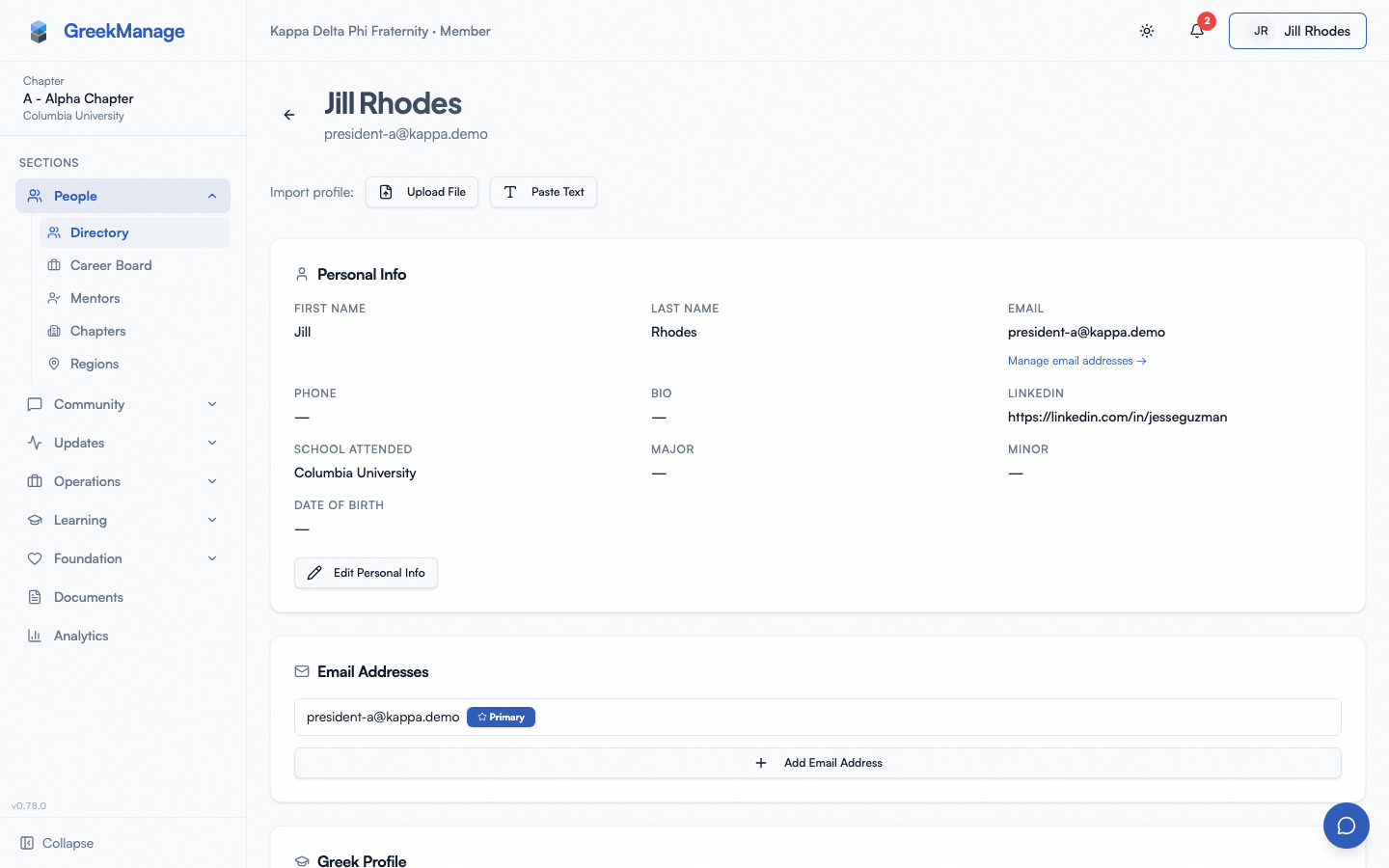 The member profile screen.
full member profile view, scrolled to the top, showing avatar, name, email, and the Personal Info section
Your profile photo
Add a photo and it appears next to your name in the header, the member directory, your member profile and the family tree. Without one, GreekManage shows your initials.
- Click your avatar in the top-right corner, then Account Settings.
- In the Profile photo card, click Upload photo (or Change photo if you already have one) and pick a file.
- Drag the picture, or use the arrow keys, to position it, and use the Zoom slider to fit it. The circle is what other people see.
- Click Save photo. You’ll see Photo saved, and the photo shows up everywhere within a moment.
To go back to initials, click Remove photo. That deletes the saved photo; it does not keep a copy.
Limits
- JPG, PNG, GIF, WebP or HEIC, up to 10 MB. GIFs are saved as a still image.
- The photo is saved as a 400 × 400 square. Location data (EXIF) in the original is removed, and the original file is not kept.
- If a file is refused, the message under Upload failed says why (too large, not a picture, or a damaged file). There is also a limit of 30 uploads an hour; if you hit it, wait a little and try again.
Who can see it. Only people in your own organization: its members, officers and admins. You can narrow that to your chapter, or to officers and admins only, with Profile photo in the Directory Privacy card on Account Settings; anyone who can’t see it gets your initials instead (see Privacy and visibility). Your photo belongs to you, so it follows you if you belong to more than one organization, but each organization only shows it to its own people. Removing yourself from a chapter does not delete it; deleting your account does. If you ask to delete your account, your photo stops being shown to others straight away; cancelling the deletion brings it back.
The sections you’ll see
Your profile is a stack of card-style sections. Every section has either a row of read-only fields or, if you’re allowed to change them, an Edit button at the bottom that swaps the card into form mode.
Personal Info
The basics on your user account, plus a few profile-level fields shown together for convenience.
- First Name and Last Name (your legal/given name)
- Email (your primary email, with a link to Manage email addresses if you want to add a
.eduor work address — see Account security) - Phone
- Bio — a short free-text line
- LinkedIn URL
- School Attended — the university tied to your chapter membership
- Major / Minor — what you’re studying now. Separate from the Education card below, which records degrees you’ve already earned; the two don’t have to match.
- Date of Birth — optional.
- Ethnicity — optional and self-identified. A dropdown of common answers plus Something else…, which opens a box to describe it in your own words; “Prefer not to say” is a real answer, recorded as a decision rather than as a blank. Only you can change it, and not everyone can see it — see What officers and admins see. (It had its own card until v0.78.)
Fields you have not filled in are folded behind a “N empty fields” link at the bottom of the card rather than each showing a dash. Click it to see and fill them; nothing is hidden permanently.
Click Edit Personal Info to change first/last name, phone, bio, LinkedIn URL, and school attended. Email changes go through the Account Settings flow because adding a new address requires verification.
A separate card that appears only if your platform has LinkedIn OAuth configured. See “LinkedIn import” below for the full flow.
AI Resume Import
A row of buttons — Upload File and Paste Text — appears below the LinkedIn card if your org has the AI Services module enabled. See “AI Resume Import” below.
Email Addresses
A reminder card linking to the Account Settings page where you manage primary and secondary email addresses. Other members can see your primary email in the directory unless you limit it in Directory Privacy (see Privacy and visibility); secondary addresses are private.
Work History
Repeatable entries with company, title, start date, end date (or “Current”), and a short description. Tick I currently work here for a job you still hold — the end date is disabled and the row shows “Present”; untick it to enter an end date, which can’t be before the start date. Click Add Work Entry to add one; click the pencil icon next to an existing row to edit, and the trash icon to remove. Entries imported from LinkedIn or a resume are tagged with their source so a future re-sync knows what is safe to overwrite — manually-added rows are never touched by sync.
Skills & Credentials
One card holding three groups (three separate cards until v0.78):
- Skills — a tag-style input at the top. Type a skill and press Enter; it becomes a chip. Skills feed the alumni mentor search and the career board.
- Certifications — one line per entry: name, issuer, and the years it runs. Pencil and trash buttons on each row.
- Affiliations — professional organizations, honor societies and other group memberships, in the same one-line form. Useful for directory search and mentor matching.
Add with the link at the end of each group. A group you have not filled in shows a single line rather than an empty panel.
Contact & Address
One address per member: Address Line 1, Address Line 2, City, State, Postal Code, Country. Keep it current — it is the address your chapter and organization will use to reach you. (A second “permanent” address existed until v0.78; it was removed because keeping two addresses accurate is more work than keeping one.)
The read view shows it as postal lines rather than one row per field. Every address field is optional, and leaving them blank does not count against your profile completeness score — only City and State feed that.
Emergency Contact — a name and a phone number for someone to reach if something happens to you at an event, a retreat, or on a trip. If you applied through your organization’s recruitment form and gave one there, it is already filled in; you can change it here at any time. Unlike the rest of this card, it is not visible to other members — see What officers and admins see.
Networking preferences sit in the same card:
- Mentor Available — when on, your name appears in the alumni mentor directory.
- Open to Connect — softer signal for general networking.
- Personal Website — a URL for your portfolio, resume site, or personal page.
Education
Repeatable degree entries: Degree, Major, School, Graduation Year. Degree and Major are required when adding; School and Year are optional. Each row has pencil (edit) and trash (delete) buttons when you’re the owner or an admin.
Chapter & Membership
Two labelled groups in one card: Membership (below) and Greek Profile (above). They have separate Edit buttons because they are not editable by the same people — officers of your chapter can set membership fields, while your Greek profile is yours and your org admins'.
The Membership group shows your Chapter, Status (Undergrad, Associate, Alumni, Active Alumni, Lifetime Alumni, Disaffiliated, Inactive), Joined Date, Pledge Class, Line Number, Crossing Semester, Crossing Date, and Graduation.
Graduation is a single searchable picker listing calendar terms — Spring 2026, Summer 2026, Fall 2026, and so on. Type to filter (“fall 26” narrows to one entry). Pick the term you actually graduate in; there is nothing to convert. You can set your own graduation term, and so can your chapter’s officers and your org admins; it is read-only when you are viewing someone else’s profile. The rest of the Membership group (Joined Date, Pledge Class, Line Number, Crossing Semester) is set by officers and admins. To change your status, click Request status change at the bottom of the card; this opens a dialog that submits a request to your chapter officers for approval. You can’t change your own status directly.
The Greek Profile group in the same card holds the Greek-system-specific fields (its own card until v0.78):
- Org Member Name — the fraternal/sorority name your org uses (often a Greek-letter name like a number, e.g. “237”, or a tradition-based nickname). You can see it but not change it; it identifies you in the family tree and in imports, so only an org admin can edit it.
- Big — set by searching for an existing member in your chapter. (Named “Big Brother” before v0.73.54; renamed because the platform serves sororities too.)
- New Member Educator — the member who guided your pledge process.
Editing Big/Little is a special case: when you change your Big, GreekManage creates an approval request rather than writing the change directly. The request goes to your chapter officers and org admins, and you’ll see a toast saying “Big/Little request submitted — pending officer/admin approval.” If you have permission to self-approve (officer or admin), the change saves immediately and the toast reads “Big/Little relationship saved.”
Custom Fields
Whatever fields your org admin has configured for members — could be anything from “T-shirt size” to “Emergency contact”. If your org hasn’t set any up, you’ll see “No custom fields defined” instead.
Member Donation History
If your org has the Foundation module enabled and you have donor records, foundation admins see this card on your profile. You as the member don’t see your own donation history on this screen — check the Foundation module’s “My Donations” page instead.
What you can’t edit
These are managed by an officer or org admin:
- Status (Undergrad, Alumni, etc.) — you can request a change via the dialog, but the change requires approval.
- Role (Member, Officer, President) — set in Settings → Chapter Officers by an admin.
- Chapter assignment — moving you between chapters requires admin intervention.
- Joined date, pledge class, line number, crossing semester, crossing date — historical record fields that officers set.
If something here is wrong, ask your chapter officer or org admin to update it.
LinkedIn import
If your platform has LinkedIn OAuth configured, you can pull profile data in automatically:
- Open your profile and find the LinkedIn card.
- Click Link LinkedIn. You’ll be redirected to LinkedIn’s authorization screen.
- Approve the permissions and you’re sent back to GreekManage.
- The card now shows “Linked as [your LinkedIn ID]” and a “Last synced” timestamp.
A toggle labeled Auto-sync every 90 days is on by default. When enabled, a background job re-imports your work history, education, certifications, and skills every 90 days from LinkedIn’s Member Snapshot API. You can click Refresh to trigger a sync immediately.
To disconnect, click Unlink. A confirmation dialog tells you that unlinking also deletes the work history, education, skills, and certifications imported from LinkedIn. Anything you entered yourself is untouched — records carry the source they came from, and only the LinkedIn-sourced ones are removed.
What gets imported
| Field | Source | Available where |
|---|---|---|
| Profile photo (avatar) | LinkedIn OIDC | All regions |
| Work history | LinkedIn Member Snapshot API | EEA/DMA-eligible accounts only |
| Education | LinkedIn Member Snapshot API | EEA/DMA-eligible accounts only |
| Certifications | LinkedIn Member Snapshot API | EEA/DMA-eligible accounts only |
| Skills | LinkedIn Member Snapshot API | EEA/DMA-eligible accounts only |
US-only LinkedIn accounts can import the photo via OIDC but the Data Portability fields are unavailable — you’ll need to enter work history, education, certifications, and skills manually (or via AI Resume Import). This is a LinkedIn restriction, not a configuration option: the Member Data Portability API exists to satisfy the EU Digital Markets Act, and only members located in the European Economic Area may consent to share their data with a third-party application.
Any field on your GreekManage profile that you marked as manually edited is never overwritten by a LinkedIn sync.
AI Resume Import
This card appears only when your org has the AI Services module enabled.
Upload a file
- Click Upload File.
- Pick a PDF, DOCX, PNG, JPG, or JPEG, up to 10 MB.
- The button changes to a spinner (“Parsing…”) while AI Services extracts structured data.
- A preview modal opens with everything it found: work history rows, certifications, education, skills.
- Uncheck anything you don’t want imported. Edit anything that needs cleanup.
- Click Import. The fields write to the corresponding profile sections, tagged with
source: resumeso future syncs and manual edits know where the data came from.
Paste text
If you don’t have a file handy, click Paste Text and paste any resume-like text into the modal. Same preview-and-confirm flow as file upload.
Errors
- “File is too large.” Max is 10 MB. Compress the PDF or export as a smaller image.
- “Failed to parse file.” The backend couldn’t extract enough structured data. Try pasting the text version instead.
- “Failed to import data.” A network or save error after preview. The preview state is preserved; click Import again.
After a successful import, the card collapses to a small “Re-import from resume” link. Click it any time to start over with a new file or paste.
Avatar and photo
Your avatar is the round image that appears next to your name in the directory, in forum posts, on recognition cards, and in chats. To change it:
- Open your profile and click your current avatar at the top of the page.
- Pick a file from your device.
- GreekManage center-crops to a square and uploads.
A solid neutral background and a face-forward photo render best. If you don’t upload one, GreekManage generates a DiceBear-style identicon based on your name.
Profile completeness
Some orgs configure a completeness score that nudges you to fill in missing fields. The score is a percentage (0–100) shown at the top of your profile.
How it’s calculated: your org admin picks weights for each field group — Personal Info, Greek Profile, Education, Work History, Certifications, Skills, Location, Avatar — that sum to 100. (These groups are unchanged by the card layout; Location still means City and State.) Your score is the weighted sum of the groups you’ve filled in. Defaults give roughly equal weight to all groups.
If your score is below the org’s nudge threshold (commonly 70%), you may receive a “complete your profile” email from your org admin. Org admins can manually send a chapter-wide nudge, which is rate-limited to once every 7 days per chapter — back-to-back nudges show a “Cooldown” state on the admin button.
The score updates instantly as you save changes; you don’t need to refresh the page.
What officers and admins see on your profile
Visiting another member’s profile shows fewer cards than your own — only the read-only views, plus the actions specific to that viewer’s role:
- Other members in your chapter: Personal Info, Chapter & Membership (which now contains Greek Profile), Work History, Skills & Credentials (skills, certifications and affiliations together), Contact & Address, Education, Custom Fields (if defined). No edit controls. They do not see your Ethnicity, your Emergency Contact, or your home address, date of birth and personal email at all.
- Chapter officers (same chapter) can additionally open the status-change dialog for that member (to submit a status change on their behalf), manage that member’s secondary email addresses, set the Graduation term picker, and use Edit Chapter Info to set Joined Date, Pledge Class, Line Number, Crossing Semester, and Crossing Date.
- Org admins can edit the full Personal Info and Greek Profile (including the Org Member Name, which members cannot change themselves), change Chapter Membership status directly via a dropdown (no approval needed), set the Graduation term picker and the Edit Chapter Info fields listed above, trigger an admin password reset that signs the member out of all sessions and emails them a new temporary password, and edit custom field values.
- Foundation admins also see the Member Donation History card linking donor records to this member.
Ethnicity is the one field that does not follow this pattern. It sits in Personal Info but is not part of it: most of your profile is readable by any member of your organization, and your Ethnicity is not. Only you, the officers of your own chapter, the regional admin of your region, and org admins can see it — and only you can change it, including org admins. An officer at a different chapter cannot, even in your own organization. Self-identified data that someone else can overwrite would not be self-identified, so the platform rejects those edits at the API, not just in the interface.
Your contact details follow the same rule. Your home address, date of birth, personal email, phone number and Emergency Contact sit in Contact & Address, and they are held to the Ethnicity standard rather than the “any member of your organization” one: only you, the officers of your own chapter, your regional admin and org admins can see them. Another member reading your profile does not receive them at all — the platform leaves them out of the response, so there is nothing there for them to find.
And it is the same rule everywhere those fields can be reached, not just on this page. Asking the AI assistant about you returns the same answer the profile would: another member gets your name, chapter, role and professional details, and no phone number or personal email. The roster export does not contain those columns at all, and a plain member cannot run one. Staff-only (private) custom fields are narrower still — regional and org admins only, so an officer of your own chapter reads your phone number but not a staff note about you, in the chatbot, in an export and on this page alike.
Two things changed here in v0.86: those four fields used to be readable by every member of your organization, and the Emergency Contact used to be readable by an officer of any chapter in it. Both are now the narrower audience above.
You see all of your own data on your own profile regardless of role — but officers viewing you see only what their role allows.
Demographics
An optional Demographics card holds self-identified information — currently ethnicity. Three things are worth knowing:
- Answering is optional. Leaving it blank is fine, and Prefer not to say is offered as a one-click suggestion. Choosing it is recorded as a real answer rather than as a blank, so you are counted as having decided rather than as someone nobody asked.
- The box is free text. The suggestions are only shortcuts; you can always describe yourself in your own words.
- You own it. If you answered this on a recruitment application, the answer followed you here and you can change it at any time. Nobody else can — not an officer, not an org admin.
Your organization uses this for aggregate reporting. Individual values are visible only to you, your own chapter’s officers, your regional admin, and org admins. There is no expiry: the value is kept for as long as your record exists.
Privacy and visibility
- Active members in your chapter and org can find you through the directory and view your profile. You can’t remove yourself from the directory.
- Every member, undergrad or alumnus, has a Directory Privacy card in Account Settings. For Email, Phone, Profile photo and Location you pick Everyone in the organization, My chapter or Officers & admins only. Until you save, email and photo are visible to everyone in the organization and phone and location to officers and admins only. The card also has Location detail and Share my birthday in announcements. → Privacy & data
- The Phone setting governs directories, rosters and member search. Your profile page’s contact section is separate and narrower: it shows your phone number only to you, your own chapter’s officers and admins, whatever the card says (see What officers and admins see).
- You, your own chapter’s officers, and regional, national and platform admins always see every field. If you’re an officer, your email can’t be stricter than My chapter.
- Name, chapter, status, role, employer, job title, LinkedIn, personal website, graduation term, pledge class, crossing semester and work history are always visible to members of your organization.
- The settings cover the directory, rosters, roster search, the family tree, the Big and New Member Educator on a profile, the mentor list and the AI assistant. They don’t cover forum posts, messages or comments.
- The general Account → Privacy screen only handles marketing/analytics consent and the version of Privacy Policy / Terms you’ve accepted. → Privacy & data
Family tree
The big-little family tree is built from the Big field on each member’s Greek Profile, plus historical lineage that officers maintain. You can propose your own Big-Little — when you change your Big in Greek Profile, the request goes to officers for approval. You can’t unilaterally edit other people’s lineage entries. If something on the tree is wrong, ask an officer. → Family tree
Mobile differences
- The profile screen renders the same on mobile but cards stack into a single column instead of a 3-column grid.
- File upload (resume import, avatar) opens the native iOS/Android file picker, which lets you snap a photo of a paper resume or pick from your gallery.
- LinkedIn OAuth opens in the in-app browser (Safari View Controller / Chrome Custom Tab) and returns you to the app via deep link. The tab closes itself once LinkedIn sends you back.
Errors and edge cases
| Situation | What happens |
|---|---|
| Bio is over the database max length | Save fails with a 400 — trim it down |
| LinkedIn token expired | Card shows “Linked as …” but Refresh returns an error; click Unlink and re-link |
| Big-Little change form is open and you save Greek Profile | The profile fields save first, then the big-little request submits 50 ms later — this ordering prevents a race that used to lose the new Big |
| Resume parsing returns garbled fields | Edit each row in the preview modal before clicking Import; or cancel and use Paste Text with a cleaner version |
| You try to view a member who has left the org | “Member not found” — their profile is hidden after disaffiliation |
Troubleshooting
- My LinkedIn refresh just spins. The Data Portability API is rate-limited per LinkedIn account. Wait an hour and try again.
- Resume parser is hidden. Your org admin needs to enable the AI Services module. Without it, the entire card never renders.
- Completeness score didn’t change after I added a degree. Education group weight might be 0 in your org’s config. Ask an admin to bump it, or fill in a higher-weight group like Work History.
- Big change didn’t take effect. Check Approvals — it may still be sitting in the officer queue. The flow is asynchronous on purpose.
- Photo looks stretched. GreekManage center-crops to square; pre-crop to a 1:1 ratio before uploading for predictable results.
Tips
- Photos render better as square crops. Pre-cropping yields the cleanest result; otherwise the center-crop may chop your forehead or shoulders.
- Use a real photo. Generated avatars and emoji are fine but make you harder to find in a busy directory.
- Fill in Skills. It’s the single biggest input to alumni mentor matching and the career board’s “people who could refer you” suggestions.
- Keep Work History accurate even after you graduate. Alumni networking and mentor matching rely entirely on what’s here.
Related
- Account security — passwords, passkeys, secondary emails
- Privacy & data — consent, GDPR export, account deletion
- Family tree
- Recognition
Last verified against v0.62.1 (2026-05-11); updated for #2495 (2026-10-24) — directory privacy.