Service hours
Chapters often require members to log a minimum number of community service hours each semester. Any member can log their own hours, attach evidence, and watch their progress toward the requirement; chapter officers review and approve what you submit.
What you see
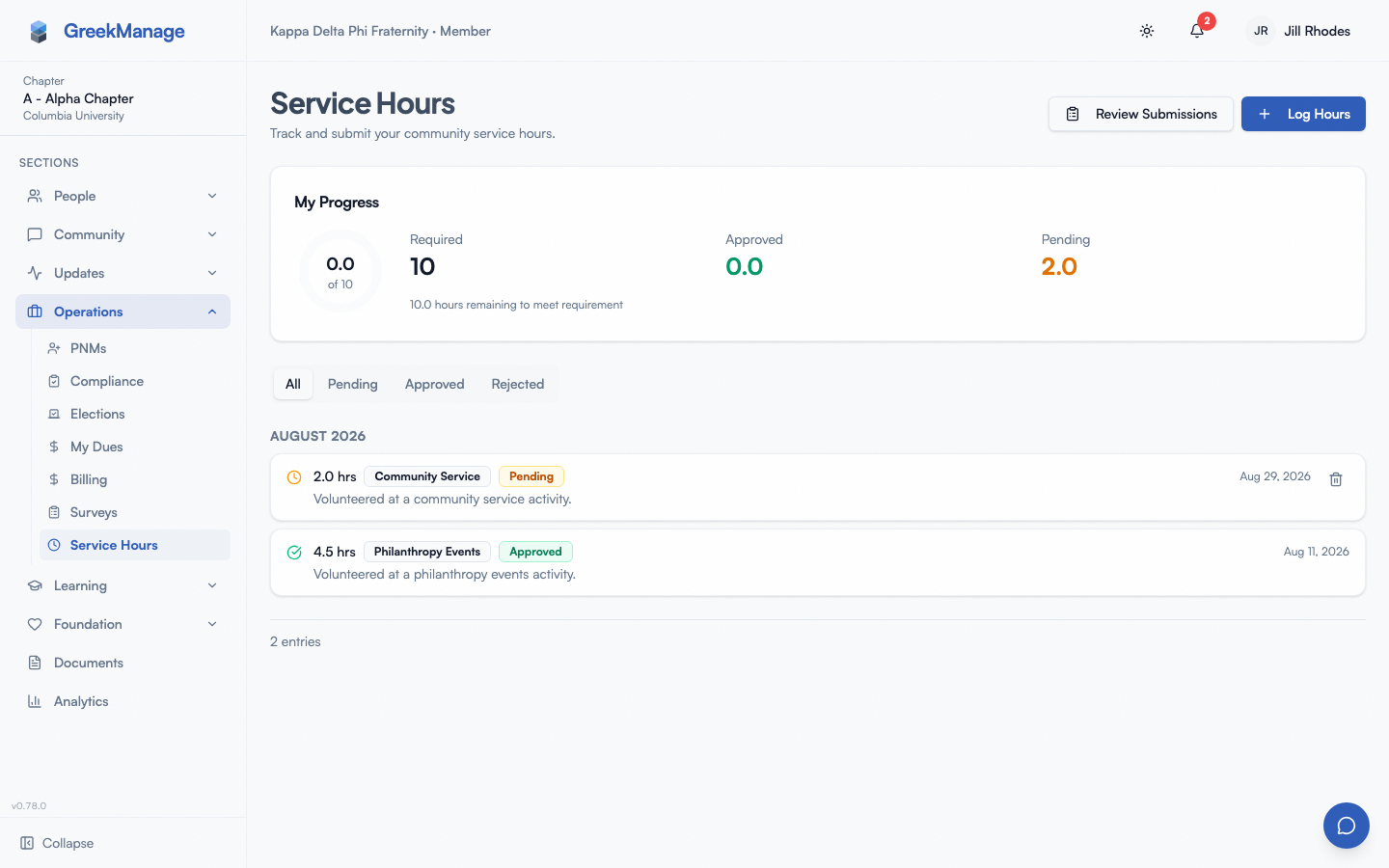 The Service Hours page: My Progress card and hours history.
In the chapter sidebar, under Operations: Service Hours. The page has:
- A Log Hours button (top right) that opens the entry form.
- A My Progress card: a circular progress ring showing hours approved out of hours required, plus Required / Approved / Pending stat tiles.
- Status filter tabs (All / Pending / Approved / Rejected) above your history list.
If you’re a chapter officer or president, you’ll also see a Review Submissions button next to Log Hours — that links to the officer approvals page.
Step-by-step: log hours
- Click Log Hours. A Log Service Hours dialog opens.
- Fill in Date of Service (a date picker; you can’t pick a future date).
- Fill in Hours (in 0.5-hour increments, minimum 0.5, maximum 24 per entry).
- If you enter more than 8 hours, an amber warning appears: “You’ve entered more than 8 hours. This entry will be flagged for officer review.” See Your history below for what the resulting Flagged badge means — it’s not a rejection, just a heads-up to reviewers.
- Pick a Category, if your org has configured any (this field only appears when categories exist — it’s optional either way).
- Write a Description of what you did. This field is required.
- Optionally enter an Organization — the name of the external group you volunteered with.
- If your org disallows external hours and you enter an organization name without linking an event, a warning appears: “External hours aren’t allowed for your organization unless linked to a service-eligible chapter event. Select a linked event above, or this entry will be rejected.”
- Optionally pick a Linked Event — this field only appears if your chapter has service-eligible events. Linking an entry to an event satisfies the external-hours restriction above even if you also entered an organization name.
- Optionally attach a Photo as evidence (a preview appears once you pick one; click the X on the preview to remove it).
- Click Log Hours to submit. The dialog closes and your new entry appears at the top of your history as Pending.
Understanding your progress
The My Progress card shows:
- Required — your chapter’s default hours-per-semester requirement, or a different number if your org set a per-status override for your membership status (for example, new members might have a different target than actives).
- Approved — hours from entries an officer has approved.
- Pending — hours from entries still awaiting review.
- A line of text under the stats: either “N hours remaining to meet requirement” or, once your approved hours reach the requirement, “Requirement met!”
Only approved hours count toward the progress ring and the “remaining” calculation — pending and rejected entries don’t move the ring.
Your history
Entries are grouped by month, most recent first. Use the status tabs (All / Pending / Approved / Rejected) to filter the list.
Each entry row shows the hours, an optional category badge, a status badge, and — if flagged — a Flagged badge (the automatic >8-hour flag described in Step-by-step: log hours above). Status badges:
| Badge | Meaning |
|---|---|
| Pending (amber) | Submitted, awaiting officer review. |
| Approved (emerald) | An officer approved it — counts toward your progress. |
| Rejected (red) | An officer rejected it. The row shows the officer’s rejection note so you know why. |
You can delete an entry only while it’s Pending — a delete icon appears on pending rows. Once an entry is approved or rejected, the delete control disappears; see Errors and edge cases below.
Auto-credited hours from events
If your chapter marks an event as service-eligible, checking in to that event automatically creates a pending service hour entry for you — you don’t have to log it yourself. The entry is labeled “Auto-credited for attending: <event title>” and its hours come from the event’s duration (or a 1-hour default if the event has no duration set).
Auto-credited entries still need officer approval just like any entry you log manually — checking in doesn’t approve the hours for you.
Errors and edge cases
- No entries yet. The history section shows: “You haven’t logged any service hours yet. Click ‘Log Hours’ to get started.” Switching to a status tab with no matching entries shows a shorter message (e.g. “No approved entries found.”).
- Trying to delete an approved or rejected entry. The delete control simply isn’t shown on those rows — there’s no button to click. The backend also rejects deletion of non-pending entries, so this is enforced even if you reach the action some other way.
- External hours without a linked event, when your org disallows them. The entry is rejected at submit time — the API returns an error and the entry is never created, so nothing shows up in your history to review or delete. Link an eligible event instead, or drop the organization name if the hours weren’t actually external.
Related
- Service hours approvals (officers) — what officers see when they review your submissions.
- Service hours settings (org admins) — how your org configures the requirement and categories.
- Module: Operations
Last verified against v0.65.23 (2026-07-05). Service Hours shipped v0.63.42. Corrected external-hours submission-block description (hard block at submit time, not a later officer-review flag).