Responding to surveys
Your org’s leadership uses surveys to keep a pulse on chapter morale, member satisfaction, and risk signals. When a survey is published to your org and you haven’t yet responded, it shows up on the standalone Surveys page and waits for you to fill it out.
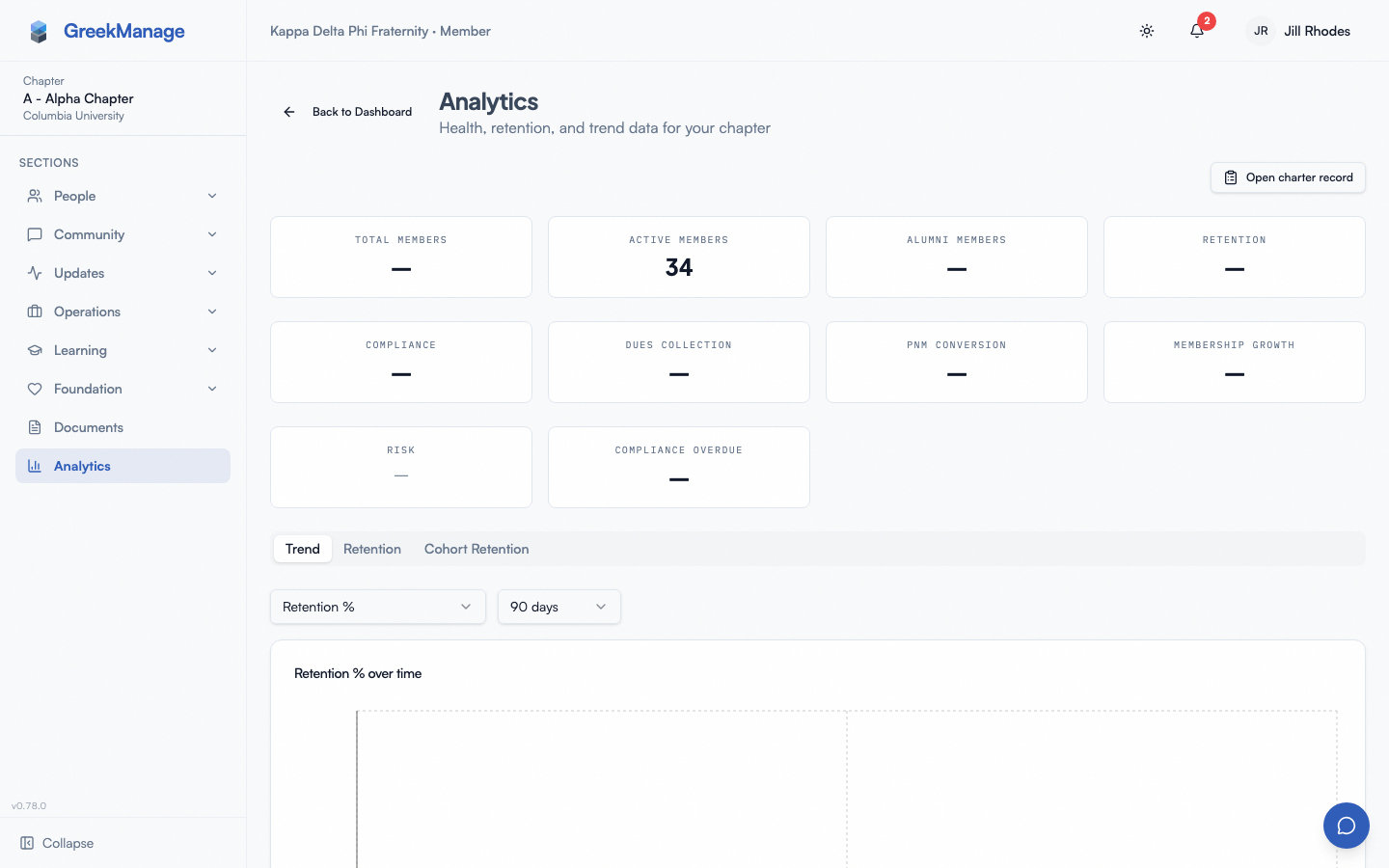 the chapter Analytics page — /chapter/retain now redirects here
Where to find a survey
- Surveys (sidebar → Operations → Surveys). Active surveys you can answer are listed here.
- A notification fires when a new survey is published and you’re in scope.
Click a survey to open the response form. The URL pattern is /chapter/surveys/<id>.
Question types
A survey is a list of questions, in order, with one of four formats:
- Text — free-form long-form answer.
- Rating — pick a number from 1 to 5.
- Multiple choice — pick one of the org-defined options.
- Yes / No — radio toggle.
Required questions are marked with a red asterisk.
Step-by-step
- Open Surveys in the sidebar (under Operations).
- Find the survey in your list.
- Click the survey title.
- Answer the questions in order.
- Click Submit Response.
You’re redirected back to the Surveys list, and the survey disappears from your available list.
One response per survey
Each member can respond to a survey once. After you submit, your response is final — there’s no edit-after-submit option for members.
Autosave drafts
For non-anonymous surveys, the form autosaves every 30 seconds to the server while you’re filling it out. If you close the tab, lose your connection, or come back the next day, your in-progress answers are still there when you reopen the survey — the form rehydrates from the latest server-side draft.
A draft is not a submitted response. It only counts once you click Submit Response. Drafts are wiped when you submit. Drafts are not available on anonymous surveys (see below) — those have to be filled in one sitting.
Who sees your response?
It depends on whether the survey is attributed (the default) or anonymous (a builder toggle the survey author chose).
Attributed surveys (default)
When you submit, the system records which member said what. This attribution is what enables follow-up coaching, attendance-tied check-ins, and individual retention scoring.
- The dashboard your officers and national admins look at most is aggregated by question (averages, distributions, counts). Names aren’t on the chart.
- Individual response rows — including your name — are visible to your org admin and the platform team.
If you don’t want a particular answer attributed to you on a non-anonymous survey, you can decline to submit that survey. Skipping a survey is always an option.
Anonymous surveys
If the survey author flipped the Anonymous toggle when building the survey, you’ll see an anonymity banner at the top of the response form before answering. The banner makes clear:
- No identifier is stored alongside your response. The database column for “who responded” is left blank — your row literally has
respondent = NULL. Your org admin and the platform team cannot trace the response back to you. - You can re-take an anonymous survey. Because there’s no dedupe key, the “available surveys” list won’t drop the survey after you submit — you can fill it out again if you want to (each submission is a separate row).
- Drafts are not saved. Autosave is disabled on anonymous surveys; this is by design so the partial answer is never persisted to a draft row that could be linked back to you. Plan to finish the survey in one sitting.
Anonymous surveys are tagged with an Anonymous badge on the admin detail view so admins can’t mistake them for attributed data.
Errors and edge cases
- “You have already responded to this survey.” You can only submit once. If you think your answer was wrong, ask your org admin to clear your response (admin action — not self-service).
- Survey closed. If the org’s submission window has expired between when you opened the page and clicked submit, you’ll see an error. The survey also disappears from your available list once it’s closed.
- Survey not for your role. Some surveys target a specific membership role (e.g., president only). If a survey doesn’t apply to you, you won’t see it.
Mobile differences
The form works identically on iOS and Android. Long text fields use the native keyboard with autocorrect on. Pull-to-refresh from the Surveys page picks up newly published surveys.
What officers and admins see that you don’t
- National admins create surveys, define the question list, set target roles, and open / close the response window.
- Chapter officers see the aggregate results on the survey detail page if a national admin shares them — officers don’t have direct access to results, and results are separate from the Analytics → Retention dashboard (retention snapshots and alerts are computed from
Membershiprows, not from survey responses). - National admins see KPI rollups and trends derived from responses; the raw per-member text answers are visible to them but are not surfaced anywhere at officer scope.
Related
- Your dashboard — Membership Health card links to the Analytics → Retention dashboard.
- Notifications — opt in to “new survey available” pings.
Last verified against v0.65.23 (2026-07-05). Retain merged into Analytics (Retention tab), Surveys split into a standalone nav item, v0.65.0. Autosave drafts shipped v0.63.27; anonymous surveys v0.63.31.