Voting in elections
GreekManage runs secure, real-time elections — chapter officer transitions, national exec board races, and one-off polls. Ballots are cast through a confirmation flow, each vote is recorded with an audit log, and individual ballots are anonymous to officers.
When you have a ballot
When an election opens, you’ll see:
- A Vote now call-out on your dashboard.
- A push notification (if enabled) on the mobile app.
- An email (if enabled in your preferences).
Open Operations → Elections in the sidebar to see all elections you can vote in.
 The voter ballot for a chapter election.
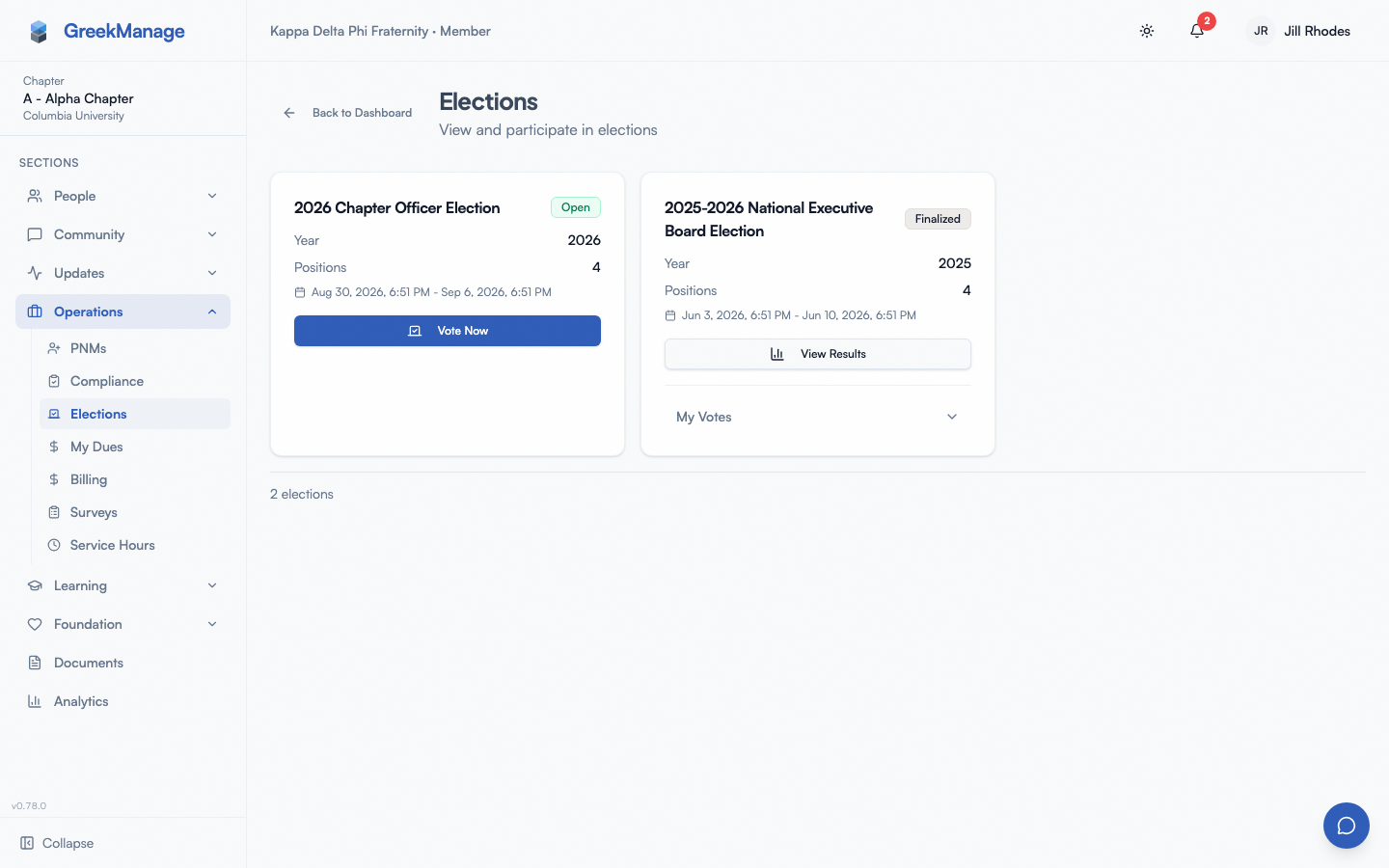
elections list page showing two cards - one Open with Vote Now button, one Finalized with View Results button
The elections list
The Elections page shows a grid of election cards (3 across on desktop). Each card displays:
- Election name.
- A status badge: Open (emerald) or Finalized (gray). Draft elections are hidden from members.
- The election year.
- Position count.
- Open and close dates/times.
- An action button — Vote Now for open elections, View Results for finalized ones.
- If you’ve already cast votes, a My Votes disclosure that expands to show each position and the candidate you picked (or “Abstained”).
If no elections are open or finalized, you see an empty state: “No elections available.”
Election statuses
| Status | What members see |
|---|---|
| Draft | Hidden entirely from your list |
| Open | Voting is accepting ballots; Vote Now is shown |
| Finalized | Closed; View Results shown; ballots locked |
Eligibility
Not every election is open to every member. Eligibility is set by the election creator and can scope to:
- Specific membership status (e.g. only Undergrad votes for chapter officers)
- Specific chapter or region
- Specific role (e.g. only Officers vote on the bylaws ratification)
What ineligible voters see
If you try to open a ballot you’re not eligible for, you get a red banner:
You are not eligible to vote in this election. If you believe this is an error, please contact your chapter officer or national headquarters.
There’s no Vote button on the page. Your ineligibility is silent at the list level — the card may still appear depending on what filters the election creator applied.
Cast your ballot
- Click Elections → the active election’s Vote Now button.
- The ballot page opens with the election name, the voting window, and a card for each position.
- For each position:
- Read the position title.
- Review each candidate. If they wrote a bio, it appears under their name.
- Pick your candidate by clicking the radio button next to their name, or pick Abstain at the bottom of the list.
- After making a selection for every position, the Submit Votes button at the bottom becomes active. Click it.
- A Confirm Your Votes dialog appears with a summary table — every position with your chosen candidate (or “Abstain”).
- Review carefully. Click Go Back to make changes, or Confirm & Submit to lock in your ballot.
- A toast confirms “Votes submitted successfully — Your votes have been recorded.” Each position card flips to “Voted” state with a green badge showing your selection.
You cannot change your votes once submitted. Each position card also shows the other candidates dimmed at 50% opacity to make it visually clear which was yours.
Multi-select positions
Some positions allow multiple selections (rare; usually 1-of-N). When a position is multi-select, the radio buttons render as checkboxes and the position title indicates the maximum allowed (e.g. “Pick up to 3”). You can’t submit until you’ve selected at least one (or hit Abstain).
No runoff in v0.62.1
If your election has no majority winner, GreekManage doesn’t trigger an automatic runoff. The election finalizes based on plurality (most votes) and your election creator decides whether to manually open a new election for a head-to-head.
Anonymity and audit log
GreekManage records that you voted, but not what you voted for, to anyone except you. Concretely:
- What’s stored about your vote: a record linking you to each position with the candidate ID (or NULL for abstain), plus an audit row containing the timestamp you cast the vote and a salted hash of your IP address.
- What officers and admins can see: who has voted (for quorum), but not what each individual voted for. They see aggregate totals only after the election finalizes.
- What you can see: your own ballot in full (via the “My Votes” disclosure on the election card and the “Voted” state on the ballot page).
- What appears in your data export: your vote audit metadata (cast timestamp, IP hash) is included; the candidate selection itself is reflected as well so you have a personal record.
Vote totals are public after the election finalizes; individual ballots remain anonymized in the public view.
Watching live tracking
While an election is open, some elections show a live tracking view that lets election admins see how many ballots have been cast in real time. The tracking is admin-only — as a voter you just see the ballot. Once you submit, your card on the elections list updates with a “Voted” badge.
Final candidate vote counts appear only after the election closes.
View results
After the election finalizes (its close-time passes, or an admin manually finalizes it), the card on the elections list switches to View Results. Clicking opens the results page with:
- A per-position bar chart of candidate vote counts.
- Each candidate’s vote count and percentage.
- The winner highlighted.
- Total voter count and turnout percentage.
- Each member can confirm their own vote is included via the “My Votes” disclosure on the election card.
Results are also exported to XLSX by your election admin; ask them if you need a copy of the full breakdown.
Missed the deadline?
Once an election finalizes (or its close-time passes and the system runs the finalization task), you can’t vote. The card shows “Finalized” and the ballot endpoint returns a “not accepting votes at this time” message instead of the radio buttons.
Officers and admins can:
- Extend the close date before close — pushes the deadline back.
- Open a new election after close — but cannot reopen a finalized one.
If you missed by a hair, ask your election admin whether a re-open is warranted.
Mobile voting
The ballot flow works identically on the iOS and Android apps:
- Tap Vote Now on the elections list.
- Scroll through position cards.
- Tap a candidate to select. The selection highlight is a touch-optimized larger radio button.
- Scroll to Submit Votes at the bottom.
- The confirmation dialog renders full-width on phone.
There isn’t an extra biometric confirmation prompt for voting in v0.62.1 — your existing signed-in session is sufficient. If you have biometric unlock enabled for the app overall (see Account security), you’ll have already done a Face ID / Touch ID check when you opened the app.
What officers and admins see that you don’t
- Chapter officers see the same elections list but with admin-only controls when they created the election: open/close timing, candidate roster, voter eligibility filters, and the live tracking view.
- Election creators can edit a Draft election (positions, candidates, eligibility). After open, edits are locked.
- Election creators can finalize early or extend the deadline before close.
- Org admins can finalize and export results at the org level, including XLSX exports for accreditation or compliance records.
You as a voter don’t see any of those controls; the Vote Now button is your only action.
Errors and edge cases
| Situation | What you see |
|---|---|
| You try to vote with no selection on a required position | Submit Votes stays disabled until every position has a selection |
| You navigate away after picking but before submitting | Your in-page selections are kept in memory; navigating to another election clears them |
| Election closes while you’re filling out the ballot | Submit returns a “not accepting votes” error; refresh shows the finalized state |
| You vote, then try to revisit the ballot | The page renders in read-only mode with your selections highlighted and the other candidates dimmed |
| Backend rejects the vote | Toast: “Failed to submit votes.” Try again after a moment; if it persists, the election may have closed |
| Ballot fails to load | “Failed to load the ballot. The election may be closed or unavailable.” Back to the elections list. |
Troubleshooting
- I voted but the dashboard still shows “Vote now”. The dashboard widget refreshes every minute. Refresh manually, or click into the elections page to confirm your vote is recorded.
- I see “Not eligible” but I should be eligible. The election creator may have a status or chapter filter that excludes you. Ask them; they can update eligibility while the election is still in Draft state (not after open).
- My Votes disclosure shows nothing. You haven’t voted yet, or the election didn’t finalize the recording. Try opening the ballot to confirm.
- Results page is empty. The election may have just finalized — results generation runs as a finalization task. Refresh in a minute.
Tips
- Vote early. Tech glitches happen; voting in the first 24 hours leaves time to ask for help if something goes wrong.
- Read candidate statements. Each candidate’s bio (if they wrote one) sits right under their name in the ballot.
- Use mobile. The voting flow works on the iOS and Android apps with no extra steps. If you’re in a meeting and people are voting live, your phone is the fastest path.
- Cross-check your selections on the confirmation dialog. Once you click Confirm & Submit, the ballot is locked.
Related
- Running an election — for chapter officers
- Election authoring — for org admins
- Notifications — control how you’re alerted to new ballots
Last verified against v0.62.1 (2026-05-11).