Account requests
Account requests are how a person who is not yet in the system asks to be added to your org. They show up when:
- A prospective new member fills out the public "Request Account" page on your org's site, or
- Someone who completed a PNM intake form is converted into an account request.
Each request includes the requester's name, email, optional phone, the chapter they want to join, a justification, and an optional supporting document. You may have noticed mentions of account requests in the Approvals queue — and wondered whether you, as an officer, can act on them. The short answer is no.
What you see
Open Approvals from your sidebar. You'll see tabs for Status Changes, New Members, and Big/Little — the three things you can actually review at the chapter tier.
You will not see an Account Requests tab. That tab only exists on the org-tier Approvals page, which is gated to national admins. If a teammate tells you they see Account Requests on their Approvals page, they're either looking at the org Approvals page (not the chapter one) or they hold a national admin role in addition to their chapter officer role.
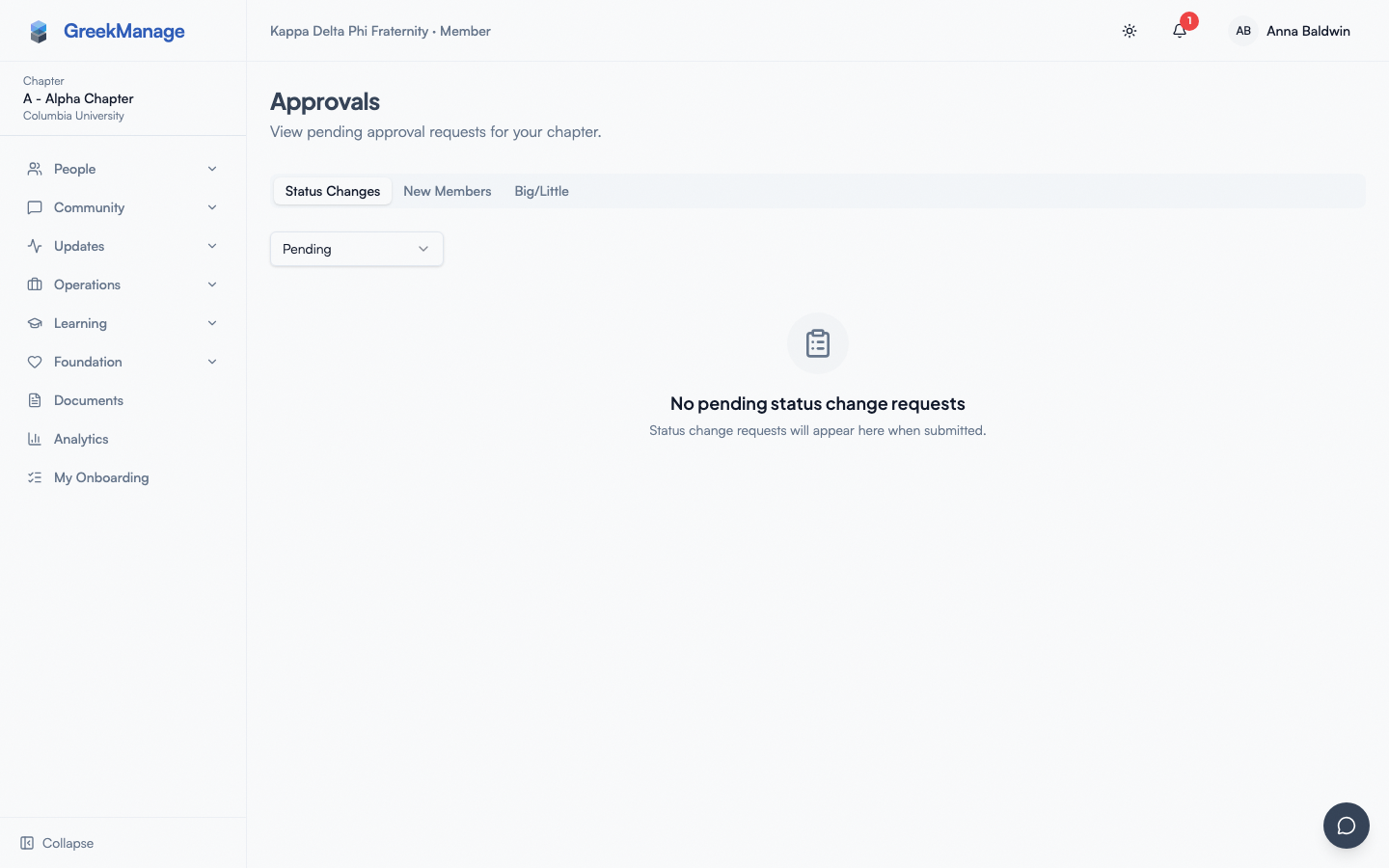 Chapter Approvals page header — Status Changes, New Members, and Big/Little tabs only.
Why account requests are admin-only
The decision to approve an account request creates two things at once:
- A new user account (with login credentials and an email of welcome).
- A membership attached to a specific chapter, with a starting status, joined date, pledge class, and graduation year.
Both are sensitive enough that they require a national admin's review — primarily because creating an account establishes a new identity in the system that can sign in, see other members, and post to forums. Chapter officers don't have account-creation authority anywhere else in the platform, and account requests don't grant an exception. If your org's policy is that chapter officers should be the first line of review, that's a national admin's call to make in their internal workflow — they can ask you for input by email or chat — but the system itself doesn't let officers click Approve.
How to route a request when someone asks you
If a prospective member contacts you directly and asks how to join, send them to your org's public request form. The path is normally something like app.greekmanage.com/<your-org-slug>/request-account. Your national admin can give you the exact URL.
Once the prospect submits the form, the request lands in the national admin's Approvals queue. The admin can ask you about the candidate before approving. If approved, the system:
- Creates the user account
- Creates the membership at the chapter and status the admin selected (typically
undergradorassociate) - Sends a welcome email with login instructions
- Marks the request as
approved
If rejected:
- The user account is not created
- The requester gets a rejection notification with any review notes the admin added
- The request status moves to
rejected
How an officer should add a member instead
The intended officer path to add a new member is not account requests — it's a member-add request. From your chapter detail page, click Add Member and fill in the form. This routes to the regional admin (if your chapter has a region) and then to a national admin for approval. See Managing chapter members for the full workflow.
The difference:
| Path | Who initiates | Who reviews | What gets created |
|---|---|---|---|
| Account request (public form) | The prospective member themselves | National admin only | New user + new membership |
| Member-add request (officer-submitted) | You, as the chapter officer | Regional admin then national admin | New user (if email doesn't match an existing user) + new membership |
Use member-add request when you know the person and want them in. Use account request as a referral path when the person can self-serve through the public form.
What admins see that you don't
On the org Approvals page, national admins see an Account Requests tab with:
- A status filter: Pending (default), All, Approved, Rejected, Expired
- A pending count badge on the tab
- Each request as a row showing requester name, email, chapter requested, justification, and any uploaded document
- A review dialog with Reject, plus a choice between Create New Account and Link to Existing Account
On approval (create new account), the admin chooses:
- Which chapter to assign (defaults to the chapter the requester picked)
- Initial membership status (Undergraduate, Associate, Alumni, Active Alumni)
- Joined date, pledge class, graduation year
- Optional review notes
Link to Existing Account is for the case where the requester already has a platform account — commonly because it was set up under an org-issued email they don't check anymore, and they didn't recognize themselves as already having access. Instead of creating a duplicate user, the admin searches for the existing account by name or email, selects it, and the request's email is added as a second verified sign-in email on that account — no new user is created. The admin can optionally also grant a chapter membership at the same time if the person doesn't already have one. The requester is emailed that they already have an account and how to sign in.
Rejection captures notes that are emailed to the requester.
Errors and edge cases
- A prospect submitted but says they never heard back. Ask your national admin to check the Account Requests tab on org Approvals. The default filter is Pending — recently-submitted ones should appear at the top. If they expired (the request sat too long without action), the filter "Expired" will surface them.
- The chapter the prospect requested doesn't exist. Their request still lands in the queue with the requested chapter name attached but un-resolved. The admin can pick any active chapter on approval — the requester doesn't have to be assigned to the chapter they originally picked.
- A prospect filled the form twice with different emails. Each submission is treated as a separate request. The admin can approve the one they trust and reject the duplicate.
- A prospect already has an account under a different email (e.g. an old org-issued address) and doesn't realize it. The admin should use Link to Existing Account instead of Approve — this attaches the request's email to the existing account rather than creating a duplicate.
Troubleshooting
- Someone says "an officer told me you'd approve me." They're mistaken about the workflow. Officers can submit a member-add request on the person's behalf; or the person can submit a public account request that a national admin reviews. Either way, the officer doesn't approve.
- You see an Account Requests tab on your Approvals page. You're probably looking at the org Approvals page (
/org/approvals) rather than the chapter Approvals page (/chapter/approvals). Check your sidebar context. Officers should default to the chapter view. - Need to track the requester after approval. Once approved, they become a regular member — visible in your chapter member directory with the chapter, status, and joined date the admin set. Use the directory to find them.
Related
- Approvals queue — the three queues officers actually act on
- Managing chapter members — submit a member-add request as an officer
- Org admins reference — full admin-side workflows including account requests
Last verified against v0.71.23 (2026-08-08).