Account requests
Account requests are how a person who is not yet in the system asks to be added to your org. They show up when:
- A prospective new member fills out the public “Request Account” page on your org’s site, or
- Someone who completed a PNM intake form is converted into an account request.
Each request includes the requester’s name, email, optional phone, the chapter they want to join, a justification, and an optional supporting document. Every request walks your organization’s Account requests approval chain. If that chain includes the chapter tier, the officers of the chapter the person asked to join review it first; if it includes the regional tier, your regional admin reviews it next; a national admin always has the final say.
What you see
Open Approvals from the menu under your name in the top-right header (or from the alert bell). Next to Status Changes, New Members, and Big/Little, there is an Account Requests tab.
It lists every request — pending, approved, rejected and expired — for the chapters whose tier you hold in the chain. If your org’s chain does not include the chapter tier, the tab is there but empty. The status filter defaults to Pending.
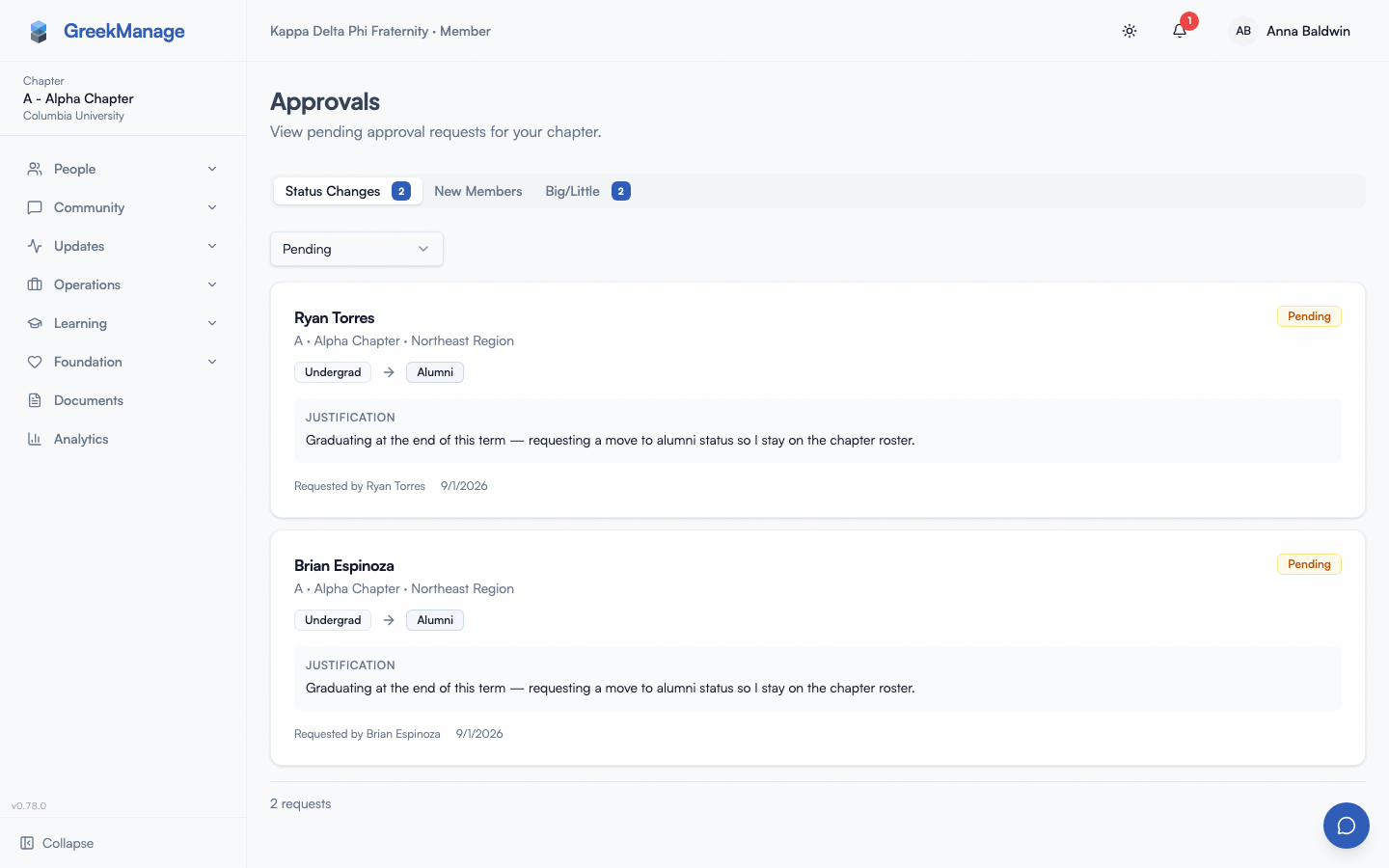 Chapter Approvals page header.
Reviewing a request at your tier
Click a request to open it. If it is waiting at your tier (Pending Chapter for an officer, Pending Regional for a regional admin), you get Approve and Reject:
- Approve satisfies your tier and sends the request on to the next one. It does not create the account — only the final, national tier does that. The chapter, status and dates you fill in are not used at your tier; the national admin sets them when they approve.
- Reject ends the request. The requester is emailed your notes.
If the request is waiting at a tier you don’t hold, the dialog says so and offers no buttons. Link to Existing Account is national-admin-only: it searches every account in the org, which officers and regional admins cannot do.
Why only a national admin creates the account
The final approval creates two things at once:
- A new user account (plus a welcome email — see What the approved member receives below; no password is ever emailed).
- A membership attached to a specific chapter, with a starting status, joined date, pledge class, and graduation year.
Creating an account establishes a new identity in the system that can sign in, see other members, and post to forums, so the last word always sits with a national admin. Your review at the chapter tier is the chapter’s recommendation on the way there.
What the approved member receives
No password is ever emailed. This is the single most common support question on this flow, so it is worth being precise about what actually arrives.
Approving a request sends a welcome email; resolving one with Link to Existing Account sends a “you already have an account” email. Both offer the same two ways in:
- A social sign-in, if the request’s email is a Google account or the address on their Apple ID. The login page collapses these into a row of icons under the “or continue with” rule — a Google “G” and a black Apple logo, alongside passkey and Face ID where supported. This needs no password at all, which makes it the fastest route for anyone who has never set one.
- A password reset link, for members who would rather sign in with an email and password, or whose address is not a Google or Apple account.
The social-sign-in guidance appears only when the platform actually has credentials configured for that provider, so a deployment without Google or Apple set up will show members the reset link alone.
The reset link’s lifetime follows the platform’s PASSWORD_RESET_TIMEOUT
setting (three days by default) and the email states it explicitly.
How to route a request when someone asks you
If a prospective member contacts you directly and asks how to join, send them your organization’s join link. It opens the request form with your organization already chosen. Your national admin finds it under Settings → General → Join Link, where they can copy it, print it as a QR code, or regenerate it if it has been shared somewhere it shouldn’t be (regenerating stops the old link at once).
Without a join link, members can still use /request-account and type at least three letters of the organization’s name. That page no longer lists every organization on GreekManage.
Once the prospect submits the form, the request walks your org’s chain — through you first, if the chain includes the chapter tier. If approved at the final tier, the system:
- Creates the user account
- Creates the membership at the chapter and status the admin selected (typically
undergradorassociate) - Sends a welcome email explaining how to sign in (never a password — see below)
- Marks the request as
approved
If rejected:
- The user account is not created
- The requester gets a rejection notification with any review notes the admin added
- The request status moves to
rejected
How an officer should add a member instead
The intended officer path to add a new member is not account requests — it’s a member-add request. From your chapter detail page, click Add Member and fill in the form. This routes to the regional admin (if your chapter has a region) and then to a national admin for approval. See Managing chapter members for the full workflow.
The difference:
| Path | Who initiates | Who reviews | What gets created |
|---|---|---|---|
| Account request (public form) | The prospective member themselves | Your org’s chain (chapter, regional, national tiers as configured) | New user + new membership |
| Member-add request (officer-submitted) | You, as the chapter officer | Regional admin then national admin | New user (if email doesn’t match an existing user) + new membership |
Use member-add request when you know the person and want them in. Use account request as a referral path when the person can self-serve through the public form.
What national admins see
On the org Approvals page, national admins see the same Account Requests tab across the whole org, with:
- A status filter: Pending (default), All, Approved, Rejected, Expired
- A pending count badge on the tab
- Each request as a row showing requester name, email, chapter requested, justification, and any uploaded document
- A review dialog with Reject, plus a choice between Create New Account and Link to Existing Account
On approval (create new account), the admin chooses:
- Which chapter to assign (defaults to the chapter the requester picked)
- Initial membership status (Undergraduate, Associate, Alumni, Active Alumni)
- Joined date, pledge class, graduation year
- Optional review notes
Link to Existing Account is for the case where the requester already has a platform account — commonly because it was set up under an org-issued email they don’t check anymore, and they didn’t recognize themselves as already having access. Instead of creating a duplicate user, the admin searches for the existing account by name or email, selects it, and the request’s email is added as a second verified sign-in email on that account — no new user is created. The admin can optionally also grant a chapter membership at the same time if the person doesn’t already have one. The requester is emailed that they already have an account and how to sign in — the same guidance described below.
Link to Existing Account refuses an account that belongs to another organization (a membership there in any status, or a current national or regional admin role), with or without a chapter selected: This person already belongs to another organization and can’t be added here. It also refuses accounts managed by the platform (GreekManage staff and platform admins). Linking adds a verified sign-in email to that account — one that can receive a password reset — so it is held to the same one-organization rule as adding a member. Nothing is written and the request stays pending — reject it.
It also refuses any account that holds an active national or regional admin role, whoever is reviewing: This account holds an admin role and can’t be linked to an account request. The address on a request comes from a public form, so linking it would hand whoever filed it a sign-in on an admin’s account. The admin can add the address from their own account settings instead. Admins no longer appear in the link search for this reason.
Rejection captures notes that are emailed to the requester.
Errors and edge cases
- A prospect submitted but says they never heard back. Check your own Account Requests tab first — it may be waiting at your tier. Otherwise ask your national admin to check the tab on org Approvals. The default filter is Pending — recently-submitted ones should appear at the top. If they expired (the request sat too long without action), the filter “Expired” will surface them.
- The chapter the prospect requested doesn’t exist. Their request still lands in the queue with the requested chapter name attached but un-resolved. The admin can pick any chapter on approval, whatever its status — the requester doesn’t have to be assigned to the chapter they originally picked.
- A prospect filled the form twice with different emails. Each submission is treated as a separate request. The admin can approve the one they trust and reject the duplicate.
- A prospect already has an account under a different email (e.g. an old org-issued address) and doesn’t realize it. The admin should use Link to Existing Account instead of Approve — this attaches the request’s email to the existing account rather than creating a duplicate.
Troubleshooting
- Someone says “an officer told me you’d approve me.” An officer’s approval only moves the request to the next tier; a national admin creates the account.
- Your Account Requests tab is empty. Either nothing names your chapter, or your org’s chain does not include the chapter tier. Ask your national admin which tiers the Account requests chain includes.
- Need to track the requester after approval. Once approved, they become a regular member — visible in your chapter member directory with the chapter, status, and joined date the admin set. Use the directory to find them.
Related
- Approvals queue — the other queues officers act on
- Managing chapter members — submit a member-add request as an officer
- Org admins reference — full admin-side workflows including account requests
Last verified against v0.71.23 (2026-08-08).