Approvals queue
The Approvals page is the shared review surface for every tier of admin and officer. As a chapter officer it shows three tabs — Status Changes, New Members, and Big/Little — but only one of them, Big/Little, is actionable for you in v0.62.1. The other two are listed so you can see what's happening to your chapter's members at higher tiers; the Approve and Reject controls are filtered out for your role.
Opening the queue
In your sidebar: Approvals. The page loads with the three tabs visible. The tab count badges show the number of pending requests at your scope — for an officer this means pending requests for your chapter only. If a count badge shows zero, the tab is still visible so you can browse historical decisions.
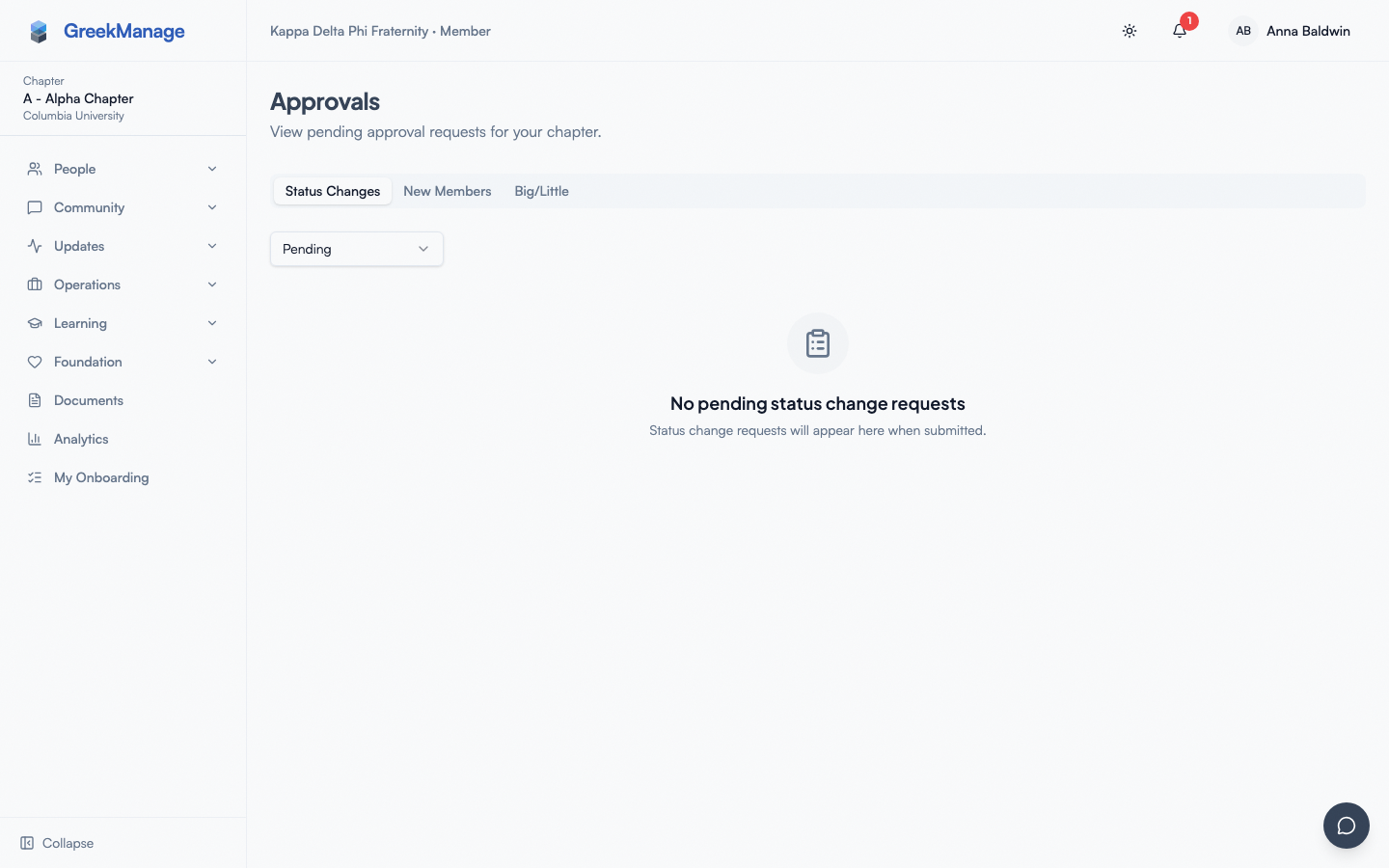 officer approvals page with three tabs and pending count badges
What you see on each tab
Status Changes — read-only at your tier
Status-change requests (Undergraduate → Alumni, Active → Inactive, and the rest) are listed for visibility, but the Approve and Reject buttons only show up for national admins. You will see status changes affecting members of your chapter, who submitted each one, what they want it changed to, and where it currently stands. If a request belongs to your chapter and is taking too long, ping your national admin or your regional admin — they have the action.
For each row you can:
- See who submitted the request and the proposed change (e.g. "Active Undergraduate → Alumni").
- Read the justification and download any attached supporting document (a graduation letter, a leave-of-absence form, etc.).
- See the review status (
pending,approved,rejected) and the review notes once it has been resolved. - See timestamps for when the request was submitted and when it was reviewed.
You cannot submit a status change for a member who is not yourself from inside the Approvals page — that lives on the member's profile page. See Managing members for the flow.
New Members — read-only for chapter officers
Member-add requests submitted from your chapter sit on this tab. The review controls are gated to regional admin (at the regional tier) and national admin (at the org tier). Officers cannot approve these in v0.62.1, even ones submitted by another officer in the same chapter.
For each row you see:
- The proposed member's first name, last name, and email.
- Their proposed role (almost always
member), joined date, and pledge class. - The justification the submitting officer wrote.
- The current tier (
pending_regionalorpending_org) and any review notes already recorded.
You can submit a new-member-add request from the chapter detail page — see Managing members. Once submitted, the request appears on this tab in the pending_regional state (if your chapter has a region) or pending_org state (if not). You and the requester both receive a notification when it is decided.
Big/Little — actionable
This is the one you will actually act on. When a chapter member submits a Big-Little pairing for your chapter, the request lands at the chapter tier because the requester is a regular member, and you (or any other officer of the chapter, or a regional admin, or a national admin) approve or reject it. The tier you act at is always the chapter tier — once a request advances past chapter, it belongs to someone else.
The Big-Little review workflow from start to finish
Big-Little requests follow a multi-tier cascade that depends on who submitted the request and on whose behalf. Here is what you, as a chapter officer, will see:
Self-requests by regular members → land at chapter tier
When a regular member proposes their own Big (the most common case during a new-member period), the request enters the queue at the chapter tier. You will see it on your Big/Little tab in the pending_chapter state, badged with the requester's name and their proposed Big.
Self-requests by officers → skip chapter tier
When you propose your own Big, the request enters at the regional tier, not the chapter tier. Officers cannot review their own requests; the system bumps the self-request up one tier above the requester's role. You will not see your own request on your queue at all — it goes to the regional admin (or national admin, if your chapter has no region).
The same rule applies one tier up: regional admin self-requests start at the org tier, and national admin self-requests are auto-approved.
On-behalf-of requests by officers or admins → auto-approved
If you, as an officer, propose a Big-Little for another member (e.g., a new pledge who needs the relationship recorded but who isn't using the app yet), the request is auto-approved at submission. The big field is set on the member's profile immediately and the request appears on the queue as already-approved with you as both requester and reviewer. There is no waiting period.
What this looks like on your queue
In practice, the only requests that show up as actionable on your Big/Little tab are:
- Self-requests by regular members of your chapter.
- (Cascaded down to chapter from elsewhere: not possible — chapter is the lowest tier.)
If your queue shows nothing actionable, your chapter has no pending member-submitted Big-Little requests right now.
Reviewing a chapter-tier request — step by step
- Open the Big/Little tab.
- Click a pending request to expand the row.
- Read the requester (the member proposing), the member the relationship is for (almost always the same person on a self-request), the proposed Big, and the justification text. Justifications are free-text and required when submitted by a member.
- If you need more context, click through to the proposed Big's profile to confirm they are eligible (still active, still in the chapter or org) and that the pairing makes sense given your chapter's lineage history.
- Click Approve to advance the request, or click Reject and enter notes explaining why.
A few things happen automatically when you approve:
- The proposed Big-Little relationship is set on the member's profile. The family tree updates immediately.
- The requester receives a notification.
- An audit log entry is written with your name, the action, and any notes.
- Because chapter is the lowest tier, the request transitions straight from
pending_chaptertoapproved— there is no further cascade.
If you reject:
- The request transitions to
rejected. - The notes you entered are saved on the request and shown to the requester in their notification.
- The member can submit a new request at any time; rejection does not lock them out.
Notes are required when you reject
The system refuses a rejection with an empty notes field. The notes you enter become part of the audit trail and are visible to the requester. Keep them factual — "the proposed Big is already crossing this semester, please pick someone from a prior class" is far more useful than "no."
Cycle detection rejects impossible pairings
Before saving, the system checks whether the proposed Big is already a descendant of the member you would be assigning them under. If it is, the API refuses with the message "This would create a cycle in the family tree." This protects you from approving a pairing that would loop the lineage (member A's big is B, B's big is C, C's big is A) which would break the family tree forever.
The cycle check runs both at submission time and again when you click Approve, so a stale page that was valid five minutes ago will still get caught.
Officers cannot approve their own requests
The rule is stricter than just "self-requests skip your tier." Even if you somehow have a request sitting at the chapter tier with you as the requester (rare, but possible after a role change), the system blocks you specifically from approving it with "You cannot approve your own request." Another officer in the chapter, or a regional or national admin, has to take the action.
What happens after you approve
For chapter-tier approvals (the only tier officers act at), approval finalizes the relationship in one step:
pending_chapter→approved.- The member's
bigfield is set on their profile. - The family tree visualization refreshes.
- The requester gets a notification.
- Your name is recorded as the reviewer along with timestamps and notes.
- The audit log captures the action for any future regional or org reviewer to inspect.
There is no further cascade because chapter is the bottom tier — once you have approved at chapter, the relationship is live.
Notes and audit log shown to subsequent reviewers
When a request you have touched is later visible to a higher tier (this only happens for member-add and status-change requests, since Big-Little at chapter is the final tier), the higher-tier reviewer sees:
- The full request body as submitted.
- Your name as the chapter-tier reviewer.
- Your review notes, exactly as you typed them.
- A timestamp.
Your notes follow the request up the chain. Treat them as documentation: future officers, your regional admin, and the national admin all see them, and an org admin can pull them via the audit log on Settings → Logging.
What this page does not do
A few features that earlier docs implied but that do not exist in v0.62.1:
- No bulk approve / multi-select. Each Big-Little request is reviewed one at a time. There is no checkbox column.
- No "awaiting org review" badge after officer approval. Big-Little at chapter is final; no badge is needed because nothing follows.
- No "decline reasons" picker. The rejection field is a free-text textarea; the only validation is that it must be non-empty.
- No saved filters on the approvals tabs. Each tab is a single flat list. Filter by status using the URL query parameter if you need to narrow the view.
- No reassignment. You cannot reassign a Big-Little request to a different reviewer; whoever has authority at the current tier can act.
Errors and edge cases
A handful of errors come up often enough to call out:
- "This request has already been reviewed." Someone else (another officer, your regional admin, or an org admin acting at this tier) already actioned it. Refresh and check the request's final status.
- "This would create a cycle in the family tree." The proposed Big is already a descendant of the member. The requester needs to pick someone outside that subtree.
- "You do not have permission to review this request at its current tier." The request advanced past chapter while you were looking at it (rare but possible if a national admin acted at the chapter tier and auto-cascaded up). Refresh; there is nothing further for you to do.
- "A pending big/little request already exists for this member." This appears on submission, not on review — it means the requester tried to submit a second pending request while one is still open. They have to wait for the first to resolve.
- "You cannot approve your own request." You are the requester on this request. Hand it to another officer, your regional admin, or your national admin.
Audit log
Big-Little reviews are written to the standard audit log along with the reviewer, the action, and any notes. Org admins can read these from Org → Settings → Logging. Your own actions show up here too — treat the audit log as a permanent record of every approval and rejection you make.
Mobile differences
The Approvals page works on phone and tablet. A few things to know:
- Tab counts and request rows render compactly. Tap a row to expand the details; the Approve and Reject buttons appear inside the expanded view.
- The rejection notes field is a standard native text input. Long notes are easier to type on a tablet keyboard or with paste-from-clipboard.
- Notifications about new Big-Little requests come through the in-app bell and (if push is enabled) via native push.
What admins see that you don't
Admins above your tier see more on this page than you do. For context, when something is escalated:
- Regional admins see the Big/Little tab populated with
pending_regionalrequests across every chapter in their region. These are officer self-requests, or member self-requests where a chapter officer was the requester (rare). They also see member-add requests at the regional tier with full Approve and Reject controls. - National admins see all three tabs across every chapter in the org, with Approve and Reject controls at every tier. They can also approve at a lower tier — when a national admin approves a chapter-tier Big-Little, the request auto-advances through any remaining tiers in one step.
- Platform admins see the same view as a national admin but across every org on the platform; they only intervene for support cases.
If you ever wonder why a request you approved at chapter doesn't seem to be making progress — for Big-Little, there is no further progress to make; chapter is the bottom of the cascade. For other request types (status change, member add), it is sitting at the regional or org tier waiting for someone else.
Related
- Managing members — submit the member-add and status-change requests that show up on this page
- Compliance submissions — the other big chapter-tier review surface
- Family tree — where members propose Big-Little pairings
- Permissions matrix — every approval action listed by role
Last verified against v0.62.1 (2026-05-11).