Approvals queue
The Approvals page is the shared review surface for every tier of admin and officer. As a chapter officer it shows four tabs — Status Changes, New Members, Big/Little, and Account Requests. All four are actionable for you at the chapter tier, when your organization’s chain for that surface includes it. Account Requests has its own page: Account requests. If your organization has chapter transfers turned on, there is also a Chapter Transfers tab (?tab=transfers). For a transfer, the chapter tier is the chapter the member is transferring into.
What you can act on depends on your organization’s approval chain for each surface. A national admin configures, per surface, which tiers must approve — chapter, regional, national — and a tier your organization has not ticked is simply not part of the chain and never appears in anybody’s queue. See Approval chains for the configuration side.
Opening the queue
In your sidebar: Approvals. The page loads with the four tabs visible. The tab count badges show the number of pending requests at your scope — for an officer this means pending requests for your chapter only. If a count badge shows zero, the tab is still visible so you can browse historical decisions.
The open tab is part of the address, so a tab can be bookmarked or linked to: /chapter/approvals?tab=big-little opens Big/Little directly. The values are status-changes, new-members and big-little, plus forum-requests, compliance and account-requests on the pages that show those tabs. A link naming a tab your page does not have opens Status Changes rather than an empty panel.
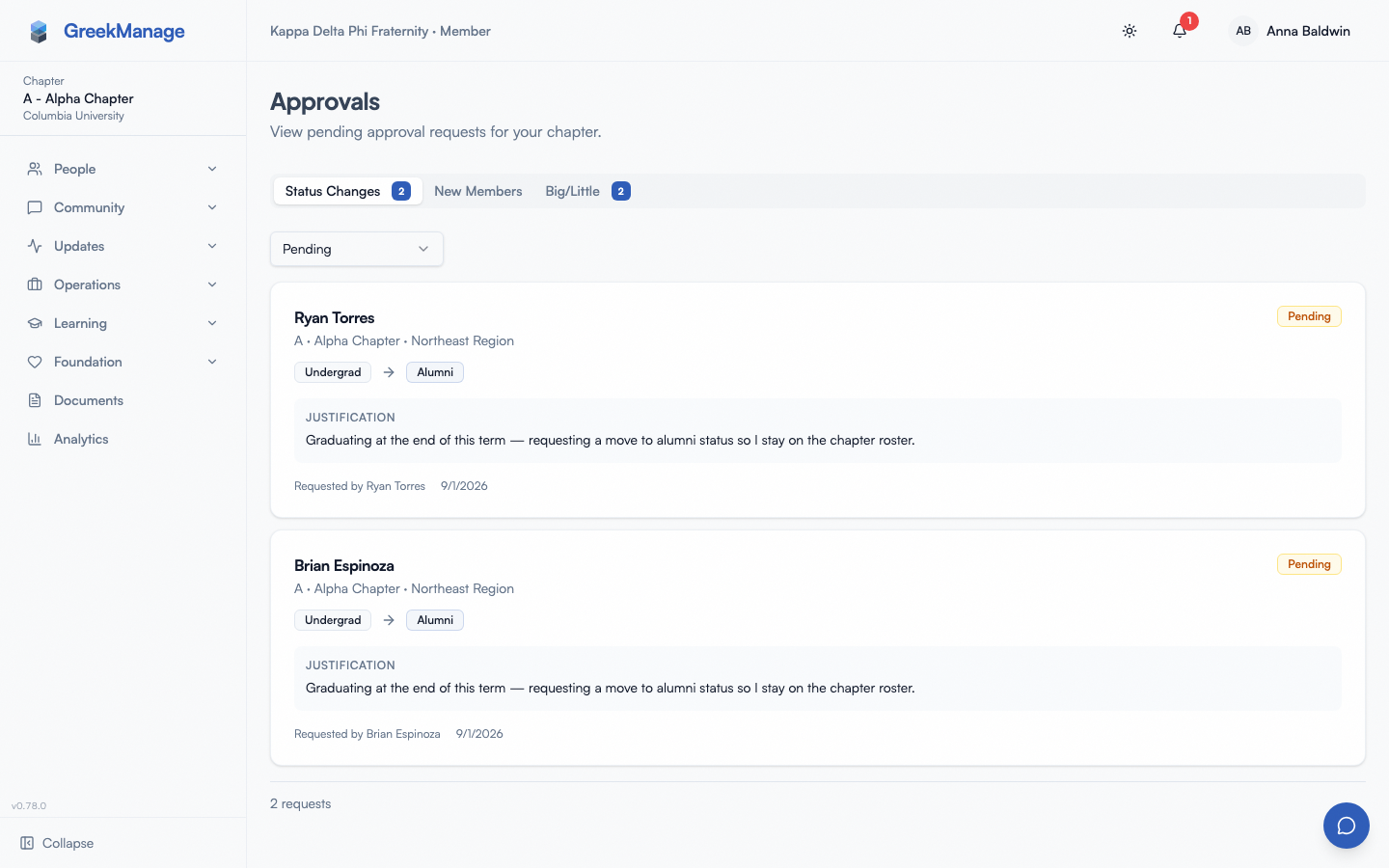 officer approvals page with three tabs and pending count badges
What you see on each tab
Status Changes — actionable at the chapter tier
Status-change requests (Undergraduate → Alumni, Active → Inactive, and the rest) walk your organization’s Member status changes approval chain. If that chain includes the chapter tier, a request sitting at Pending Chapter Review shows Approve and Reject for you. Requests that have moved on to Pending Regional Review or Pending Organization Review are read-only for you — they belong to the regional or national admin now.
For each row you can:
- See who submitted the request and the proposed change (e.g. “Active Undergraduate → Alumni”).
- Read the justification and download any attached supporting document (a graduation letter, a leave-of-absence form, etc.).
- See the current review tier (Pending Chapter Review / Pending Regional Review / Pending Organization Review / Approved / Rejected) and the review notes once it has been resolved.
- See timestamps for when the request was submitted and when it was reviewed.
You cannot submit a status change for a member who is not yourself from inside the Approvals page — that lives on the member’s profile page. See Managing members for the flow.
New Members — actionable at the chapter tier
Member-add requests submitted from your chapter sit on this tab. If your organization’s Member add requests chain includes the chapter tier, a request waiting at pending_chapter shows Approve and Reject for you. Requests that have moved on to pending_regional or pending_org are read-only for you — they belong to the regional or national admin now.
For each row you see:
- The proposed member’s first name, last name, and email.
- Their proposed role (almost always
member), joined date, and pledge class. - The justification the submitting officer wrote.
- The current tier (
pending_chapter,pending_regionalorpending_org) and any review notes already recorded.
You can submit a new-member-add request from the chapter detail page — see Managing members. When you submit one, the tiers you hold count as already reviewed, so an officer’s own request does not come back to the chapter tier for that officer to rubber-stamp. It enters at the next tier your organization’s chain requires. You and the requester both receive a notification when it is decided, and the tier that has to act next is notified that it is their turn.
Big/Little — actionable at the chapter tier
When a chapter member submits a Big-Little pairing, the request enters your organization’s Big/little assignments chain. If that chain includes the chapter tier and nobody has cleared it yet, you (or any other officer of either party’s chapter, at the chapter tier) approve or reject it. Once it advances past chapter, it belongs to the regional or national tier.
The Big-Little review workflow from start to finish
A Big-Little request walks the chain your national admin configured, one tier at a time. It is not approved when the first reviewer clicks Approve: the relationship is written on the member’s profile only when the whole chain completes.
Self-requests by regular members → land at the first tier of the chain
When a regular member proposes their own Big (the most common case during a new-member period), nothing has been reviewed yet, so the request enters at the first tier of the chain — usually chapter. You will see it on your Big/Little tab in the pending_chapter state, badged with the requester’s name and their proposed Big.
Your own requests → the tiers you hold are already satisfied
When you propose your own Big, the tiers you hold count as already reviewed — an officer submitting means chapter review has effectively happened. Your request therefore enters at the next tier the chain requires (regional, or national if your chapter has no region or your organization does not use the regional tier). You will not see your own request sitting on your own chapter queue.
This is the recorded version of what the old “escalate one tier above the requester” rule was reaching for. The difference is that the tier is now marked satisfied rather than jumped over, so the status and the chain always agree about who has to act.
On-behalf-of requests by officers → walk the chain
Proposing a Big-Little for another member is no longer auto-approved. Your own tiers are pre-satisfied the same way, and the request goes to whichever tier comes next. Only a national admin can record a pairing in one step, and when they do, the platform writes a record of each tier that step skipped.
Pairs that cross chapters
A big and a little can be in different chapters, and different regions. Either side may review: if the pair involves your chapter on either end, the chapter tier is yours to action. Which tiers apply is decided by the little’s chapter.
What this looks like on your queue
Actionable rows on your Big/Little tab are requests at pending_chapter where you are an officer of one of the two parties’ chapters and you are not the requester. If your queue shows nothing actionable, your chapter has no Big-Little requests waiting at the chapter tier right now.
Reviewing a chapter-tier request — step by step
- Open the Big/Little tab.
- Click a pending request to expand the row.
- Read the requester (the member proposing), the member the relationship is for (almost always the same person on a self-request), the proposed Big, and the justification text. Justifications are free-text and required when submitted by a member.
- If you need more context, click through to the proposed Big’s profile to confirm they are eligible (still active, still in the chapter or org) and that the pairing makes sense given your chapter’s lineage history.
- Click Approve to advance the request, or click Reject and enter notes explaining why.
A few things happen automatically when you approve:
- The chapter tier is recorded as satisfied and the request moves to the next tier in the chain —
pending_regional, orpending_orgif regional does not apply. - The relationship is not set yet. The member’s
bigis written, and the family tree updates, only when the last tier of the chain approves. - The reviewers at the next tier are notified that it is their turn.
- An audit log entry is written with your name, the action, and any notes.
- If the chapter tier happens to be the only tier your organization requires below national… it still is not the end: national is required on every chain and can never be configured away.
If you reject:
- The request transitions to
rejected. - The notes you entered are saved on the request and shown to the requester in their notification.
- The member can submit a new request at any time; rejection does not lock them out.
Notes are required when you reject
The system refuses a rejection with an empty notes field. The notes you enter become part of the audit trail and are visible to the requester. Keep them factual — “the proposed Big is already crossing this semester, please pick someone from a prior class” is far more useful than “no.”
Cycle detection rejects impossible pairings
Before saving, the system checks whether the proposed Big is already a descendant of the member you would be assigning them under. If it is, the API refuses with the message “This would create a cycle in the family tree.” This protects you from approving a pairing that would loop the lineage (member A’s big is B, B’s big is C, C’s big is A) which would break the family tree forever.
The cycle check runs at submission time and again at the approval that completes the chain — not at every tier. A request now sits across several reviews, and the family tree can move underneath it in between, so the check that matters is the one immediately before the relationship is written.
Officers cannot approve their own requests
Even if you have a request sitting at the chapter tier with you as the requester (rare, but possible after a role change), the system blocks you specifically from approving it with “You cannot approve your own request.” Another officer of either party’s chapter, or a regional or national admin, has to take the action.
What happens after you approve
A chapter-tier approval advances the request by exactly one tier:
pending_chapter→ the next tier the chain requires (pending_regionalorpending_org).- Your name, timestamp and notes are recorded on the request.
- Whoever holds the next tier is notified that it is their turn.
- The audit log captures the action for any future regional or org reviewer to inspect.
The member’s big field is written, and the family tree refreshes, only after the last tier approves. If a request you approved does not appear on the family tree, it is waiting on a tier above you — check its status on the queue.
Notes and audit log shown to subsequent reviewers
When a request you have touched moves to a higher tier — which now happens for Big-Little as well as member-add and status-change requests — the higher-tier reviewer sees:
- The full request body as submitted.
- Your name as the chapter-tier reviewer.
- Your review notes, exactly as you typed them.
- A timestamp.
Your notes follow the request up the chain. Treat them as documentation: future officers, your regional admin, and the national admin all see them, and an org admin can pull them via the audit log on Settings → Logging.
What this page does not do
A few features that earlier docs implied but that do not exist:
- No bulk approve / multi-select. Each Big-Little request is reviewed one at a time. There is no checkbox column.
- No manual “skip a tier” button on these queues. Recording an override by hand exists on compliance records only. A member-add or Big-Little request whose tier has no eligible reviewer is skipped automatically instead (and the skip is recorded) — see Approval chains.
- No “decline reasons” picker. The rejection field is a free-text textarea; the only validation is that it must be non-empty.
- No saved filters on the approvals tabs. Each tab is a single flat list. Filter by status using the URL query parameter if you need to narrow the view.
- No reassignment. You cannot reassign a Big-Little request to a different reviewer; whoever has authority at the current tier can act.
- PNM fraternal name approvals are on their own tab — Name Approvals — when your organization licenses the PNM (Operations) module. It lists the pending names for the chapters where you hold a tier in the PNM fraternal name approvals chain: your own chapter as an officer, every chapter in your region as a regional admin. A row shows Approve and Reject only when it is waiting on your tier; otherwise it says which tier it is awaiting. If your organization’s chain does not include the chapter or regional tier, the tab is empty. Account requests are on this page too, on their own tab — see Account requests.
Errors and edge cases
A handful of errors come up often enough to call out:
- “This request has already been reviewed.” Someone else (another officer, your regional admin, or an org admin acting at this tier) already actioned it. Refresh and check the request’s final status.
- “This would create a cycle in the family tree.” The proposed Big is already a descendant of the member. The requester needs to pick someone outside that subtree.
- “You do not have permission to review this request at its current tier.” The request advanced past chapter while you were looking at it, or it never had a chapter tier to begin with. Refresh; there is nothing further for you to do. A national admin can no longer act at your tier on your behalf, so this is not something they did.
- “A pending big/little request already exists for this member.” This appears on submission, not on review — it means the requester tried to submit a second pending request while one is still open. They have to wait for the first to resolve.
- “You cannot approve your own request.” You are the requester on this request. Hand it to another officer, your regional admin, or your national admin.
Audit log
Big-Little reviews are written to the standard audit log along with the reviewer, the action, and any notes. Org admins can read these from Org → Settings → Logging. Your own actions show up here too — treat the audit log as a permanent record of every approval and rejection you make.
Mobile differences
The Approvals page works on phone and tablet. A few things to know:
- Tab counts and request rows render compactly. Tap a row to expand the details; the Approve and Reject buttons appear inside the expanded view.
- The rejection notes field is a standard native text input. Long notes are easier to type on a tablet keyboard or with paste-from-clipboard.
- Notifications about new Big-Little requests come through the in-app bell and (if push is enabled) via native push.
What admins see that you don’t
Admins above your tier see more on this page than you do. For context, when something is escalated:
- Regional admins see the Big/Little and New Members tabs populated with
pending_regionalrequests across every chapter in their region, with Approve and Reject controls at the regional tier. - National admins see all three tabs across every chapter in the org, and act at the national tier. They can no longer approve at the chapter or regional tier; attempting it is refused. Their remedy for a genuinely stuck record is to record an override, which names the tier, carries a reason and is attributed to them.
- Platform admins see the same view as a national admin but across every org on the platform; they only intervene for support cases.
If a request you approved at chapter does not seem to be making progress, it is sitting at the regional or org tier waiting for someone else — and nobody above you will quietly clear your tier for you either.
Related
- Managing members — submit the member-add and status-change requests that show up on this page
- Compliance submissions — the other big chapter-tier review surface
- Family tree — where members propose Big-Little pairings
- Permissions matrix — every approval action listed by role
Last verified against v0.62.1 (2026-05-11). Approval-chain behaviour re-verified 2026-09-12 and 2026-09-13 (Status Changes tab).