Bulletins & Engage moderation
In v0.62.1, bulletins and forum moderation are not chapter-officer capabilities. They're gated to org admins (and, for bulletins, regional admins), or to a forum-level admin role assigned per forum.
Bulletins
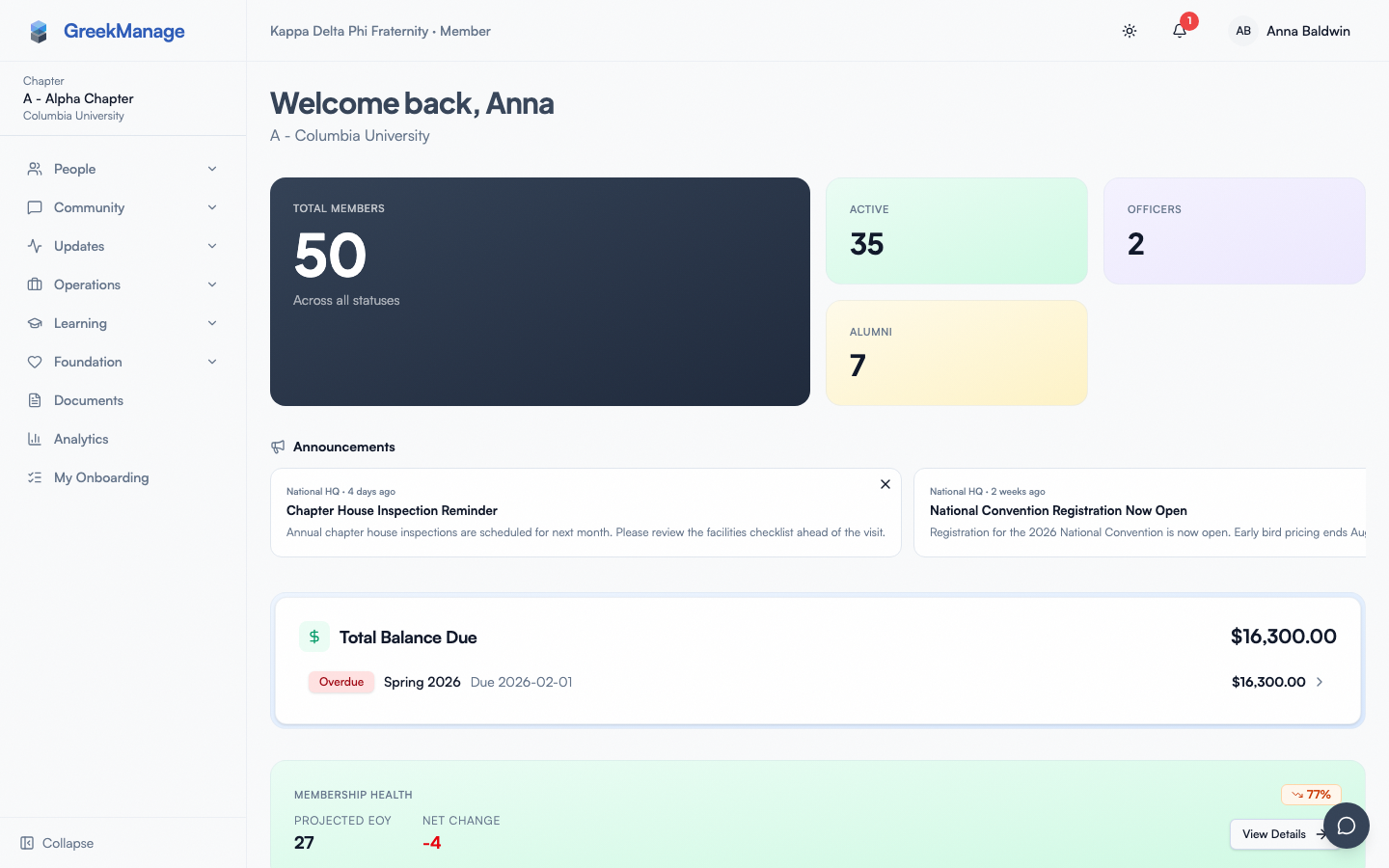
Bulletins appear on every member's dashboard. Creating a bulletin requires either:
- An active OrganizationAdmin record for the org, or
- An active RegionalAdmin record (the bulletin is then scoped to that region).
Chapter officers cannot post bulletins. There is also no chapter-scoped "Bulletins" sidebar entry for officers — the sidebar item is org-only.
If you want a chapter announcement broadcast to dashboards, ask your org admin or regional admin to post one on your chapter's behalf.
Engage moderation
 Engage forum view with member-tier actions (no moderation queue).
Forum moderation actions — pin, lock, edit/delete other people's posts, review flagged content — are gated to forum-level admins.
A user is considered a forum admin if they're either:
- A national admin for the forum's organization, or
- A
ForumMembershiprecord on that forum withrole = admin.
Being an officer in your chapter does not automatically give you forum admin on chapter forums. If your chapter forum needs an officer to moderate, an org admin (or a current forum admin) needs to promote you to forum admin on that specific forum.
What officers can do in forums
Same things any member can:
- Post and comment in forums you're a member of
- React to posts and comments
- Save posts
- Flag a post or comment for review — flagging is open to all forum members; the review of the flag happens at the forum-admin level
Features that don't exist
The previous version of this page described several features that don't ship in v0.62.1:
- No "Restrict user" — there is no per-forum user ban / mute endpoint.
- No officer-side "Auto-flag rules" — auto-flag is configured at org level by org admins.
- No officer bulletin composer.
Related
- Engage forums (members) — what every member can do
- Engage moderation (org admin) — the actual moderator-side surface
- Module: Community
Last verified against v0.62.1 (2026-05-10).