Chapter billing & dues
GreekManage bills dues in one of two modes, set by your org admin: bill the chapter (one invoice per chapter per billing period, computed from head count by member type times the per-type rate) or bill each member directly. Officers don’t configure rates, don’t generate invoices, and don’t issue refunds — those are national-admin actions. What officers can do is see what is owed, pay the chapter total through the org’s configured payment processor, and chase members who are behind. This page covers each of those, and the long list of things you can’t do.
The collection dashboard
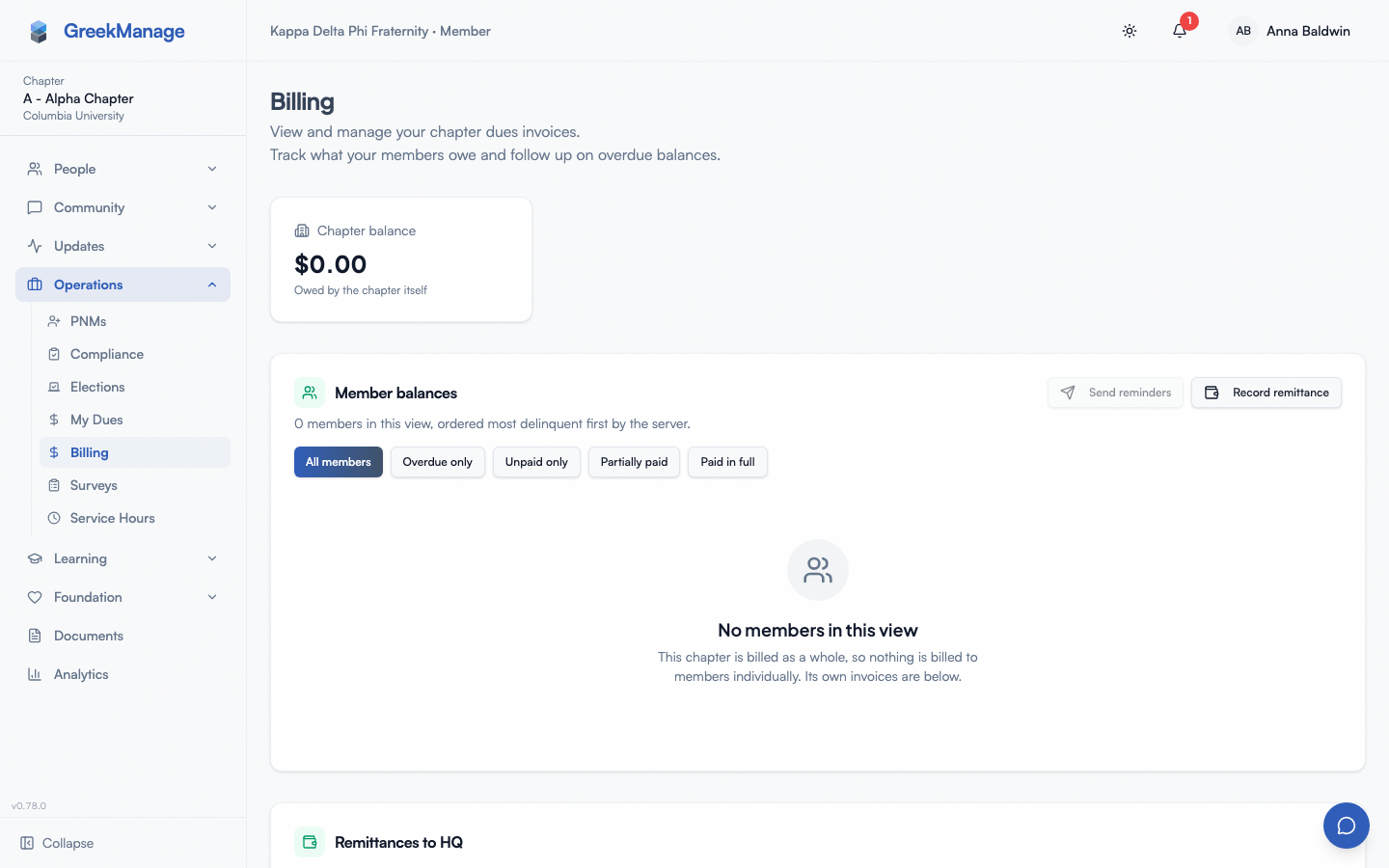
As of v0.73.43, Operations → Billing opens on a collection dashboard rather than straight onto the invoice table.
At the top are two balances that mean different things and are labelled separately:
- Chapter balance — what your chapter owes HQ: ad-hoc charges like damages or event fees, plus the chapter’s dues invoice if your org bills chapters.
- Member balance — the sum of what your members owe.
These are not interchangeable. When your org bills per member, your chapter’s own balance is frequently $0 while your members collectively owe thousands. Beside them sit an outstanding invoice count — which counts invoices, not members, so a member two terms behind contributes 2 — and up to two separate collection rates:
- Member dues collected — of everything ever billed to your members, how much has actually been paid. This is the figure a treasurer in per-member billing actually wants. Note it counts payments only: a discount or applied account credit lowers what somebody owes without any money changing hands, so it does not move this figure. That is why collected plus outstanding will not always add up to billed — the difference is the adjustments.
- Chapter invoices collected — the same ratio over your chapter’s own invoices.
They are never merged and never added. In per-member billing a chapter often has no invoices of its own, so only the first appears; in chapter billing there are no member invoices, so only the second does. Where your org withholds member amounts from officers, the member rate is absent rather than shown — a percentage is a balance divided by a total, so showing one would give away the figures the setting withholds.
Below that is the member roster, ordered most delinquent first: overdue, then partial, then unpaid, then paid, and within each group the largest balance first. A collection dashboard sorted alphabetically buries the people it exists to surface. Each row shows the member, their status, balance, earliest date they still owe against, and how many invoices are outstanding. Selecting a row opens that member’s ledger.
The status filter selects which members appear, by their worst status. A member holding one overdue invoice and one unpaid one appears under Overdue only — and their row still shows their full balance across everything they owe, not just the overdue part. The four buckets divide the roster between them, so nobody is hidden from collection; but for the same reason you cannot read “how many members have an unpaid invoice” off the Unpaid bucket.
What you are not shown about a member
Your org admin controls whether officers see member amounts at all. The default is that you do — a treasurer chasing payment generally needs to know whether someone owes $25 or $425. When an org turns it off, every money figure is withheld rather than zeroed: you still see who is overdue and how many invoices they owe, because without that you cannot do the job, but not the sums.
Separately, and regardless of that setting, you never see the reason behind a discount. A hardship or scholarship discount reaches you as a bare “Balance Adjustment” with no category and no note. Without that rule, a balance of $325 where everyone else owes $425 would disclose the reason by arithmetic.
What you see
In your sidebar: Operations → Billing. The page renders:
- Billing header — page title and a description.
- Invoices card — a table listing every invoice for your chapter (across all billing periods).
- Status filter at the top right of the table — All / Unpaid / Partial / Paid / Overdue.
Each row shows:
- Period — the human label, e.g. “Spring 2026” or “2026-2027 Annual”.
- Issued — date the invoice was generated.
- Due Date — when payment is due.
- Total — full invoice amount in USD.
- Balance — outstanding amount (Total minus payments received).
- Status — Unpaid / Partial / Paid / Overdue badge.
- Actions — a View button that opens invoice detail.
 chapter billing list with mixed statuses and the View action hover
Rows are sorted with overdue invoices first, then by issued_at descending. Newest activity at the top, problems above everything else.
The Dues Balance card on the dashboard
In addition to the dedicated page, your chapter dashboard renders a Dues Balance card surfacing the most recent invoice. It shows:
- The period label.
- The balance due in USD.
- The due date.
- The status badge.
- A View Invoice button linking to invoice detail.
The card uses React Query’s refetchInterval: 60000, so it polls every 60 seconds. When your treasurer triggers a payment that the processor’s webhook confirms, the card flips to Paid within roughly a minute without a page reload. (Caveat: if the webhook doesn’t fire — see troubleshooting — the card stays stale until reconciled.)
Members can also see this Dues Balance card (it lives on the dashboard, not behind officer auth), but its View Invoice button leads to officer-only detail. If a regular member clicks through, they get a permission-denied error.
Open an invoice
Click any View button or the View Invoice link on the dashboard card. The detail page (ChapterBillingDetailPage) renders:
- A header with the period label and overall status badge.
- Metadata grid: chapter designation, issued date, due date, balance due (highlighted card).
- Line Items table — one row per member type that was billed:
- Member type (Undergraduate / Associate / Officer).
- Count — how many members of that type at invoice generation time. This count is snapshot at generation; it doesn’t change if the chapter adds or loses members later.
- Rate — the per-member rate at the time, in USD.
- Subtotal — count × rate.
- Payment History table — every payment the webhook has recorded against this invoice:
- Date.
- Method — whichever the processor reports: Card, ACH, PayPal, Klarna, Cash App Pay, Amazon Pay, Link or Affirm. A method the platform doesn’t yet have a name for shows as Other rather than being folded into “Card”, so the row never misstates how the chapter paid.
- Amount.
- Last-four of the card or account (where the processor returns it).
- Status (Succeeded / Failed / Pending). Pending is what a bank (ACH) payment reads while the transfer is in flight — typically 3–5 business days. It advances to Succeeded (invoice settles) or Failed (e.g. the debit was returned for insufficient funds) when the bank resolves it; don’t pay again while a Pending row covers the balance.
- A Pay Now button (only if
status != paidandbalance_due_cents > 0).
The member-type counts are pulled from member_snapshot (a JSON field on ChapterInvoice) and the actual line items are immutable after invoice issuance — InvoiceLineItem.save() raises ValueError if you try to update an existing row.
If your chapter’s membership changes after an invoice is issued, the invoice itself doesn’t update — an org admin can regenerate it from current membership (see Regenerating an invoice). If that happens, this invoice flips to Voided and shows a banner linking to the invoice that replaced it; any payments you’d already made carry forward automatically.
What members see that you don’t
Members don’t see this detail page at all — they see only the Dues Balance card on their dashboard. Specifically, members cannot:
- Open the invoice list.
- Open invoice detail.
- See line items by member type.
- See payment history.
- See the Pay Now button.
If a member asks “what was my share?”, the answer is to ask the treasurer. The platform doesn’t itemise per-member.
Initiate a payment
Officers (and presidents) initiate payment for the chapter total — not for individual members. The chapter is the customer; the chapter pays one invoice per period; the chapter’s officers handle the transaction inside the platform.
The flow:
- Open the invoice detail.
- Click Pay Now.
- The Payment Modal opens and fetches
PaymentConfigViewto learn which processor is configured (stripe,braintree,square,paypal). It renders the corresponding hosted form:
| Processor | Form rendered |
|---|---|
| Stripe | Stripe Elements card field with Apple Pay / Google Pay where supported |
| Braintree | Braintree drop-in UI (card + PayPal + Venmo where enabled) |
| Square | Square Web Payments SDK |
| PayPal | PayPal Smart Buttons |
Above the form the dialog shows Paying the full balance. To pay part of it, choose Change amount and enter any amount from $1.00 up to the balance due — the whole balance is always allowed, even when it is under $1.00. Continue opens the payment form for that amount, and the amount at the top of the dialog is what will be charged.
- The modal calls
PaymentInitiateViewwhich creates a payment intent on the processor and writes aPaymentAttemptrow withstatus = pending. - Member of the chapter enters card / account details into the embedded form.
- Submit. The processor handles authorisation; the modal shows a processing spinner.
- On success: green checkmark and “Payment Successful”. Closing triggers invalidation of
chapter-invoice,chapter-invoices, andchapter-balancequeries, refetching all three. - The processor calls back via webhook to
/api/payments/webhook/<org_id>/<processor>/. The webhook handler verifies the cryptographic signature, creates aPaymentRecordrow (idempotent onprocessor_payment_id), and updates the invoice’sbalance_due_centsandstatus.
A few mechanics that matter:
PaymentInitiateViewis officer-and-up only. The previous version of this doc said the endpoint was “shared with members on their own invoices” — that’s wrong.IsChapterOfficeris the permission, and it requiresroleto beofficerorpresident. Regular members cannot trigger payment through the platform.- Officers can initiate payment for a member who needs help in the sense that the chapter total is being paid, not in the sense that you’re paying one member’s share. There is no “pay on behalf of member X” endpoint; chapter dues aren’t tracked per-member at all.
- You can pay part of an invoice. Change amount takes anything from $1.00 up to the balance due. The invoice goes Partial and the rest stays due, payable the same way later. Use one payment window at a time: two windows paid in parallel can together pay more than was owed, and the surplus is recorded, not credited. For the API:
PaymentConfigViewtakes?amount_cents=andPaymentInitiateViewtakesamount_cents, both checked against the live balance — more than the balance gets 400 “Amount exceeds balance due.”, and a part payment under $1.00 is refused. - Bank (ACH) payments settle asynchronously. With US bank accounts enabled on the org’s Stripe account, submitting shows “Bank payment on its way” instead of the success checkmark: the intent sits in
processingat Stripe for 3–5 business days, the webhook records the payment as Pending, and the invoice’s balance moves only when the settlement webhook (payment_intent.succeeded) lands — a returned debit arrives aspayment_intent.payment_failedand flips the same record to Failed. For the Pending row to appear before settlement, the org’s Stripe webhook endpoint should subscribe topayment_intent.processingalongsidepayment_intent.succeededandpayment_intent.payment_failed. - Already-paid rejects. If
balance_due_cents <= 0, bothPaymentConfigViewandPaymentInitiateViewreturn 400. - The processor’s config is read-only to you. Officers see
PaymentConfigViewreturning the hosted-config dict the gateway needs to render its form. You cannot change which processor the org uses; that’sProcessorConfigView, gated toIsNationalAdmin.
What if the chapter wants to pay outside the platform?
A chapter can absolutely pay via paper check or external bank transfer; the platform just won’t know about it until your national admin records it from the invoice page with Record offline payment. That is HQ only — officers cannot record one — and it can be part of the balance. For most chapters using GreekManage in production, the embedded processor flow is the path of least friction.
Record a chapter remittance
If you collect dues into the chapter’s account and settle with HQ in one payment, Record remittance on the billing page is the sanctioned route. One gateway charge covers many members’ invoices.
You name who paid and how much. The dialog lists your roster; you tick the members you collected from, pick which of their invoices the money is for, and type each amount. Nothing fills itself in, and no rule ever decides who a payment belonged to — you are the only person who knows who actually handed you money, and an automatic split (oldest first, pro-rata, even shares) would attribute payments to the wrong people and create disputes you would then have to unpick.
One member who paid for two invoices
A member with two outstanding invoices — say term dues and a parking fine — often settles both with a single transfer. Tick them, then use + Another invoice on their row to add a second line, and give each line its own invoice and its own amount. A member can hold as many lines as they have invoices, and each line is independent: adding one fills nothing in, removing one leaves the rest alone, and an invoice already spoken for on another line is offered greyed out rather than quietly disappearing from the list.
A few rules the dialog enforces:
- One chapter per remittance. Your roster spans every chapter you are an officer of; the first member you select fixes the chapter and the others grey out with a note saying why.
- You may allocate more than a member owes. The surplus becomes that member’s account credit — it is not lost, and it is not silently moved to somebody else.
- You may not allocate to a voided invoice. If an invoice was regenerated or the member left, allocate to its replacement instead.
- Amounts must be positive, and one invoice can appear only once per remittance.
Each covered member sees the payment on their own ledger as “Paid by chapter”, with the date and the amount you allocated to them.
What the amounts column shows
Beside each member the dialog shows what they still owe, so you can sanity-check what you collected. If your organisation has turned off officer visibility of amounts, those cells read Hidden and you type the figures you collected anyway — the flow stays open to you, the balances do not.
Filling a large roster quickly
At a sixty-member chapter, sixty ticks and sixty typed figures is not a workflow. If your org has turned on Chapters manage their members’ dues, the dialog offers two buttons:
- Select everyone who owes on this page — ticks every member on the page in front of you who still owes something. It fills in no amounts.
- Fill amounts with what they owe — puts each selected member’s balance into their amount box.
Both are things you press. Neither sends anything, and neither runs on its own when the dialog opens.
Three things about the fill are worth knowing before you rely on it:
- It covers only members who owe exactly one invoice. Where somebody owes two, which invoice the money settles and how it splits between them are decisions only you can make, so those rows are left blank and the dialog tells you how many. That is the point rather than a gap — a rule guessing between two invoices is the misattribution the explicit-allocation rule exists to prevent.
- It covers the page you are on, and says so. The note names the count and the page, so “Selected 100 members who owe on this page (page 1 of 3)” can never be misread as “everyone”. Move to the next page and press it again.
- Every filled figure stays yours. Each box is editable, the running total updates as you change them, and a figure you typed yourself is never overwritten. Check the total before you submit — what you send is what lands on real people’s accounts.
One remittance carries at most 500 allocations. If selecting a page would take you past that, the dialog refuses the whole press and says how much room is left, rather than quietly taking as many as fit.
These controls are absent when your org has not turned the setting on, and absent when your org withholds member amounts from officers — in that case the server never sends the balances at all, so there is nothing to fill from, and typing each figure yourself remains the only path.
Pay a recorded remittance
A recorded remittance sits at Not yet charged until you send the money. Pay HQ on its history row opens the payment dialog for the remittance’s own total — you cannot pay part of it, because a partial amount cannot be split across member invoices without guessing who it belonged to.
The money comes from the chapter, not from the members: you have already collected from them, and this pays their national dues on their behalf. Their own cards are never touched — each member you named simply sees “Paid by chapter” on their ledger once the payment settles.
Three outcomes, and they are deliberately not interchangeable:
- Settled. The charge went through and every member you named was credited.
- Charged, but not applied. The card was charged and no member was credited. The remittance is flagged for reconciliation and there is no retry button, on purpose: charging again would take the money twice. Resolve it instead (below).
- Failed. The processor did not confirm the charge, so nothing was applied. You can try again — but read the wording carefully. A charge still processing at the gateway is reported here exactly like a decline, so “failed” is not a promise that nothing was taken. If you are not sure, check your processor account before retrying.
If a remittance ends up flagged
A remittance can end up marked needs reconciliation: the charge reached the gateway but could not be allocated — most often because a covered invoice was voided between the moment you drafted the remittance and the moment the payment settled, or because the gateway settled an amount that did not match the remittance’s total.
The money has already left the payer’s account. What failed is attribution, not the payment — so the fix is to say who it actually covered, not to write it off.
Resolve on the flagged row opens a dialog that works like the record dialog with one difference: your figures must add up to the charge that was actually taken, which the dialog shows you, and which may differ from the total you originally declared. As in the record dialog, one member can hold more than one line — which matters here, because if the charge covered two invoices of the same member there is otherwise no set of figures that reaches the total at all.
Nothing is filled in for you here, and the bulk buttons are absent even when your org has turned them on. That is deliberate rather than an oversight: on this dialog your figures have to match money that has already moved, and a suggestion drawn from what members owe would point you at a total unrelated to the amount the gateway actually took — which is exactly what the matching rule exists to catch.
Resolving settles the remittance against the charge already on it. It makes no new charge — the card is not touched. Any amount above a member’s balance becomes credit on their account, exactly as it would on a normal settlement.
The anomaly is kept on the row afterwards rather than erased: a resolved remittance still shows what went wrong, marked Anomaly resolved, so the history stays an honest record. If a new anomaly is recorded against a remittance you already resolved, it goes back to reading as outstanding and offers Resolve again.
Officers can resolve their own chapter’s remittances — you are the only person who knows who actually handed you money.
Filter and sort
The list supports the four InvoiceStatus values plus an “All” pseudo-filter. Sort is fixed: overdue first, then by issued_at desc. You cannot:
- Sort by amount.
- Sort by due date ascending.
- Filter by billing period at officer scope (the org admin can, you can’t).
- Export to XLSX at officer scope (the export endpoint,
OrgInvoiceExportView, isIsNationalAdminonly).
If you need an export for accounting, ask your national admin to run the org-wide export and filter it for your chapter rows.
Read the configured processor
PaymentConfigView returns a hosted-form configuration object that includes the processor type, a tokenisation key for the embedded form, and a tax / fee summary if the processor returns one. Officers can read it (via the Pay Now modal) but cannot change it. The org-admin-facing ProcessorConfigView and ProcessorStatusView (/api/hq/billing/{org_id}/processor/) are both IsNationalAdmin-gated; officers get 403.
If you want to know which processor is in use without opening the modal, click any invoice’s Pay Now and read the modal header — it tells you whether you’re looking at Stripe Elements, Braintree drop-in, Square SDK, or PayPal buttons.
Common billing-question scenarios
A member walks up to you with a billing question. Here’s the playbook for the most common ones.
“I think I overpaid my share. Can you refund me?”
What you can do: confirm whether the chapter invoice is paid (open invoice detail, look at Payment History), screenshot the relevant payment for them, document the conversation.
What you can’t do: issue a refund. There is no officer-accessible refund endpoint in v0.62.1 — no full refund, no partial refund, no credit memo. Refunds happen through the processor’s own dashboard (Stripe / Braintree / Square / PayPal) and are processed by your national admin or treasurer with processor credentials.
What to do next: forward the request to your national admin with the invoice ID and the member’s information. The refund will appear in GreekManage when the processor’s refund webhook fires; the invoice’s balance_due_cents will go up and status may flip from Paid back to Partial.
“I want to pay my share through the app.”
What you can do: explain that GreekManage tracks dues at the chapter level, not per-member. Their share is collected by the chapter’s treasurer outside the platform (Venmo, Zelle, check, cash, payment plan).
What you can’t do: invoice them individually. There is no per-member invoice surface, no per-member payment flow.
What to do next: point them at the treasurer’s preferred channel.
“I see the invoice says Unpaid but I paid my treasurer last week.”
What you can do: open invoice detail; check Payment History; see whether the chapter’s payment to the processor has cleared.
What you can’t do: mark the invoice paid manually. No officer endpoint records manual payments — Cash / check / Zelle / Venmo transfers between the member and the treasurer don’t show up on PaymentRecord. Only processor-webhook-confirmed payments do.
What to do next: confirm with your treasurer that the chapter has paid its invoice to the org. If it has, and the webhook didn’t fire, escalate to your national admin.
“I think this invoice was generated with the wrong head count.”
What you can do: open invoice detail and read the Line Items table. Each row shows count × rate. If the count looks wrong (you have 24 actives, the line item says 27), document it.
What you can’t do: edit the invoice. Line items are immutable after issuance (InvoiceLineItem.save() raises if you try). There is no “Adjust invoice” or “Issue credit” endpoint.
What to do next: send the invoice ID and the discrepancy to your national admin. They can either issue a credit through OrgInvoiceDetailView workflows or void and re-issue depending on how your org handles corrections.
“When will dues be late?”
What you can do: open invoice detail, read the Due Date field, and pass it on. After the due date passes with balance remaining, a daily check flips the invoice status from Unpaid (or Partial) to Overdue and notifications fire to admins.
What you can’t do: change the due date. That’s set at invoice generation by the national admin in TermDuesConfig.due_date.
“Can you send a reminder to the members who haven’t paid their share?”
What you can do: the chapter has one invoice. The chapter pays one invoice. Members don’t have individual invoices on the platform, so “members who haven’t paid” isn’t a record GreekManage knows. If your treasurer maintains a spreadsheet of who’s paid their share, that’s the source of truth; you’d remind them out-of-band (Engage post, email, group chat).
What you can’t do: trigger a per-member reminder from the billing surface. There is no officer-side send_reminder endpoint. Even the org-admin side doesn’t have a “send dues reminder” button as of v0.62.1; overdue notifications go to org admins via the standard notification pipeline.
What officers cannot do
These actions don’t have an officer-facing endpoint in v0.62.1:
- Record a manual payment (cash, check, or anything outside the configured processor). Reconcile those through your org admin.
- Refund a payment, in part or in full. Refunds happen out of band through the payment processor’s own dashboard; the GreekManage ledger does not represent a refunded invoice as a distinct status.
- Adjust an invoice, add a credit, add a fee, or waive an amount. Line items are immutable after issuance — even your org admin would generate a corrective invoice rather than editing the original.
- Send a dues reminder to a single member or in bulk. Overdue notifications run on a scheduled task targeted at admins, not officers.
- Delete an invoice.
- Generate a financial summary or XLSX export at officer scope.
- Configure dues rates or billing periods. Those settings are owned by your org admin.
- No payment-processor config at officer scope.
- No per-member invoice surface — chapter dues are tracked at the chapter, not per-member.
- No “pay on behalf of member X” flow — see above; there is no per-member invoice to pay.
If you need any of these actions, your national admin is the entry point. They can configure rates, process refunds in the processor’s dashboard, and adjust invoices via the org-level admin tools.
Errors and edge cases
| Symptom | Cause | What to do |
|---|---|---|
| “No payment processor configured.” on Pay Now | Org admin hasn’t set up processor credentials | Ask national admin to configure in Settings → Billing → Processor. |
| “Invoice is already paid.” | balance_due_cents <= 0 | Refresh; you may have a stale view. |
| “Amount exceeds balance due.” | Partial payment value > balance | Lower the amount or pay full balance. |
| Pay Now button missing | Invoice status is paid | Expected. |
| Dues Balance card stale after payment | Webhook hasn’t fired yet | Wait — card polls every 60 sec. If still stale after 5–10 minutes, escalate. |
| 403 Access Denied on Billing | Your role isn’t Officer or President on this chapter | Ask your national admin to update your role. See Officer transition. |
| 403 Access Denied on invoice detail | You’re a member, not an officer | Expected; ask treasurer for a summary. |
| Status stuck on “Unpaid” though processor shows charge cleared | Webhook misfire | National admin must manually reconcile via processor’s dashboard. |
Tips
- Use this page for visibility only. Pair it with a conversation with the member or treasurer when something needs action.
- Don’t promise refunds in DMs. Until your national admin processes one through the processor, it hasn’t happened.
- Take screenshots when escalating to your national admin. Invoice detail screenshots are the fastest way to communicate what you’re looking at.
- The 60-second auto-refresh on the dashboard card is your friend. Don’t reload the whole page after the treasurer pays — just wait a moment.
- Don’t try to mark an invoice paid via Django admin yourself even if you have access. Manual
ChapterInvoiceedits bypass the audit chain and the line-item snapshot invariants.
Related
- Dues & invoices (members) — what your members see (the dashboard card, mostly)
- Dues & billing (org admin) — rate configuration, billing periods, processors
- Module: Operations — module overview
Last verified against v0.63.46 (2026-06-30). Stripe dues payments actually charge v0.63.44; shared charge spine v0.63.45; Braintree/Square/PayPal dues processors v0.63.46.