Chapter documents
Governing documents are the constitution, bylaws, standing rules, policies, and other reference papers your org and chapter operate by. As an officer, you usually need a few extra documents that regular members don't see — internal procedures, officer-only references, draft policies. This page shows you what you can access and how to read them.
What you see
Open Operations → Documents from your sidebar. The page lists every governing document your role lets you see, in a single table.
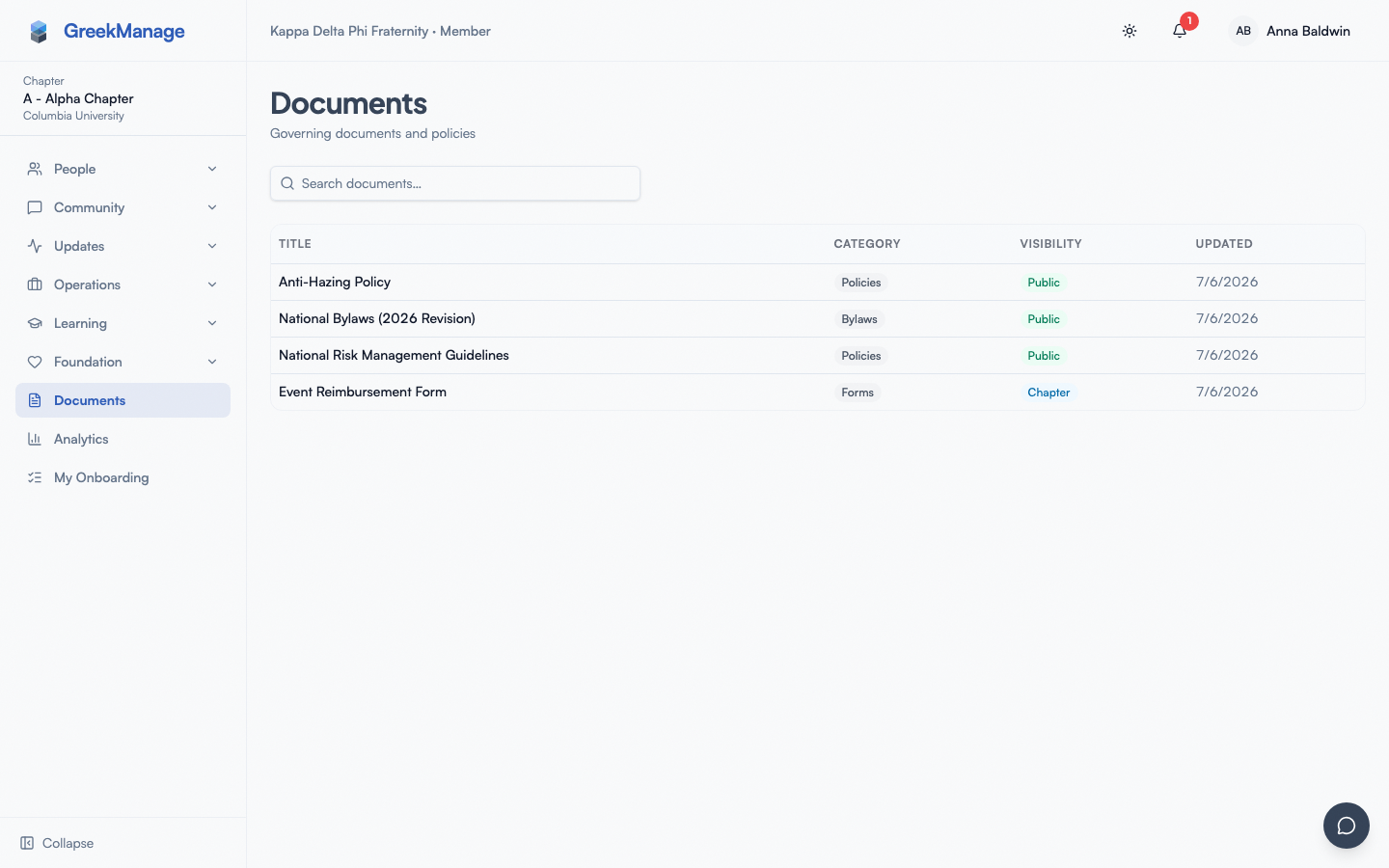 Chapter Documents page with the document table and category badges.
The table is flat — there is no folder hierarchy. All documents live at the same level; the only organization is the Category column (Constitution, Bylaws, Standing Rules, Policy, Other, plus any categories your org has added), shown per row.
There is also no full-text search of PDF or DOCX file attachments — search only covers each document's title and inline body text. If you need to find a specific clause inside a 30-page bylaw document, you'll need to open and search the document itself.
Visibility tiers — what shows up for you
Each document has one of three visibility settings, and your role decides which ones you see:
| Visibility | Who can see it |
|---|---|
| Public | Any member of the organization, regardless of chapter |
| Chapter | Members of the specific chapter the document is attached to |
| Officers | Officers and presidents of the specific chapter, plus national admins |
As an officer, you see all three tiers for documents attached to your chapter, plus every public document in your org. You do not see officer-only or chapter-only documents for chapters you're not a member of — those are scoped to that chapter's leadership.
The visibility level for each document is set when the document is uploaded. The viewing page itself does not show you a visibility badge on the chapter list (the org admin view shows it, but the chapter view doesn't surface that column). If you're not sure why a peer can't see a document you can see, the answer is almost always "this is officer-restricted and they're not an officer."
Step-by-step: read a document
- Click any row in the table.
- A read-only dialog opens with the document title, category badge, visibility badge, and the body content. There's no status field on documents — the old Current/Archived badge was removed along with the unused
is_currentflag it depended on. - Scroll the body. If the body is empty, the document was uploaded as a file attachment rather than inline text. Use the version history button to confirm.
- Click Versions to see prior revisions. Each version row shows the version number, the date it was changed, who changed it, and any change summary the editor wrote.
DocumentReadDialog open showing a Bylaws document content area with the Versions button visible below
Step-by-step: search the list
There's no filter dropdown on this page — no Type or Category picker, no visibility picker. The only way to narrow the list is the search box at the top.
- Type into the search box.
- After a short debounce, the list narrows to documents whose title or body text matches what you typed (full-text search, not a simple substring match).
- Clear the box (the × button that appears once you've typed something) to go back to the full list.
There is no visibility filter on the chapter view — your role already restricts the list to what you're allowed to see. If you need to browse by category, use the Category column in the table itself.
What you cannot do from this page
The officer view of documents isn't fully self-service — a few actions still require an admin or the org-level page:
- No upload button. Adding a new governing document requires a national or regional admin. If you need a new chapter policy on the system, ask your admin to upload it for you. Once it's there, officers can edit or delete it (within their chapter).
- Download button (v0.63.16): when a document has a file attachment (
doc.fileset), the read dialog exposes a Download button that opens the file with its original filename. Visibility-gated — only roles that can read the document can download it. - Visibility badge (v0.63.16): each row shows Public / Chapter / Officers Only at a glance, matching the org-side view. Read dialog header also shows the badge.
- View Changes / Restore previous version (v0.63.54): any document with version history shows a View Changes button that opens a diff comparing the current version against the previous one — available to anyone who can see the document. If you're an officer or president for the document's chapter, that diff view also shows a Restore previous version button that rolls the document back to its prior version, no admin needed.
- No bulk delete. Deleting happens one document at a time, and the chapter view doesn't currently surface a delete button — that's the admin's view.
Editing documents (if you have officer permission for the document's chapter)
The chapter Documents page still has no content-edit form — there's no way to change a document's title, body text, category, or visibility from this page. For that, you need to go through the org-level Documents page (if your role context includes admin), or ask your national admin to make the edit.
What the chapter page does let you do directly, if you're an officer or president for the document's chapter (v0.63.54): click View Changes on any versioned document to open a diff against the previous version, then click Restore previous version from that diff view to roll the document back — no admin round-trip required. Restoring replaces the current content with the prior version; it's undo, not a way to make arbitrary edits.
In practice: use View Changes / Restore previous version to undo a recent change yourself, and go to the org-level page (or your national admin) for anything else — new content, a different title, or a visibility change.
Mobile differences
The documents page is responsive — the table collapses to a card list on phones, showing title and category. Tap any row to read. The read dialog opens full-width on mobile. Version history works the same on both platforms.
What admins see that you don't
National admins see a separate Documents page under their org sidebar with:
- A two-section layout: National Documents (org-wide) and Chapter Documents (grouped by chapter)
- Create National Document and Create Chapter Document buttons
- A visibility filter (public / chapter / officers) — handy for auditing what's restricted
- An Actions column with view, edit, and delete icons
- An Edit button inside the read dialog for inline content edits
Regional admins see the same document list but can only upload documents attached to chapters in their region. They can view across all chapters in their region.
Errors and edge cases
- "No documents available." Means there are no documents matching your search that you have permission to see. Clear your search and try again. If there's still nothing, your org admin hasn't uploaded any documents to this chapter yet.
- Document body says "No content." The document was uploaded as a metadata-only record or a file-only attachment. Check the version history to confirm.
- Document I expected to see is missing. It's probably officer-restricted to a different chapter, or visibility was changed by an admin. Ask the uploader.
- Trying to edit shows no edit button. The chapter Documents page has no content-edit form — only View Changes / Restore previous version (v0.63.54) for undoing the most recent change. Editing content itself happens at the org level or via your national admin.
Troubleshooting
- A document my chapter needs is on the org list but not my chapter list. It might be set as Public (org-wide) — in which case any member sees it on their own Documents page — or it might be Chapter-restricted to a different chapter. Search by title on your page; if it doesn't appear, you're not in its audience.
- Officer-only documents for my chapter are missing. Confirm you're still an active officer or president on your membership. Officer visibility is checked at request time; if your role changes, you lose the officer-only documents immediately.
- I need to search inside a long PDF. Open the document, then use your browser's find-in-page (Cmd+F / Ctrl+F) inside the read dialog. Cross-document full-text search is not available.
- The list seems out of date. Refresh the page. The list is cached for a few minutes by your browser; a hard refresh forces it to reload.
Related
- Officer overview — what you can do across the system
- Members: documents library — the read-only view available to every member
- Org admins reference — admin-side workflows for uploading and managing documents
Last verified against v0.65.23 (2026-07-05). Download button + visibility badge shipped v0.63.16; document diff + rollback shipped v0.63.54; removed stale Type-filter-dropdown and Current/Archived-status references — the chapter page has no category/type filter (search-only), and is_current was dropped from the model in migration 0005_remove_dead_flags.