Reviewing compliance at the chapter tier
When a member of your chapter submits a compliance requirement, it lands in a pending-chapter state and waits for an officer to review it. This is the most consequential officer action in the platform: your approval advances the submission to the next tier (regional or org), your rejection sends it back to the member, and your decision is captured in the audit log forever.
This page is the deeper version of Compliance submissions. That page covers the submitter side — how you and members submit; how the tracking types work. This page focuses on what you do as a reviewer at the chapter tier.
What you see
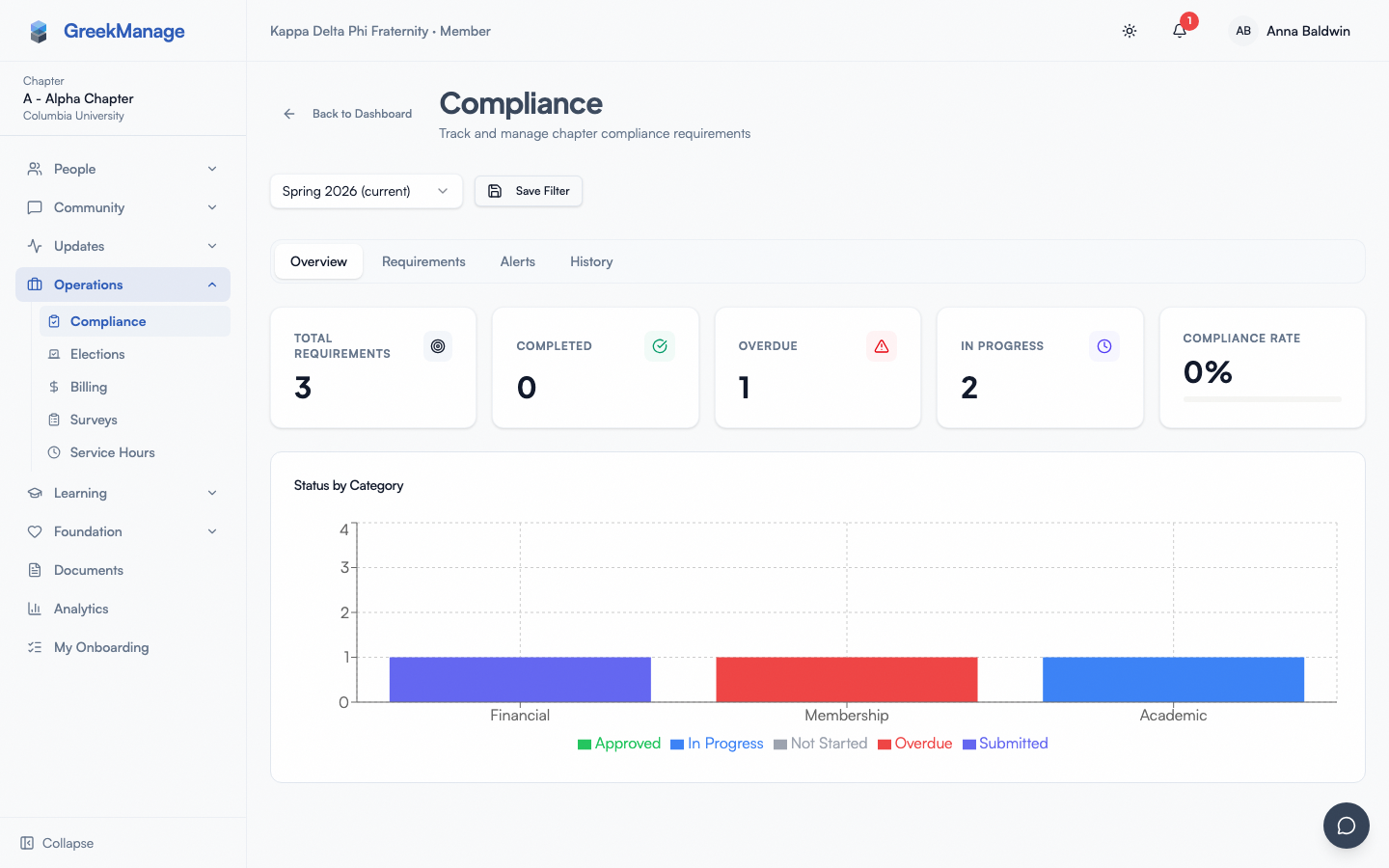
When a member of your chapter submits a requirement, the requirement's status flips to Pending Chapter Review on the chapter compliance dashboard. From your sidebar: Operations → Compliance (or under the Compliance group on your sidebar). You'll see your chapter's requirements with their current statuses; the ones that need your action have a Pending Chapter badge.
Click into one of those rows to open the requirement detail page. You see:
- The requirement title, category (Administrative, Financial, Safety, etc.), and description from your national admin's configuration.
- The Approval Pipeline card showing where the submission is in the multi-tier flow and which tier has already acted.
- The current status with any review notes already written by other reviewers at lower tiers.
- The list of Submissions — every time anyone in your chapter has tried to fulfill this requirement, in chronological order. The latest submission is the one currently up for review.
- For each submission: the submitter's name, the submission type (Form, Event, Document, Link, Text, Attestation), the submission body or form data, and any Attachments the submitter uploaded.
- A Review Submission card at the bottom with a notes textarea and Approve / Reject buttons. This card only appears when (a) the current status is Pending Chapter Review and (b) you have officer or org admin role on the chapter.
 Chapter compliance status detail with the Review Submission card and Approve / Reject controls.
Step-by-step: approve
- Open the requirement from the compliance dashboard.
- Read the latest submission's body and any attached files. Click an attachment to download it — files are validated against an allowlist of MIME types (PDF, common image formats, Office documents, plain text, CSV, ZIP) and capped at 25 MB per file.
- Confirm the submission satisfies the requirement. Read the requirement description for the criteria your national admin wrote.
- (Optional) Type a note in the Review Submission card. Notes are not required for approvals, but they help later reviewers — and your future self — understand what you confirmed.
- Click Approve.
What happens:
- The submission's status advances from Pending Chapter Review to either:
- Pending Regional Review if your chapter is in a region, or
- Pending Org Review if your chapter has no region.
- Your name is recorded as the chapter-tier reviewer, along with a timestamp and the notes you wrote.
- Your action is written to the audit log.
- The submitter and any subsequent reviewers see your name and notes as part of the submission's history.
Your scope ends at the chapter tier. Once a submission is at Pending Regional or Pending Org, you cannot approve or reject it further — that belongs to the regional admin or org admin.
Step-by-step: reject
- Open the requirement and read the submission as above.
- Type a note in the Review Submission card explaining what is wrong. Notes are strongly recommended for rejections — they are the submitter's only feedback on what to fix.
- Click Reject.
What happens:
- The submission's status flips to Rejected.
- Your name, the timestamp, and your notes are saved on the submission.
- The submitter is notified and can resubmit (see "Resubmit after a rejection" below).
There is no "send back for revision" intermediate state. Approve sends it forward; Reject ends this submission. If the member can fix it, they create a new submission.
What you cannot edit
Officers have approve / reject authority at the chapter tier, and nothing more. You cannot:
- Edit the underlying requirement. Title, description, due date, category, frequency, target value, and tracking type are all defined by your national admin. If a requirement is wrongly worded or has the wrong target, ask your national admin to fix it — they can edit the requirement and the new wording flows down to your chapter.
- Create overrides for your chapter. An override lets a specific chapter have a custom target or due date. This is a national-admin-only action. See Compliance alerts & overrides (org admin).
- Open or close compliance periods. Periods are an org-wide construct. Once a period is closed, the system blocks new submissions on requirements scoped to that period — for everyone, including officers. You cannot extend a period from the chapter side.
- Change the submitter's role. If a submission is at Pending Chapter Review, it was submitted by a non-officer member. Officer-submitted requirements skip the chapter tier entirely.
- Skip a tier. Your approval always advances to the next tier (regional or org). You cannot fast-track a submission directly to Approved.
The multi-tier history
Every compliance submission carries the full review history through all tiers it has passed. Officers see:
- The chapter tier — your name (or the previous chapter-tier officer's), timestamp, and notes.
- The regional tier — the regional admin's name, timestamp, and notes (visible once they have acted).
- The org tier — the org admin's name, timestamp, and notes (visible once they have acted).
You can read all three sets of notes on the Approval Pipeline card. This is useful when you are reviewing a resubmission after a higher-tier rejection — you can see exactly what the regional admin or org admin objected to last time.
Tracking types
Different requirements behave differently depending on their tracking type. Your national admin configures this on the requirement:
- Submission tracking. Members submit a form, a document, a link, or text once. You review once. This is the most common type — file uploads, attestations, event reports, etc.
- Count tracking. The requirement needs N occurrences (e.g. "Submit 5 service-event reports this semester"). The platform automatically splits this into N instances; each instance goes through the standard pending-chapter → pending-regional → pending-org → approved flow individually. As a chapter reviewer you approve each one separately.
- Numeric tracking. Chapter self-reports a number against a target (e.g. "Hours of community service: chapter reports 200, target 150"). For numeric requirements, the chapter has a current value input on the status detail page. When the value crosses the target, the status auto-advances to Submitted and enters the multi-tier review flow. You then approve or reject the chapter's self-reported number as the final value.
The Review Submission card appears for all three tracking types when the status is Pending Chapter Review.
Resubmit after a rejection
When a submission is rejected at any tier, the chapter can submit a new one. The form is the same as the original. The new submission re-enters the workflow from the chapter tier:
- Member resubmissions go to Pending Chapter Review (waiting for you).
- Officer resubmissions skip chapter and go to Pending Regional (or Pending Org if no region).
The rejected submission stays in the submissions list as historical record. Your rejection notes from the previous attempt are still visible — you and the member should both reference them when working through the fix.
File handling rules for attachments
When you download an attachment, you are pulling a file the submitter uploaded. The platform validates uploads on the way in:
- Size cap: 25 MB per file. Larger uploads are rejected at the API.
- MIME allowlist: PDF, JPEG, PNG, GIF, WebP, Word, Excel, PowerPoint (Office formats), plain text, CSV, ZIP, and a few legacy Office types. Other types (executables, video, audio) are blocked at submission.
- Single file per upload call. Members upload attachments one at a time; a submission can have many attachments but each one is a separate upload.
If a submission you are reviewing has no attachments where you'd expect one, ask the submitter to upload it before you act. There is no "request changes" workflow — you either approve (sending forward) or reject (sending back).
What admins see that you don't
National admins see every pending submission across every chapter on a single org-level compliance dashboard. They can act at any tier — when an org admin clicks Approve on a Pending Chapter Review submission, the system auto-cascades all the way to Approved in one step. This is useful for emergency clean-up, not for normal workflow.
Regional admins see submissions at Pending Regional from chapters in their region. They cannot act at the chapter tier — your approval is what kicks the submission into their queue.
Other officers in your chapter can also act on submissions at the chapter tier. Whichever officer clicks first wins; the submission advances and disappears from the chapter queue. The other officer will see your name on the review record.
Errors and edge cases
- "Only chapter officers or org admins can review at this tier." You attempted to review a submission whose status is Pending Chapter Review, but your account is not an officer or org admin for the chapter. Confirm your role on the chapter detail page.
- "Cannot review a submission with status 'approved'." / "... 'rejected'." Someone (you, another officer, an org admin acting at the chapter tier) already actioned this submission. Refresh and check the final status.
- The Review Submission card doesn't appear. Most likely the submission is no longer at Pending Chapter Review — it has advanced or been rejected. Alternatively, you do not have officer role on this chapter (regular members see the requirement but not the review controls).
- File downloads fail with a 403 or expired URL. The platform proxies attachment downloads through an authenticated endpoint so storage URLs don't have to be public. If you see this, try refreshing the page — your session may have expired.
- "This compliance period is closed. No further submissions are accepted." The period the requirement is scoped to has been closed by your national admin. Members cannot create new submissions; reviewers cannot act on still-pending ones. Ask your national admin if this is intentional.
- A requirement is showing Pending Chapter Review but the latest submission was made by an officer. Officer-submitted requirements skip chapter review — they go straight to Pending Regional or Pending Org. If you see this combination, the system advanced status correctly but a stale page is showing you the old state. Refresh.
Mobile differences
The chapter compliance detail page renders on phone and tablet. The Approval Pipeline timeline collapses vertically; submissions list as cards. The Review Submission card and its Approve / Reject buttons are large and tap-friendly. Notes is a standard native textarea — long entries are easier on a tablet keyboard. Attachment downloads on phones open in the browser's standard file viewer (PDFs preview inline on iOS Safari; Office files trigger the Files app).
Troubleshooting
- You approved a submission you should have rejected. Officers cannot reverse an approval. Once the submission has advanced to Pending Regional or Pending Org, you would need a regional admin or org admin to reject it. They will see your chapter approval in the history.
- You rejected a submission and the member is asking what to fix. Your rejection notes are visible to them in the submission's status. If you didn't write notes, editing the submission record is not an option — but you can leave a notification on their member detail page, message them outside the platform, or have them submit again so you can write proper notes on the next decision.
- A requirement was approved at chapter but never appears in regional or org review. Confirm your chapter has a region. If it does not, your approval went directly to Pending Org. If it does, the regional admin has the next step — check the audit log to see whether they have acted yet.
- The Submissions list is empty but the status says Pending Chapter Review. Rare. Refresh the page; this usually clears. If it persists, contact your org admin to investigate.
- You want to see chapter-tier review history across the semester. The chapter compliance dashboard shows current status, not historical review counts. For a full audit, ask your org admin to pull the audit log from Settings → Logging — your reviews are recorded there with timestamps.
Related
- Compliance submissions — the submitter-side view of this same surface
- Compliance multi-tier approval (org admin) — the deeper-level admin reference for the multi-tier workflow
- The approvals queue — Big-Little reviews, the other chapter-tier action
- Permissions matrix — every compliance action listed by role
Last verified against v0.62.1 (2026-05-11).