Chapter learning dashboard
If your org licenses the Learning module, every member gets assigned to courses — orientations, risk management, financial training, hazing prevention, and whatever else your national has rolled out. As an officer, you have an officer-only dashboard that shows how your chapter is doing in aggregate. Members see their own assigned courses; you see the chapter-wide rollup.
Where to find it
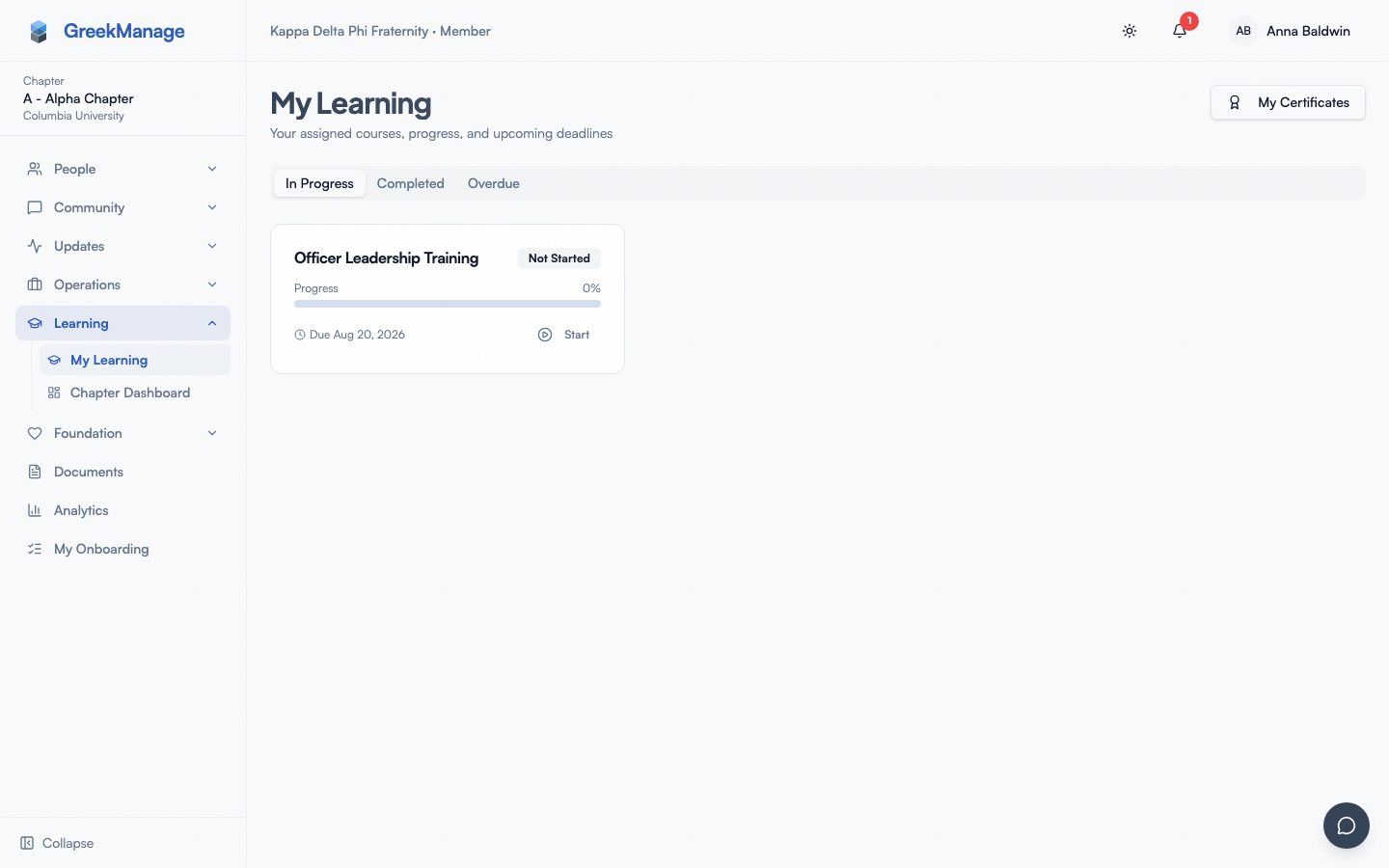
The dashboard lives at /chapter/learning/dashboard and is now reachable directly from the chapter sidebar (v0.63.16). The "My Learning" entry is a Learning group with two children:
- My Learning — the member view of your own assigned courses (everyone).
- Chapter Dashboard — the officer view, role-gated to
officer/national_admin/regional_admin/platform_adminvia the newchapter.learning_dashboardnav-key entry. Pinnable in the pinboard like any other nav item.
What you see
The dashboard renders four large stat cards at the top, followed by a Recent Completions list.
 Chapter learning dashboard with four stat tiles and a Recent Completions card.
The four stat tiles
- Total Courses — every course published for your org that any chapter member is or could be enrolled in. Note this counts all org-wide courses, not just ones assigned to your chapter.
- Enrollments — total enrollments across all members of your chapter, regardless of status (not-started, in-progress, completed, overdue, expired). One member enrolled in three courses counts as three.
- Completed — the subset of those enrollments that are in the
completedstate. - Overdue — enrollments with a due date in the past that have not been completed or expired. This is the number you should care most about — every entry here is a member who missed a deadline.
The cards show a dash (--) if data is still loading, then update to the live count.
Recent Completions
Below the tiles is a Recent Completions card listing up to 10 of the most recently-completed enrollments in your chapter. Each row shows:
- Member name
- Course title
- Completion date
If no members have completed anything yet, you'll see "No completions yet." There is no pagination or "see more" on this list — it's a quick-glance widget, not a full report. For a complete export or a per-member view, see the limitations below.
What's not on the dashboard yet
The chapter-tier dashboard is intentionally a high-level summary. It does not currently include:
- A per-member completion table. You can't drill from this dashboard to see which specific members are behind. To find an individual member's progress, open the member's profile.
- A list of overdue enrollments. The Overdue tile shows the count, not the names. To track down who's behind, your national admin can pull the per-course dashboard which lists every enrolled member with status — that view is admin-only and not exposed in the chapter sidebar.
- A pending grading queue. Grading written assessments happens in the org-tier Grading Queue, which is national-admin only. Even if you're set up to grade in your org's policy, the system doesn't surface a grading inbox to officers.
- Filters or date ranges. The dashboard is "right now" with no historical comparison or semester filter.
- Per-course breakdown. The backend computes per-course enrollment and completion rates, but the chapter UI doesn't render them.
If you need any of the above, ask your national admin to pull the data from their side.
How the dashboard is scoped
- The Total Courses tile counts every course published for your org, not your chapter. A course that hasn't been assigned to anyone in your chapter still counts here.
- The other three tiles count enrollments scoped to your chapter only — they exclude members of other chapters in the same org.
- The completions list is your chapter's completions, sorted most recent first, capped at 10 rows.
So you can see a Total Courses of 12 but Enrollments of 0 if no one in your chapter has been assigned to any of them yet — which is normal early in a semester before auto-assignment rules fire.
Step-by-step: investigate an overdue count
When the Overdue tile shows a non-zero number:
- Open the relevant member's profile via Members → search (you know your chapter members; pick someone you suspect).
- Look for the learning section on the profile (or open My Learning if you're investigating your own assignments).
- The member's My Learning view shows their courses tabbed by In Progress / Completed / Overdue, with the overdue tab badged with the count.
- Nudge the member directly (DM, email, in-person) — the system does send overdue reminders automatically, but a personal nudge is usually more effective.
If you need a bulk export of who's overdue across the chapter, ask your national admin. They can pull the per-course dashboard which lists every member's status row-by-row.
Mobile differences
The dashboard renders responsively — the four stat tiles wrap from a 4-column grid on desktop to a 2-column grid on phones. The completions list is one column on both. There's no mobile-specific behavior; if it works in your browser, it works in the app.
What admins see that you don't
National admins have access to:
- Org learning dashboard (org-wide rollup across every chapter, region, and member)
- Regional learning dashboard (one tier above yours, useful for regional admins coordinating multiple chapters)
- Per-course dashboard for each course, with every enrolled member's status, score, and key dates
- Grading Queue for written assessments awaiting review
- Auto-assignment rules and bulk re-enrollment tools
- Certificates issued to members across the org
Regional admins see the regional dashboard plus the chapter dashboards for every chapter in their region. As a chapter officer, you see only your own chapter's dashboard.
Errors and edge cases
- "Only chapter officers can view the chapter learning dashboard." Your membership role is not
officerorpresident. Confirm with your national admin that your role hasn't been changed. The check is strict — alumni officers, regional admins not assigned at the regional level, and members in transition statuses all get blocked. - All four tiles show
--. The dashboard is still loading. If it stays that way for more than a few seconds, the chapter learning API call is failing — refresh, and if it keeps failing, ask your national admin to check the learning module is enabled for your org. - Overdue count seems wrong. It includes any enrollment with
due_datein the past that isn'tcompletedorexpired. If your national admin marks a member's enrollment as expired (e.g., because they graduated), it leaves the overdue count. Recently-completed enrollments drop out within a minute. - The dashboard exists but I can't get to it. That's the missing sidebar link. Navigate to
/chapter/learning/dashboarddirectly. The bookmark works.
Troubleshooting
- My chapter has zero enrollments but I know members were assigned courses. Auto-assignment rules might be set to a different chapter, or members are in a status (associate, alumni) that the rule excludes. Ask your national admin to inspect the assignment rule.
- Completions list is empty even after a member finished a course. Refresh — the list updates on page load. If it still doesn't appear, the enrollment may have been marked complete but the
completed_attimestamp didn't set. Ask an admin to look at the per-course dashboard for that course. - I'm an officer but the dashboard says I'm not. Your
statuson the membership might have flipped to inactive. Officers must be in an active membership status; alumni officers don't have access. - I want a per-member view. Use the Members directory to find a specific member, then open their profile. Bulk per-member views are admin-only.
Related
- Members: learning courses — the learner's-eye view
- Org admins: learning grading queue — admin-side grading and assignment
- Officer overview — what else you can do as an officer
Last verified against v0.63.39 (2026-06-26). Sidebar entry + role-gated nav-key shipped v0.63.16.