Managing chapter members
Officers don't add or remove members directly. The chapter-officer role can submit requests to add new members or change a member's status, and edit non-role profile fields on members of the same chapter. Approvals on those requests, and any change to a member's officer role, are handled at higher tiers. This page walks through every member-management capability you have, and clearly calls out the ones that look like they should belong to you but don't.
Opening the member directory
In your sidebar: Members. The directory shows every member of your organization you have visibility into — at minimum every member of your own chapter, and depending on your org's directory visibility settings, members of other chapters as well. Filter chips at the top let you narrow by status, role, chapter, pledge class, graduation year, and other supported fields.
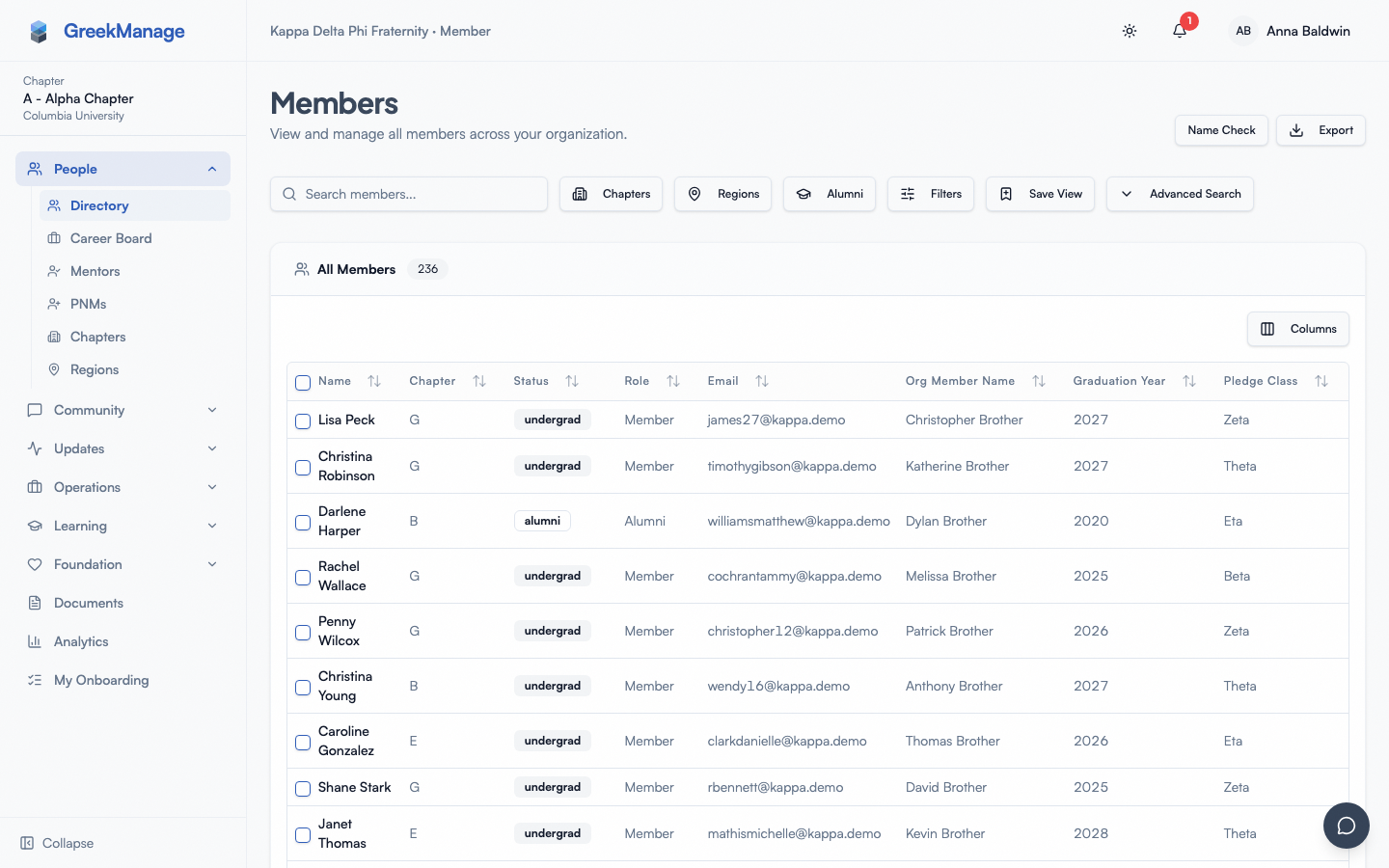 chapter member directory with filter chips
What you see versus what a regular member sees:
| Element | Member | Officer |
|---|---|---|
| Member directory list (own org) | Visible | Visible |
| Member detail (own chapter) | Visible | Visible, with edit on non-role fields |
| Member detail (other chapter, same org) | Visible (subject to privacy settings) | Visible (same as member) |
| Add member button on chapter detail | Hidden | Visible (submits a request) |
| Request status change on member profile | Visible (own self only) | Visible (own self + chapter members) |
| Role dropdown on member detail | Hidden | Visible but disabled — write is rejected |
| Export to CSV / XLSX | Hidden | Visible (own chapter scope) |
| Saved Views chips | Visible | Visible |
Officers cannot see members of chapters they have no relationship with unless the org has enabled cross-chapter visibility. Regional admins see every chapter in their region; national admins see everything.
Submitting a new-member-add request
You don't add members directly. You submit a request that routes through regional and org review. The submitting officer is responsible for what's in the form — the reviewers approve based on what you provide, so be specific.
- Open the chapter detail page for your chapter (Chapters → your chapter).
- Click Add member.
- Fill in the form:
- Email (required) — the prospective member's primary email. If an account already exists with this email, the system links the new membership to it; if not, the system creates a placeholder account on approval.
- First name (required) and Last name (required).
- Joined date (required) — the official date this person joined the chapter.
- Role — leave as
member. You cannot submit a request that creates an officer or president directly; that change is made later by a national admin. - Graduation term (optional) — a searchable picker of calendar terms ("Fall 2026", "Spring 2027"). Type to filter. This replaced a bare year box, which could not express a semester at all, so members added this way never had one. The term you pick is what the member's record will show once the request is approved.
- Pledge class (optional).
- Crossing semester (optional).
- Justification (required) — free-text explaining who this person is and why they should be added. Reviewers approve faster when there is context.
- Click Submit.
What happens next
The request lands in Approvals → New Members. The initial status depends on your chapter's region setup:
- Chapter has a region → request starts at
pending_regional. A regional admin reviews it. If they approve, it advances topending_organd a national admin makes the final call. - Chapter has no region → request skips straight to
pending_organd waits for the national admin.
You will receive a notification when the request is approved or rejected. If approved, a membership is created on the new person's account (or a placeholder account is created using their email). If rejected, you see the reviewer's notes and can submit a corrected request.
Common rejection reasons
Reviewers most often reject for:
- Duplicate email — the person already has a membership in this chapter or another chapter in the org. Search the directory first.
- Missing justification or unclear context — "Adding Jane Smith" is not enough. State the chapter election, the pledging period, or whatever event drove this addition.
- Wrong chapter — the person belongs in a different chapter (transfer scenario). Submit against the right chapter; transfers are not a separate workflow in v0.62.1.
- Stale joined date — the joined date is far in the past or future. Use the actual date the chapter records.
There is no Existing / New / Bulk picker
Earlier docs mentioned a three-way picker for "Existing user / New user / Bulk import." That picker does not exist in v0.62.1. The dialog is a single form. Bulk import (CSV / XLSX) is national-admin-only and lives at Org → Members → Bulk import; see Member CSV / XLSX import. If you have a list of new members coming through pledging, your national admin can run the bulk import after you give them the CSV.
Submitting a status-change request
Status changes — Undergraduate → Alumni, Active → Inactive, Alumni → Active Alumni, etc. — go through national-admin approval. Officers (and members themselves) can submit; only national admins approve. The flow is intentional: changes that affect membership rights, dues eligibility, and alumni directory visibility need a single source of authority.
- Open the member's profile (Members → click row).
- Click Request status change.
- Fill in:
- Requested status — pick from the dropdown (the system blocks selecting the current status).
- Justification (required) — explain why. Reviewers approve faster when the cause is clear.
- Supporting document (optional) — a graduation letter, leave-of-absence form, etc.
- Submit.
The request goes into Approvals → Status Changes as pending. You will see it on your queue read-only — the Approve and Reject buttons only render for national admins. Once approved, the member's status is updated, and both you and the member receive a notification.
Members can submit their own status changes too
Any member can request a status change on their own membership from the member-facing approvals page. Submitting on someone else's behalf is gated to officers and higher tiers within the same chapter. If the member you want to change has access to the app and can do it themselves, ask them to submit — the audit trail is cleaner when the person being changed is the requester.
One pending request per membership at a time
The system rejects a second status-change request on a membership that already has a pending one. If your earlier request is sitting in the queue and circumstances have changed, ask the national admin to resolve the first one (approve or reject) before you submit the corrected version.
Editing non-role profile fields
Officers can edit the following fields on members of their own chapter:
- Pledge class, crossing semester, graduation year.
- Joined date (for corrections — do not retroactively change this for a status purpose; use a status-change request instead).
- Chapter custom fields, if your org has any configured.
- Notes and other free-text fields that exist on the membership record.
You can patch these directly from the member's profile page without going through an approval workflow. The change is audited.
Role fields are off-limits
The role dropdown (member / officer / president) is visible to officers on the member detail page but the write is rejected by the backend. Even if you somehow submit a payload that changes role, the API responds with "Only national admins can change chapter officer roles." This is intentional — promoting someone to officer or president is a national-admin action because it grants the new role-holder write capability across the chapter.
If you need to promote someone (e.g., your new vice president was just elected), tell your national admin. The change is fast on their end. Same for demotions: when an officer's term ends, the national admin demotes them to member.
Your own role is also locked
You cannot change your own role — not even from president to member, and not even from officer to a different officer label. The system blocks self-edits with "You cannot change your own chapter officer role." This is a safety guard against accidental self-demotion (or a malicious script). Ask another admin or officer to make the change.
Photo management permissions
Photo albums are scoped to a single chapter. As an officer of that chapter, you can:
- Create albums, edit album titles and descriptions, change visibility, and delete albums.
- Set the album cover photo.
- Upload photos (same as any member of the chapter).
- Edit your own photo captions.
- Edit or delete any photo in your chapter's albums, including ones uploaded by other members (an officer-only privilege).
- Tag members (same as any member of the chapter).
- Remove tags added by other members on your chapter's photos.
Regional admins do not have direct access to a chapter's photo albums unless they also hold membership in that chapter. National admins have full access.
Saved Views — sharing chapter views with your team
The directory supports saved filters. You can apply a combination of filter chips and search terms, then save the result as a named view so you can come back to it later.
- Apply your filters: chapter, status, pledge class, graduation year, role, custom fields.
- Enter a search term if useful.
- Click Save view, give it a name (e.g., "Active pledges Spring 2026").
- The view appears in the saved-views chips above the directory.
Saved views are personal in v0.62.1 — they're saved to your user account, not shared with other officers. If your chapter wants a consistent set of views for everyone, agree on the filter combinations and have each officer save the same set.
Search
The directory's search bar matches name, email, and a configurable subset of profile fields. The exact set of searched fields depends on your org's settings — your national admin configures full-text search at the org level. The default works well for finding a member by name or email; if a search for, say, a Greek surname doesn't return what you expect, try the email.
Search is combined with filter chips: searching "smith" while the Active chip is selected returns active members named Smith, not every Smith in history.
The fraternal name check tool
If your chapter assigns fraternal names (a tradition some chapters use during initiation), use the name-check tool to confirm a proposed name is not already in use across the org.
- From the member directory or the PNM detail page, open the Name check dialog.
- Type the proposed name.
- The tool searches every member of the org and shows:
- Exact matches — someone already holds this name.
- Phonetic matches — names that sound similar (uses Soundex and edit-distance scoring).
- Leetspeak / substring matches — variants that read as the same name.
- Read the matches and decide.
The tool is informational; it does not gate the assignment. The actual proposal happens on the PNM record, where officers propose and national admins approve. See the PNM program for the org-side configuration that drives this flow.
What members see versus what you see
Members of your chapter (non-officers) see the directory and member profiles but their write permissions are limited to their own profile, their own status-change request, and (in some orgs) their own custom-field data. They cannot:
- Edit anyone else's profile.
- Submit a member-add request.
- Submit a status-change request on someone else's behalf.
- See the Approvals page in any actionable way.
- Export the directory.
In other words, the directory looks the same on the surface; the difference is which buttons are clickable. Members who try to take an officer-level action via the API get a 403; the UI hides the buttons before the API ever sees the request.
What admins see that you don't
National admins get a richer view of the same surface:
- The full member directory with directory-insights cards (demographics, profile-completeness heat map, role distribution).
- The org-wide approvals queue across every chapter — not just yours.
- Bulk import (CSV / XLSX) with AI-powered column mapping.
- Directory custom-field definitions (officers can edit data; only national admins can create or delete the field types).
- The ability to approve at any tier — when a national admin approves a member-add request at the regional tier, the request auto-advances through all remaining tiers in one click.
- The ability to delete a membership outright.
- Profile-completeness nudge tools.
Regional admins see the directory and approval queues for chapters in their region with the regional-tier Approve and Reject controls; chapter creation, role changes, and bulk import remain national-admin-only.
Mobile differences
Most of the member-management surface works on mobile.
- The Add member dialog renders as a full-screen form on phone. Required fields are validated inline before the Submit button enables.
- The Status change dialog supports attaching a document from the native file picker.
- Editing non-role fields on a member's profile is supported on mobile but is easier on tablet/desktop where you can see the full form at once.
- The directory's search and filter chips collapse into a single filter button on phone; tap to expand and apply.
- Notifications about your approved or rejected requests come through the native notification bell (and push, if you have it enabled).
Tips
- Always fill in the justification. Reviewers approve faster when they have context. Empty or boilerplate justifications often get rejected by default.
- Submit status changes ahead of the change, not after. A pending Undergraduate → Alumni request takes a day or more depending on your org; submitting on graduation day is too late if the member needs alumni privileges immediately.
- Search before you submit a member-add request. If the person already has a membership in your chapter or another chapter in the org, you don't need a new request — you may need a transfer or a status change instead.
- Use saved views to track recurring lists. "Members on probation," "Pledges this term," and "Officers up for transition" are all good candidates.
- Coordinate name-check with your VP of recruitment. Running name-check after a name has been announced is awkward; run it earlier and reject duplicates before they go public.
Related
- Approvals queue — what happens after you submit a request
- Compliance submissions — the other big chapter-tier action
- Member CSV / XLSX import — bulk add, national-admin only
- Custom fields — what extra fields your org has configured
- Permissions matrix — the source of truth for who can do what
Last verified against v0.62.1 (2026-05-11).