Managing photo albums
Photo albums are how your chapter organizes memories — rush, formals, philanthropy events, semester-end celebrations. As an officer, you can create albums, set who can see them, upload photos yourself, pick the cover image, and remove inappropriate content. Members in your chapter can also upload to existing albums; you control the album shell.
What you see
Open Community → Photos from your sidebar. The page shows every album for your chapter (and any albums in your org that have been shared org-wide), sorted with the newest year first.
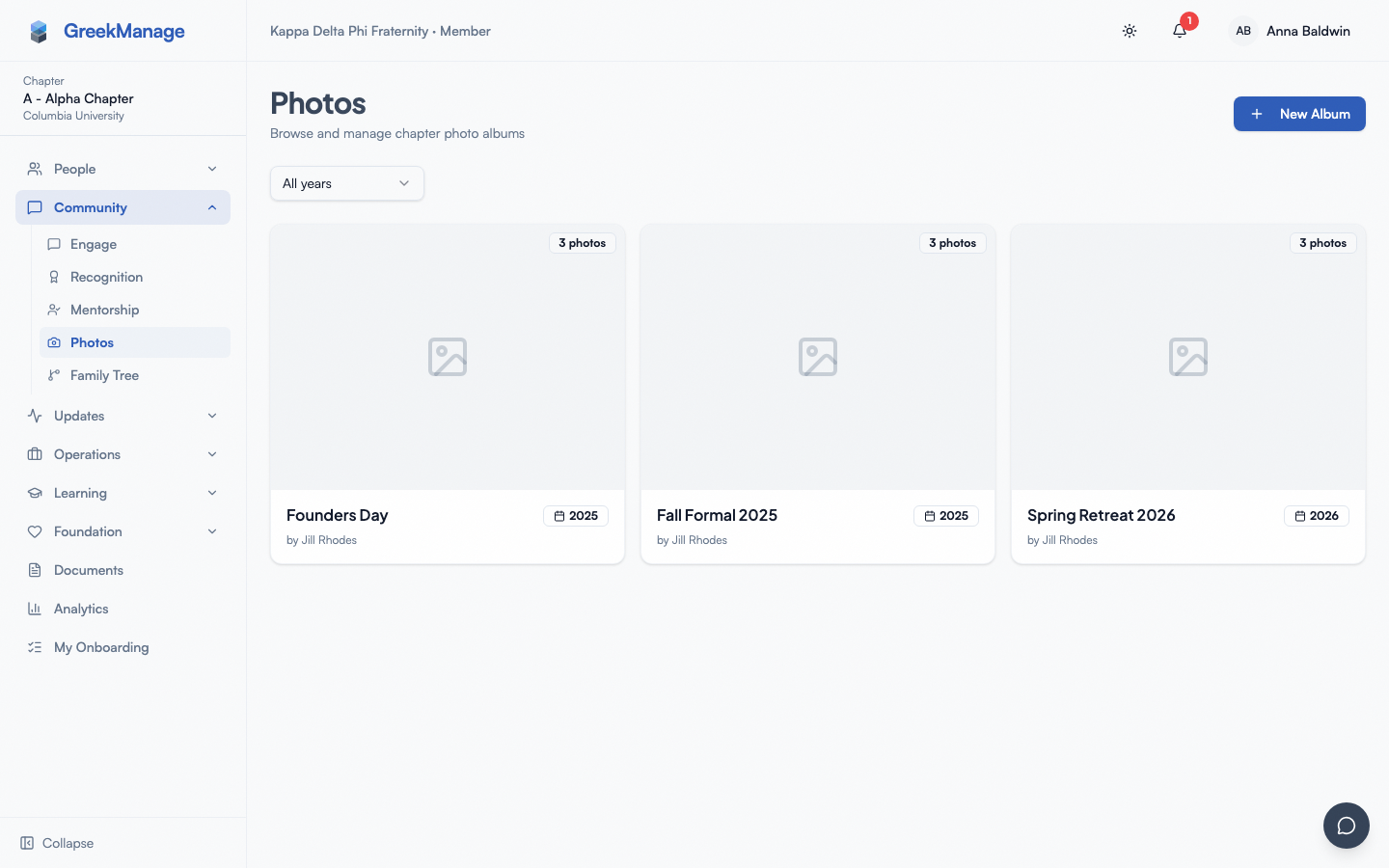 Chapter Photos page with the album grid, year dropdown filter, and the New Album button.
In the header you see a New Album button. Members don't see this — it's officer-only. Below the header, a year filter dropdown lets you narrow to a single year or "All years."
Each card shows the album title, the year badge, a visibility badge (Chapter Only or Org-Wide), the cover photo, and the photo count.
Step-by-step: create an album
-
Click New Album in the top-right.
-
Fill in the dialog:
- Title — required. The display name (e.g., "Fall Rush 2026," "Brotherhood Retreat").
- Description — optional. A short blurb that appears under the title on the detail page.
- Year — defaults to the current year. Pick from the last ten years. The album sorts into the grid by this value.
- Visibility — two choices:
- Chapter Only (default) — only members of your chapter can see this album.
- Org-Wide — anyone in your org, including other chapters and national admins, can see it.
There is no regional tier between these two. If you want only some chapters to see an album, leave it Chapter Only — there is currently no way to grant a specific subset.
-
Click Create Album. You go straight into the album detail view.
Step-by-step: upload photos
- Open any album. Click Upload Photos.
- In the dialog, pick one image file from your computer. You can upload JPEG, PNG, GIF, or WebP. The 20 MB-per-file size limit applies.
- Optionally add a caption.
- Click Upload.
The dialog currently uploads one photo at a time. To add several, repeat the steps for each.
After upload, the photo appears in the album grid. It generates a 400x400 thumbnail automatically. Open any photo by clicking it to launch the lightbox view.
HEIC photos from iPhones
The upload zone text mentions HEIC, but the backend currently rejects HEIC files. iPhone photos taken in default "High Efficiency" mode will fail to upload with a "File type 'image/heic' is not allowed" error. To work around this:
- On iPhone: Settings → Camera → Formats → Most Compatible to save photos as JPEG going forward, or
- Share the photo to yourself (which auto-converts to JPEG), or
- Save the photo from Photos as JPEG before uploading.
This is a known gap — the upload hint and backend don't agree. Future versions will either accept HEIC server-side or remove it from the hint.
Size and compression
Each photo can be up to 20 MB at upload. After server-side thumbnail generation, the original is retained as-is; the thumbnail is approximately 4 MB or less in JPEG format. If you try to upload a 25 MB photo, you'll see a "File size exceeds the 20MB limit" error.
PhotoUploadDialog open with file selected, preview showing, caption field below
Step-by-step: set the cover photo
- Open the album. Hover any photo in the grid.
- Click the small image-plus icon that appears in the top-right of the hovered photo.
- The album's cover updates immediately and now displays on the album grid back at the album list.
The cover photo is purely visual — it has no effect on visibility or sort order.
Featuring a photo
Inside the lightbox, officers see a Feature toggle on each photo. Featured photos show a small amber "Featured" badge in the grid. Featuring doesn't change ordering — it's a label your chapter can use however you like (best of the night, photo of the week, etc.).
Removing a photo
Inside the lightbox, officers see a Remove button (red). Click it to soft-delete the photo. It disappears from the grid but stays on the server for recovery — a national admin or platform admin can restore it from the database if needed.
The original uploader can also remove their own photo. Officers can remove anyone's.
Tagging members
Photos can be tagged with the members who appear in them. The backend supports this fully — tag, view tags, remove tags.
There is currently no UI in the lightbox to add or view tags. The dialog exists in the codebase but is not wired into any photo detail view. If your org used to have tagging in an older version, it's been quiet for a release or two; expect it back when the lightbox surfaces the tag UI again.
Once tagging is restored: any chapter member can add a tag, and only the person who added the tag (or any officer) can remove it. Members cannot untag themselves from a photo — that's intentional. To untag yourself, ask whoever tagged you, or an officer.
Editing the album
Officers can:
- Rename the album.
- Edit description, year, and visibility at any time.
- Delete the album (soft-delete — photos and tags are preserved on the server but hidden in the UI).
Click the pencil icon on the album detail page header to edit. Click the trash icon to delete; a confirmation dialog appears.
ZIP download
There's a Download ZIP button on the album detail page. It is currently disabled. The button is shipped as a placeholder; the backend doesn't generate ZIP archives yet. If you need to bulk-download an album, ask members to share originals directly, or ask a platform admin to pull from object storage.
Mobile differences
The Photos page renders as a single column on phones — albums stack vertically. The upload dialog uses the native iOS / Android file picker. iPhone users will hit the HEIC mismatch described above; Android users typically get JPEG by default and don't run into it.
The lightbox supports swipe (left/right gestures) on phones. Pinch-to-zoom works on iOS in the lightbox image itself; on Android, double-tap to zoom.
What admins see that you don't
National admins can:
- See every album in every chapter, including Chapter-Only albums in chapters they're not in.
- Edit or delete albums from any chapter.
- Set Org-Wide visibility on chapter albums that an officer originally created as Chapter Only.
Officers can only manage albums in their own chapter. The visibility filter you set on creation determines who else (outside the chapter) can view it.
Errors and edge cases
- "File type ... is not allowed." Almost always a HEIC photo from an iPhone. See the HEIC section above.
- "File size exceeds the 20MB limit." Pre-shrink the photo (a typical 4032x3024 JPEG is well under 5 MB; only RAW or 4K-stitched panoramas approach the limit).
- "You do not have permission to view this album." You're looking at a Chapter Only album for a chapter you're not in. Either ask the chapter to change visibility to Org-Wide or accept that you're not the audience.
- Album appears empty for some members. That member's chapter membership might have just gone inactive. Chapter Only albums are visible only to members in active or alumni-platform-access statuses.
- Cover photo is wrong. Open the album, hover the photo you want, click the image-plus icon. The cover updates immediately — refresh if it doesn't propagate to the grid.
Troubleshooting
- "New Album" button is missing. Confirm you're an active officer or president. The button only renders when your role gives chapter-write permission.
- My photo uploaded but doesn't appear. Refresh the album. If still missing, the photo may have been auto-removed by the backend (it sometimes happens for files the EXIF parser can't read). Try again with a different photo.
- Photos take a long time to upload on cellular. Phone networks throttle photo uploads. WiFi is significantly faster. The dialog shows a spinner; don't navigate away during upload.
- Photos missing from a member's profile. Member profiles don't currently display photos they're tagged in (the tagging UI isn't wired). When that lands, it will show on the profile page.
Related
- Managing chapter members — for the rest of the profile area
- Org admins reference — admin-side workflows including org-wide visibility changes
- Events — link an album to an event description so members can find photos after
Last verified against v0.62.1 (2026-05-11).