Reviewing PNM applicants
Once your organization opens an application period and PNMs start applying — or you add them by hand — the applications land on your chapter’s PNM page. Chapter officers are the front line for reviewing them: you read the application, check attachments and reference letters, and walk each applicant through the intake lifecycle from “not started” to “crossed.”
Authoring is done by your national admin. Officers do not configure application questions, open or close periods, or approve fraternal names — those live in PNM program (org admin). What officers do is the day-to-day review work for their own chapter.
What you see
In your sidebar: Operations → PNMs. The page opens with a grid of cards, one per potential new member assigned to your chapter.
Each card shows:
- The applicant’s name and photo (if uploaded).
- Their current intake status — Not Started, Approved, In Progress, Crossed, Rejected, or Discontinued.
- A completion percentage based on which required fields the applicant has answered.
- Their chapter (in case you have multi-chapter visibility for any reason — most officers see only their own chapter).
- An auto-flag badge if the applicant tripped a soft-validation rule, such as a GPA below the configured minimum.
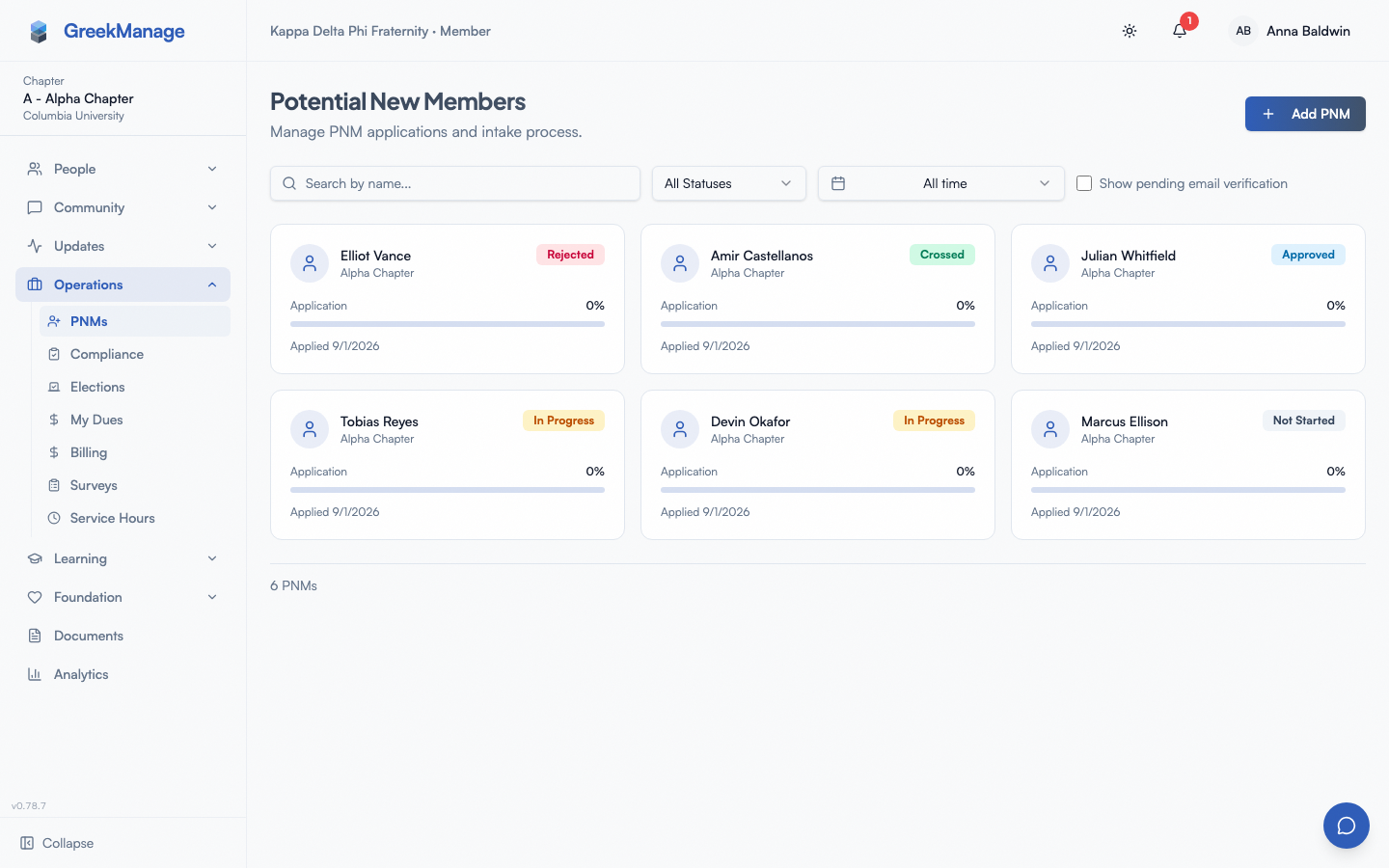 Chapter PNM list with applicant cards and the status filter selector.
Above the grid you get three filter controls:
- Search — match against the applicant’s name or proposed fraternal name.
- Status — All Statuses / Not Started / In Progress / Discontinued. An applicant who crosses becomes a member and leaves this list. To find them, search the Directory for their crossing semester (for example Fall 2026).
- Period — All time, or scope to a specific application period (e.g. Fall 2026 — Active, Spring 2026 — Closed). This is how you separate this semester’s pledge class from prior pledge classes.
There is also a checkbox to show PNMs who have not yet verified their email. By default these are hidden so your list stays focused on confirmed applicants.
Adding a PNM by hand
Add PNM collects a name, an email, and a Recruitment Period. The period is optional — you can leave it blank and set it later — but it is worth filling in, because it is what fills the member’s crossing semester and crossing term automatically when they cross. A PNM added without one still crosses fine; the crossing date is used to name the semester instead. The pledge class is never filled in for you — that is your chapter’s own name for the class (“Alpha”, “Theta”), and only you know which one you are initiating.
You can set or change the period afterwards from the applicant’s detail page, using the period selector beside their status. That control stays available while intake is In Progress, unlike the rest of the application fields, precisely so you can fix a missing period before crossing.
Step-by-step: reviewing an applicant
- Click into a card from the PNM list.
- The detail page opens with the applicant’s name, photo, and current intake status at the top.
- Scroll the page to read the application — there are tabs for Personal Info, Application (custom question answers), Intake Timeline, and Admin Notes.
- Check the Attachments section. The applicant’s resume, headshot, transcript, or cover letter (whichever your org configured) appear here. Click any attachment to download and review.
- Check the References section if your org requires reference letters. Each referrer the applicant supplied shows up with a status: Pending (link emailed, letter not yet submitted), Submitted (letter received — click to read), or Expired (the seven-day window passed without a response). If a referrer is stuck on Pending, you can resend the request from this card.
- Move the applicant through intake by clicking the status badge at the top of the page. The dropdown lists the next valid statuses; pick one and confirm.
The full intake lifecycle, with the transitions you can make from each state:
- Not Started → Approved, In Progress, or Rejected — see below for what Approved actually does
- Approved → In Progress, Rejected, Discontinued, or back to Not Started (un-approve)
- In Progress → Crossed, Rejected, Discontinued, or back to Not Started
- Rejected → Not Started (un-reject only). Not possible once the application has been removed: GreekManage deletes a rejected application’s answers, notes, attachments and reference letters 365 days after the rejection.
- Discontinued → In Progress (undo)
- Crossed is terminal — no further transitions.
Discontinued
Use Discontinued for an applicant who started the process and then dropped out, so your numbers show them apart from applicants you rejected. Only an approved or in-progress applicant can be marked Discontinued. They stay on your PNM list (filter by Discontinued to find them), the intake timeline records when and by whom, and the recruitment period’s page counts them on their own card.
It is not final. If they come back, change their status to In Progress: New Member Education resumes with its original start date, and the Discontinued mark is cleared. Unlike a rejected application, a discontinued one is not removed after a year.
Un-approving clears the approval from the record, including who approved it — it is a correction, not a second decision layered on the first.
How an application is approved
An applicant is reviewed on their own record, not through a compliance requirement. Your organization’s approval chain — chapter, regional, national — reviews the application one tier at a time, and national approval is always the last step; it can’t be configured away. Each tier that approves satisfies exactly its own tier — an approval never skips ahead for another tier, including a national admin looking at a record still awaiting the chapter tier.
There is nothing to configure to make Approved available. It’s offered on every application sitting at Not Started. Click it, or select several applicants in the Application Review queue (Operations → PNMs → Application Review, also reachable from the applicant’s detail page) and approve them together — up to 200 at a time, with any overflow reported back to you. If the tier currently awaiting review isn’t yours, the action is refused and the applicant’s detail page shows which tier it’s waiting on.
Any tier — including yours — can reject an application outright. A rejection clears the whole chain: the record returns to Not Started with no tiers satisfied, so if it’s resubmitted, every tier reviews it again from the chapter tier up.
You may record an optional reason with a rejection. It is appended to the application’s admin notes, where the tiers above you and anyone reviewing the record later can read it. It is never shown to the applicant — see below.
Does the applicant find out?
Only if your org has turned it on. Two settings under PNM notification routing control whether an applicant is emailed when they are approved and when they are rejected, and both are off by default. If they are off, nobody tells the applicant anything and you will need another channel.
When they are on:
- The approval email goes out only when the application clears every tier — not when you satisfy yours.
- The rejection email goes out as soon as any tier rejects, including yours.
- Neither email names you or your tier, and a rejection never repeats the reason you recorded. The message comes from the organization.
Everything else on this page still works the same way — once an applicant is approved you move them through In Progress and Crossed as usual. The applicant’s detail page shows the chain and who approved at each tier.
What “Crossing” requires
Marking a PNM as Crossed is the moment they become full members. What the system requires of the fraternal name depends on your org’s Fraternal name at crossing setting (PNM Settings → Intake Rules):
| Setting | Name needed? | Approval needed? |
|---|---|---|
| Name must be approved (default) | Yes | Yes — through your org’s PNM fraternal name approval chain |
| Name required, no approval | Yes | No |
| No name required | No — optional | No |
Under the default, the full set of preconditions is:
- A proposed fraternal name has been entered on the applicant’s profile.
- The name has been approved via the name assignment workflow, by whoever your org’s approval chain names. Officers can propose the name but cannot approve it unless the chain gives the chapter tier a say. If approval has not happened, the system blocks the Crossed transition with a clear error.
- You must enter a Big and a New Member Educator in the confirmation dialog. Both are required and are validated to belong to your organization.
When your org does not require approval, the name card on the applicant’s page shows Save name instead of Submit for approval. The name is saved straight onto the applicant, and nothing goes to a review queue. Under No name required the card is marked optional and you can cross without a name. The Big and New Member Educator are required in every mode.
The dialog also asks for a Crossing date. It defaults to today and cannot be set in the future. Change it if you are entering a ceremony that happened earlier — officers usually cross a whole class in one sitting, days or weeks afterwards, and this date is what becomes the member’s join date. Leaving it alone records today, which is what the platform always did before.
Once Crossed, the applicant’s membership status flips from PNM to whatever your org configured as the default crossing status (typically Active Undergraduate), and their proposed fraternal name and lineage fields are written to their member profile. From then on they are a member rather than an applicant: they leave the PNM list, and their application page no longer opens — an old link to it shows PNM not found. Read them on their member profile instead. The same happens to applicants who had not crossed when their recruitment period was closed.
What carries over from the application
Crossing also copies the application answers that have a place on a member record, so the information your chapter collected at intake stays reachable afterwards:
| From the application | Where it lands on the member |
|---|---|
| Date of birth | Personal Info → Date of Birth |
| Expected graduation term | Chapter Membership → Graduation Term |
| Phone number | The member’s contact details |
| Permanent address | Location & Networking → Permanent Address, line 1 |
| Emergency contact name and phone | Contact & Address → Emergency Contact |
| The crossing date you entered | Chapter Membership → Crossing Date |
| The recruitment period | Chapter Membership → Crossing Semester and Pledge Class |
Two rules govern every one of these copies:
- Nothing is ever overwritten. If a field already has a value — because the member edited it, or an officer filled it in — the application answer is ignored. Crossing only fills blanks.
- The permanent address is copied as written, not parsed. The application collects it as one free-text box, so it lands whole in the first address line. Split it into city/state/postal yourself if you want it structured.
The graduation term is converted, not copied verbatim. An applicant who picks “Fall 2027” is describing the December 2027 semester, and that is what the member’s Graduation Term will read — you never have to think about the academic-year offset the platform stores underneath.
The recruitment period names the class, not the crossing date. If the applicant is in your Fall 2026 period, their Crossing Semester and Pledge Class both read “Fall 2026” even when the ceremony itself slipped into January — they are still the fall class. When a PNM has no period, both fall back to a label derived from the crossing date. Either way, neither field overwrites one that already has a value, so a chapter that names its classes something of its own (“Alpha Iota Class”) keeps that name.
Some application answers have nowhere to go on a member record: place of birth, GPA, year in college, other memberships, honors, activities, community involvement, answers to your organization’s own questions, and admin notes. They are kept with the application but are no longer shown once the applicant crosses, so note anything your chapter will still need before you mark them Crossed. Degree type is also left behind on purpose — a member who just crossed has not earned a degree yet, so recording one would be wrong.
Ethnicity is the exception, and it moved. At crossing it is copied into the Ethnicity field in Personal Info on the member’s profile. You can read it there for members of your own chapter; you cannot change it — only the member can edit their own. The organization-wide demographics report is a separate screen, available to org admins only. If they later correct it, your organization’s Demographics report reflects the correction. Members who never answered stay blank, and a member who chose “Prefer not to say” is recorded as having declined rather than as having been missed.
Mobile differences
The PNM list and detail page work on phone and tablet. The card grid collapses to one card per row on phones. Status filter, period filter, and the search bar all stack vertically. The status-change dropdown opens as a native menu sheet. Attachments preview inline on tablets but trigger a download on phones, which is the standard mobile-Safari behavior for arbitrary file types. The confirmation dialog for Crossed (with Big and NME pickers) renders full-screen on phones — the member search is a typeahead just like on desktop.
What admins see that you don’t
National admins see the same PNM list but at the org level, not chapter-scoped. They can filter across every chapter, use completion-percentage min/max filters that aren’t on the chapter page, and access the PNM Periods management screen where periods are opened, closed, and configured. A proposed fraternal name now walks a chapter → regional → national approval chain rather than a single admin decision, but the org’s PNM → Name Check screen where it’s actioned is still gated to admins at the page level, so in practice an admin is still the one who acts on it — officers see the proposed name and an “awaiting approval” state.
Regional admins can read but not edit. Other chapter members can open the applicant list and an applicant’s page, and see their name, year, GPA, activities and application answers. An applicant’s date of birth, place of birth, home address, ethnicity, phone, emergency contact, admin notes and application document are shown only to officers of the applicant’s chapter and to regional and national admins. The same goes for their attachments: only those people can download the applicant’s resume, transcript, headshot, cover letter or custom documents.
Org admins also have an org-wide PNM dashboard for cross-chapter reporting. Officers do not see this view; you only see your own chapter.
What officers cannot do
A few PNM actions are gated to higher tiers, even though officers may see them mentioned in the UI:
- Open or close an application period. Periods are an org-wide construct. Officers see which one is active but cannot change it. See PNM period visibility for what you can do.
- Edit application questions, required fields, or attachment types. These live on the org-level PNM configuration page.
- Approve a proposed fraternal name. Officers propose; the name walks its own approval chain and, today, still has no chapter- or regional-officer screen to act on it from — an org admin approves in practice. The Crossed transition is blocked until approval lands.
- Approve an application ahead of your tier. You can approve at your own tier (chapter officers hold the chapter tier), but you can’t approve for a tier you don’t hold — a chapter officer can’t clear the regional or national tier, and the reverse is also refused: a national admin can’t jump ahead and approve at the chapter tier either. See above.
- Override the GPA minimum or other soft-validation rules. The flag is informational for officers — review the application and decide whether to proceed manually.
- Delete a PNM whose intake is In Progress. The system blocks deletion in that state to protect audit history. Move them to Rejected first. Once an applicant has crossed, or their recruitment period has been closed, their application can no longer be edited or deleted; it is kept as the record of their intake.
Errors and edge cases
- “Cross requires an approved name assignment.” Your org requires name approval, and the proposed fraternal name has not been approved yet. Propose the name, or ask your org admin to approve the pending one. The Crossed transition is blocked until that happens.
- “Cannot cross PNM without a proposed_org_member_name.” Your org requires a fraternal name and the field is empty. Open the name assignment card, enter a name, and try again.
- “big_id is required when crossing a PNM.” / “New Member Educator is required…” Both fields are required in the Cross confirmation dialog. The search input expects a user from the same organization.
- “Approved” is missing from the status dropdown. It shouldn’t be — Approved is offered on every application sitting at Not Started, for every organization. If it’s not there, check that the applicant really is Not Started (it isn’t offered from any other state). If you clicked Approved and got an error naming a tier, that isn’t a missing option — it means the chain is waiting on a tier below yours and your approval was refused, not silently dropped.
- “Cannot transition from ‘completed’ to …” Crossed is terminal. If you crossed someone in error, contact your org admin — they can edit membership status directly outside the PNM workflow.
- GPA auto-flag badge. This is a soft warning, not a block. The applicant submitted with a GPA below your org’s configured minimum. Review the application and decide; the system does not enforce a hard cutoff for you.
- PNM is pending email verification. When email verification is turned on (by your org admin), self-applied PNMs are hidden from the default chapter list until they confirm. Toggle the “Show pending email verification” checkbox to see them.
Troubleshooting
- A member crossed with a blank pledge class. That is expected — nothing fills it automatically, because a pledge class is your chapter’s name for the class it is initiating and cannot be derived from a term. Set it on the member record. (The crossing semester is filled automatically; if that one is blank, the applicant had no recruitment period and no crossing date to derive one from.)
- An applicant isn’t on my list. Check the period filter (it defaults to All time, but if you set it to a specific period, applicants without a period assigned won’t show). Also check whether the applicant is still pending email verification — they’re hidden by default.
- The attachments section is empty for a PNM I know uploaded files. Confirm your org’s PNM configuration allows the attachment types they tried to upload. Some attachment types are turned off per-org and will reject the upload silently. See PNM attachments (org admin).
- A reference letter shows as Expired even though the referrer says they replied. The token has a seven-day life. If they responded after expiry, resend the request from the reference card and ask them to retry — the new token will be live.
- I can’t see the Crossed option in the status dropdown. The applicant is not yet in the In Progress state. Move them to In Progress first, then Crossed will appear.
Related
- PNM program (org admin) — periods, questions, attachments, name approval
- Approval chains (org admin) — the chain an application runs through
- PNM notification routing (org admin) — whether the applicant is told the outcome
- PNM period visibility — what officers see about open and closed periods
- Applying as a PNM (member view) — what your applicants see on the public side
- Permissions matrix — every PNM action listed by role
Last verified against v0.86.5.