Posting recognitions
Recognition is how your chapter celebrates members for going above and beyond. As an officer, you have something regular members don't: the button that actually posts a recognition. Members can see the recognition feed and the wall on someone's profile; only officers and admins can post new ones.
What you see
In your sidebar under Community, click Recognition. You land on the chapter recognition feed — every recognition given to any member in your org, newest first.
In the top-right, you see a Give Recognition button. Regular members don't see this button at all. If you ever lose it, double-check you're still listed as an active officer or president on your membership; the button only renders when your role write permission resolves true.
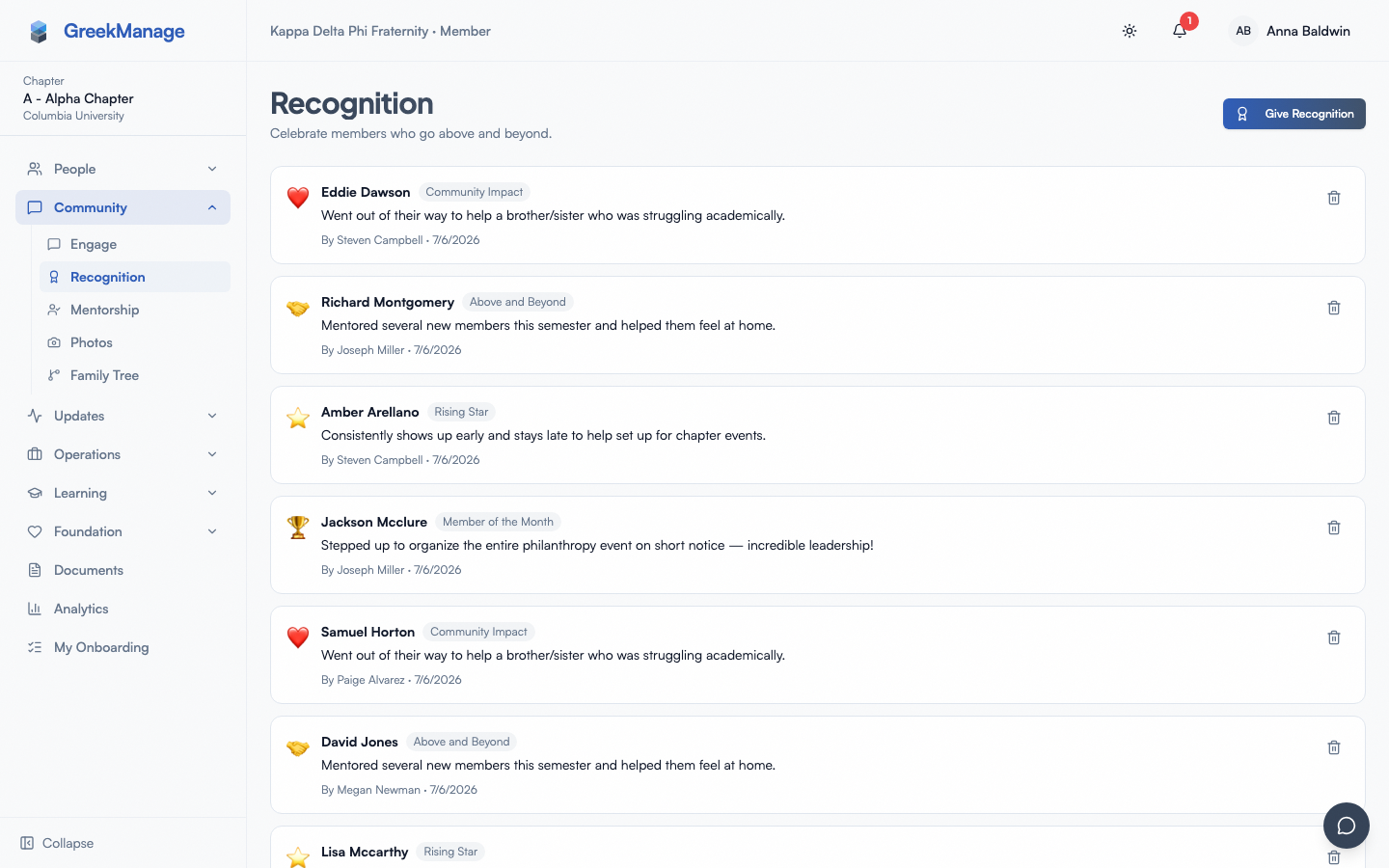 Chapter recognition feed with the Give Recognition button visible to officers only.
Each card in the feed shows the category icon and name, the giver, the recipient, the date, and the message body. If you posted a recognition yourself, you can delete it from the card. National admins can delete any recognition; everyone else can only delete their own.
Step-by-step: give a recognition
- Click Give Recognition in the top-right of the Recognition page (or anywhere else the button appears, such as a member's profile).
- The dialog opens with three fields:
- Recipient — type at least two characters to search active members by name or email. The dropdown shows up to a handful of matches; click the one you mean. You can search across any chapter in your org, not just your own.
- Category — optional. The dropdown lists every active category your national admin has configured. Each category has an emoji icon and a name (e.g., "MVP," "Member of the Week," "Brotherhood"). If your org has not added any categories yet, this dropdown will be empty, and you can still post the recognition without one — it will display under a generic trophy icon.
- Message — required. Free text. Describe what the member did that deserves recognition. There is no character limit enforced by the dialog, but keep it to a sentence or two so it reads well on the feed and on the recipient's profile wall.
- Click Give Recognition to post.
The recipient gets a notification (in-app, and email if their preferences allow). The recognition immediately shows up on the feed and on the recipient's profile wall.
PostRecognitionDialog open with recipient search dropdown showing 2-3 results
What the recipient sees
The recognition appears in two places:
- The chapter recognition feed, with the giver's name and the message. Anyone in the chapter can see it.
- The recipient's profile page, in a sidebar widget called the recognition wall. The wall is the most-recent five recognitions only — there is no "see more" link, and older recognitions are not shown on the profile (they're still in the feed). If you want to see a member's full history, scroll the feed and search for their name, or open the recognition list from the feed.
The recipient also gets a recognition notification in their bell. They can reply or react via the feed if your org has reactions enabled.
Mobile differences
The dialog behaves the same on iOS and Android. The recipient search popover is narrower on phones; results are scrollable. Keyboard handling is unchanged — tap to open the search field, type, tap a result.
What admins see that you don't
National admins can:
- Add, rename, or hide categories. Categories live in Settings; officers don't have access to that area. If you want a new "Service" or "Academic Excellence" category, ask your national admin to add it.
- Delete any recognition, including ones you posted. Officers can only delete their own.
- Post recognitions org-wide the same way you do — they use the same button, just from any chapter context.
Regional admins do not have a special role here — they can give recognitions only if they're also a chapter officer or national admin somewhere. The role context that matters is "can write at the org tier or chapter tier."
Errors and edge cases
- "Please select a recipient." You typed in the search box but never clicked one of the results. Click a result before submitting.
- "Please write a message." Message is required. Whitespace-only messages are stripped and treated as empty.
- "Failed to give recognition." Generic error from the server. Most often this is a permission mismatch — for example, you just lost officer status, or your membership has gone inactive. Refresh the page; if the button is gone, you no longer have permission. If the button is still there and submission keeps failing, contact your national admin.
- Inactive categories. If your admin deactivates a category, it disappears from your dropdown immediately. Recognitions you already posted under that category continue to display with the category name and icon.
- Recipient is in a different chapter. That's fine — you can recognize a brother or sister from any chapter in your org. The recognition is scoped to the org, not the chapter.
- Deleted recipient. If a member's status changes to alumni or inactive, you can still recognize them as long as they have a membership record. If the membership is fully removed, they won't appear in the search.
Troubleshooting
- The Give Recognition button is missing. Make sure your sidebar is showing the chapter context (not the org or region context), and confirm you're still listed as
officerorpresidenton your active membership. If a national admin changed your role to regular member, the button disappears. - My recognition doesn't show up on the feed. Refresh once. The feed is server-rendered and should update immediately; if it doesn't, the post probably failed silently. Check the toast or open the dialog and try again.
- The recognition wall on my recipient's profile looks short. That's intentional — the profile wall is capped at five items. The full history lives on the chapter Recognition feed.
- Categories list is empty. Your national admin hasn't seeded any. You can still post without a category. Ask them to add a few in Settings → Recognition.
- Recognition appears for the wrong chapter. Recognitions are scoped to the org, not the chapter. The chapter affiliation shown is the recipient's home chapter. If the recipient transferred chapters and you want it scoped to a specific chapter, mention it in the message body.
Related
- Approvals queue — for member-add and status changes, a different workflow
- Managing chapter members — open a member's profile to see their recognition wall
- Notifications — how members receive a "you got a recognition" alert
Last verified against v0.62.1 (2026-05-11).