Elections (for officers)
Election authoring — creating elections, adding positions and candidates, opening voting, publishing results, exporting — is gated to national admins in the backend. Chapter officers do not have a "Run election" button.
Eligibility default (v0.63.18): Election.eligible_statuses defaults to Membership.ACTIVE_MEMBER_STATUSES — which is ["undergrad", "associate"] — with officer + alumni statuses added explicitly when the org wants to include them. Migration 0005_alter_election_eligible_statuses shipped this; the help_text on the field matches.
What officers can do
- Vote in elections they're eligible for, the same as any member. See Voting in elections.
- See the chapter list of open and finalized elections at Elections in the sidebar. Drafts are filtered out on the chapter view.
- Encourage turnout in your chapter — e.g., remind the room at the next chapter meeting that voting is open until X. You'll need to do this in person or via your own messaging channels; there is no officer-side "send reminder" button on the election page.
What officers cannot do
The previous version of this page described several officer flows that don't exist in code. To set expectations:
- Cannot create an election.
- Cannot add positions or candidates.
- Cannot open voting, close voting, publish results, or export.
- Cannot see live ballot-cast counts or live stats.
- Cannot preview the ballot before it's published.
Every action above is gated to national admins.
If your chapter needs an officer-transition election, ask your national admin to set it up. The org-admin guide for this is Election authoring.
When an election is open in your chapter
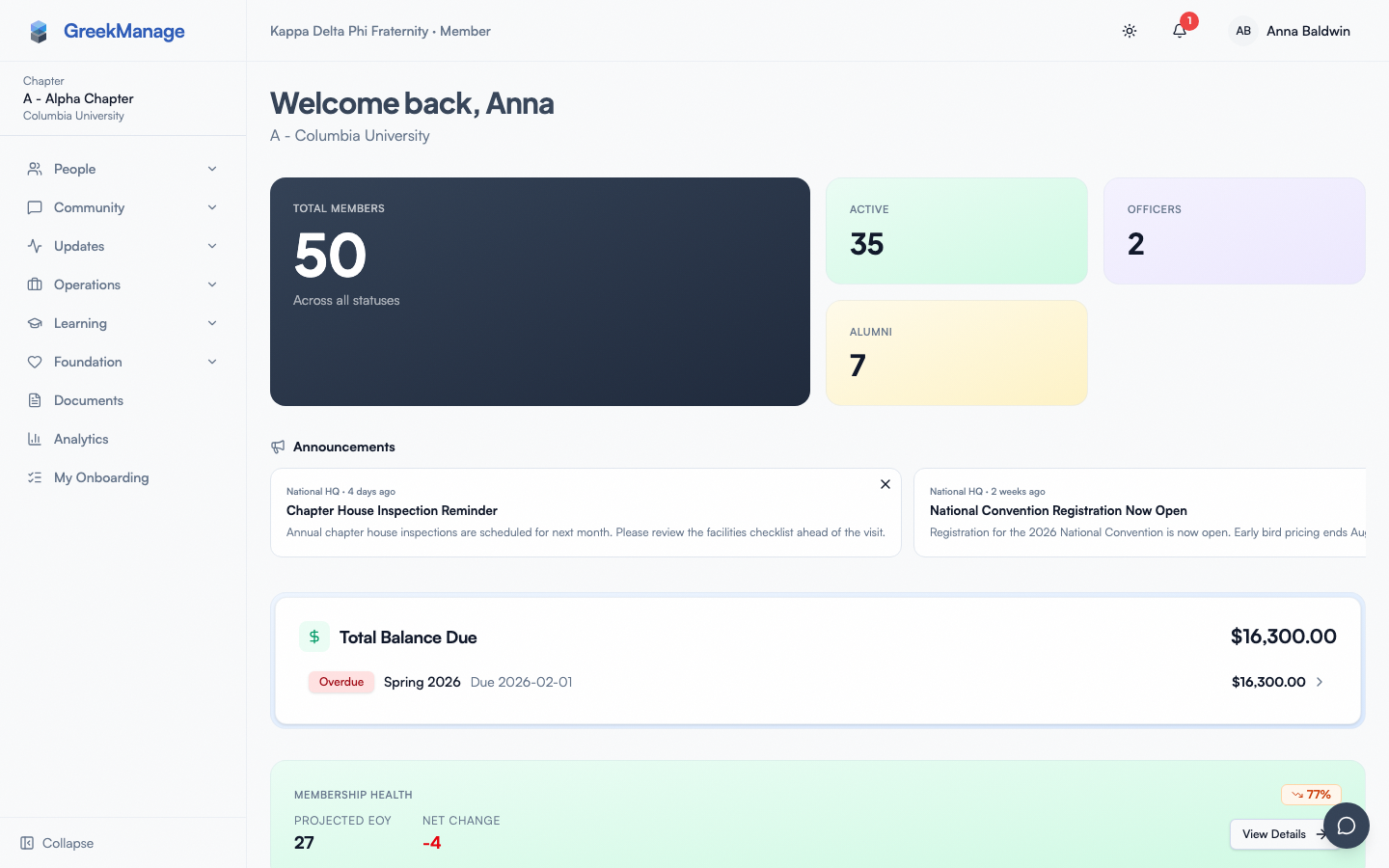 Officer view of an open election with the Vote Now action.
- Open Elections in the sidebar.
- Open elections show a Vote Now button (you'll only see this if you're an eligible voter per the election's eligibility rules — set by the national admin).
- Click into the ballot, vote for each position, submit.
- After voting, you can see whether you voted (under "My votes"), but not what anyone else voted.
After voting closes
Once the national admin finalizes the election, results become visible on the same Elections page. Open the election and click into the finalized view for the per-position breakdown.
Related
Last verified against v0.63.39 (2026-06-26). Eligibility default doc fix shipped v0.63.18.