Service hours approvals
Members log their own community service hours; officers review and approve what they submit. This page is the reviewer side of Service hours — read that page first if you want the submitter's view (the log-hours form, the >8-hour flag, auto-credited hours from event check-ins).
What you see
Two tabs sit at the top of the page: Approval Queue (badged with the current pending count) and Chapter Rollup.
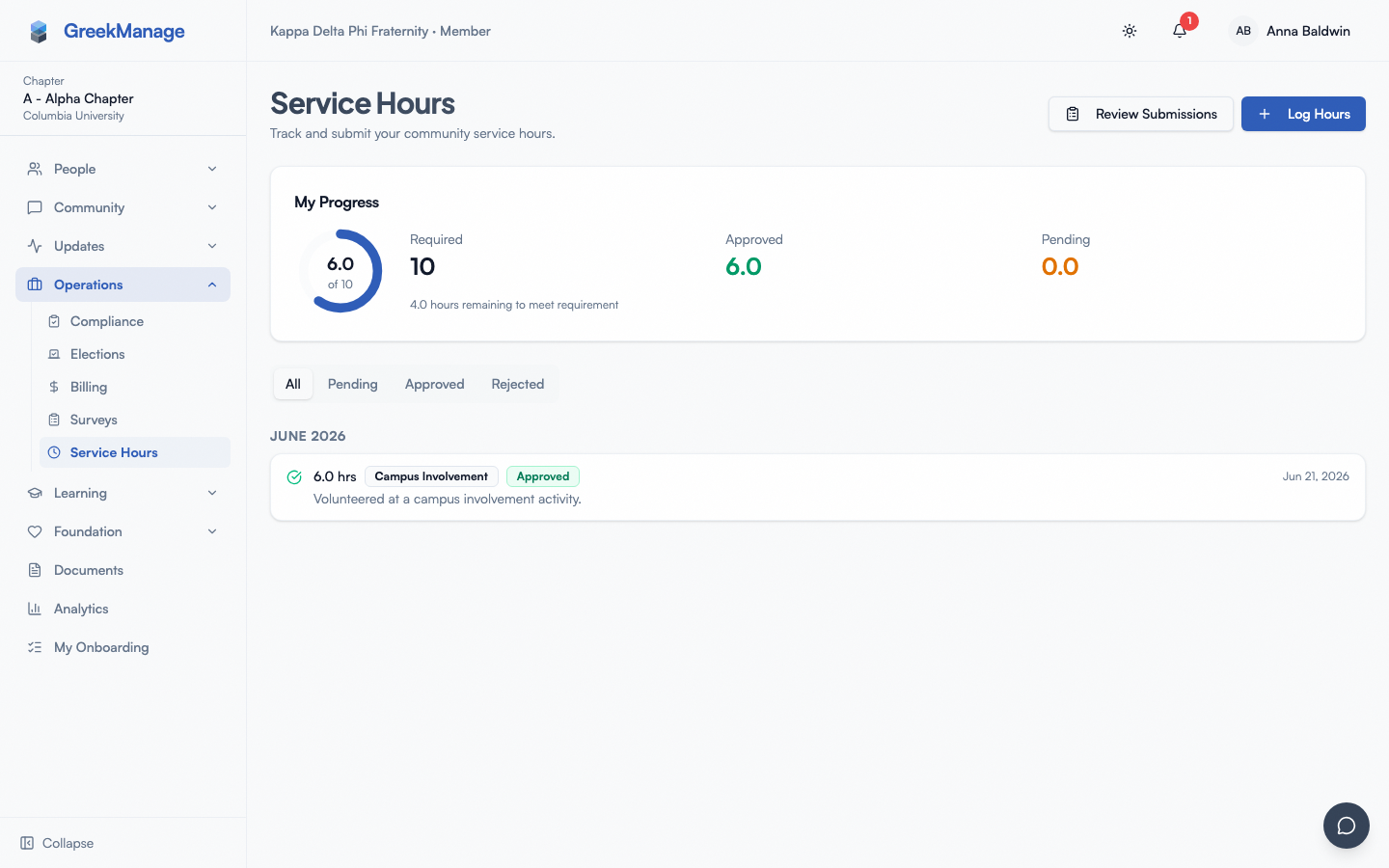 Service Hours officer view with the Approval Queue tab active.
Step-by-step: review a submission
Each entry in the Approval Queue shows the member's name, hours, category (if any), description, external organization (if any), a High Hours badge if it was auto-flagged, and a photo thumbnail if one was attached. Three actions are available on every entry:
- Approve — click Approve. The entry's status flips to
approvedimmediately; no confirmation dialog, no notes required. - Reject — click Reject to open the Reject Entry dialog. Type a Reason for rejection in the textarea and click Reject Entry. A reason is required — see Errors and edge cases.
- Request Info — click Request Info to open the Request More Information dialog. Type an optional message and click Send Request. This notifies the member but does not change the entry's status — see Errors and edge cases for why this distinction matters.
There is no officer-side edit action — you can only approve, reject, or request info on an entry as submitted.
Bulk approval
When there are pending entries, a bulk-actions bar appears above the queue:
- Check individual entries, or check Select all to select every pending entry.
- Once at least one entry is selected, an Approve Selected (N) button appears (N = number selected).
- Click it to open the Bulk Approve N Entries dialog.
- The dialog shows a Skip flagged entries (approve only non-flagged) checkbox, checked by default. If any selected entries are flagged for high hours, a warning banner tells you how many.
- Click Approve to confirm.
The "Skip flagged entries" option exists because of the >8-hour auto-flag described on the member page: flagging isn't a rejection, it's a signal that a single-day entry is unusually large and deserves a human look. Leaving the checkbox on lets you clear the queue in bulk while still routing flagged entries back for individual review instead of rubber-stamping them. There is no bulk-reject action.
The Chapter Rollup tab
Switch to Chapter Rollup to see chapter-wide progress instead of the pending queue:
- Four summary cards: Total Members, On Track, Behind, Exceeding.
- A Chapter Progress bar showing the percentage of members on track.
- A per-member progress list (approved hours vs. required hours, with a mini progress bar per row), showing the first 10 members. If the chapter has more than 10 members with entries, a Show all N members button expands the full list (it collapses back to Show less).
Exporting reports
Next to the tabs, a year selector (All years, current year, or either of the prior two years) and an Export button let you download a chapter report.
Clicking Export downloads service-hours-{chapterId}-{year|all}.xlsx, an Excel workbook with two sheets:
- Summary — Chapter ID, Export Year, Total Entries, Total Approved Hours.
- Entries — one row per entry (for the selected year, or all years), with these 12 columns: Date, Member, Hours, Category, Description, Status, Approver, Approval Notes, External Org, Event, Photo URL, Flagged.
Entries are ordered by date of service. The Photo URL column links to the uploaded evidence photo where one exists; Flagged is Yes/No for the >8-hour auto-flag.
Errors and edge cases
- Rejecting without a reason. Clicking Reject Entry with an empty textarea is blocked client-side ("Please provide a reason for rejection.") and, if bypassed, server-side too ("Rejection notes are required.", HTTP 400). You cannot reject an entry with no notes.
- "Request Info" does not change status. This is easy to assume incorrectly, so it's worth stating plainly: sending a request for more information notifies the member and leaves the entry
pending— it is not a third status and does not remove the entry from your Approval Queue. The entry still needs an eventual Approve or Reject. - Approving requires no notes. Unlike Reject, Approve has no confirmation dialog or notes field — it applies immediately.
- Bulk approve only touches pending entries. Selecting an entry that's already been approved or rejected elsewhere (e.g., another officer acted first) has no effect on it during a bulk approve; only entries still in
pendingstatus get updated. - Empty queue. When there's nothing to review, the Approval Queue shows "Queue is empty — All service hour submissions have been reviewed."
Related
- Service hours (members) — what members see when they log hours and track progress
- Service hours settings (org admins) — how your org configures the requirement and categories
- Module: Operations
Last verified against v0.65.23 (2026-07-05). Service Hours shipped v0.63.42 (backlog #29).