Service hours approvals
Members log their own community service hours; officers review and approve what they submit. This page is the reviewer side of Service hours — read that page first if you want the submitter’s view (the log-hours form, the >8-hour flag, auto-credited hours from event check-ins).
Nothing on this page changes by default. Approving an entry here satisfies the chapter tier of that entry’s approval chain — chapter-only is every organization’s starting point on this surface. If your organization has also configured the National tier (Settings → Approval Chains → Service hours; Regional is not yet available on this surface), an entry you approve here still needs national review before it counts as fully approved; it will simply no longer appear in your own queue once your tier is satisfied. A national admin also gets an org-wide queue for entries that have reached that tier — see Service hours settings → The national approval queue.
What you see
Two tabs sit at the top of the page: Approval Queue (badged with the current pending count) and Chapter Rollup.
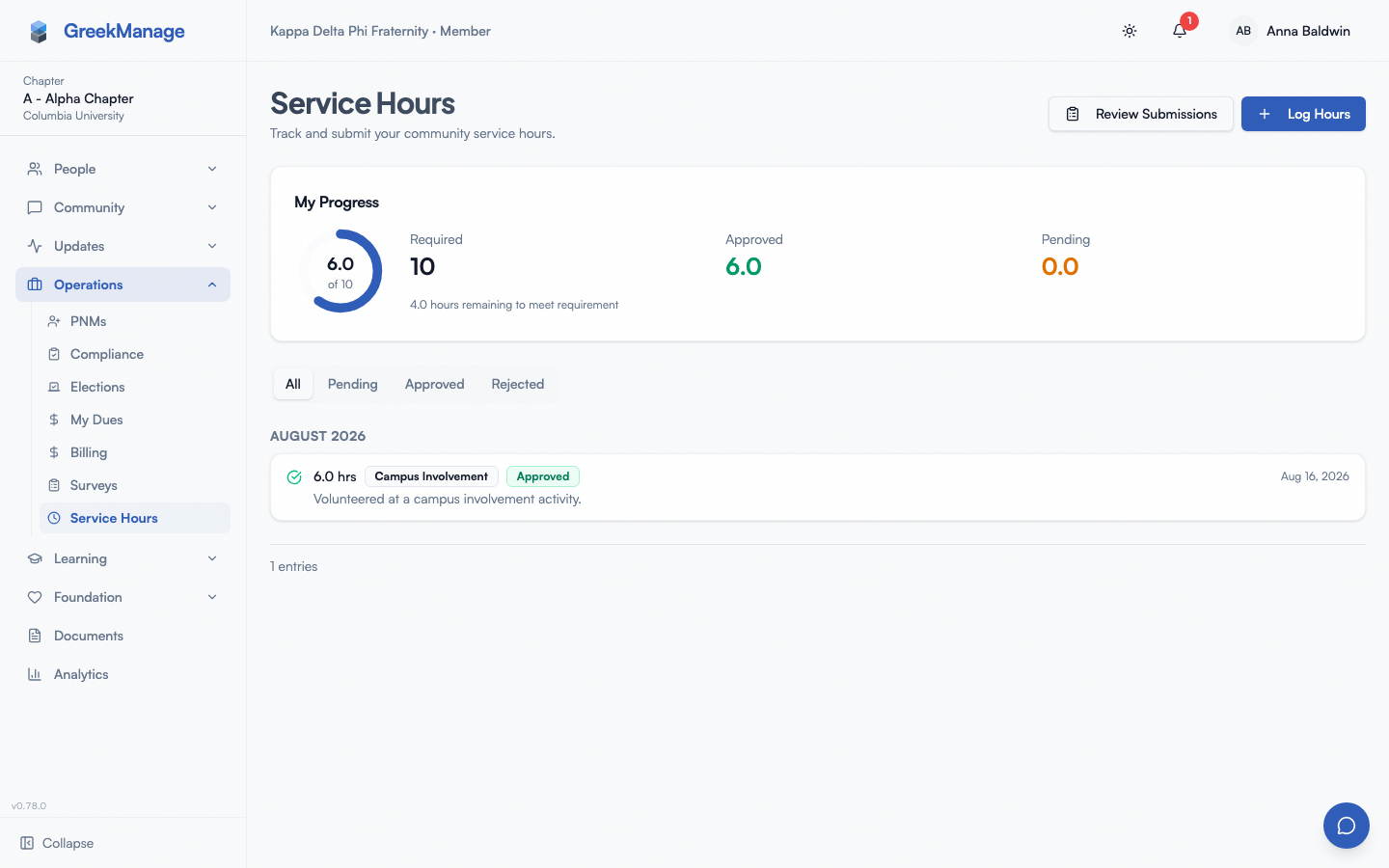 Service Hours officer view with the Approval Queue tab active.
Step-by-step: review a submission
Each entry in the Approval Queue shows the member’s name, hours, category (if any), description, external organization (if any), a High Hours badge if it was auto-flagged, and a photo thumbnail if one was attached. Three actions are available on every entry:
- Approve — click Approve. The entry’s status flips to
approvedimmediately; no confirmation dialog, no notes required. - Reject — click Reject to open the Reject Entry dialog. Type a Reason for rejection in the textarea and click Reject Entry. A reason is required — see Errors and edge cases.
- Request Info — click Request Info to open the Request More Information dialog. Type an optional message and click Send Request. This notifies the member but does not change the entry’s status — see Errors and edge cases for why this distinction matters.
There is no officer-side edit action — you can only approve, reject, or request info on an entry as submitted.
Your own hours need another officer. If you logged an entry yourself, its Approve button is disabled and reads “Another officer must approve your hours”. Approving is what makes hours count toward the chapter’s goal, so the person who logged them can never sign them off — on this page, in bulk, or anywhere else; the server refuses it too. You can still Reject your own entry, for example to withdraw hours you logged by mistake. If you select your own entry in a bulk approve, it is skipped and listed in the result with that reason.
Bulk approval
When there are pending entries, a bulk-actions bar appears above the queue:
- Check individual entries, or check Select all to select every pending entry.
- Once at least one entry is selected, an Approve Selected (N) button appears (N = number selected).
- Click it to open the Bulk Approve N Entries dialog.
- The dialog shows a Skip flagged entries (approve only non-flagged) checkbox, checked by default. If any selected entries are flagged for high hours, a warning banner tells you how many.
- Click Approve to confirm.
The “Skip flagged entries” option exists because of the >8-hour auto-flag described on the member page: flagging isn’t a rejection, it’s a signal that a single-day entry is unusually large and deserves a human look. Leaving the checkbox on lets you clear the queue in bulk while still routing flagged entries back for individual review instead of rubber-stamping them. There is no bulk-reject action.
The Chapter Rollup tab
Switch to Chapter Rollup to see chapter-wide progress instead of the pending queue:
- Four summary cards: Total Members, On Track, Behind, Exceeding.
- A Chapter Progress bar showing the percentage of members on track.
- A per-member progress list (approved hours vs. required hours, with a mini progress bar per row), showing the first 10 members. If the chapter has more than 10 members with entries, a Show all N members button expands the full list (it collapses back to Show less).
When your approvals count toward compliance
Your organization can track service hours as a compliance requirement. When it does, the requirement on your chapter’s Compliance page shows Calculated from service hours: the percentage of your members who have met this term’s goal, from approved hours only. Each entry you approve, reject or delete moves that number within moments, so a pending queue is compliance your chapter hasn’t been credited for yet. You can’t type a value in or submit evidence for that requirement; approving hours here is how it moves. Members whose goal is 0 aren’t counted.
National and regional admins see the same member-by-member list as your Chapter Rollup in their compliance drill-down.
Exporting reports
Next to the tabs, a year selector (All years, current year, or either of the prior two years) and an Export button let you download a chapter report.
Clicking Export downloads service-hours-{chapterId}-{year|all}.xlsx, an Excel workbook with two sheets:
- Summary — Chapter ID, Export Year, Total Entries, Total Approved Hours.
- Entries — one row per entry (for the selected year, or all years), with these 12 columns: Date, Member, Hours, Category, Description, Status, Approver, Approval Notes, External Org, Event, Photo URL, Flagged.
Entries are ordered by date of service. The Photo URL column links to the uploaded evidence photo where one exists; Flagged is Yes/No for the >8-hour auto-flag.
Errors and edge cases
- Rejecting without a reason. Clicking Reject Entry with an empty textarea is blocked client-side (“Please provide a reason for rejection.”) and, if bypassed, server-side too (“Rejection notes are required.”, HTTP 400). You cannot reject an entry with no notes.
- “Request Info” does not change status. This is easy to assume incorrectly, so it’s worth stating plainly: sending a request for more information notifies the member and leaves the entry
pending— it is not a third status and does not remove the entry from your Approval Queue. The entry still needs an eventual Approve or Reject. - Approving requires no notes. Unlike Reject, Approve has no confirmation dialog or notes field — it applies immediately.
- Bulk approve only touches pending entries. Selecting an entry that’s already been approved or rejected elsewhere (e.g., another officer acted first) has no effect on it during a bulk approve; only entries still in
pendingstatus get updated. - Empty queue. When there’s nothing to review, the Approval Queue shows “Queue is empty — All service hour submissions have been reviewed.”
Related
- Service hours (members) — what members see when they log hours and track progress
- Service hours settings (org admins) — how your org configures the requirement and categories
- Approval chains — whether your org has added a Regional or National tier on top of chapter review
- Module: Operations
Last verified against v0.65.23 (2026-07-05). Service Hours shipped v0.63.42.