AI Services — provider configuration
GreekManage's AI Services module lets each organization use the platform's default AI provider out of the box, or override that default with the organization's own provider, API key, and model. This page walks through every control on the AI configuration screen, the "bring your own model" (BYOM) story, and how GreekManage decides which provider actually answers a member's question.
For the higher-level overview of what AI Services is, see AI Services module.
Where AI configuration lives
Org → Settings → AI Assistant.
The page is built around three cards: AI Assistant Configuration (provider source, model, tuning, enable toggle), AI Content Sources (which kinds of data the assistant can reference — covered on the content scope page), and Embedding Index (re-indexing controls — covered on the tenant re-indexing page).
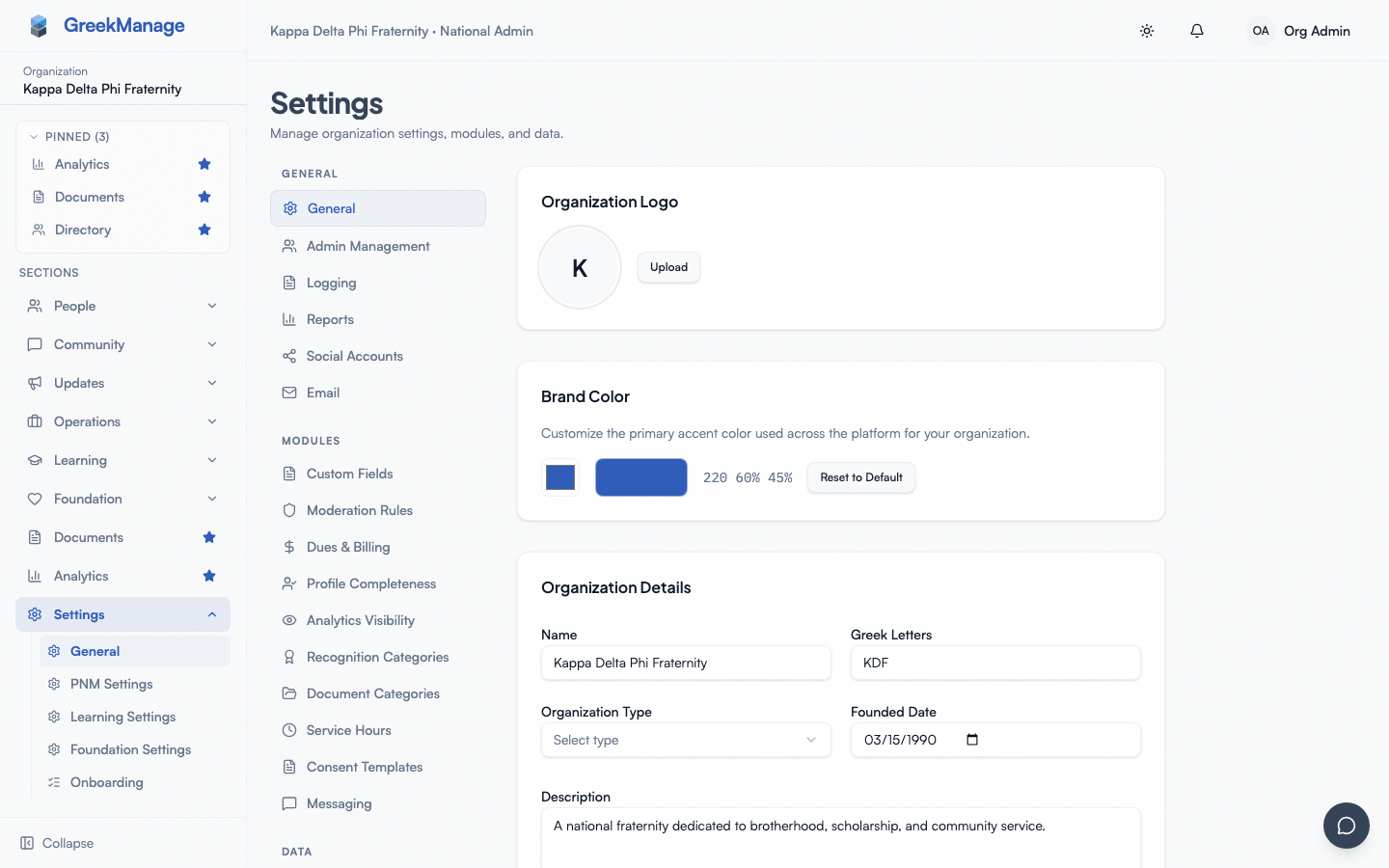 the AI Assistant Configuration card
Two ways to power the chatbot
The first decision is whether to use the platform default or to configure your own. The page presents this as two big buttons at the top of the configuration card; pick one.
Use Platform Default
This is the default for every new organization. With this selected:
- The chatbot uses the provider, model, and API key your platform administrator has configured for the whole GreekManage instance.
- You don't enter an API key, you don't pick a model, and you don't tune anything yourself.
- The provider and model are shown in a read-only summary so you know what your members will be talking to (for example, "OpenAI, gpt-4o-mini").
- Billing and rate-limit responsibility sits with the platform.
If your platform administrator has not yet configured a default, this option will show "No platform default configured." In that case you must either ask them to set one up or switch to Custom Configuration.
Custom Configuration
Pick this when you want to use your organization's own provider account. Reasons to do this:
- Your organization has its own AI vendor relationship and wants to consolidate spend there.
- You need a specific model (for example, a higher-tier Claude Opus or GPT-4 variant) that isn't the platform default.
- You want to tune the temperature or token budget for your members' use case. (On the platform default the temperature is the platform's to set; your own key gives it back to you.)
- Privacy or contractual constraints require your API calls to be billed to your account, not the platform's.
This is the "BYOM" (bring your own model) path. You supply the credentials, you pick the model, you tune the parameters, and you pay your provider directly.
Picking a provider
If you choose Custom Configuration, the AI Provider dropdown lists the providers GreekManage supports today:
- Anthropic (Claude) — Claude family models (Sonnet, Opus, Haiku).
- OpenAI (GPT) — GPT-4 family and lighter models like GPT-4o-mini.
- Google (Gemini) — Gemini family models.
Each provider returns its own curated list of usable model IDs as soon as you pick the provider — this list is synced automatically from the provider's own model catalog (daily, plus a Refresh models button next to the dropdown for an on-demand update), so it stays current without waiting on a GreekManage release. You select one from the Model dropdown. If a model you were using falls out of the current list (the vendor renamed or retired it), you'll see a banner calling it out, and a "Use a custom model ID" link lets you type the exact ID directly if the dropdown doesn't have what you need. A vendor sometimes keeps listing a model it has stopped serving, which no sync can detect; the first call that comes back "no longer available" removes it from the dropdown for good, so a dead model costs at most one failed Test.
A note on Anthropic: Anthropic does not offer an embeddings API. The chatbot still works fully on Anthropic — chat, intent detection, response streaming — but semantic search is unavailable with this provider. The chatbot falls back to keyword and fuzzy matching against your org's data. If semantic search matters to you (for example, "find members who have leadership experience in nonprofit work"), choose OpenAI or Google instead. See the tenant re-indexing page for the dimensions and trade-offs.
API key
For Custom Configuration only.
- Paste the API key from your provider's dashboard into the API Key field.
- The key is encrypted at rest in GreekManage's database — it's never stored in plaintext.
- You can show / hide the key with the eye icon while you're typing it.
- If a key was previously saved, the field shows a masked placeholder and you can leave it empty to keep the existing key, or paste a new key to replace it.
The platform-default path never asks you for a key — the platform admin has supplied one centrally.
Test the key
The Test button next to the API Key field sends a tiny validation request to your provider. GreekManage handles three categories of result:
- Verified. The key is valid and the chosen model is reachable. The card displays a green "Verified" badge.
- Invalid key. The provider rejected the key. A red message tells you to re-check it.
- Model not found. The key is valid but the model name isn't reachable from this account (sometimes you need to enable beta access on your provider account first). If the model came from the dropdown, this means the vendor has withdrawn it while still listing it in the catalog we sync from — GreekManage takes it out of the dropdown for every org the moment the first call proves it, so you will not be offered it again. Pick another model and Test once more.
Behind the scenes, GreekManage stores two flags on your config:
- Verified — set when a Test call succeeds. Reset to "not verified" if a later Test call returns an auth or model-not-found failure.
- Active — controlled by the "Enable AI Assistant" toggle further down the page.
Both flags must be true for the chatbot to actually use your custom config. If verified is false, GreekManage falls back to the platform default. If active is false, the chatbot widget is hidden from members entirely.
Model tuning
Two number fields on the Custom Configuration card:
- Max Tokens — the maximum length of any individual chatbot response, in tokens. Default 2048. Higher numbers allow longer answers but cost more per call. Bound: 100–8192.
- Temperature — the model's creativity parameter, from 0 to 1. Default 0.3 — fairly factual. Raise it (toward 0.7) for a chattier feel; lower it (toward 0) for the most consistent factual answers.
On the platform default, the platform sets the temperature. While your organization is using the platform's AI provider rather than your own key, the platform picks the model, so it also picks that model's temperature — your Temperature field is disabled and shows why. Supply your own provider and key and the field becomes yours again, along with the rest of the configuration. The same is true of Max Tokens: on the platform default the platform owns the token budget for its model, and your Max Tokens field is disabled with a note saying so.
Some models — several reasoning-oriented ones among them — always use their own default temperature and reject any other value. For those the Temperature field is disabled, with a note saying so, and no temperature is sent. Which models behave this way is not something the vendor catalogs publish, so it is discovered the first time the model is verified or used and remembered from then on; a model nobody has used yet may briefly offer the field before that first call settles it. Max Tokens is unaffected by this per-model behavior (every model takes a budget) — it is disabled only while on the platform default.
These two fields only apply to Custom Configuration. The platform-default path uses whatever values the platform admin set.
The Enable toggle
The Enable AI Assistant switch is the single on/off control for the chatbot across your org. With it on, members can start a GreekManageAI chat from the unified messaging/AI panel (the floating icon in the bottom-right of every page). With it off, that option disappears from the panel — useful while you're still configuring or if you want to pull the feature for a period without losing your config.
The enable toggle works the same whether you're on the platform default or a custom config.
How provider selection actually resolves at runtime
When a member asks the chatbot a question, GreekManage decides which provider to use in a deterministic priority order:
-
If your org's config says "use platform default," GreekManage uses the platform default — full stop. Your org config is not consulted for provider or model. This is the most common case.
-
If your org has Custom Configuration and the config is both Active and Verified and has an API key, GreekManage uses your provider, model, and key.
-
If your custom config is missing or unverified, GreekManage falls back to the platform default. This means a half-configured custom setup degrades gracefully — your members still get a working assistant, it just runs on the platform's account, not yours.
-
If neither is available, the chatbot returns an error and your members will see a "No AI provider configured" message.
The "platform default takes priority when use-platform-default is true" rule is important — it means simply pasting a custom API key isn't enough to switch over. You must also turn off the Use Platform Default toggle, save the config, and run a successful Test to flip Verified to true.
Save
The Save Configuration button at the bottom of the card commits your changes. Until you save, switching providers and pasting keys is local to the screen.
After saving, the page returns to its loaded state — the API key field clears and shows the saved placeholder again, the verified badge reflects the latest Test outcome, and the chatbot widget will use the new config on the next request.
BYOM in practice
A typical BYOM rollout for an organization that wants to use its own Anthropic account:
- Sign in to Anthropic, generate an API key, and note any rate limits attached to it.
- In Org → Settings → AI Assistant, switch to Custom Configuration.
- Pick Anthropic (Claude) as the provider and select a model from the dropdown (kept current automatically — see above); the mid-tier "Sonnet" option is the common balance of cost and quality.
- Paste the API key.
- Click Test. Wait for the green Verified badge.
- Set Max Tokens and Temperature if you want non-default behavior. The defaults work for most cases.
- Turn on Enable AI Assistant.
- Save Configuration.
- Open the chatbot widget and ask a real question. If the response streams back normally, you're set.
- If you've come from a different provider, run a re-index — see the tenant re-indexing page.
Related
Last verified against v0.62.1 (2026-05-10). Chatbot entry point moved from a dedicated AI-only floating panel into the unified messaging+AI panel (same bottom-right icon), v0.65.23 (2026-07-05). Model dropdown switched from a hardcoded list to a daily-synced live catalog, with a manual "Refresh models" button, deprecated-model banner, and custom model ID input, v0.65.47 (2026-07-18).