Photo albums (admin view)
Chapter members and officers create photo albums to share moments — initiation week, philanthropy events, formals, retreats. As a national admin you don't typically create albums yourself, but you can review every album in the organization, change visibility, and remove photos or whole albums when needed. This page covers the admin surface and what is not yet wired up.
What an album is
Each album carries:
- A title and an optional description.
- A year the album belongs to. Defaults to the year the album was created and can be edited later.
- A visibility — Chapter Only or Org Wide.
- A cover photo, optional, picked from the photos already in the album.
- An active flag. Albums can be deactivated, which hides them from the chapter view without deleting the underlying photos.
Photos inside an album each carry a caption, an original file (jpeg / png / gif / webp, max 20 MB), a thumbnail, and a featured flag for surfacing on the chapter dashboard.
Two visibility tiers
There are only two visibility levels in v0.62.1:
- Chapter Only — visible to members of the owning chapter and to officers/admins above them in the hierarchy. Other chapters cannot see the album.
- Org Wide — visible to every member of the organization. The album appears on every chapter's photo page and on the org's photo page.
There is no regional tier. An album cannot be made visible to "every chapter in this region but not other regions." If you need that, the workflow is to either keep the album Chapter Only and let officers in the same region share it informally, or flip to Org Wide.
Open the org photos page
Org → Photos.
The page is intended to show the org-wide album surface — every album any chapter has marked Org Wide. In v0.62.1 it renders only the empty state ("No Org-Wide Albums" with a one-line explanation) regardless of whether any albums actually exist at org-wide visibility — the album list isn't currently wired into the page. This is a known frontend gap.
In the meantime, the bulk of album management — creating albums, uploading photos, picking a cover, flipping visibility to Org Wide — happens on the chapter view. To browse what's been shared org-wide, drill into each chapter's Photos page (see the next section).
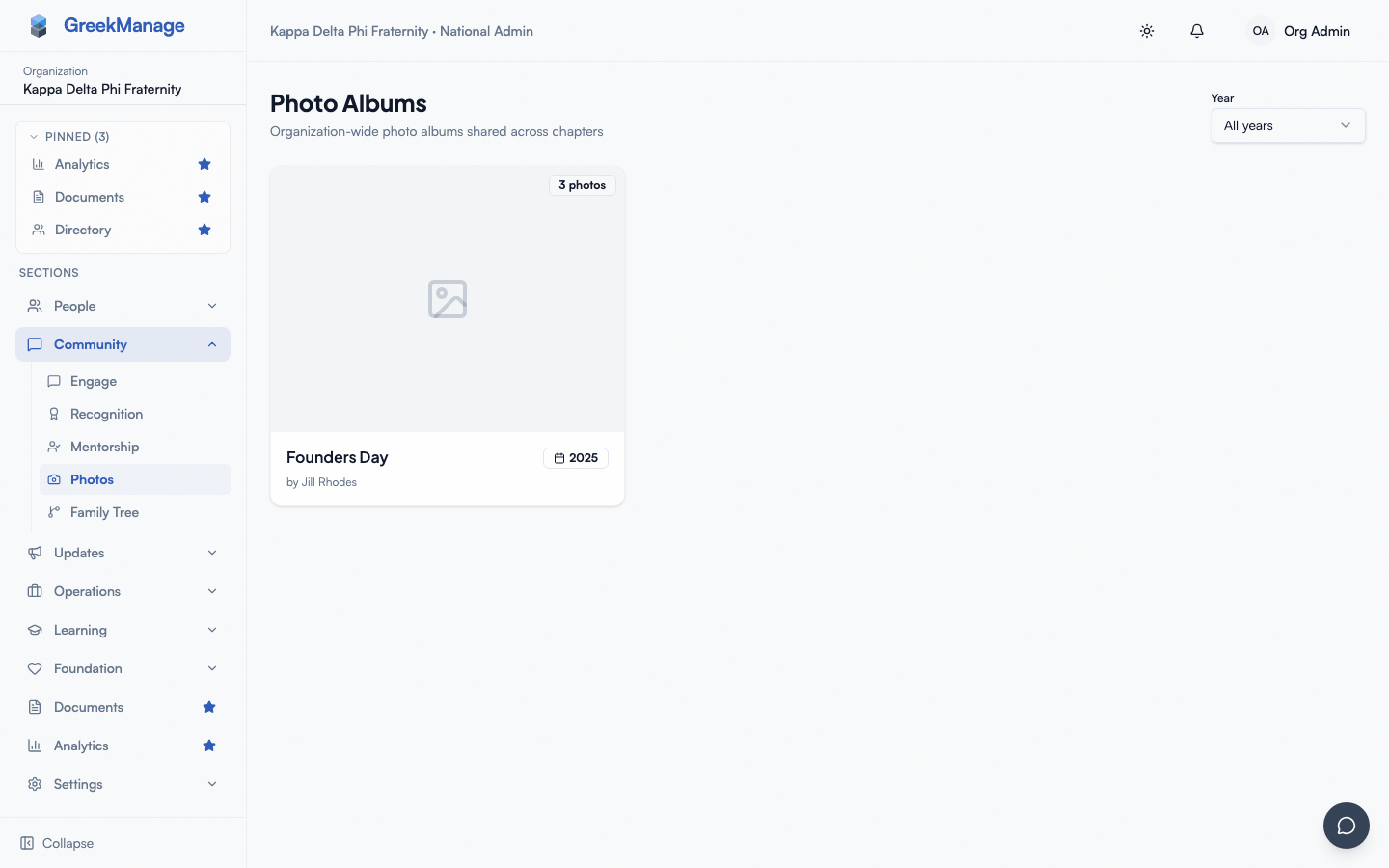 org photos page in the empty state, before any chapter has shared an album org-wide
Browse and review chapter albums
To see every album in a chapter (including Chapter Only ones), go to Chapter → Photos while signed in as a national admin. You'll see all of the chapter's albums regardless of visibility, ordered newest-first within each year.
Use this view to:
- Audit album titles and descriptions for content that violates org policy.
- Spot-check photos that have been flagged through other channels.
- Verify visibility — make sure an album that officers intended to keep internal isn't accidentally set to Org Wide (or vice versa).
Change an album's visibility
Open the album, click the edit (pencil) action, and change the Visibility dropdown between Chapter Only and Org Wide. Save. The change takes effect immediately — Org Wide albums appear on every chapter's photo list on the next page load.
There is no review workflow on visibility flips. Any chapter officer can flip an album from Chapter Only to Org Wide without admin approval. If you've configured policy that requires admin approval for org-wide sharing, that's a manual process for now — you can deactivate the album or flip the visibility back yourself.
Remove a photo or an album
From the album detail view:
- Remove a single photo. Hover or tap the photo, click the remove (trash) action. The photo is soft-deleted (it stays in the database with
is_removed = true) and stops appearing in the gallery. - Delete an entire album. From the album edit view, delete the album. The album row vanishes from the chapter and org views. Underlying photo files are removed too.
- Deactivate without deleting. Edit the album and clear the active flag. The album drops out of the gallery but remains in the database — useful when you want to take an album down for review without committing to a permanent delete.
Photo tagging
The data model includes a PhotoTag join between photos and memberships, plus a backend endpoint to create and remove tags. The backend can record who is in which photo, who tagged them, and whether the tag is active.
In v0.62.1 there is no user-accessible tagging UI. The component that would surface the "tag a member in this photo" flow exists in the codebase but is not wired into any page. Members do not see a "Tag" button, officers do not have a roster picker on the photo view, and admins do not see a tag-management surface.
If you have heard tagging mentioned, what's actually in the product today is:
- The backend capability is in place — tags can be created via API.
- The frontend dialog component exists but is not rendered anywhere.
- Plan to ignore tagging end-to-end until a future release wires it up.
If you actively need to track who is in which photo right now, the practical workaround is captions: ask the uploader to list names in the caption text. Captions are searchable in the gallery view.
How members see albums
Members see Chapter → Photos by default — every album their chapter has authored, regardless of visibility, since they are members of the owning chapter. They also see Org → Photos which surfaces every Org Wide album from every chapter.
Inside an album, they see the photo grid, captions, and the cover image. They can download a single photo (right-click / long-press) or download the entire album as a zip via the "Download album" action on the album detail page.
Members cannot edit captions or change visibility — only the uploader, an officer of the album's chapter, or an admin can do that.
Mobile differences
On phones, the album grid is one wide column instead of three. Tapping an album opens the detail view; tapping a photo opens a full-screen viewer with swipe navigation. Uploads run through the phone's native image picker — multi-select works, and uploads happen in the background while you continue using the app.
The album download button works on phones but the resulting zip may be large; consider downloading on desktop instead for bigger albums.
What chapter officers see that you don't
Chapter officers see every album in their own chapter regardless of visibility and can create, edit, deactivate, and delete albums in their chapter. They can flip Chapter Only to Org Wide. They cannot:
- See another chapter's Chapter Only albums.
- Manage albums for any chapter other than their own.
- Override a national admin's deactivation of an album.
Members can see albums but cannot create albums or change visibility, and they can only delete photos they uploaded themselves.
Errors and edge cases
- A photo upload fails with "File too large." The per-photo cap is 20 MB. Resize and retry.
- An unsupported file type is rejected. Only jpeg, png, gif, and webp are accepted. Heic from iPhones is rejected at upload; the iOS photo picker converts to jpeg automatically when available.
- A "removed" photo still appears in someone's open browser tab. Removal is soft-delete; the page does not auto-refresh. The photo will be gone on the next page load.
- Flipping an album to Org Wide makes it visible immediately, even mid-event. There is no delay or review step. Tell officers to double-check the album contents before sharing org-wide.
- An album with no cover photo shows a placeholder icon. Edit the album and pick a photo from the album as the cover.
Troubleshooting
- "A chapter says they shared an album org-wide but it's not on our org photos page." Open the album and verify the visibility is set to Org Wide and the album is active. If visibility is Chapter Only, ask the officer to flip it.
- "We deleted a photo by mistake." Removal is soft-delete (the row is preserved with
is_removed = true) and can be reversed via a platform admin or a database-level operation. From the product UI, undelete is not possible. - "I can't see a chapter's albums and I'm a regional admin." Confirm the chapter is in the region you administer. Regional admins see chapters in their own region only.
- "Tagging members doesn't seem to work." Tagging is not user-facing in v0.62.1. Use captions instead.
What's deliberately not built
- No region-scope visibility (only Chapter Only and Org Wide).
- No user-facing photo tagging UI. The data model and backend exist; the dialog component is not wired into the gallery.
- No face detection or auto-tagging.
- No bulk visibility flip ("set all 2025 albums to Org Wide").
- No download history or per-photo view counts.
- No moderation queue for new uploads.
Related
Last verified against v0.62.1 (2026-05-11).