Approvals queue
The Approvals page is your one stop for every pending decision that needs an admin's attention. Status changes, new-member adds, big/little proposals, forum requests, flagged content, compliance submissions, account requests, and PNM name approvals all land in dedicated tabs. As an org admin you see everything in your organization. Regional admins see the chapters in their region. Chapter officers see only what's actionable at the chapter tier — they get a leaner version of this same page (officer view).
Open the queue
In your sidebar: Approvals. The header shows a running total of pending items across all tabs ("12 pending."). Each tab gets a small badge with its own count so you can triage the busiest queue first.
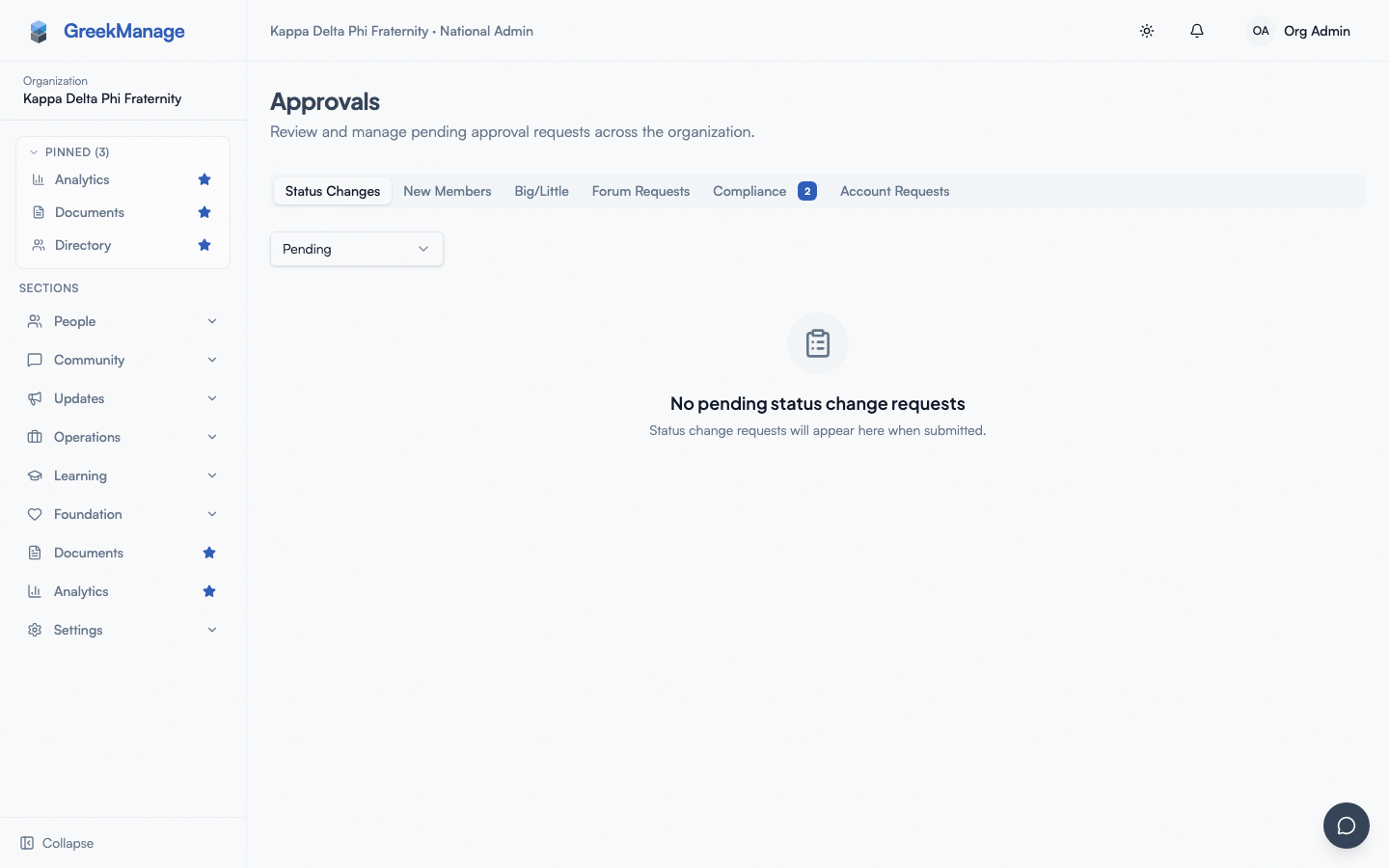 Approvals page with tabs and pending badges
What every tab does
Status Changes
Members request transitions between membership statuses — Undergraduate → Alumni, Active → Inactive, etc. The chapter officer or the member themselves files the request; only national admins can approve or reject it. Regional admins and chapter officers can read these requests but not act on them.
What the requester sees: "Submitted, pending review." On approval, their membership status flips automatically and any Learning auto-assignment rules tied to the new status fire (e.g., switching to Alumni assigns the alumni onboarding course). On rejection, the requester sees the rejection notes you wrote (notes are required on reject).
Notifications: the requester is notified on both approve and reject. The change is logged to the org audit log under the member-status resource type.
New Members
A chapter officer files a new-member-add request to register someone not yet in GreekManage. The request goes through two tiers:
- Pending Regional — the regional admin (or org admin) reviews first.
- Pending Org — if the regional admin approved, the request escalates to the national admin tier.
Reject at either tier and the chain stops. Approve at the org tier and GreekManage creates the User and Membership records atomically. An org admin reviewing at the regional tier auto-approves through to the org tier in the same click — you don't have to approve twice.
Notifications: the submitting officer is notified on approve and reject; the org admin tier is notified when a request reaches it. Notes required on reject.
Big/Little
Big/Little proposals come from members or officers who want to record a Big-Little relationship in the family tree. The tier that reviews a request depends on who filed it:
| Requester role | Initial status | Who reviews |
|---|---|---|
| Member | Pending Chapter | Chapter officers (or any higher tier) |
| Chapter officer (self-request) | Pending Regional | Regional admin (or org admin) |
| Regional admin (self-request) | Pending Org | Org admin only |
| National admin (self-request) | Auto-approved | — |
| Officer/admin filing for someone else | Auto-approved | — |
This is the only tab where chapter officers can act in the org-admin view (as well as the officer view). Officers can approve or reject at the chapter tier — anything that's already escalated to regional or org is read-only for them. See Family tree for the member-side view, and Officers — Approvals queue for the chapter-tier flow.
GreekManage runs a cycle-detection check before any approval — if the proposed Big is already a descendant of the requester, the approval is blocked to keep the family tree acyclic.
Notifications: the requester is notified on approve and reject. Approved proposals immediately update the family tree visualization for everyone in the chapter.
Forum Requests
When a chapter officer or member proposes a new Engage forum, the forum is created in pending status and only the creator can see it until it's approved. Only org admins can approve or reject pending forums — regional admins and chapter officers cannot.
The same tab surfaces flagged content — posts or comments that hit an auto-moderation regex rule or that a member reported. As an org admin you can:
- Approve the content (clears the flag, content stays visible)
- Remove the content — sets the flag status to
removedand notifies the author. Important: in v0.62.1, this only changes the flag's status; the post is not auto-hidden from the forum. To actually take the content down you need a separate deletion action on the post itself.
There is no separate "approve post deletion" workflow — flag review is its own thing, and direct post and comment deletions by their author or by an admin happen inline and don't appear here. See the flagged content queue page for the full queue mechanics.
Notifications: the forum creator is notified when their forum is approved or rejected. The flagged post's author is notified if you remove the content.
Compliance
Compliance submissions from members and officers across the org. Each submission shows the requirement it's against, the chapter it came from, attached evidence, and the submitter. Approve or reject inline. Rejection notes are required and shown to the submitter so they know what to fix.
Compliance has its own multi-tier approval workflow that's deeper than what you see here — see Compliance multi-tier approval for templates that route through chapter → regional → org. This tab shows the slice that needs your action.
Notifications: the submitter is notified on both approve and reject. Approved submissions count toward the chapter's compliance score; rejected ones don't.
Account Requests
If you've turned on account requests under Org → Settings, prospective members and rejoining alumni can submit a request from the public sign-in page. Each request includes a justification, optional supporting document, and (optionally) a self-nominated chapter. As an org admin you review and either:
- Approve — pick the chapter, membership status, joined date, pledge class, and graduation year, and click Approve. GreekManage creates the User account and Membership atomically, emails the new member, and links the request to the records it created so the audit trail is clean.
- Reject — write a rejection reason. The reason is emailed to the requester.
A filter at the top of the tab lets you switch between Pending / All / Approved / Rejected / Expired. Org admins can approve and reject; chapter officers can see and act on requests scoped to their own chapter only (they see this same tab inside their officer view).
Notifications: the requester is emailed on both approve and reject. Approval emails include a sign-in link.
PNM name approvals (PNM module)
If you run PNM intake, prospective new members enter a fraternal name during onboarding. Approved names get reserved against the chapter's name registry; rejected names get cleared so the PNM can pick another. These approvals don't currently appear as their own tab on the Approvals page — they live on the PNM → Name Check screen. The decision is a single-tier org-admin (or platform-admin) approval; chapter officers and regional admins cannot approve names. See PNM program for the workflow.
Notifications: the PNM is notified of the decision via their PNM portal. The chapter that owns the assignment sees the new name in its members list once approved.
Notes, audit log, bulk actions
Three things to know that apply across every tab:
- Rejection notes are required on every approval type. The reason is shown to the requester and stored in the audit log.
- Every decision is audited. Open Org → Settings → Logging to see who approved or rejected what, when, and from which IP.
- There is no bulk-approve UI in v0.62.1. You review and decide one item at a time. If you have a large batch of requests of the same type, plan for it in your weekly admin time — there's no "approve all" shortcut.
Filtering and finding things
The Approvals page doesn't support search across tabs. Each tab defaults to pending only; Account Requests is the only tab with a filter to switch to All / Approved / Rejected / Expired. For old decisions, use the audit log under Org → Settings → Logging — filter by resource type and date range.
Tips
- Triage daily, decide weekly. Quick check each morning for urgent items (new-member adds, account requests); longer slot weekly for the slower-burn items.
- Make rejection reasons concrete. The reason is the requester's only feedback — write it so they can fix and resubmit.
- Coordinate with your regional admin on new-member adds. Agree on an SLA so two-tier requests don't sit.
- Watch the Account Requests volume. A sudden spike usually means someone shared the public sign-in page widely. Temporarily disable account requests under Org → Settings if the volume is unintentional.
Related
- Officers — Approvals queue — the chapter-officer-side perspective
- Permissions matrix — who can act on each approval type
- Compliance multi-tier approval — the deeper compliance workflow
- Engage moderation rules — auto-flag rules that feed the Forum Requests tab
- PNM program — PNM name approvals
- Family tree — the member-side big/little view
- Reports, exports & audit logs — where to find the audit trail of every approval decision
Last verified against v0.62.1 (2026-05-10).