Approvals queue
The Approvals page is your one stop for every pending decision that needs an admin’s attention. Status changes, new-member adds, big/little proposals, forum requests, flagged content, compliance submissions, account requests, and service hours awaiting national review all land in dedicated tabs (PNM name approvals live on their own screen — see below). As an org admin you see everything in your organization. Regional admins see the chapters in their region. Chapter officers see only what’s actionable at the chapter tier — they get a leaner version of this same page (officer view).
Open the queue
Open your profile menu (top right) and choose Approvals, or follow an approvals line in the notification bell. The header shows a running total of pending items across all tabs (“12 pending.”). Each tab gets a small badge with its own count so you can triage the busiest queue first.
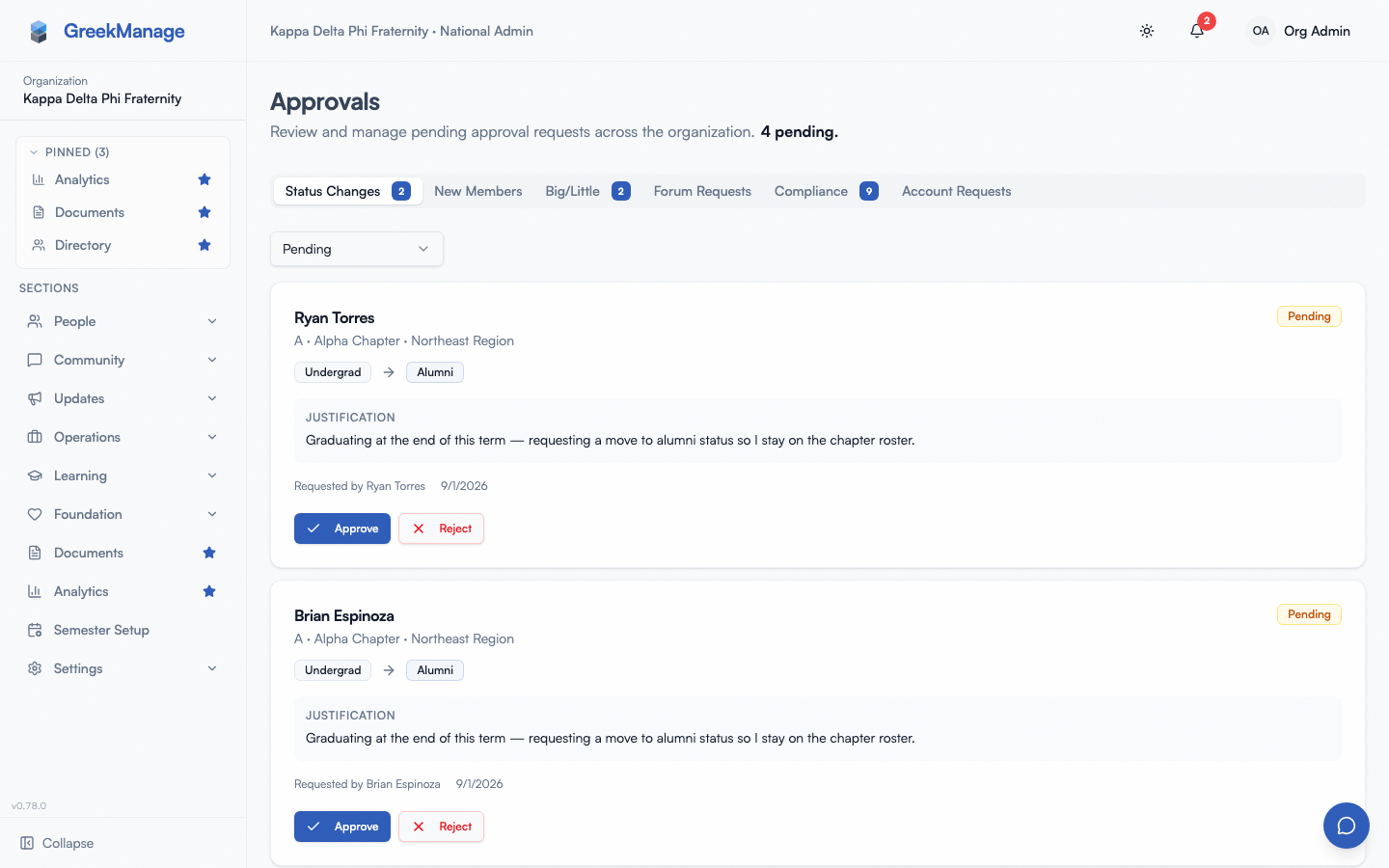 Approvals page with tabs and pending badges
What every tab does
Status Changes
Members request transitions between membership statuses — Undergraduate → Alumni, Active → Inactive, etc. The chapter officer or the member themselves files the request, and it now walks your organization’s Member status changes approval chain, one tier at a time:
- Pending Chapter Review — a chapter officer reviews, when your chain includes the chapter tier.
- Pending Regional Review — a regional admin reviews, when your chain includes the regional tier.
- Pending Organization Review — a national admin makes the final call. Always required.
🔴 This was a single national-admin decision before this release. Every review endpoint on this request was IsNationalAdmin-only, so Pending Organization Review already meant “awaiting a national admin” — the two tiers above it are simply the previously-unreachable chapter and regional review. A national admin can no longer approve at the chapter or regional tier on the strength of holding the national role; they get a permission error, same as on New Members and Big/Little.
What the requester sees: “Submitted, pending review.” On approval — which only happens when the chain’s last tier signs off — their membership status flips automatically and any Learning auto-assignment rules tied to the new status fire (e.g., switching to Alumni assigns the alumni onboarding course). On rejection, the requester sees the rejection notes you wrote (notes are required on reject), and the chain restarts from the beginning on resubmission.
Notifications: the requester is notified on both approve and reject, and whoever holds the tier a request has reached is told it is their turn. A tier with no eligible reviewer is reported as a failed dispatch and raised to you, not passed over silently. The change is logged to the org audit log under the member-status resource type.
New Members
Someone files a new-member-add request to register a person not yet in GreekManage. It walks your organization’s Member add requests approval chain — whichever of chapter, regional and national you have ticked, in that order:
- Pending Chapter — a chapter officer reviews. (New with the approval chain; officers can action this tier.)
- Pending Regional — a regional admin reviews.
- Pending Org — a national admin makes the final call. Always required.
The tiers the submitter holds are recorded as satisfied at submission, so an officer’s own request enters at the regional tier rather than coming back to them. Reject at any tier and the chain restarts from the beginning — new evidence is new information, so every tier that already passed judgement sees it again. Approve at the last tier and GreekManage creates the User and Membership records.
🔴 You approve at the national tier only. Reviewing at the regional tier used to clear the organization tier in the same click; that is gone, and so is the auto-approve that fired when a national admin submitted a request. Adding a member directly from the chapter page still works in one step — the platform now writes an override for every tier that step skipped, attributed to you and with a reason.
Notifications: the submitting officer is notified on approve and reject, and every reviewer holding the tier a request has reached is told it is their turn. A tier with no eligible reviewer is reported as a failed dispatch and raised to you, not passed over silently. Notes required on reject.
Big/Little
Big/Little proposals come from members or officers who want to record a Big-Little relationship in the family tree. They walk your organization’s Big/little assignments approval chain, one tier at a time:
| Status | Who reviews |
|---|---|
| Pending Chapter | An officer of either party’s chapter |
| Pending Regional | A regional admin of either party’s region |
| Pending Org | A national admin |
The tiers the requester holds are recorded as satisfied at submission, so an officer’s own proposal enters above the chapter tier. A requester can never approve their own request whatever tiers they hold.
🔴 These three statuses were never a real ladder before. Whichever tier reviewed first approved the whole record — the status only chose where a request entered. Now the Little’s big field is written only when the last tier approves. Officer-filed on-behalf-of proposals are no longer auto-approved either; only a national admin’s direct assign collapses the chain, and it records an override per skipped tier.
Which tiers apply is decided by the Little’s chapter (they are the subject of the record, so their chapter’s region decides whether the regional tier exists). Who may act counts both sides, because cross-chapter and cross-region pairs are real and supported.
Chapter officers can act on this tab and on New Members, at the chapter tier; anything that has moved past chapter is read-only for them. See Family tree for the member-side view, and Officers — Approvals queue for the chapter-tier flow.
GreekManage runs a cycle-detection check before the approval that completes the chain — if the proposed Big is already a descendant of the Little, the approval is blocked to keep the family tree acyclic. It is checked there, not at the first tier, because the family tree can move while a request sits across several reviews.
Notifications: the requester is notified on approve and reject, and the tier now awaiting the request is told it is their turn. Approved proposals update the family tree visualization for everyone in the chapter.
Forum Requests
When a chapter officer or member proposes a new Engage forum, the forum is created in pending status and only the creator can see it until it’s approved. Only org admins can approve or reject pending forums — regional admins and chapter officers cannot.
The same tab surfaces flagged content — posts or comments that hit an auto-moderation regex rule or that a member reported. As an org admin you can:
- Approve the content (clears the flag, content stays visible)
- Remove the content — sets the flag status to
removedand notifies the author. Important: in v0.62.1, this only changes the flag’s status; the post is not auto-hidden from the forum. To actually take the content down you need a separate deletion action on the post itself.
There is no separate “approve post deletion” workflow — flag review is its own thing, and direct post and comment deletions by their author or by an admin happen inline and don’t appear here. See the flagged content queue page for the full queue mechanics.
Notifications: the forum creator is notified when their forum is approved or rejected. The flagged post’s author is notified if you remove the content.
Compliance
Compliance submissions from members and officers across the org. Each submission shows the requirement it’s against, the chapter it came from, attached evidence, and the submitter. Approve or reject inline. Rejection notes are required and shown to the submitter so they know what to fix.
Compliance has its own multi-tier approval workflow that’s deeper than what you see here — see Compliance multi-tier approval for templates that route through chapter → regional → org. This tab shows the slice that needs your action.
Notifications: the submitter is notified on both approve and reject. Approved submissions count toward the chapter’s compliance score; rejected ones don’t.
Account Requests
If you’ve turned on account requests under Org → Settings, prospective members and rejoining alumni can submit a request from the public sign-in page. Each request includes a justification, optional supporting document, and (optionally) a self-nominated chapter. It now walks your organization’s Account requests approval chain, reviewed on this tab:
- Approve — pick the chapter, membership status, joined date, pledge class, and graduation year, and click Approve. GreekManage creates the User account and Membership atomically, emails the new member, and links the request to the records it created so the audit trail is clean. Approving is only offered once the request has reached the tier you hold.
- Reject — write a rejection reason. The reason is emailed to the requester.
A filter at the top of the tab lets you switch between Pending / All / Approved / Rejected / Expired.
🔴 The chapter tier resolves against the chapter being requested into, since the requester has no membership yet to derive one from. A request that names no chapter drops both the chapter and regional tier and lands with your national admins directly.
Notifications: the requester is emailed on both approve and reject. Approval emails include a sign-in link.
Requests that came from a Google or Apple sign-in
Someone who signs in with Google or Apple and has no account yet is offered this same request form, with their details already filled in. Those requests carry a Google verified or Apple ID verified chip in the list, and the review dialog spells out what the provider confirmed.
The chip tells you which of two things happened, and they are not the same:
- Green chip — the provider verified this email address. You are looking at an identity check somebody else already did.
- Grey chip — the provider verified the person, but not this address. This is Apple’s Hide My Email: Apple never gives us a real address, so the requester typed one in themselves. Treat the email as their claim, and verify it the way you would any other request.
Approving connects that Google or Apple account to whatever you approve, so the member signs in with it from then on. The button says so — Approve & link Apple ID. If the requester already has an account under a different address, use Link to Existing Account instead: that adds the requested email to the account they already have and connects their Apple ID to it, which is usually what a Hide My Email request actually needs.
Service Hours (Operations module)
Service hour entries whose approval chain has reached the national tier. By default service hours is approved by chapter officers only, so this tab stays empty unless your org has added National to the Service hours chain. The tab shows only when your org has the Operations module.
It lists entries across every chapter (each row names its chapter), flagged high-hours entries first, and offers Approve all awaiting national review, optionally narrowed to one chapter. Details: Service hours settings → The national approval queue.
This queue used to be its own Service Hours item in the org sidebar; old links to /org/service-hours/approvals now open this tab.
PNM name approvals (PNM module)
If you run PNM intake, prospective new members enter a fraternal name during onboarding. Approved names get reserved against the chapter’s name registry; rejected names get cleared so the PNM can pick another. These approvals don’t appear as their own tab on the Approvals page — they live on the PNM → Name Check screen — and now walk your organization’s PNM fraternal name approvals approval chain rather than being a single-tier decision. If your org sets Fraternal name at crossing to anything but Name must be approved (PNM Settings → Intake Rules), names are saved directly and nothing reaches this queue.
🔴 This was a single org-admin (or platform-admin) decision before this release. The review permission now accepts a chapter- or regional-tier reviewer the same as the other surfaces on this page. Those reviewers work from a Name Approvals tab on their own Approvals page (officer view), which lists the pending names for the chapters where they hold a tier in the chain. The PNM → Name Check screen itself stays org-admin and platform-admin only.
This is a different surface from PNM applications — it decides only what name gets recorded, not whether the applicant is accepted. See PNM program for the workflow.
Notifications: the PNM is notified of the decision via their PNM portal. The chapter that owns the assignment sees the new name in its members list once approved.
Notes, audit log, bulk actions
Three things to know that apply across every tab:
- Rejection notes are required on every approval type. The reason is shown to the requester and stored in the audit log.
- Every decision is audited. Open Org → Settings → Logging to see who approved or rejected what, when, and from which IP.
- There is no bulk-approve UI in v0.62.1. You review and decide one item at a time. If you have a large batch of requests of the same type, plan for it in your weekly admin time — there’s no “approve all” shortcut.
Filtering and finding things
The Approvals page doesn’t support search across tabs. Each tab defaults to pending only; Account Requests is the only tab with a filter to switch to All / Approved / Rejected / Expired. For old decisions, use the audit log under Org → Settings → Logging — filter by resource type and date range.
Tips
- Triage daily, decide weekly. Quick check each morning for urgent items (new-member adds, account requests); longer slot weekly for the slower-burn items.
- Make rejection reasons concrete. The reason is the requester’s only feedback — write it so they can fix and resubmit.
- Coordinate with your regional admin on new-member adds. Agree on an SLA so two-tier requests don’t sit.
- Watch the Account Requests volume. A sudden spike usually means someone shared the public sign-in page widely. Temporarily disable account requests under Org → Settings if the volume is unintentional.
- A verified chip is not an approval. It tells you a provider confirmed an email or an identity, not that this person belongs in your organization. The justification is still what you are judging.
Related
- Officers — Approvals queue — the chapter-officer-side perspective
- Permissions matrix — who can act on each approval type
- Compliance multi-tier approval — the deeper compliance workflow
- Engage moderation rules — auto-flag rules that feed the Forum Requests tab
- PNM program — PNM name approvals
- Family tree — the member-side big/little view
- Reports, exports & audit logs — where to find the audit trail of every approval decision
Last verified against v0.62.1 (2026-05-10). Status Changes, Account Requests and PNM name approvals re-verified 2026-09-13.