Audit log retention
Audit logging is the system of record for sensitive actions in your org — sign-ins, profile changes, role and status changes, approvals, moderation actions, refunds, admin invitations and deactivations, module enablement changes, and other settings updates. As a national admin you can read the full log on the Logging settings tab; the retention window — how long entries are kept before pruning — is controlled by the platform team.
What the audit log captures
The audit log is structured: each row records the actor (which user took the action), the action (create, read, update, delete), the resource type, the resource ID, a timestamp, and a metadata blob with the diff or context for the change.
Things that are audited today:
- Sign-ins (success and failure) and sign-outs
- Profile and account changes (email links, password resets, disable / re-enable)
- Role changes (admin invites and deactivations, officer promotions/demotions)
- Membership status changes
- Approvals (Big/Little requests, member additions, account requests, status changes)
- Forum and content moderation actions (flag, dismiss, delete)
- Foundation refunds and donation edits
- Module enablement changes
- Org settings updates (general, branding, billing, AI, storage)
Read-heavy actions (browsing a member directory, viewing a forum post) are not audited at the org level. The platform team has a broader audit surface that includes some read events, but those don't appear in the org Logging tab.
Where to find the audit log
Org → Settings → Logging.
The Logging tab has three sections:
- Recent Activity — the most recent ~30 events, no filters, expand-on-click. Useful for "what just happened?"
- Filters — drop-downs and date pickers to scope the main table.
- The main table — paginated, filterable, expandable.
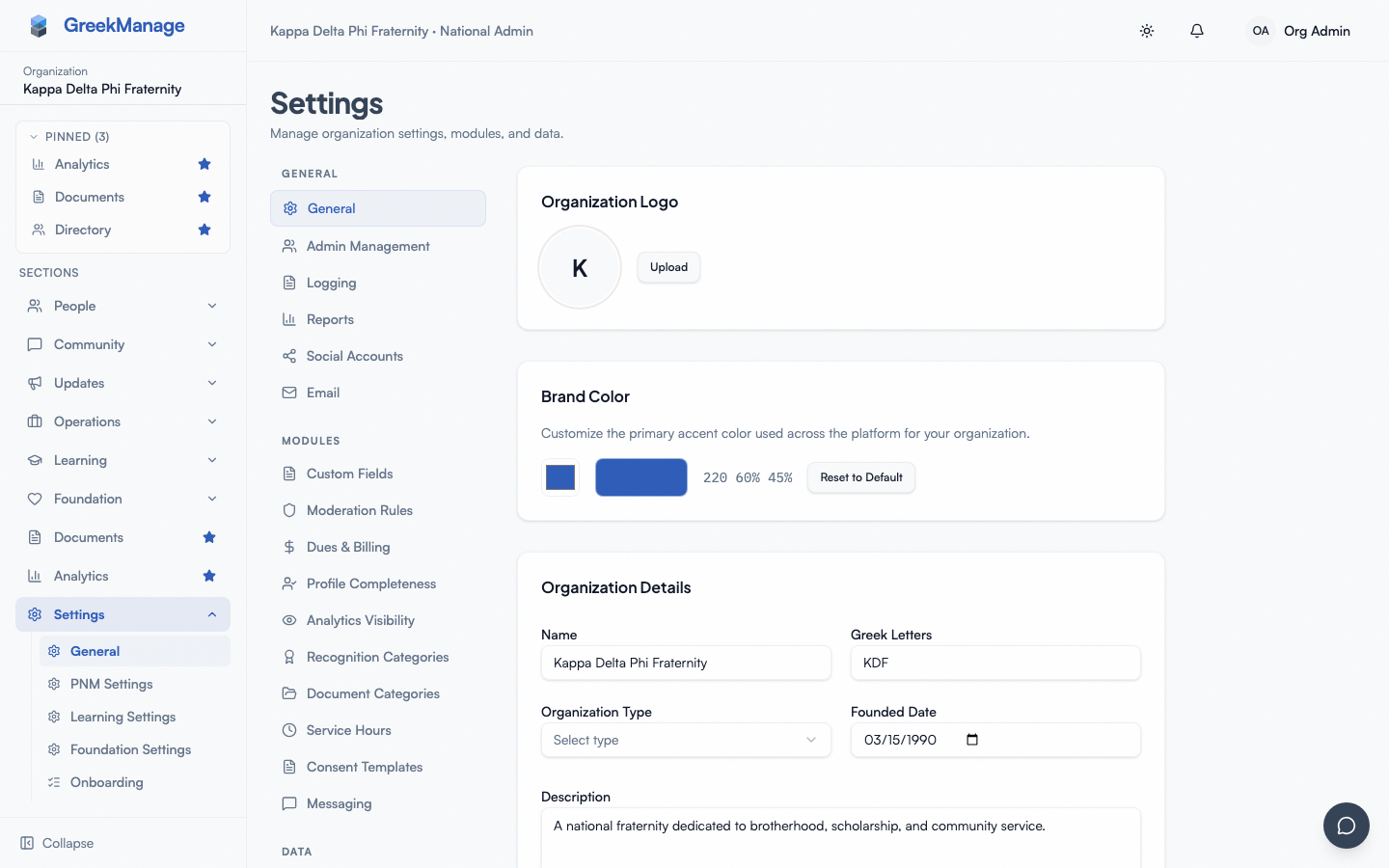 org audit log with Logging tab selected
Reading a row
Each row shows the timestamp, the actor's email, the action verb, the resource type, and a summary. Click the row to expand it; the expanded view shows the full metadata blob — typically a JSON-style diff of what changed.
Filtering
The filter bar lets you scope by:
- Action — Create, Update, Delete. (Read events are filtered out of the org view.)
- Resource type — members, approvals, billing, settings, etc.
- User — any user who has produced at least one audited event.
- Date from / Date to — inclusive day-level bounds.
- Search — free-text matching against the resource metadata.
Filters combine with AND. Filtering before paging is much faster than scrolling.
Retention: how long entries are kept
Audit logs are kept in your org's database for the configured retention window, then pruned by a nightly job. After pruning, entries are gone — there is no soft-delete or archive that you can recover from in the UI.
The actual policy in v0.62.1
- Configurable range: 1 to 180 days.
- Default: 180 days (the maximum).
- Granularity: one window for the whole org. You cannot keep "financial actions for 7 years" and "everything else for 30 days." There are no per-resource-type tiers.
- Permanence: there is no "keep forever" option. Anything past 180 days requires you to archive externally.
If you've read older documentation or vendor marketing claiming "configurable retention up to 7 years" or "permanent retention for sensitive actions" — those claims are wrong for this release. The hard cap is 180 days.
Who can change it
Retention is set per-org by the platform team, not by you. The reasoning: changing retention has implications for the underlying database size and the platform's backup strategy, and platform admins coordinate that.
If you need a different window — say, your governing body requires 90-day retention specifically, or you want to drop to 30 days to minimize stored data — open a request with the platform team. They'll change the configuration on the platform organization-detail page and the new window takes effect on the next pruning run.
What "enable / disable" means
There is a per-org enable/disable toggle. When disabled, new events stop being written to the audit log — existing entries remain until the retention pruner catches up. This is intended for narrow scenarios (a pilot org, a sandbox tenant); a production org should always have logging enabled. Like the retention window itself, the toggle is set by the platform team.
What officers see that you don't
Chapter officers and regional admins do not see the org audit log at all. The Logging tab is only exposed in the org Settings sidebar. If an officer asks about an audited event ("who deleted that post?"), you need to look it up and tell them.
Mobile differences
The Logging tab renders on mobile, but the table is wide and the expanded metadata JSON is the same screen-width — readable but cramped. Most admins do audit work on desktop. There is no native mobile audit-log surface.
Errors and edge cases
"My event isn't showing up." A few things can cause this:
- The retention window has passed. If you're looking for a deactivation that happened 200 days ago and your window is 180 days, it's gone.
- Audit logging is disabled in tests; if you're staring at the test environment rather than production, expect very little data.
- The event isn't audited. Read events (viewing a member, reading a post) are not in the org audit log.
- Filters are too tight. Clear filters and search again.
The "Recent Activity" card is empty. Two possibilities: either there genuinely hasn't been any audited activity (new orgs hit this) or audit logging is currently disabled on the org — check with the platform team.
Search isn't finding what I expect. Search runs against the resource metadata JSON, not against display strings. If you're searching for a user's name, search by their email instead — emails are reliably in the metadata.
I need to keep records longer than 180 days. Two options:
- Use the Export CSV button on the Logging tab (v0.63.24). The export honors every active filter (org / user / Action / Resource Type / Date) and strips pagination params, returning up to 10k rows of
text/csv. Run periodic exports and archive externally for long-term retention beyond the 180-day cap. - Coordinate with the platform team on a long-term archival strategy outside the live database for windows that exceed the 10k row export cap.
Troubleshooting
"The Logging tab is missing from my Settings sidebar." Confirm you're signed in as a national admin and not a regional admin or officer. Audit log viewing is gated to national admins only.
"I keep seeing events from a user who isn't an admin anymore." That's expected — disabled or removed users still produced events while they had access, and those events remain in the audit log until the retention window expires.
"I deactivated an admin and want proof for an HR or legal request." Look in the audit log for the admin deactivation event, expand the row, and the metadata blob includes the before/after state. You can also cross-check with the platform audit log for higher-level events (the platform team has access).
Related
- Reports, exports & audit logs — broader index
- Privacy & GDPR — how audit logging fits into compliance posture
- Inviting admins — admin invitations and deactivations both produce audit events
Last verified against v0.63.39 (2026-06-26). CSV export + org/user filter dropdowns shipped v0.63.24.