Bulk member XLSX import
For new chapters being onboarded onto the platform, mid-year roster updates from a sister system, or one-off migrations, the bulk import wizard moves dozens to thousands of member records into your org in a single supervised flow. The wizard is XLSX-first — it supports CSV but the multi-sheet workflow only applies to XLSX uploads.
To open the wizard, go to Settings → Import Members in your org sidebar. The page is a four-step indicator across the top: Upload, Map Columns, Preview, Results. You can go back to earlier steps but not skip forward.
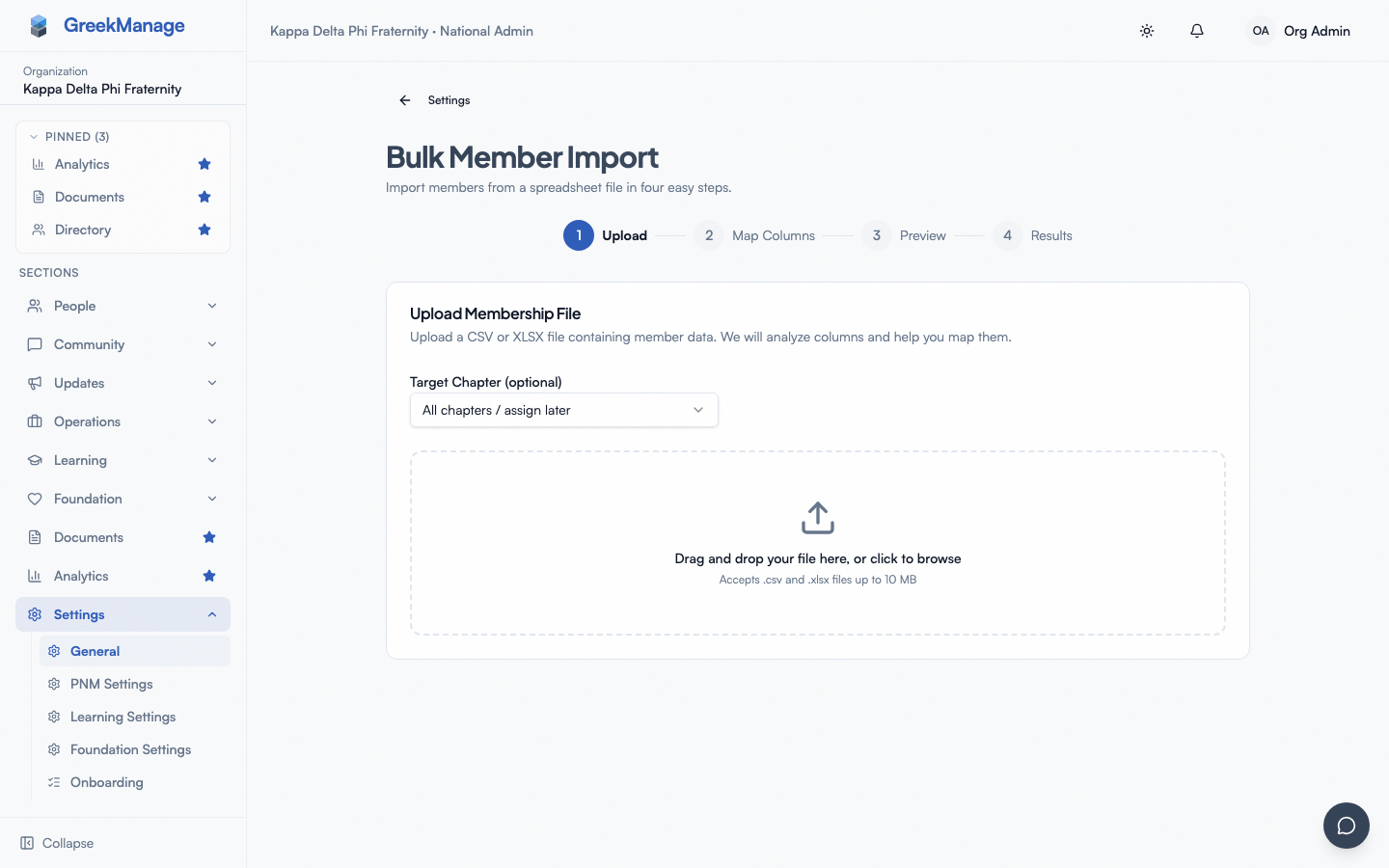 Bulk import wizard step indicator — Upload, Map Columns, Preview, Results.
What you see
The wizard reuses the same four-step layout for every import. At the top, the step indicator tracks progress; below it, the active step's card occupies most of the page. The Cancel route at the top-left navigates back to Settings without saving.
Step 1: Upload
Drag a file onto the dashed drop zone, or click to open a file picker. Accepted formats are .csv and .xlsx; the size cap is 10 MB. Anything larger or in a different format is rejected with a toast.
Above the drop zone is an optional Target Chapter selector. Set it if every member in your file belongs to the same chapter — the wizard will pre-fill the chapter field on every row from this selector and you don't need a chapter column in the spreadsheet. Leave it on "All chapters / assign later" if your file already has a chapter column or you'll set chapters per row in mapping.
When you drop the file, the wizard parses it server-side. For a single-sheet CSV or XLSX, you proceed straight to Step 2 (Map Columns). For a multi-sheet XLSX, the wizard pauses on a detection screen before letting you continue.
Multi-sheet XLSX detection
The platform supports up to 5 sheets per workbook, with up to 5,000 total rows across them. When a multi-sheet upload is detected, the wizard shows:
- The detected sheet count and total row count
- A strategy badge — Sheet per Chapter, Column Mapping, or Single Chapter — describing how the AI thinks your file is structured
- One row per sheet with the sheet name, row count, sample column names, and (for the Sheet per Chapter strategy) a chapter dropdown that the AI has pre-filled with its best guess
The AI strategies map to common real-world layouts:
- Sheet per Chapter — each sheet is one chapter's roster. The sheet name often matches the chapter name; the AI matches them with a confidence badge (high / medium / low). You can override any chapter assignment via the dropdown.
- Column Mapping — chapters are encoded as a column inside each sheet. Sheets are treated as additional data the wizard concatenates.
- Single Chapter — multi-sheet workbook but everything is one chapter; usually one sheet is real data and the others are notes or formatting.
Confirm or override the chapter assignments, then click Continue to Mapping. If you spot a wrong file, click Upload Different File to start over.
Step 2: Map columns (with AI assistance)
The AI column mapper inspects your column headers and the first few data rows, then assigns each column to one of the canonical fields the platform knows about. Common targets:
- User fields —
email,first_name,last_name,phone_number - Membership fields —
chapter,status,role,joined_date,graduation_year,pledge_class,crossing_semester - Profile fields —
org_member_name,big,new_member_educator,school_attended,profession,company,employment_role,city,state,country,linkedin_url,personal_website,willing_to_mentor,open_to_connect - Academic fields —
major,minor(written to the member's profile) - Degree fields —
degree,school— mappable but not yet persisted
:::info Where major and minor land
They write MemberProfile.major / .minor — the member's current study —
not a MemberDegree row. An imported roster is a snapshot of current members,
and MemberDegree.degree is required on create, so degree-routing would record
a credential the member does not hold.
degree and school are still offered in the mapping wizard but are not yet
persisted anywhere. Importing degree-level records needs MemberDegree
creation, which does not exist yet; map them only if you accept that the values
are discarded.
:::
The mapping table shows your file column on the left, the suggested target on the right, and a Status badge (Mapped / Skipped). Each row has a select with all target options; pick — Skip — for columns you don't want imported.
For multi-sheet uploads, the mapping table is wrapped in a tabbed view — one tab per sheet — so you confirm column mapping for each sheet independently. A small "Chapter: X" note above each tab's table reminds you which chapter that sheet is assigned to.
Any AI notes — "I noticed two columns that look like email addresses; I picked the first as primary" — render as inline blue callouts above the mapping table.
The email warning
If you click Next without mapping any column to email, a toast appears: "No email column mapped. Members without email will be imported as directory-only records (no login access)." This is informational, not blocking — see "Email-optional placeholder accounts" below for what this means in practice.
column mapping table with AI suggestions and confidence-coded badges
Step 3: Preview and validate
When you click Next from mapping, the wizard validates every row against the canonical schema and produces a preview:
- A three-card summary row: To Create (green), Existing (Skip) (amber), Errors (red)
- For multi-sheet uploads, a per-sheet badge row below the summary showing each sheet's new / skip / errors counts
- A row-level table with the first 20 rows, filter tabs (All, Valid, Errors), and an Edit button on every row
Validation checks include:
- Required field presence — at minimum a row needs an email (or it becomes a placeholder account, see below) and an identifying name
- Chapter resolution — chapter values must match an existing chapter in your org
- Enum validation — status, role, and other choice fields must be among the platform's defined values
- Email uniqueness — duplicate emails inside the file are flagged
- Existing membership detection — rows for users who already have a membership in the target chapter are marked Skipped
Inline error-row editing
The Edit button on any row opens a dialog with every field exposed as a free-text input. The red error banner at the top of the dialog tells you what's wrong. Fix the values, click Save & Re-validate, and the row re-runs through the same validators. Saved-and-fixed rows flip from Error to Pending and count toward the To Create tally without needing to re-upload the file.
This is the most useful affordance in the whole wizard. Don't re-upload a file just to fix a typo in two rows — fix them inline.
The bottom Import N Members button is disabled when To Create is zero (everything is an error or a skip). Otherwise click it to start the actual import.
Step 4: Run
The import runs in the background while the Results page shows live progress. A progress bar advances as rows process; the status flips to Completed or Failed when done.
The result summary shows four counters:
- Created — new memberships actually created
- Skipped — existing members the importer left alone
- Errors — rows that failed validation or had server-side errors during create
- Invited — placeholder accounts created for email-less members (or invite emails sent, depending on configuration)
If any rows errored, a Download Errors button appears that exports a CSV with the original raw row data plus an error_message column. Open the CSV, fix the rows, and re-import.
Click Done to return to Settings.
Email-optional placeholder accounts
For historical roster data where some members never had a recorded email — a common case when importing decades of chapter history — the wizard creates placeholder accounts. Internally these are stored with an auto-generated address in the form no-email-<uuid>@placeholder.local, which signals to the platform: this is a directory-only record.
Placeholder accounts:
- Have no login, no welcome email, no password
- Appear in the member directory like any other member
- Hold custom fields, work history, lineage, and other profile data
- Can be upgraded to real logins later by setting a real primary email on the member detail page
This lets you import a full historical roster (including alumni who never had an email on record) without polluting the platform with broken accounts.
Big-little resolution
When your file includes a big column, the wizard handles lineage in two passes:
- Pass 1 — all members are created or skipped as usual; big values are saved in a holding table.
- Pass 2 — once every row has been processed, the wizard walks the holding table and resolves each big reference to an existing member by name match (typically last-name plus first-name match within the org).
If a member's big is part of the same import, both rows will land before the resolution pass and the relationship is created correctly. If the big doesn't exist (typo, future member, etc.), the relationship is skipped and logged in the errors output.
You can re-run an import once all members exist to fill in any missed relationships — re-running is non-destructive (see below).
Re-running and deduplication
Re-uploading a file that overlaps with an existing roster is safe:
- Members matched by email are updated with any new field values from the file
- New members are created
- No members are ever deleted — even if they're absent from the new file
This makes the wizard well-suited for periodic updates ("sync this spreadsheet into our roster every quarter"). To remove members, do it manually on the member detail page or chapter detail Members tab.
What officers and regional admins see
Officers and regional admins see no path to this page. The import wizard is permission-locked to national admins. If they navigate directly to the URL they get a "You do not have permission to import members" message instead of the wizard.
To get members imported for a chapter in their region, regional admins ask a national admin to run the import (or use the chapter detail Add Member flow for a small number of one-offs).
Mobile differences
The wizard is usable on tablets but cramped on phones. The mapping table benefits from a wide screen, the per-row error dialog can be hard to fill on a small keyboard, and the progress bar on the Results step assumes a sustained connection. For anything beyond a handful of rows, run the import from a laptop or desktop.
Errors and edge cases
- "Invalid file type" — the wizard accepts only
.csvand.xlsx. Older.xlsfiles need to be re-saved as XLSX. - "File too large" — 10 MB cap. Split the file into multiple uploads, or convert from XLSX with embedded images / styles to a cleaner CSV.
- AI mapping suggests bizarre targets. Override any column manually. The AI is usually right for standard headers; it can guess wrong when columns have org-specific naming.
- Chapter dropdown for a sheet has no match. The chapter name in the sheet doesn't fit any chapter in your org. Either pick a chapter manually, or correct the chapter name in the file and re-upload.
- A row keeps erroring even after editing it. Confirm the chapter exists in your org (case-sensitive partial matches are common to overlook), and that all enum values (status, role) are spelled the way the platform expects.
- Some rows show as Skipped but you wanted them updated. The wizard treats existing memberships (matched by email + chapter) as "leave alone" by default. To force updates, use the member detail page after import.
- Big-little resolution found nothing. Confirm the names in the
bigcolumn match the platform's stored member names exactly (or close enough for the matcher). For nicknames, edit the imported member'sbigfield manually on the member detail page.
Troubleshooting
- The Results step shows "Failed" with a vague error. Re-run the import. The most common cause is a transient database conflict when multiple members are being created simultaneously. If it consistently fails, contact platform support with the import ID.
- The progress bar gets stuck at high percentage but never reaches 100%. The final percentage of rows includes the big-little resolution pass which doesn't update the progress bar in v0.62.1. Wait 30 seconds and the status should flip to Completed.
- You imported a roster, but the dashboard's Active Member count didn't move. Confirm the status column in the file was set to
undergradorassociate(the platform's "active" definition). Imports default toundergradonly if the status column is absent. - A re-run made some changes you didn't expect. Confirm the file's column mapping matches what you actually intended. Re-runs update existing members by replacing field values, so an unwanted change in a column will propagate.
Related
- Chapter detail (admin view) — the per-chapter member surface
- Member detail (admin view) — for post-import per-member edits
- Member CSV / XLSX import — the older CSV-mode reference covering the same wizard from the CSV angle
- Custom fields — these aren't yet importable via the wizard; values are set per-member after import
- Permissions matrix — the import-members capability check
Last verified against v0.62.1 (2026-05-11).