Chapter advisors (admin view)
Chapter advisors are the faculty, staff, and alumni who oversee your chapters on campus — faculty advisors, university Greek life liaisons, housing corporation contacts. The platform stores them as contact records, not user accounts: they cannot sign in, do not appear in member directories, and have no platform access. The advisor list exists so chapter leadership knows who to call, and so national and regional admins can report on advisor of record across their chapters.
This page covers advisor management from a national or regional admin perspective. Officers manage the same advisor list for their own chapter — see the officer guide for that view.
What you see
Advisor management lives on the chapter detail page. From your sidebar: Chapters → [chapter], then the Advisors tab. There is no org-wide advisor roster page in v0.62.1; advisors are scoped to a single chapter and you drill into each chapter individually.
The Advisors tab shows a table of advisor records with the following columns:
- Name — first and last, with a Primary badge if this is the chapter's designated primary advisor and an Inactive badge if they have been retired
- Title — free text, typically Faculty Advisor, Staff Liaison, Housing Corp Treasurer, Alumni Advisor, etc.
- Department — for university-affiliated advisors, the department they sit in
- Contact — email and phone, displayed when available
- Term — start and end dates, formatted as a date range; Present if no end date is set
Above the table, a Show historical toggle reveals inactive (retired) advisors so you can see the full history of who has filled the role over time. By default the table shows only active advisors.
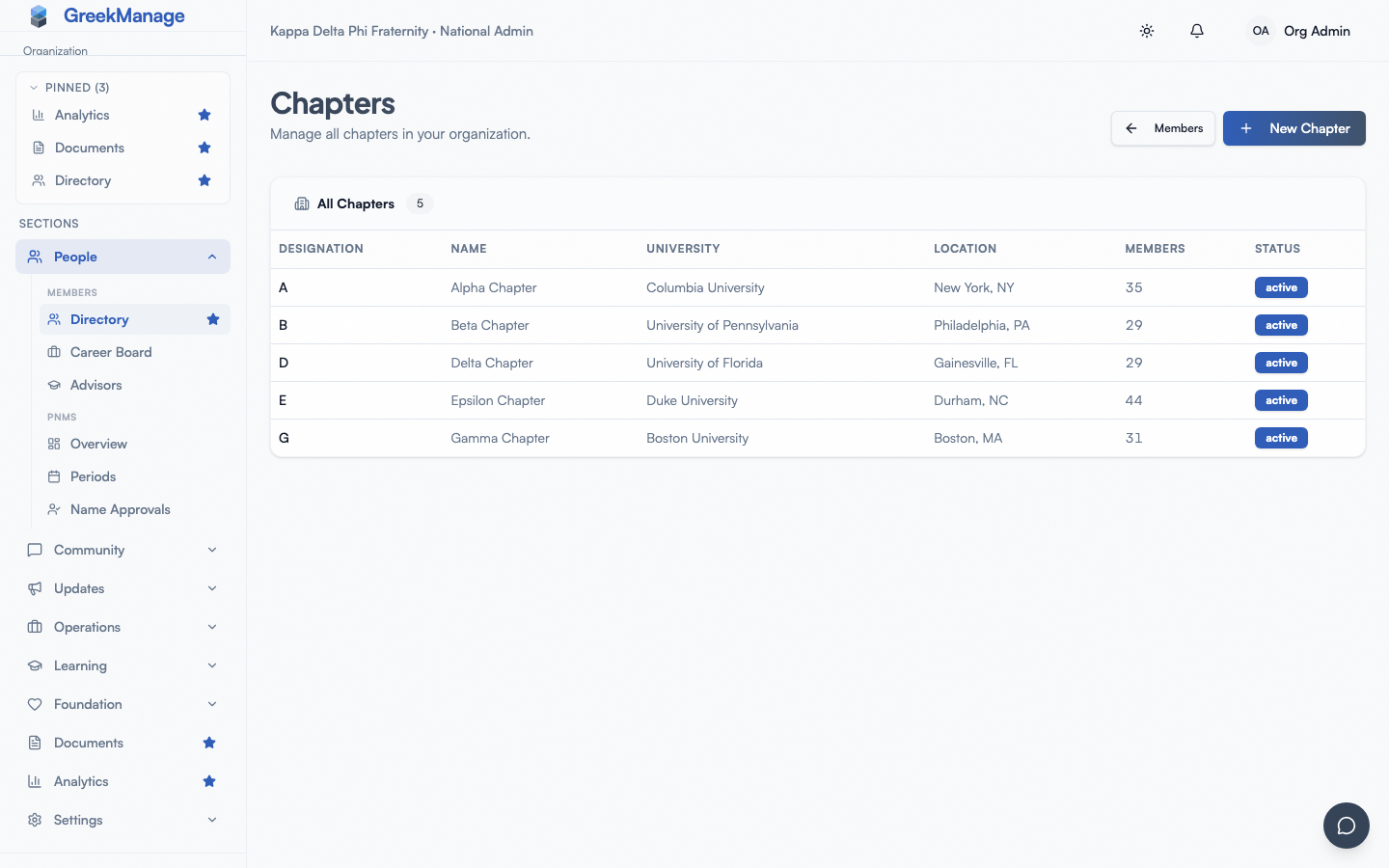 Advisors tab on the chapter detail page with the primary-advisor badge and a couple of retired advisors visible after toggling Show histo...
Step-by-step: add an advisor
- Open the chapter detail page and click the Advisors tab.
- Click Add Advisor in the header of the tab.
- Fill in the form:
- First name and last name are required.
- Email is optional but strongly recommended — you'll reference it when emergency-contact reports go out and when officer transition documentation is built.
- Phone is optional.
- Title describes the advisor's role (Faculty Advisor, Staff Liaison, Alumni Advisor, etc.).
- Department is for university-affiliated advisors (Student Affairs, Greek Life Office, Office of Fraternity & Sorority Life, etc.).
- Start date and End date define the advisor's term. Both are optional — leaving end date blank means the advisor is current.
- Primary advisor for this chapter is a checkbox. See "The primary-advisor constraint" below.
- Notes is a free-text field for context — meeting preferences, specialty area, relevant history.
- Click Add Advisor.
The new advisor appears in the table immediately and is marked Active by default.
The primary-advisor constraint
Each chapter can have at most one active primary advisor at a time. The platform enforces this at the database level. As of v0.63.29 the save returns a clear UI error ("Only one active primary advisor allowed per chapter — retire the existing primary first") rather than a generic 500, so the most common "advisor wouldn't save" failure now self-explains.
To swap primaries cleanly:
- Edit the current primary advisor and uncheck Primary. Save. The previous primary remains active (still listed, still gets advisor notifications) but is no longer the primary.
- Edit the new advisor and check Primary. Save.
If you also want to retire the previous primary, set their end date after step 1 (or in the same save). The end-date-based deactivation runs nightly at 1:30 AM and does not free the primary slot until then — which is why step 1 explicitly unchecks Primary rather than relying on the end date alone to clear the constraint.
Inactive primaries do not count against the constraint, so once an advisor is fully retired (after the nightly task runs), the slot is freed regardless of how you got there.
Step-by-step: edit an advisor
- On the Advisors tab, hover the advisor row and click the pencil icon.
- The Edit Advisor dialog opens with the existing values pre-filled.
- Change what you need to change. Setting an end date in the past is the typical way to "retire" an advisor without deleting their record.
- Click Save Changes.
Edits are immediate; there is no approval workflow for advisor records. As an admin you can edit advisors on any chapter you administer (org-wide for national admins; region-scoped for regional admins).
Step-by-step: retire an advisor
You have two options:
- Retire (recommended). Edit the advisor, set an end date (today, or the date they actually stepped down), and uncheck Primary if applicable. Save. The record remains in the system but no longer appears in the default active list.
- Delete. Hover the advisor row and click the trash icon, then confirm. This permanently removes the record. Use this only for typos and duplicates — for actual former advisors, prefer the retire path so the history is preserved.
Auto-deactivation
A nightly background job runs every day around 1:30 AM and automatically flips any active advisor whose end date has passed to inactive. If you know an advisor is leaving June 30, set their end date in advance and don't worry about manually retiring them — the system handles it.
This is why "an advisor disappeared overnight" is rarely a bug: the end date you set previously came due and the nightly job retired the record. Toggle Show historical and they'll be in the list.
Bulk advisor import (v0.63.29+)
For orgs migrating from another system with a large existing advisor roster, the Advisors tab now exposes a Bulk Import action accepting XLSX or CSV upload.
File format
One row per advisor, with columns:
| Column | Required | Notes |
|---|---|---|
chapter_designation or chapter_id | Yes | Which chapter this advisor belongs to. |
first_name, last_name | Yes | |
email | Recommended | Used for emergency-contact reports + the cross-chapter Advisor Report. |
phone | Optional | |
title, department | Optional | Free-text. |
is_primary | Optional | Boolean (true/false). One active primary per chapter — duplicates are flagged as per-row errors. |
start_date, end_date | Optional | ISO format YYYY-MM-DD. |
The response is a structured {added, skipped, errors[]} payload — same shape as the bulk member import — so per-row failures (unknown chapter, primary-advisor conflict, malformed date) are surfaced row-by-row rather than aborting the whole upload.
Where to find it
Open any chapter's Advisors tab; the bulk-import button sits next to Add Advisor. The same upload page is reachable from the org-wide Advisor Report (below) for true cross-chapter imports.
Cross-chapter Advisor Report (v0.63.29+)
National admins now have an Advisor Report page at Org → Advisors that rolls up primary advisor + contact across every chapter in the org. Regional admins see the same page scoped to their region's chapters.
- Roll-up table: chapter designation, primary advisor name + email + phone, chapter university.
- Export to CSV for emailing every chapter's primary advisor in one go.
- One click to drill into a chapter's full Advisors tab for the detail view.
This closes the most common admin friction point: "I want to email every chapter's primary advisor" no longer means walking the chapters list one at a time.
What officers see that you don't
Officers see the same Advisors tab for their own chapter with the same edit capabilities — add, edit, retire, delete — as you have. The difference is scope: you can act on any chapter you administer, while officers are restricted to their own.
There is no admin-only feature on the Advisors tab itself. Both tiers see and use the same form and the same constraint. This is intentional — advisor management is operationally chapter-level work, so officers are trusted with full edit rights for their own chapter.
For the officer-specific guidance (use cases, transition planning), see the officer guide for chapter advisor management.
What advisors themselves see
Nothing. Advisors are contact records, not users. They do not receive notifications from the platform, do not get accounts when added, and cannot log in. If a chapter wants its advisor to actually use the platform — post in forums, view documents, attend events — that's a separate workflow:
- Have a national admin grant them a regular user account through the admin invitation flow.
- Optionally add them as a member of the chapter (some orgs reserve a special advisor status for that case).
- The advisor contact record stays as-is, separate from their user account.
In practice, most advisors do not need platform access — the contact record is enough.
Use cases
A few of the common reasons admins maintain the advisor list:
- Emergency contacts. When something goes wrong (chapter incident, hospital visit, university Greek life office requires immediate notification), the advisor list is the canonical "who do we call." Keep it current.
- Compliance reporting. Some national organizations require chapters to declare their advisor of record on annual compliance forms. The platform's advisor list is the source of truth for those reports.
- Faculty oversight requirements. Many universities require fraternities and sororities to have a designated faculty advisor. The Primary flag is how you mark that person.
- Historical record. Retiring advisors rather than deleting them gives future officer cohorts the institutional knowledge of who has filled the role.
Mobile differences
The Advisors tab is responsive. On phones the table collapses to a compact view that hides the Department and Contact columns by default — tap any row to expand. The Add/Edit dialog renders full-screen. The Primary checkbox, date pickers, and Notes textarea all behave like standard native inputs. There is no biometric prompt or special permission for advisor management — standard authenticated admin session is enough.
Errors and edge cases
- "Only one active primary advisor allowed per chapter." Retire (or uncheck Primary on) the existing primary first, then save the new one. The error message is explicit as of v0.63.29 — previously the save silently failed.
- An advisor "disappeared" overnight. The nightly auto-deactivation job retired them because their end date passed. Toggle Show historical to find them. If they're staying on, edit them, clear the end date or push it into the future, and check that they're marked active.
- Email validation rejects an apparently-valid address. The email field uses standard validation — check for stray spaces or unusual characters. The platform does not send any mail to the advisor address; it's stored for officer and admin reference only.
- "Show historical" is on but the list looks the same. Either you have no inactive advisors, or all your advisors are inactive — toggle it off and confirm. The two states are exclusive: active-only by default, all-of-them when the toggle is on.
- You cannot delete an advisor on a chapter outside your region. Regional admins are scoped to their region. National admin assistance is required to act on chapters outside the region.
Troubleshooting
- You want a recurring reminder to review advisor records. Set a calendar reminder yourself or build it into your officer transition checklist. The platform does not currently send periodic prompts for advisor updates.
- You imported chapter data and the advisor list is empty. Advisor contact records are not part of the standard chapter-creation workflow. Use the Bulk Import action on any chapter's Advisors tab (XLSX or CSV; see Bulk advisor import section above).
- An advisor changed roles (e.g., went from Staff Liaison to Faculty Advisor). Edit their existing record with the new title — don't add a duplicate. If you want the role history preserved, retire the old record (set an end date) and create a new one.
- Your university or national org expects an org-wide advisor list export. Open Org → Advisors (Advisor Report) and click Export CSV. The export covers every primary advisor for every chapter in your scope.
Related
- Chapter advisor management (officer view) — the officer side of this same surface
- Chapter detail (admin view) — the chapter detail page where the Advisors tab lives
- Chapters and regions — chapter creation and regional assignment
- Permissions matrix — advisor management permissions across all roles
Last verified against v0.63.39 (2026-06-26). Cross-chapter Advisor Report + bulk XLSX/CSV import + primary-advisor constraint error message shipped v0.63.29.