Chapter detail (admin view)
The chapter detail page is where you spend most of your day-to-day chapter administration time. As a national admin you get the most editable surface here — everything an officer can do plus the chapter-edit, status-change, and role-change capabilities. This page walks the entire surface for that admin view.
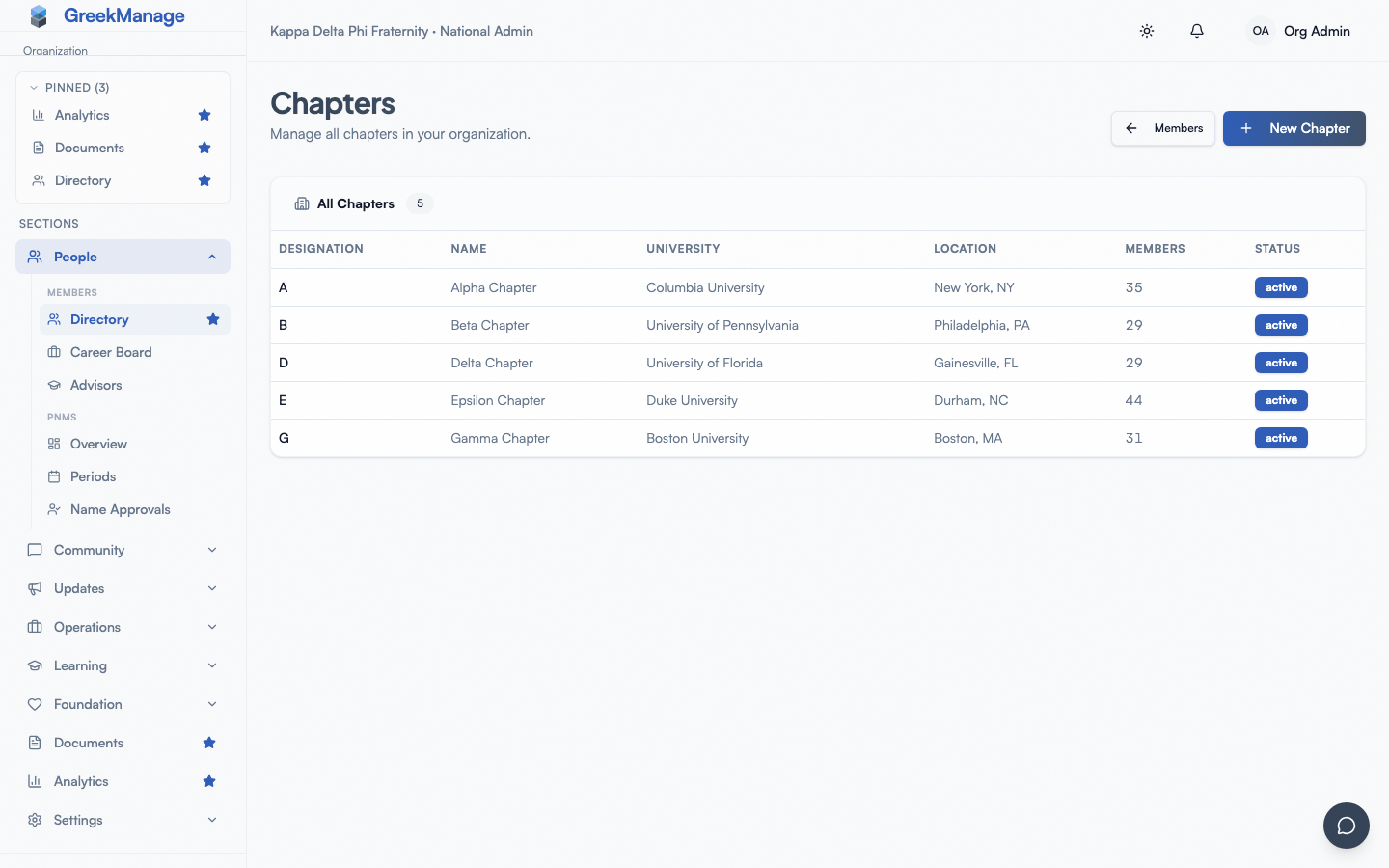
To open the page, go to Chapters in your sidebar and click any chapter row. The page header shows the chapter's designation and name, a status badge, and (for admins) a pencil icon to edit chapter info.
 chapter detail header with status badge and pencil edit icon
What you see
Below the header you'll find a four-card stats row, then a tabbed body with three tabs.
The stats row shows live counts pulled from the current roster:
- Total Members — every membership attached to this chapter, regardless of status
- Active — members in Undergrad or Associate status (the platform's "currently active" definition)
- Officers — members whose chapter role is Officer or President
- Alumni — members in Alumni, Active Alumni, or Lifetime Alumni status
The three tabs are Members, Advisors, and Custom Data. Each tab is a distinct surface; switching tabs does not change the chapter context above.
Editing chapter info
Click the pencil icon next to the chapter title. The Edit Chapter dialog opens with the current values pre-filled:
- Name — the human-readable chapter name (often something like "Alpha Sigma at State University")
- Designation — the short Greek-letter identifier used across the platform
- University — the host university or college
- City and State — the chapter's location
- Founded date — optional; the chartering date
- Description — free-text notes for the chapter, surfaced in catalog views
Save when done. The change is immediate, no approval workflow.
The status field is edited separately via a Change Status button under the Members tab. The three states are:
- Active — normal operations; members can sign in, the chapter shows up in directories and catalogs, all features work
- Inactive — typically used for closed or paused chapters; preserves the historical record without active operations
- Suspended — used for disciplinary action; visually flagged across the platform with a red destructive badge
The status change does not cascade to memberships automatically — members of an inactive or suspended chapter retain their individual membership status. Use the membership status controls inside the Members tab to move people if you need to.
Members tab walkthrough
This tab is the chapter roster. As an admin you see:
- Add Member button (top right of the Members card)
- Change Status button (top of the tab) — opens the chapter status dialog
- A members table with columns: Name, Email, Status (editable inline), Joined, and a per-row action column
To add a member, click Add Member. The dialog offers two modes:
- Existing Member — type the email of someone who already has an account on the platform; they're added to the chapter immediately
- Invite New Member — fill in email, first name, last name; the system creates a new user account and adds them. The invitee gets a welcome email with sign-in instructions
Both modes accept optional fields: Joined Date (MM/DD/YYYY), Pledge Class, Graduation Year, Crossing Semester. There's also a collapsible "Profile Information" section for line name, school attended, profession, company, employment role, LinkedIn URL, and a personal email — these can all be set later from the member detail page.
To change a member's chapter status, use the inline status dropdown on their row. Available statuses include Undergrad, Associate, Alumni, Active Alumni, Lifetime Alumni, Disaffiliated, and Inactive. The change is immediate; no approval is required when an admin makes it directly.
To change a member's role (member / officer / president), use the inline Role dropdown on the same row (v0.63.29). Previously role changes lived on a separate Settings → Chapter Officers page; both surfaces still work, but the inline dropdown unifies the common case so admins don't have to navigate elsewhere for a single promotion.
To remove a member from the chapter, hover their row and click the trash icon. This deletes the membership record (not the user account). Use this for misassignments — for actual departures, prefer changing the status to Alumni or Disaffiliated, which preserves the history.
For deeper edits to a member's profile, click their name to open the member detail page.
Status enum and member-facing behavior
The membership status enum determines what each member sees and can do:
- Undergrad / Associate — counted toward Active Members; full access; dues invoices generated; compliance assigned
- Alumni / Active Alumni / Lifetime Alumni — alumni-tier access (alumni forums if enabled, donor portal, mentor profile); not counted as active
- Disaffiliated — platform access removed; member can no longer sign in
- Inactive — member kept on the roster historically; reduced or no notifications; not counted as active
Status changes from an admin auto-apply. Status changes proposed by a regular member or an officer go through the approval workflow.
Advisors tab walkthrough
This tab tracks the faculty, staff, and alumni advisors assigned to the chapter. Advisors are contact records, not user accounts — they cannot sign in and do not appear in the member directory.
The tab shows a table with Name, Title, Department, Contact (email and phone), and Term (start and end dates). A primary advisor badge highlights the chapter's designated primary. By default only active advisors are shown; flip the Show historical toggle in the header to see retired advisors.
You can:
- Add an advisor with the Add Advisor button (top right of the Advisors card)
- Edit any advisor via the pencil icon on their row
- Delete an advisor via the trash icon (for genuine typos or duplicates) — for actual former advisors, prefer setting an end date so the history is preserved
A nightly job auto-retires advisors whose end date has passed, so you can set future end dates in advance and not worry about manually retiring.
There is one structural constraint to know about: each chapter can have at most one active primary advisor at a time. If you try to mark a second advisor as primary while the existing primary is still active, the save fails. Retire or unflag the current primary first.
For the full advisor workflow including the auto-deactivation specifics, see the chapter advisors admin guide.
Custom Data tab walkthrough
This tab is where you record values for any chapter-level custom fields you've defined for your org. Custom fields are configured under Settings → Custom Fields; they come in two scopes — member-scoped and chapter-scoped — and this tab surfaces the chapter-scoped ones.
For example, if you've defined a chapter-scoped custom field called Recruitment Quota, this tab is where you set that quota's value for the chapter in question.
The form renders one input per defined field. Field types include text, number, date, boolean, and select. Save the form after editing.
If no chapter-scoped custom fields exist for your org, the tab is essentially empty — head to Custom Fields to define some.
Bulk operations on members within this chapter
The members table doesn't expose checkbox-style row selection — bulk member operations happen on the org-wide Members page where saved views and filters let you act on cohorts at once. From this chapter detail page, your per-chapter bulk capabilities are:
- Add many members at once — use the org-level bulk member import wizard with the chapter set as the target, or with a sheet-per-chapter XLSX where the chapter is auto-resolved per sheet
- Move a cohort to alumni — go through them one by one on this tab using the status dropdown, or use the org Members page with a chapter filter and saved view
For most one-off operations the inline controls on this page are faster than the bulk path.
What officers see that you don't
A chapter officer viewing this same page sees:
- The same three tabs
- The same stats cards
- A request-to-add-member dialog instead of the direct Add Member dialog — officer-initiated additions go through approval
- Membership status changes only via the status change request flow (not the inline dropdown)
- No chapter edit pencil, no Change Status button, no role change
- Advisors tab is fully editable for officers (same as you)
- Custom Data tab is read-only
The officer view is documented separately under managing chapter members.
What regional admins see
Regional admins see this page for any chapter in a region they administer. They have the same Advisors tab edit rights as you, can view the Members and Custom Data tabs, and can submit member-add requests (which then route to you for final approval). They cannot edit chapter info or change chapter status — those are national-admin actions.
Mobile differences
The page is responsive. On phones the stat cards stack vertically, the Members table collapses to hide the Email and Joined columns by default, and tab switching uses a horizontal scroll if the tab list overflows. Dialogs render full-screen. There are no biometric prompts or special permissions for the admin actions — standard authenticated session is enough.
Errors and edge cases
- Add Member fails with "user already exists in another chapter." Each user can only be an active member of one chapter at a time. Either change the user's existing membership status to Disaffiliated / Inactive first, or have them initiate a chapter transfer through the membership status change request flow.
- The status dropdown refuses to update. Confirm the membership isn't tied to a pending status change request — those need to resolve first via the approvals queue.
- You can't change a member's chapter role from this page. Officer and President role assignments are managed under Settings → Chapter Officers, not from the member row here. The Status field controls membership type (undergrad/alumni/etc.), not chapter role.
- The Custom Data tab is empty even though you defined fields. Confirm the field's scope is Chapter and not Member — member-scoped custom fields appear on the member detail page instead.
Troubleshooting
- Stats look stale. Counts reflect the most recent successful read of the chapter roster. Refresh the page if you've just made a change in another tab or window.
- A new member doesn't appear immediately after adding. The table refreshes after the create call returns. If you don't see them, refresh the page and check the org-wide member search to confirm the membership was actually created.
- Status badge on a member shows as plain text instead of a colored pill. This indicates a status value the UI doesn't have a specific badge color for (most often Inactive or Disaffiliated). It's working as intended — the colored variants are reserved for the more common statuses.
- The pencil edit icon is missing next to the chapter title. You're not signed in as a national admin. Regional admins do not see the edit icon, even for chapters in their region.
Related
- Member detail (admin view) — full per-member admin surface
- Chapter advisors (admin view) — advisor records and auto-retirement
- Bulk member XLSX import — multi-chapter intake from a spreadsheet
- Managing chapter members (officer view) — what the officer side of this page looks like
- Chapters and regions — creating chapters and organizing them into regions
- Permissions matrix — full role and capability matrix
Last verified against v0.63.39 (2026-06-26). Inline role dropdown shipped v0.63.29.