Compliance alerts, overrides and exemptions
Three admin tools on the compliance page handle chapters that are behind or in special circumstances: alerts (automatic warnings when a chapter is behind), overrides (per-chapter target adjustments) and exemptions (a requirement waived for one chapter for one term). They solve different problems but share the same goal: keep your compliance program honest without manually chasing every chapter.
Compliance alerts
An alert is a notice that something has gone wrong on a chapter’s compliance — most commonly, a requirement has gone past its due date without being satisfied. Alerts surface in three places: the Alerts tab on the org compliance page, the chapter dashboard’s Alerts tab, and as notifications in the bell menu for affected admins.
When alerts fire
A nightly background job sweeps every organization with the operations module enabled and:
- Marks any Not started, In progress, or Rejected requirement past its due date as Overdue (closed periods are skipped).
- For each newly-overdue requirement, creates an alert (if one isn’t already open for that chapter + requirement combo).
- Sends notifications to every active org admin for the organization.
The alert carries:
- Severity — Warning (the default for overdue alerts) or Critical (reserved for future use).
- Title — e.g., “Overdue: Monthly Headcount Report”.
- Message — the chapter designation, requirement title, and what was due when.
- Status — see the lifecycle below.
The sweep runs once per day. A chapter that misses a midnight deadline gets flagged on the next sweep.
Alert lifecycle
An alert moves through three statuses:
- Open — newly created, no one has acted on it yet. The bell counts it.
- Acknowledged — someone has seen it and clicked Acknowledge. The bell stops counting it, but the alert remains visible on the Alerts tab so it doesn’t fall off the radar.
- Resolved — the underlying issue has been addressed. The alert is closed out, with optional resolution notes.
What admins can do with an alert
Two actions on each open alert:
- Acknowledge — marks the alert as seen. Records the user who acknowledged and the timestamp. Use this when you’ve noted the problem but haven’t fixed it yet.
- Resolve — closes the alert. Optional resolution notes (“Chapter submitted late on Friday, approved by regional”). Resolving without acknowledging first auto-marks the alert as acknowledged by the resolver in the same step.
Chapter officers can acknowledge alerts on their own chapter (so they can clear their alert badge), but resolution is typically an admin action.
There is no auto-resolve when the underlying requirement finally gets approved. If you want a clean Alerts tab, resolve alerts manually as the problems get fixed. Alternatively, let acknowledged alerts pile up — they don’t count against the bell badge.
Where alerts are visible
| Surface | What you see |
|---|---|
| Org Compliance → Alerts tab | All alerts across the org, filterable by status and severity, also respects the semester picker |
| Chapter dashboard → Alerts tab | Just alerts for that chapter |
| Bell menu | Notification per alert; badge count from the per-user count endpoint |
| National admins get an email notification per new alert |
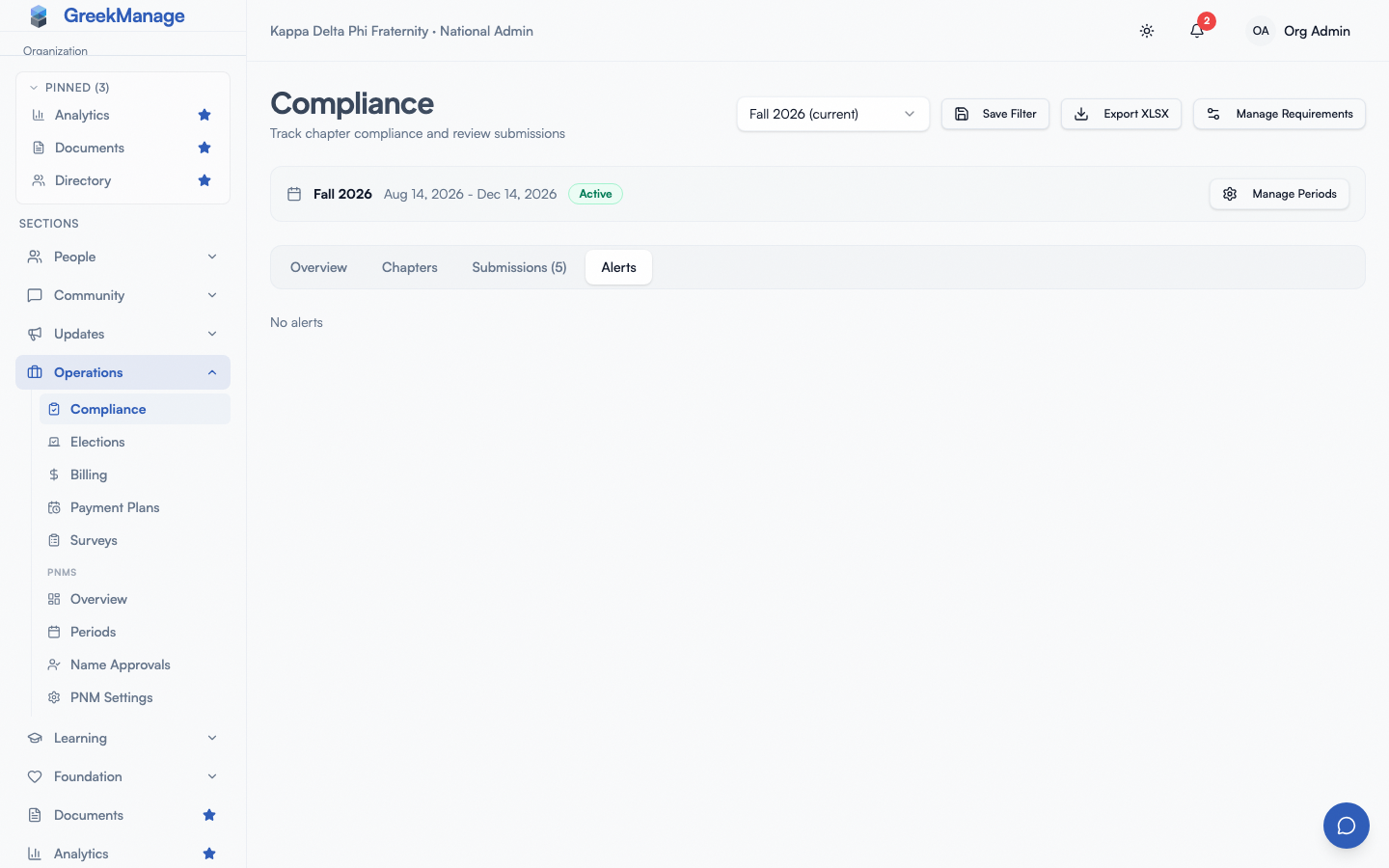 the alerts tab with a list of overdue warnings and Acknowledge / Resolve buttons
Tips on alert hygiene
- Acknowledge daily, resolve weekly. Acknowledge clears the bell so you can see today’s new ones; resolve weekly to keep the historical list useful.
- Use resolution notes. “Chapter submitted late, approved” tells a future regional admin what happened. An empty resolution leaves them wondering.
- Don’t ignore acknowledged alerts. If an alert sits acknowledged for three weeks, the underlying problem is still there.
Per-chapter overrides
An override is a per-chapter target adjustment for a single requirement. It lets you say: “the program says 5 service events per semester, but this colony only needs 3.” The override applies only to that one chapter on that one requirement.
What overrides can adjust
Overrides set a custom target — the number a chapter’s progress on a count or numeric requirement is measured against. They can only be applied to:
- Count tracking — the number of completed submissions the chapter’s count is shown against. A submission counts as soon as the chapter completes it, before review. Reaching the target does not change the requirement’s status on its own; review does.
- Numeric tracking — the target is the value the chapter is self-reporting against.
You cannot override submission tracking requirements (where the requirement is satisfied by a single approved submission — there’s no number to lower). An override also cannot waive a requirement. To excuse a chapter entirely, exempt it.
How to grant an override
Open Compliance → Manage Requirements, find the requirement in the Active Requirements table, and click Overrides in its Actions column. The button appears only on count and numeric requirements — submission-tracked requirements have no target to adjust, so they have no Overrides action.
The dialog lists:
- Existing overrides for that requirement (which chapters, what their custom targets are, optional notes).
- A form to add a new one — pick a chapter, set the custom target, leave notes explaining why.
Save it and the override is in effect immediately. From that point forward:
- The chapter dashboard’s progress bar uses the custom target, not the default.
- The auto-transition logic for numeric tracking uses the custom target (the requirement flips to Submitted when the chapter hits the custom number).
- The XLSX export reflects the override.
You can also edit or delete an existing override from the same dialog. Deleting an override snaps the chapter back to the default target.
Audit trail
Every override creates an audit log entry — who created it, when, and the chapter and custom target. Updates and deletes are logged too. The override row itself captures the granting admin, the optional notes field, and the timestamps. If a regional admin asks “why does this colony only need 3 events when everyone else needs 5?”, the override row tells them, and the audit log says who decided. See Reports, exports, and audit logs.
When overrides apply
Overrides apply to the specific requirement they were created against. Because requirements are bound to compliance periods (see Semester management), an override granted in Fall 2025 does not carry over to the Spring 2026 requirement spawned from the same template. You re-grant it each period.
This is deliberate: a chapter’s circumstances change semester to semester. A colony that needed 3 events instead of 5 in fall may be ready for the full 5 by spring.
Override use cases
- Brand-new colonies still spinning up — lower service-hour or event targets while they grow.
- Chapters under suspension or in academic recovery — reduce non-essential targets while focus is elsewhere.
- Special-case logistics — a chapter at a school that just transitioned online and can’t host in-person events.
What overrides do not do
Overrides do not waive a requirement (the chapter still has to submit; the bar is just lower), do not apply across requirements, and do not cascade across periods. To waive a requirement for a chapter, use an exemption.
There are no limits today on how many overrides an admin can grant or how low a custom target can go. The audit log is the accountability mechanism.
Per-chapter exemptions
An exemption waives one requirement for one chapter for one term. Use it when a requirement does not apply to a chapter at all, not when the chapter should do less of it. For example, a colony below the membership threshold that an NME requirement assumes. Exemptions work on every requirement type, including submission-tracked ones.
How to exempt a chapter
Open Compliance → Manage Requirements. The Applies to column shows how many chapters owe each requirement (for example, 24 of 27). Click Exemptions in a requirement’s Actions column, under Active Requirements. Every requirement there has one, whether a recurring template generated it or it was created ad hoc. The Recurring Templates table has no Exemptions button: an exemption is per term, so it goes on the requirement the template generated for that term, not on the template itself. The hint above that table links to Active Requirements. The dialog is titled for the requirement’s term and shows:
- The chapters already exempt, each with its reason and a remove button.
- An Exempt a chapter form: pick the chapter and enter a reason. The reason is required, because the chapter and its reviewers will read it.
- Copy from previous term, when the same template’s requirement had exemptions last term that have not been copied here yet. Once all of them have been copied, the button disappears.
What an exemption does
As soon as you save it:
- The chapter’s status on that requirement becomes Exempt.
- It leaves every compliance rate: the org overview, the chapter overview, the chapter cards and the analytics KPI. It counts in neither the numerator nor the denominator, and appears as a separate “N exempt” count beside the total.
- The chapter is never marked overdue for it, and no alert fires. If the chapter was already overdue with an open alert, that alert is resolved automatically, with the reason as its resolution note.
- The chapter sees the reason on its requirement list and on the requirement’s page, and is not offered a submission form. Your regional admins see the reason in the chapter drill-down.
Which chapters can be exempted
Only a chapter that still owes the work: not started, in progress, overdue or rejected. If a submission is awaiting review, the exemption is refused, because a reviewer is holding it. Approve or reject the submission first. An approved requirement has nothing left to exempt.
Removing an exemption
Removing an exemption means the chapter owes the requirement again. Its status returns to in progress if it has submissions on record, or not started if it has none. If the due date has already passed, the nightly check marks it overdue as usual.
Exemptions are per term
An exemption belongs to one term’s requirement. When the next term’s requirements are generated from the same template, no chapter starts out exempt, so a chapter’s situation is re-decided each term. To carry last term’s decisions forward, open the new requirement’s Exemptions dialog and click Copy from previous term. The copy is safe to repeat: chapters already exempt are skipped. It also skips any chapter that has since submitted, and names each skipped chapter with the reason.
Who can grant exemptions
Only a national admin of the organization. Regional admins, chapter officers and members can read an exemption’s reason but cannot grant or remove one. Every grant and removal is written to the audit log. See Reports, exports, and audit logs.
How alerts and overrides interact
An override does not silence alerts — it changes the bar at which the requirement is considered satisfied. If a chapter has an override of 3 events and only logged 1 by the deadline, an overdue alert still fires.
Conversely, an alert acknowledgment does not satisfy the requirement — it just clears the badge. The underlying requirement still needs the chapter to submit, get approved, and cross its target (default or override).
Tips
- Document override rationale. A blank notes field becomes a question mark later.
- Re-grant overrides at period open. Make this part of your start-of-semester checklist.
- Copy exemptions forward at period open, then prune. Copy-forward carries last term’s exemptions over in one click. Check the list afterwards: a colony that has grown past the threshold should owe the requirement again.
- Resolve alerts in batches. Friday afternoon: walk the Alerts tab, mark off everything that got cleared during the week, and leave the rest for follow-up.
Related
- Compliance program overview
- Templates and requirements
- Multi-tier approval
- Semester management
- Reports, exports, and audit logs
- Permissions matrix
Last verified against v0.86.72 (2026-09-27).