Chapter compliance dashboards
The org-wide compliance overview tells you “how is the whole org doing.” The chapter compliance dashboard tells you “how is this one chapter doing.” They’re different views, surfaced in different places, sometimes showing the same data but framed for different audiences.
This page walks through both: what national admins see when they drill into a chapter from HQ, and what chapter officers see on their own chapter’s compliance page.
The org-side chapter card
On the Chapters tab of the org compliance page, every active chapter in your organization shows up as a card. Each card surfaces:
- Chapter designation and name.
- A compact status breakdown — how many requirements are approved, pending, overdue, etc. Counts cover required requirements only.
- An
N of M optionalline, shown only when the chapter has optional requirements. Optional completion is reported here and never folded into the percentage above it. - A click target that opens the chapter compliance dashboard (a dialog).
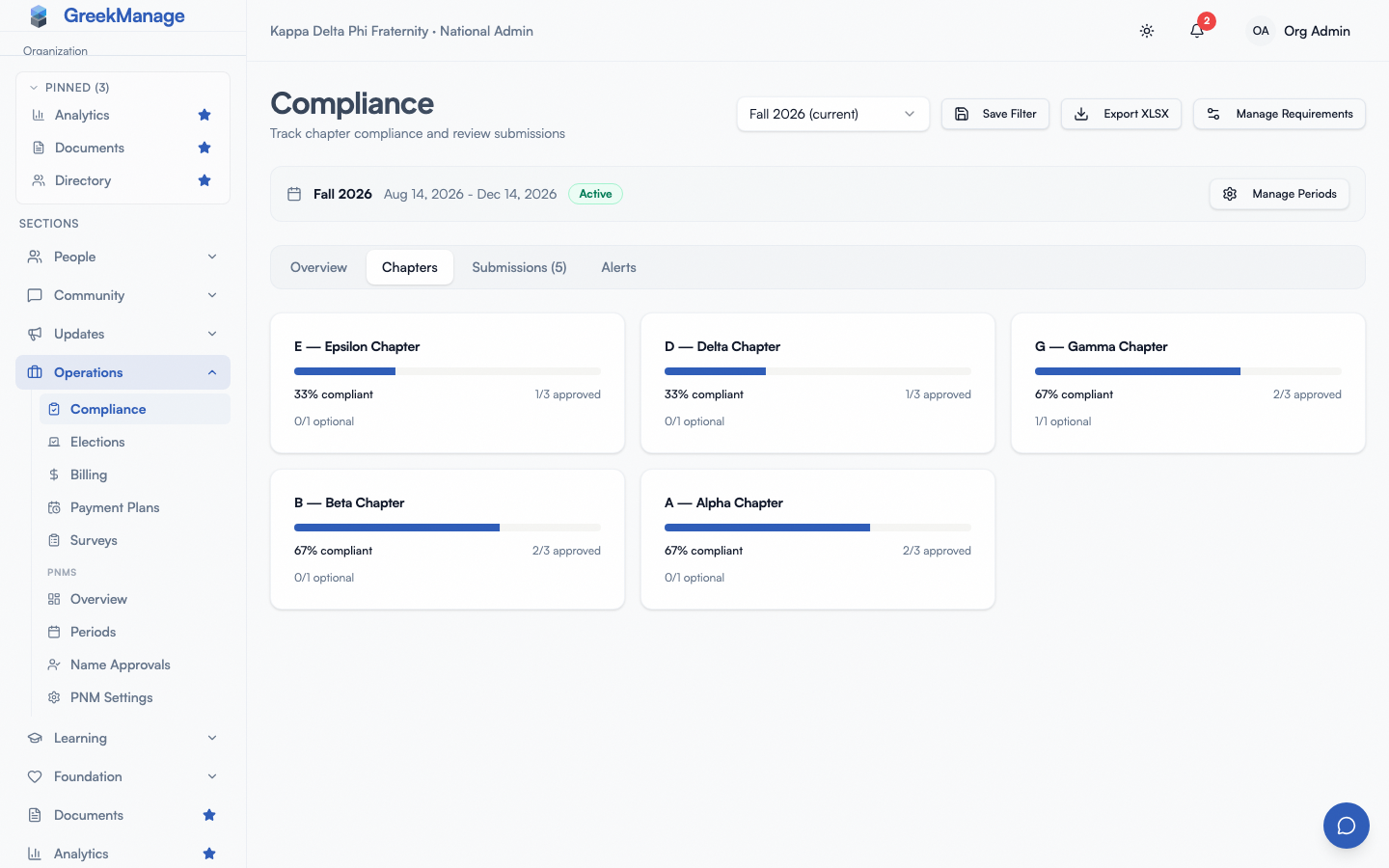 the grid of chapter compliance cards on the Chapters tab
Click any card and the chapter dashboard dialog opens.
To look at one chapter, pick it in the Filter by chapter menu above the cards; All chapters puts the full grid back. The filter works with the semester picker, so “Fall 2026, Alpha only” is two clicks.
A requirement your organization tracks from service hours (see Service hours in Compliance) appears on each card as a progress bar reading the percentage of that chapter’s members who have met this term’s service-hour goal.
How to open the drill-down
There are two ways in, and which you have depends on your role:
- Org / national admins — the Chapters tab of the org compliance page, described above. Click any chapter card.
- Org / national admins and regional admins — Chapters → a chapter → the Compliance tab, then Open compliance drill-down. This works at
/org/chapters/<id>and at/region/chapters/<id>, so a regional admin reaches it for any chapter in their own region.
The second path matters when an approval tier has been skipped. If a national admin skips the chapter tier, the record re-routes to the regional tier — and the regional admin who reviews it next needs to see why that tier is showing as cleared with no reviewer against it. The reason is recorded on the drill-down (see Skipped tiers below), which is why they need a way to open it. Reading a skipped tier’s reason is not permission to skip one: recording an override stays national-admin-only.
Both paths open the same dialog. The Compliance tab appears only for organizations licensed for the Operations module.
Inside the org-side chapter drill-down
The drill-down dialog is the same view your chapter officers see for their own chapter, but with reviewer powers attached. It has four panels:
KPI row
Four stat cards across the top:
- Total — number of requirements assigned to this chapter for the selected semester.
- Satisfied — count and percentage of requirements in Approved (or Exempt) status.
- Pending — count of requirements currently in any pending tier (chapter, regional, or org).
- Overdue — count past their due date and not yet satisfied.
The percentage on Satisfied is the chapter’s compliance rate for the period.
Status chart
A horizontal stacked bar showing the proportion of each status group: Satisfied (green), Pending (amber), Not Started (gray), Overdue (red), Rejected (dark red). The legend below labels every segment with its count.
This is the at-a-glance “is this chapter on track?” view. A bar that’s mostly green with a small amber slice late in the period is healthy. A bar with a lot of gray two weeks before close is a chapter that hasn’t started.
Requirements table
Every requirement assigned to the chapter, with:
- Title — chapter-facing title (clickable to expand).
- Status — the current status badge (Not Started, In Progress, Submitted, Pending chapter/regional/org, Approved, Rejected, Overdue, Exempt).
- Due Date — from the period or from a per-chapter override.
- Submissions — count of submissions made against this requirement (across all attempts).
Click a row to expand it and see every submission made against the requirement — submitter, type, date, evidence file, notes. From here, a reviewer with the right role can approve or reject a pending submission inline without leaving the dashboard.
The expandable inline review is a faster path than the Submissions tab for clearing a single chapter’s queue.
A service-hour-tracked requirement expands to a member list instead of submissions: each active member’s approved hours this term, their goal, and Met, N to go, or No goal (a member whose goal is 0 does not count toward the percentage). The list pages in 25s. Regional admins see it for chapters in their region, through the chapter page’s Compliance tab.
Review actions
Whether the Approve / Reject buttons appear on each submission depends on your role and the submission’s current tier:
| Your role | Where you can act |
|---|---|
| Chapter officer of this chapter | Submissions in Pending chapter for this chapter |
| Regional admin of this chapter’s region | Submissions in Pending regional for this chapter |
| Org / national admin | Submissions in any pending tier (auto-escalates) |
If you’re not eligible to review a submission, the buttons don’t render. See Multi-tier approval for the full breakdown of who can act when.
Skipped tiers
If any approval tier on a requirement was skipped, expanding that requirement shows a Skipped tiers panel above the submissions: which tier was skipped, the reason the national admin recorded, who recorded it, and when. A skipped tier that has since been superseded — because the chain restarted on a rejection — is still listed, marked as such, so the history reads honestly rather than looking like a tier that is still being bypassed.
This is the surface where a cleared tier with no reviewer against it is accounted for, and it is why regional admins can open the drill-down at all.
What chapter officers see on their own dashboard
Chapter officers access their dashboard through their own sidebar: Operations → Compliance under the chapter context.
This page is structured differently from the dialog — it’s a full-page view, not a modal — but covers the same ground from the chapter’s perspective:
- Header — semester picker, back-to-dashboard link.
- KPI cards — total, completed, overdue, in-progress, and compliance rate for the selected semester. Same numbers as the dialog, just laid out as horizontal cards.
- Bar chart — count tracking by status (mirrors the status chart but rendered as a vertical column chart).
- Tracked requirements grid — for count and numeric requirements, each shows a progress bar against the effective target.
- Tabs — Overview, Requirements, Alerts, History.
The Requirements tab
A flat list of every requirement assigned to the chapter for the selected semester. Officers click into a requirement to see its full detail page — the multi-tier approval timeline, all submissions, and the submission form when they need to file a new one.
This is the workhorse view officers spend the most time in.
The Alerts tab
Compliance alerts scoped to this chapter — overdue warnings, primarily. Officers can acknowledge alerts to mark them as seen without resolving them. Resolution happens implicitly when the underlying requirement transitions to Approved. See Alerts and chapter overrides for the alert lifecycle.
The History tab
A merged timeline of every status change and every submission for this chapter across the selected semester (or all semesters). Useful when a regional admin asks “when did your chapter get behind on the headcount report?” — the history lays out the trail.
Differences between admin drill-down and chapter dashboard
Same data, different surface. The key differences:
- The org-side drill-down is a dialog launched from the chapter grid; the chapter dashboard is a full page in the chapter sidebar.
- The chapter dashboard has tabs for alerts, history, and a separate requirements list; the dialog rolls these into one expandable table.
- The chapter dashboard surfaces count/numeric progress bars in the overview; the dialog surfaces the status chart instead.
- Both honor the semester picker.
- Both gate review actions by role (the dialog is more often used by national admins; the dashboard is more often used by chapter officers).
What chapter officers can’t see
- Other chapters’ compliance data. Officers see only their chapter; regional admins see chapters in their region; national admins see everything.
- The template editor or period manager. Both are national-admin only.
- The org-level overview KPIs. Compliance rate “across the org” is not exposed on the chapter view.
A note on health scores
Optional requirements are excluded from this percentage entirely — they are neither in the numerator nor the denominator — and are reported as their own N of M optional figure.
The dashboard surfaces compliance rate as a single percentage (approved / total of the required requirements). That number is the closest thing to a “compliance health score” the platform offers today.
There is no org-configurable weighting screen for compliance — you can’t tell the system that “annual hazing attestation” should count for 10× a “monthly headcount” when computing a composite chapter health score. Compliance rate is a flat fraction. Retention has its own separate health model (see Analytics → Retention tab, gated by the Operations module); chapter governance, dues, and other modules compute their own indicators independently. The platform does not roll them up into one number today.
If you need a composite score, export the XLSX and roll it up in your tool of choice.
Tips
- Drill in from the org page. Don’t try to manage 30 chapters from the global Submissions tab — drill into each chapter when you need to clear its queue.
- Use the chapter dashboard semester filter for officer transitions. Outgoing officers should walk new officers through “Spring 2026 — Requirements tab” together.
- Bookmark the History tab. Regional admins doing accountability calls find it the fastest way to reconstruct a chapter’s recent activity.
Related
- Compliance program overview
- Multi-tier approval
- Alerts and chapter overrides
- Compliance submissions (officers)
- Permissions matrix
Last verified against v0.65.25 (2026-07-05). Corrected a stale reference to a standalone “Retain module” — retention merged into the Analytics module’s Retention tab (gated by Operations) in v0.65.0.