Compliance program
A compliance program is the recurring set of requirements your chapters submit to you for review — monthly headcount, annual hazing prevention attestations, GPA reports, philanthropy hours.
Deep dives for each Compliance surface: Requirement templates · Multi-tier approval · Semester management · Chapter dashboards · Alerts & overrides · Submissions & evidence
Open compliance settings
Org → Compliance (or your org’s nav path to Compliance).
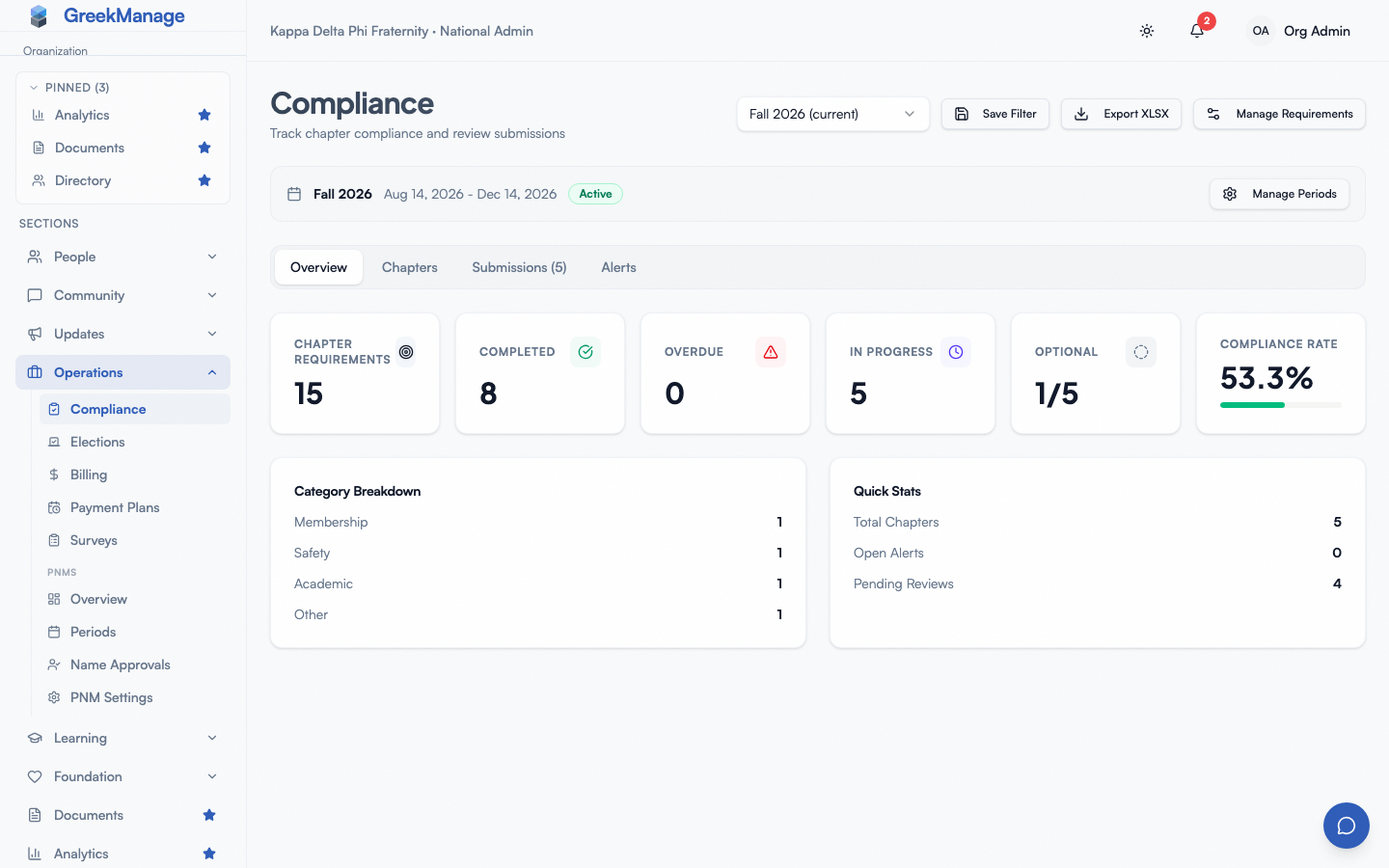 The org compliance program editor.
Create a requirement
- Click New requirement.
- Set:
- Title (e.g., “Monthly headcount”)
- Description — what chapters need to do. Chapters read it in the Instructions card on the requirement’s detail page, shown exactly as you type it — so numbered steps and line breaks survive. Leave it blank and the card does not appear at all.
- Category — Administrative, Financial, Membership, Safety, Academic, Service Hours, NME/Intake, Other
- Frequency — One Time, Monthly, Quarterly, Semesterly, Annually
- Priority — Low, Medium, High, Critical
- Due date (one-time) or recurrence month / day (recurring)
- Academic year and semester (Fall / Spring) if tied to a compliance period
- Require evidence — an attestation alone will not satisfy this — untick it for requirements a chapter can satisfy by confirming they did the thing, with nothing attached
- Optional — does not count toward compliance — see Optional requirements below
- Tracking type — submission-based or value-based (a numeric target)
- Add a structured form (optional) — a form builder, if you want chapters to answer specific questions rather than attach a file
- Optionally pick a Compliance period and Template so the requirement is generated from your reusable template each cycle.
- Save.
Evidence and forms are separate choices
These two controls are independent, and it is worth being clear about which does what:
- Require evidence governs one thing: whether an attestation — “I confirm we did this”, carrying nothing else — is enough to satisfy the requirement. Untick it and an attestation is accepted; leave it ticked and a chapter must attach a document, link, event or written response.
- The structured form is collected whenever you have defined one, whether or not evidence is required. A form is a set of questions you want answered; it is not the same decision as whether proof is needed.
So a requirement may legitimately ask for a form and accept an attestation, or require evidence with no form at all. The form builder used to be hidden whenever Require evidence was unticked, which meant a form you had already defined stayed stored, stayed served to chapters, and became invisible to you. It no longer is: click Add a structured form to define one, and an existing form always opens expanded so you can see and edit what chapters are being asked.
Optional requirements
Tick Optional — does not count toward compliance to publish a requirement your chapters may complete rather than must.
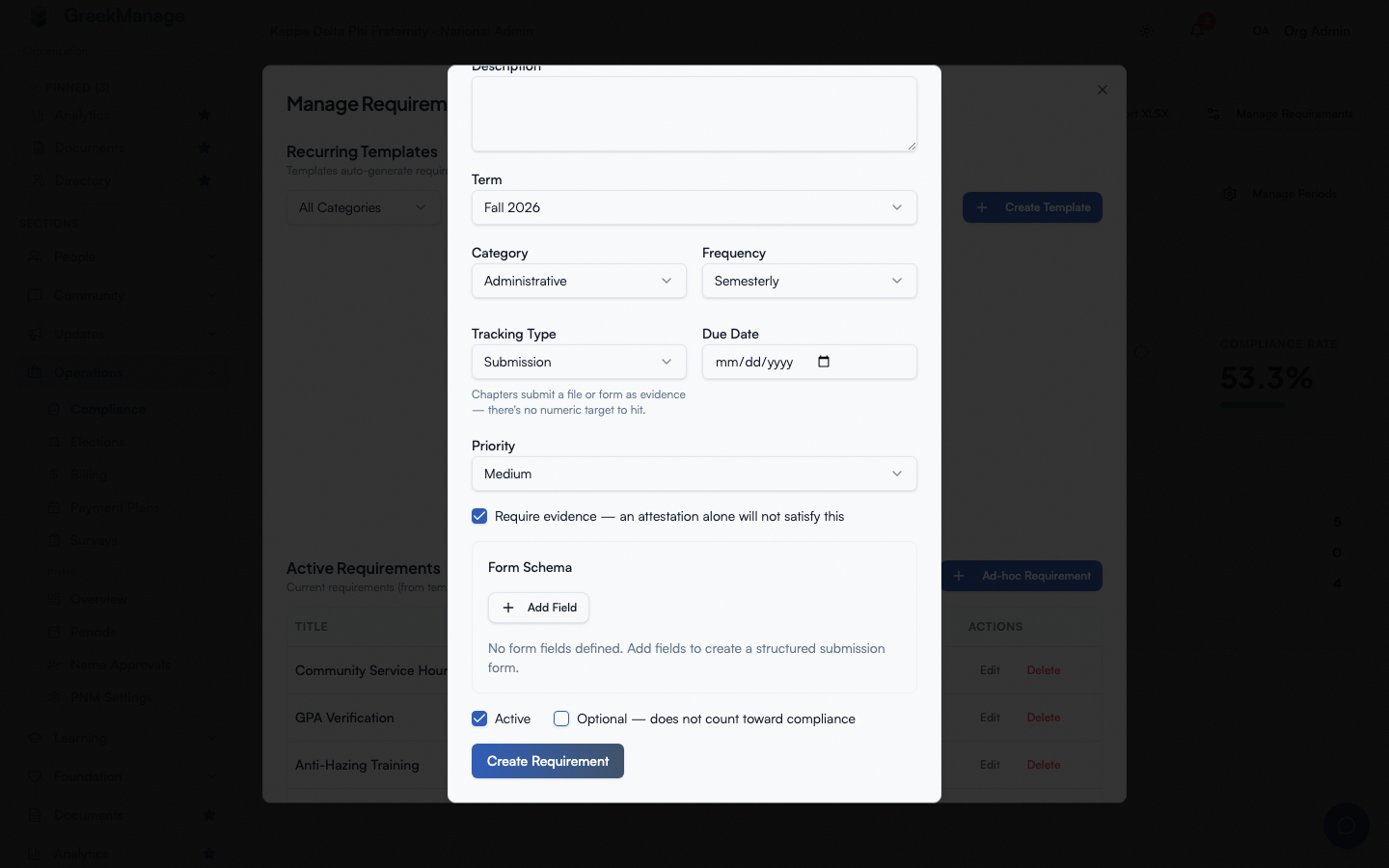 The optional flag sits beside the other requirement toggles, and is off by default.
An optional requirement behaves like any other — it appears on the chapter’s list, accepts submissions, and goes through the same review ladder — with three deliberate differences:
The optional flag sits beside the other requirement toggles, and is off by default.
An optional requirement behaves like any other — it appears on the chapter’s list, accepts submissions, and goes through the same review ladder — with three deliberate differences:
- It is excluded from the compliance rate. A chapter that ignores every optional requirement still shows 100%. Optional completion is reported separately, as an
N of M optionalfigure beside the rate, so uptake stays visible without moving the compliance number in either direction. - It never goes overdue. Its due date still displays, as guidance, but the nightly evaluation will not mark it overdue.
- It never raises an alert. No compliance alert, no admin email or push.
Rows for optional requirements carry an Optional badge so chapters can tell at a glance which work is not scored.
Optional is also available on a template, in which case every requirement that template generates inherits it.
Making an existing requirement optional
Marking a live requirement optional cleans up the pressure it already applied: its open alerts resolve, and any chapter row that had gone Overdue returns to In Progress (if the chapter had submitted something) or Not Started. Rows already approved, rejected, or awaiting review are left exactly as they are.
Turning it back into a required requirement does not re-apply the old overdue marks — the next nightly evaluation decides afresh from the due date.
Templates and periods
Use Compliance Templates to define a requirement once and generate it across multiple compliance periods. A compliance period is a Term (a semester or academic year cycle) plus its compliance config. New NationalRequirement rows are spawned from a template per period.
Submission types
Each ComplianceSubmission is one of:
- Event (with title, description, attendees)
- Document (file upload to your configured storage)
- Link (external URL)
- Text (free-form note)
- Attestation (acknowledgment-only)
- Form (structured JSON answers matching the requirement’s
form_schema)
Attachments are validated by magic-byte sniffing and size cap on the backend.
Multi-tier approval workflow
Each chapter’s progress on a requirement is tracked in ChapterComplianceStatus. Statuses move through:
not_started → in_progress → submitted →
  pending_chapter → pending_regional → pending_org →
  approved | rejected
Other terminal states: overdue, exempt. Exempt is set only by a national admin granting an exemption. It is left out of every compliance rate, in both the numerator and the denominator, and is reported beside the rate as its own count.
Which of the pending_* tiers a submission passes through is set by your organization’s approval chain in Settings → Approval Chains, or by a requirement’s own chain — see Approval chains. National (org) review is always the last tier. A member’s submission starts at the first tier of the chain; an officer’s skips the chapter tier. Each tier that reviews captures who reviewed (chapter_reviewed_by, regional_reviewed_by, reviewed_by), when, and free-form review notes.
Per-chapter overrides and exemptions
Two separate tools, for two different situations:
- A target override lowers (or raises) the number one chapter must hit on a count or numeric requirement. It does not change due dates, and the chapter still has to meet the new target. See Alerts & overrides.
- An exemption waives one requirement for one chapter for one term: for example, a colony below the membership threshold that NME assumes. It works on any requirement type. An exempt chapter is not scored on that requirement, is never marked overdue for it, and gets no alerts for it. The reason you enter is shown to the chapter, its regional admin and your team. See Alerts & overrides.
Reviewing submissions
When a chapter submits:
- You get a notification.
- Open Org → Compliance and filter to the appropriate review queue.
- Review the submission contents (file / form / attestation / link).
- Approve or Reject with notes. Rejected status returns to the chapter for resubmission.
Compliance reporting
Org compliance views show overall on-time rates, per-chapter performance, and currently overdue chapters. Reports are available in the Compliance section (separate from the org settings page) and can be exported.
What’s not built today
- No dedicated “Health Scores” settings tab. Compliance performance is visible in the compliance dashboard and chapter detail views, but there’s no org-configurable weighting screen tying compliance to a single chapter “health score” today.
- No bulk-approve UI for selecting many submissions at once — approvals are per-submission.
- No automatic exemption rule. Exemptions are granted chapter by chapter, per term. There is no “exempt every chapter under N members” setting; use Copy from previous term in the exemption dialog to carry a standing decision forward.
Tips
- Start lean. A 6-requirement program is easier to maintain than 30. Add requirements as gaps surface.
- Use templates for recurring work. Author once, generate per period.
- Mark aspirational work optional rather than leaving it out. A requirement nobody is penalised for still gives you a place to collect evidence and a number showing how many chapters chose to do it.
- Use form schemas for structured data. A JSON schema makes downstream reporting much easier than parsing PDFs.
Related
Last verified against v0.86.72 (2026-09-27).