Compliance templates and requirements
A template is the reusable definition of a compliance obligation — “Monthly headcount”, “Annual hazing prevention attestation”, “5 philanthropy events per semester”. A requirement is the actual, dated instance of that template for a specific semester, attached to every active chapter.
You author templates once. The platform spawns requirements from them when a new compliance period opens.
Open the manage requirements panel
Org sidebar → Operations → Compliance → Manage Requirements.
The panel has two stacked sections — Recurring Templates on top, then Active Requirements (the requirements that have been generated for the current cycle plus any one-off ad-hoc additions).
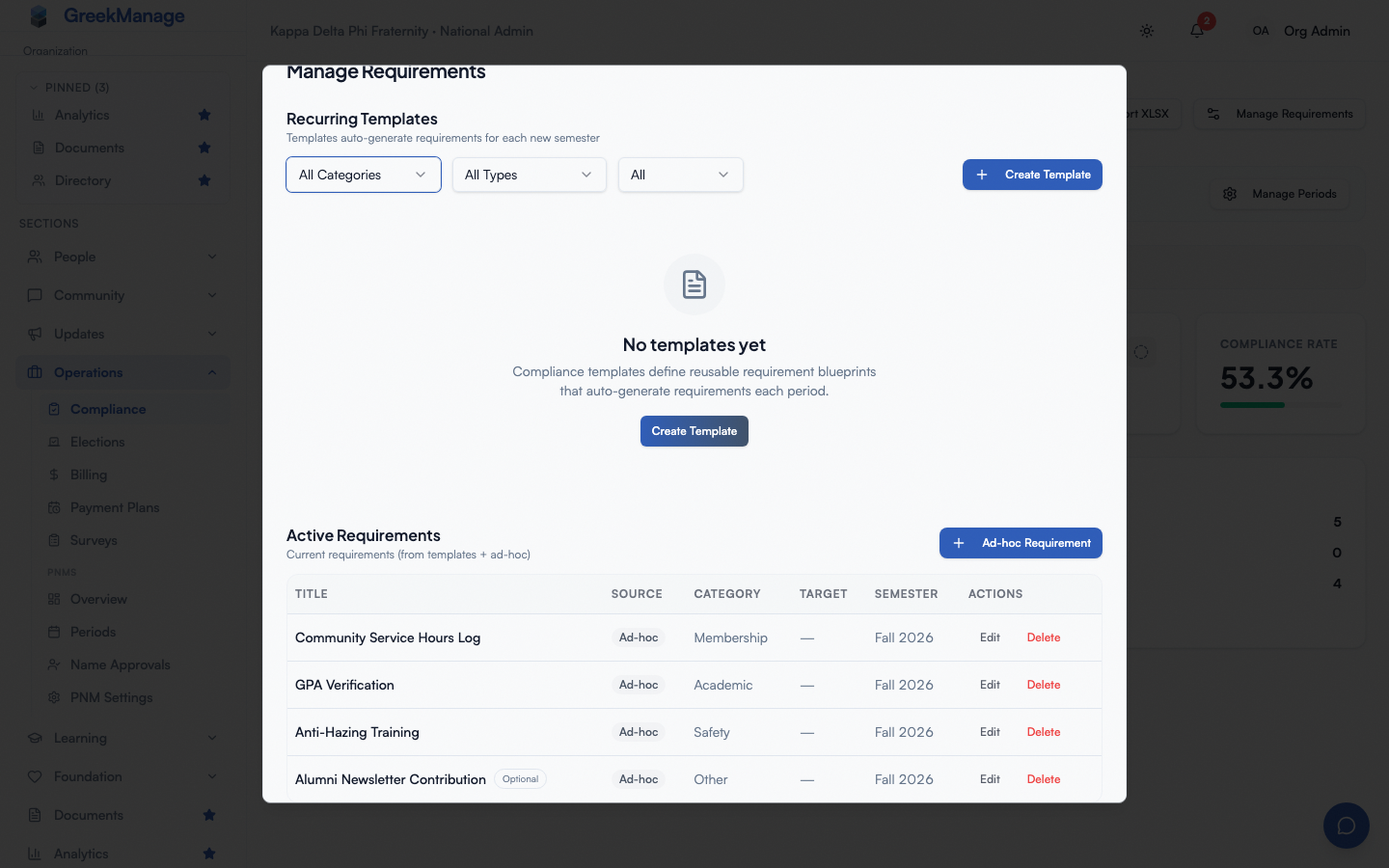 Manage Requirements panel — recurring templates on top, active requirements below.
Build a template
Click Create Template under Recurring Templates. The dialog asks for:
Title — what chapters will see (e.g., “Monthly Headcount Report”).
Description — the instructions chapters read when they open the requirement.
Category — one of Administrative, Financial, Membership, Safety, Academic, Service Hours, NME/Intake, Other. Categories drive the breakdown chart on the org compliance overview. (PNM applications and PNM fraternal names moved off compliance categories onto their own approval chains — see Approval chains.)
Frequency — Semesterly (generates every fall and spring) or Annually (generates in fall or spring only — you pick which).
Priority — Low / Medium / High / Critical. Cosmetic today; surfaces in the requirements list.
Tracking type — how the platform decides whether a chapter has satisfied this requirement. See the next section.
Target value and Target unit — used when tracking is count-based or numeric (e.g., target value 5, unit “events”).
Requires evidence submission — uncheck for attestation-only items where the chapter is just affirming something without uploading anything.
Form schema — an optional structured form (text inputs, checkboxes, dropdowns) that chapters fill in instead of uploading a file. Useful for headcount reports, GPA dashboards, anything you want to roll up cleanly in the XLSX export. Number fields accept decimals (for example a 3.25 GPA); set Min/Max to bound them.
Annual semester — only shown when frequency is Annually. Pick the semester the requirement should generate in (e.g., a fall-only IM&E policy attestation).
Due days before term end — when each requirement this template generates falls due, counted back from the term’s end date (e.g.,
14makes it due two weeks before the term ends). Leave it blank to use the term’s end date. A value longer than the term never puts the deadline before the term starts — it is held at the term’s start date instead. For an annual template generating into a full-year term, the count runs back from the end of the year.Optional — does not count toward compliance — every requirement this template generates is tracked but unscored: excluded from the compliance rate, never marked overdue, never alerted on. See Optional requirements.
Active — uncheck to retire a template without deleting it.
Save the template. If you have an active compliance period when you save, the requirement is generated for it immediately. If you don’t have one, the platform auto-creates the current semester’s period and spawns the requirement into it.
Tracking types
This is the most important choice when building a template. It controls how chapters can satisfy the requirement and how the dashboard counts progress.
Submission tracking
The chapter satisfies the requirement by sending one piece of evidence (a file, link, attestation, text note, or form). Once an admin or chapter officer approves it, the requirement flips to Approved and that’s it.
Use this for one-and-done items: signed contracts, a single policy upload, an officer roster.
Count tracking
The chapter works toward N submissions, where N is the target value, and sees its count of completed submissions against N. The count includes submissions still in review, and reaching N does not approve anything by itself: as with every requirement, it is Approved when its reviewers approve it. Pick a target unit (“events”, “uploads”, “checks”) to make the unit clear in the UI.
When the target is greater than 1, the template generator splits the requirement into N separately-titled instances — “Service Event (1 of 5)”, “Service Event (2 of 5)”, etc. Each instance accepts one submission, gets reviewed independently, and contributes to the chapter’s overall progress on that template.
Use this when you want chapters to perform a recurring activity a fixed number of times per semester.
Numeric tracking
The chapter self-reports a running total that needs to hit a target. The chapter updates the current value directly on the requirement page; the platform compares the current value to the effective target and auto-transitions the requirement to Submitted once the target is met (and back to In progress if the chapter edits the value back down).
Use this for cumulative metrics: chapter GPA, philanthropy hours, donation dollars raised. Numeric requirements do not require file uploads — the value itself is the evidence.
Numeric and count requirements both support per-chapter overrides. See Alerts and chapter overrides.
Submission types
When a requirement uses submission tracking (and the template has Requires evidence submission checked), the chapter chooses how to submit:
- Event — title, description, attendees list. Good for service events and educational programs.
- Document — uploaded file. Stored in your org’s configured storage.
- Link — external URL (Google Drive, Dropbox, a public page).
- Text — free-form note. Use sparingly; hard to audit later.
- Attestation — acknowledgment-only. Pair with templates where Requires evidence submission is off.
- Form — structured answers matching the template’s form schema.
Attached files are validated by magic-byte sniffing and a 25 MB size cap. Allowed types include images, PDF, Word, Excel, PowerPoint, plain text, CSV, and ZIP.
What gets cloned, and when
Templates and requirements are linked. When you create or activate a compliance period:
- Every active template marked semesterly spawns a requirement in that period.
- Every active annually template spawns a requirement only if its annual semester matches the period.
- For every active chapter, a tracking row is created for each generated requirement, starting in Not started.
The requirement carries a copy of the template’s title, description, category, frequency, priority, tracking type, target value, target unit, requires-submission flag, and form schema at the moment of generation. Edits you make to a template later do not retroactively update requirements already generated for prior periods — they only affect future periods. This protects historical data: a Fall 2025 requirement reviewed and approved with the old form schema stays exactly as it was approved. The same goes for Due days before term end: it sets the due date when a requirement is generated, so changing it later does not move the deadline of a requirement that already exists — edit that requirement’s due date directly. A requirement whose template’s offset was changed after it was generated is treated like a hand-edited one, and stays put when the term’s dates change.
Ad-hoc requirements
If you need a one-off — a special audit, an emergency compliance check — open the panel and click Ad-hoc Requirement. This creates a requirement directly without a template behind it. Every requirement in the table — ad-hoc or template-generated — has an Edit action; ad-hoc requirements additionally have a Delete action (template-generated ones don’t — to remove those, retire the template or close the period).
Pick the term from the dropdown. The dialog’s first field is Term, listing the terms your organization has set up by the same name you see everywhere else — “Fall 2026”, “Spring 2027”. It defaults to the term the page is currently filtered to, so a requirement lands where you are looking. If no term is listed, none has been created yet: set one up in Semester Setup first.
After saving, a confirmation names the term the requirement was added to. If it can’t be saved, the reason appears in its place — nothing is created silently.
Edit constraints once submissions exist
You can edit a template’s title, description, and other metadata at any time. The edits affect future generations.
For a requirement that has already been generated and might have submissions against it, click Edit in the requirements table:
- Title and description — safe to edit; chapters see the new copy immediately.
- Category and priority — safe to edit; they only affect filtering and rollup counts.
- Tracking type, target value, target unit — locked once any chapter has logged count/numeric progress or submitted evidence: the fields disable in the edit form, and the API rejects a change to them even if you script around the UI. If you must change a target for one chapter, use a per-chapter override instead.
- Form schema — editing the schema after chapters have submitted form data risks orphaning existing answers. Keep edits additive (add new fields, don’t rename or delete existing ones) until the period closes.
- Due date — safe to push back; safe to pull forward as long as it gives chapters reasonable notice. Chapters see the new date immediately, and any chapter already marked overdue under the old date clears as soon as the new date is today or later — its open overdue alert is resolved with “Due date moved”, and the chapter goes back to In Progress if it had already submitted something or Not Started if it had not. Moving the date to another date that has also already passed changes nothing: that requirement is still genuinely overdue. Editing a term’s own start or end dates moves the due dates of requirements generated from it, and every chapter’s copy, to match the new dates (#1824). A due date someone edited by hand is never changed, and nothing moves in a closed compliance period.
- Term — not locked once progress exists. Change it with care: chapter compliance status is tracked per-requirement, not per-term, so deliberately reassigning a requirement’s term after chapters have recorded progress moves that recorded progress into a different reporting period along with it.
Deletion is allowed for ad-hoc requirements only. Template-generated requirements are tied to their period — close the period instead.
Tips
- Start lean. A six-template program is easier to maintain than thirty. Add as gaps surface.
- Pick the right tracking type up front. Switching submission → count after chapters have started submitting is messy.
- Use form schemas for anything you want to roll up. A structured form makes the XLSX export usable; parsing free-form text or PDFs is not.
- Retire instead of delete. Uncheck Active on the template; old requirements keep their history.
Related
- Compliance program overview
- Multi-tier approval
- Semester management
- Alerts and chapter overrides
- Compliance submissions (officers)
- Permissions matrix
Last verified against v0.62.1.