Compliance semesters and periods
Compliance is organized by periods — each period is one academic-term cycle (a fall or a spring semester) bound to a specific academic year. Every requirement and every chapter status row carries the period it belongs to, so history is preserved cleanly: Fall 2025’s compliance data lives in Fall 2025 forever.
This page covers the period lifecycle (draft → active → closed), the semester picker that lets you navigate across cycles, and what does and does not roll over between periods.
The semester picker
At the top of the compliance page, there’s a semester selector with three states:
- All Semesters (default) — shows requirements and submissions across every period your org has ever had. Useful for finding a single requirement when you’re not sure which period it lived in.
- A specific past semester (e.g., “Fall 2024”, “Spring 2025”) — filters the page to just that period. The current academic year’s semesters appear at the top; older ones are below.
- Current semester — labelled “(current)” in the dropdown. This is shorthand for “show me the active cycle.”
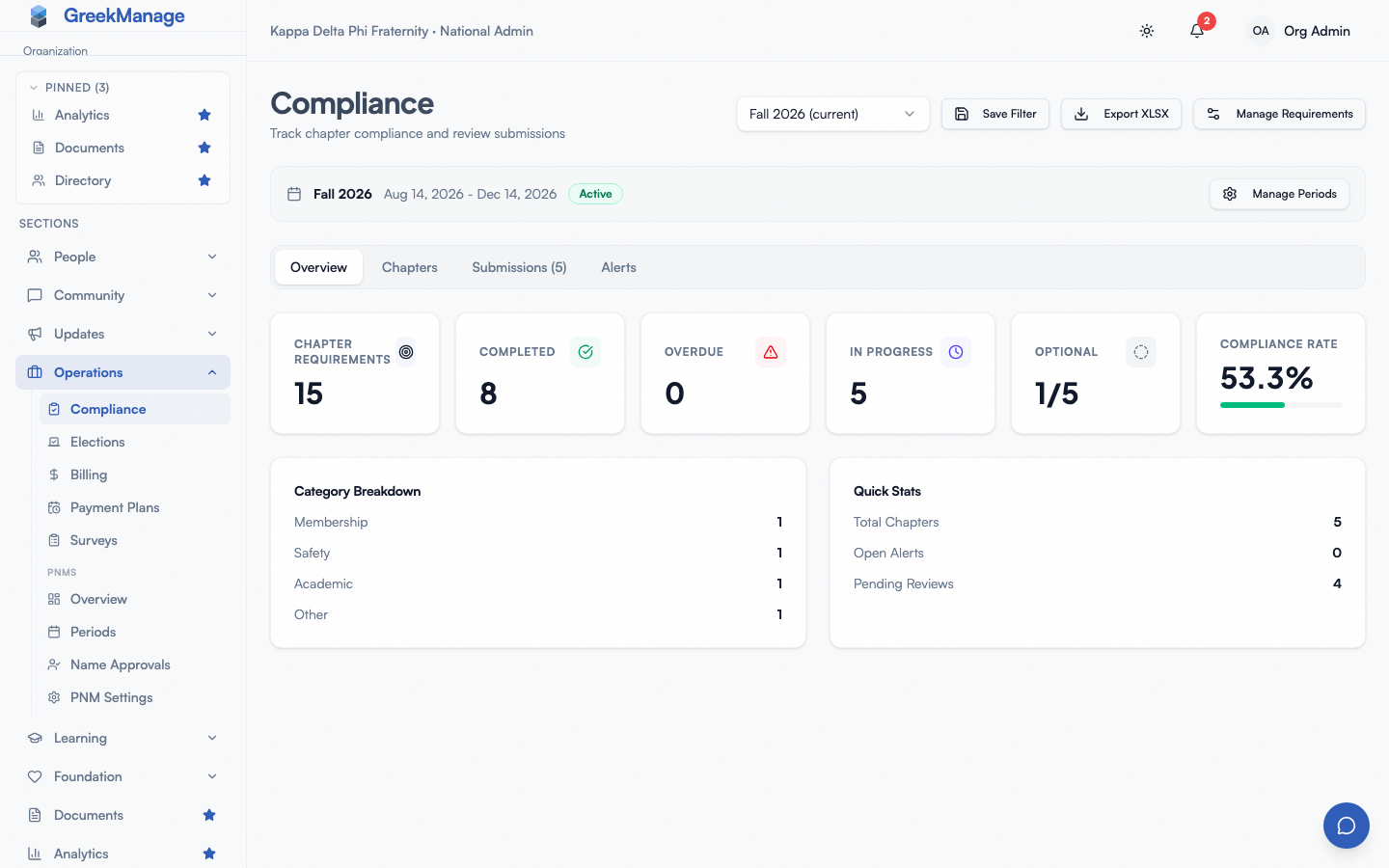 the semester dropdown on the org compliance page
Every tab on the compliance page (Overview, Chapters, Submissions, Alerts) respects the picker. The KPI counts at the top reflect the filtered period. Historical performance is just a click away.
Period lifecycle
A period has three statuses:
- Draft — the period exists but is not collecting submissions yet. You can edit dates and metadata.
- Active — submissions are open, the cascade is live, alerts fire. Requirements have been spawned from active templates and every chapter has a status row.
- Closed — the period is locked. No new submissions, no status transitions, no approvals. Existing data is preserved for reporting.
There’s a flow control rule: only one period can be active at a time per organization. If you try to activate a second period while one is already active, the platform refuses. Close the current period before opening the next.
Opening a period
Org compliance page → Manage Periods → Create Period.
Provide:
- Academic year — the ending year of the term (e.g., for 2025–2026, enter 2026).
- Semester — Fall or Spring.
- Start date and End date — the window during which submissions are accepted. The end date is also the default due date for every requirement in the period.
When you click Create Period, two things happen at once:
- The period is created and immediately set to Active.
- The platform reads every active template you have, generates a fresh requirement from each one (semesterly templates always; annual templates only if their annual semester matches the new period’s), and creates a tracking row for every active chapter starting at Not started.
Within seconds, your chapters have a fresh slate of requirements to work on. Notifications are not blasted out on period open today — chapters discover the new requirements when they visit their compliance page or are alerted to overdue items as deadlines approach.
If you create a template after opening the period, the platform auto-generates a requirement for the active period (and creates a period if one doesn’t exist). You don’t need to re-open the period to backfill.
Editing a draft or active period
Active periods can be edited — start/end dates and basic metadata. Be careful with end-date changes because the end date is the default due date for every requirement, and pulling it forward can make requirements suddenly overdue.
Closed periods are read-only. The API rejects edits.
Closing a period
When the semester wraps, open Manage Periods and click Close Period on the active row. The confirmation makes it clear the close is final — submissions stop, the cascade pauses, and the period switches to Closed.
After close:
- Chapters can still view their compliance data for the closed period (read-only).
- Submissions that were still in pending tiers stay there but cannot advance. Plan to clear the pending queue before you close.
- Requirements that were never satisfied stay in their final state (e.g., Overdue, In progress, Rejected).
- The XLSX export includes closed-period data — it’s not hidden.
Read-only prior-semester views
The semester picker lets you (and your chapters) navigate to any past period. When viewing a closed period:
- Submission cards have no Approve / Reject buttons.
- Numeric self-reports cannot be edited.
- Templates and requirements are visible but cannot be regenerated for a closed period.
This makes prior semesters effectively a sealed archive — auditable, exportable, but immutable.
What rolls over, and what doesn’t
The single most common question after a period closes: what carries forward?
Templates roll over
Templates are organization-level — they belong to the org, not to a period. When you open the next period, every active template spawns a fresh requirement into it. Inactive templates are skipped.
Requirements do not roll over
A requirement is bound to its period. When Fall 2025 closes and Spring 2026 opens, you do not end up with the same physical requirement row in both periods. You end up with two separate requirements (both spawned from the same template) — one in each period. This is what keeps history clean.
Chapter status does not roll over
Each chapter starts every new period at Not started for every freshly-spawned requirement. A chapter that nailed every requirement in Fall 2025 has to start over in Spring 2026.
This is by design — “compliant last semester” doesn’t mean “compliant this semester.” Chapters earn their status every cycle.
Overrides do not roll over
Per-chapter target overrides are bound to a specific requirement. Since requirements are bound to periods, an override applied in Fall 2025 does not carry over to Spring 2026. You re-grant overrides each cycle.
This is intentional too: a colony that needed an override last semester may not need it this semester.
Alerts do not roll over
Compliance alerts (overdue warnings, etc.) are bound to the requirement that triggered them. Closing a period doesn’t auto-resolve alerts, but new alerts stop firing for closed-period requirements.
Semester-bound vs evergreen requirements
Every requirement spawned from a template is bound to a period. But ad-hoc requirements (created directly without a template behind them) can be left unbound — they have no compliance period attached, no academic year, no semester. These behave like “evergreen” requirements: they’re not generated each cycle, they don’t disappear when periods close, they just exist until you delete them.
Use evergreen requirements for one-off special audits. Use template-bound requirements for anything that recurs.
Reporting across semesters
The Export XLSX button at the top of Org → Compliance (national admins) builds one workbook of your whole compliance program: the requirements, every chapter’s status on each, and the structured form submissions, across every period. The semester picker does not narrow it, so you get a multi-semester report by default.
The workbook is built in the background. The button reads Exporting… while it runs, and the file downloads by itself when it is ready, usually within a few seconds. If it cannot be built, an Export failed message gives the reason; click the button again to retry. See Reports, exports, and audit logs for details.
Tips
- Close before you open. The platform won’t let you have two active periods, so the workflow is always close-then-open.
- Clear the pending queue before close. Pending submissions in a closed period are stuck.
- Pick end dates that give chapters breathing room. The end date is the default due date — too tight and everything turns overdue.
- Use evergreen requirements for special audits. Keep periods focused on the recurring program.
Related
- Compliance program overview
- Templates and requirements
- Chapter dashboards
- Reports, exports, and audit logs
Last verified against v0.62.1.